

Tally
Connect Tally forms to your workspace to add or update people and trigger automations when they submit your form. Our Tally integration relies on a webhook from Tally.
How it works
When you set up a Tally integration, Customer.io gives you a personalized Webhook URL. You add this webhook URL to your form in Tally. Whenever someone submits your form, Tally sends the form submission data to Customer.io.
Each submission creates a profile in your workspace if one doesn’t already exist, or updates the profile if it does. Customer.io saves each answer to an attribute A key-value pair that you associate with a person or an object—like a person's name, the date they were created in your workspace, or a company's billing date etc. Use attributes to target people and personalize messages.form_submit event. Customer.io names the attributes for you, based on your form, and you can change the mappings after the first submission.
You can also trigger automations when people submit your form. This provides a handy way to send personalized responses. You can personalize responses with liquid A syntax that supports variables, letting you personalize messages for your audience. For example, if you want to reference a person's first name, you might use the variable {{customer.first_name}}.{{customer.<attribute>}}) or form fields from the form_submit event ({{event.<field_ID>}}).
Connect Tally to your workspace
As a part of this process, you’ll add a webhook to your Tally form. After someone submits your form, it appears in your workspace on the Integrations > Forms page. Then you can map form fields to attributes.
-
Go to Integrations > Forms. Click Connect form and select Tally.
-
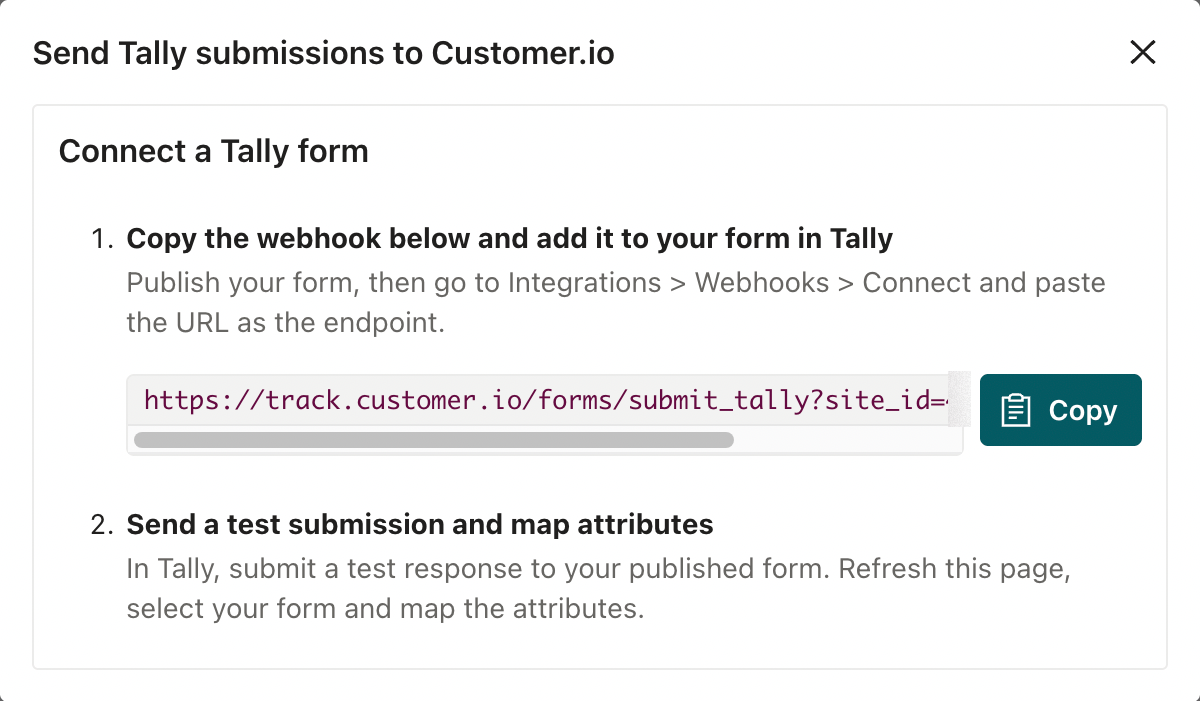
Click Copy to get your webhook URL.
-
In Tally, publish your form. Then go to your form’s Integrations tab and click Connect next to Webhooks.
-
Paste the URL you copied as the endpoint and click Connect.
Now, Customer.io is set up to capture submissions from your Tally form. We suggest that you send a test submission so that you can see how your form’s fields map to attributes in Customer.io. This gives you the opportunity to re-map fields to attributes before you share your form with a wide audience.
Customer.io only receives submissions that Tally sends to the webhook. If someone submits your form before you connect the webhook, or while the webhook is paused in Tally, that submission doesn’t reach Customer.io.
How Customer.io maps your form’s fields
When a submission includes a field that Customer.io hasn’t seen before, we map it to an attribute A key-value pair that you associate with a person or an object—like a person's name, the date they were created in your workspace, or a company's billing date etc. Use attributes to target people and personalize messages.
- Email: We use the first Email block on your form (Questions > Email in Tally) as the
emailattribute of the person who submitted the form. If your form doesn’t have an Email block, you can identify people with a hidden field namedemail. If your form has both when someone first submits it, the Email block identifies the person. If you add an Email block later to a form that already identifies people with a hiddenemailfield, the new block stays unmapped until you map it. - Questions: We convert the question text to an attribute name in snake case, limited to 40 characters. For example, a question titled “What is your name?” becomes a
what_is_your_nameattribute. We drop any character that isn’t a letter from A to Z or a digit, soCorreo electrónicobecomescorreo_electrnico. If a question has no letters from A to Z or digits, we don’t create an attribute for it, and you need to map it yourself. - Hidden fields: We convert the hidden field’s name to snake case. We treat
-,_, and a capital letter after a lowercase letter as the start of a new word. For example,utm-source,UTM_Source, andutmSourceall map toutm_source, andoriginPagemaps toorigin_page.
When you add a field to your form, we map it the next time someone submits your form. If you rename a question in Tally, it keeps the attribute it already maps to. If you update a mapping in Customer.io, the attribute name you set persists across later submissions.
A blank answer clears the attribute that the question maps to. If someone who’s already in your workspace skips an optional question, or your form hides a question with logic, Customer.io removes that attribute from their profile.
If you delete a field mapping in Customer.io while the field still exists in your Tally form, the next submission adds the mapping back with a generated attribute name. To stop capturing a field, remove it from your form.
Fields that identify people
In general, forms contain an Email block and one or more questions. The Email block identifies the person who submitted the form, and the questions contain the person’s answers.
But you can use other fields to identify people.
- Phone numbers: If your workspace identifies people by phone number, map your phone question to the
phoneattribute. By default, Tally’s Phone number block maps to aphone_numberattribute, which doesn’t identify anyone. Phone numbers must be in E.164 format, like+14155550123. A phone number identifies the person only when the submission doesn’t include an email address or ID. Otherwise, Customer.io saves the number to the person’sphoneattribute. - Workspaces that identify people by ID: If your workspace identifies people by ID only, the Email block doesn’t identify anyone. Map a field to
idinstead, such as a hidden field namedid.
Map form fields to attributes
After someone submits your form, you can change the attribute that each field maps to. Do this before you share your form widely, so that answers land on the attributes you already use.
-
If you haven’t already, submit a test response to your published form in Tally.
-
In Customer.io, go to Integrations > Forms and refresh the page.
-
Click and select Manage form.
-
Click Edit under Mapped fields to set the attributes for each form field. In each field, you can select an existing attribute or type in a new one.
-
Click Save changes when you’re done.
Now you can take advantage of form submissions to trigger automations, personalize messages, and more. See Use form data in Customer.io for more information.
Tally field types
Tally sends some answers in formats that affect how you use them in Customer.io. Customer.io stores every answer as a string, including answers that Tally sends as a list.
- Multiple choice, dropdown, checkboxes, multi-select, and ranking: stored as a JSON array of strings, even when someone picks one option. For example, a single choice arrives as
["Pro"], and checkboxes arrive as["Surf","Golf"]. A ranking keeps the person’s order, like["Pear","Apple","Banana"]. In segments and filters, use contains instead of equals, because equals Pro doesn’t match["Pro"]. Keep in mind that contains Pro also matches a longer option, like Pro Plus. - Matrix: stored as a JSON object with one key per row, where each row holds a JSON array of strings. For example,
{"Quality":["Satisfied"],"Speed":["Neutral"]}. - Numbers, ratings, dates, and times: stored as strings in the format Tally sends. For example, a number is
10, a rating is4, a date is2026-11-10, and a time is14:30. - File uploads and signatures: stored as a JSON array of strings, one file URL per string. For example,
["https://storage.googleapis.com/tally-response-assets/.../photo.png"]. Anyone with the URL can open the file. - Payment: becomes five separate, top-level attributes for the price, currency, name, email, and link. Customer.io names them from Tally’s labels like any other question. For example, Tally labels the price Payment (price), which maps to a
payment_priceattribute. The payer’s email doesn’t identify the profile.
Tally’s popup and standard embeds pass the page’s URL parameters into hidden fields with matching names, such as utm_source and utm_campaign. A hidden field named originPage captures the page’s path, which Customer.io stores as an origin_page attribute.
To pre-fill an email address in a link from one of your messages, use {{customer.email | url_encode}}. The url_encode filter keeps a + in an email address from turning into a space.
Find recent Tally submissions
-
Go to Integrations > Forms.
-
Click and select Manage form for your Tally form.
The Submissions card shows recent submissions. Click a submission to see details for that form.
Use form event data in Liquid
In many cases, it’s easier to use profile attributes than form event data in liquid A syntax that supports variables, letting you personalize messages for your audience. For example, if you want to reference a person's first name, you might use the variable {{customer.first_name}}.form_submit event, you need its field ID, such as {{event.question_3EKz4n}}. You can see your form’s field IDs by selecting Field ID at the top of the mapping table. A hidden field’s ID is its name.