

Mobile apps
A mobile integration does two jobs. It sends your app's data into Customer.io, and it lets you send messages (push and in-app) to the people using your app.
How mobile integrations work
A mobile integration helps you send data to Customer.io and receive messages from Customer.io. Your app sends activity into Customer.io: the traits that identify a person, the events they trigger, and the screens they view. Customer.io sends push notifications and in-app messages to your app’s users.
Our mobile integrations also work like some Customer Data Platform (CDP) integrations: you can forward data from your mobile app to your other integrations, like your analytics provider or your CRM.
We have SDKs for iOS (Swift), Android, React Native, Expo, and Flutter.
Keep your SDK up to date
Each release adds to what your app can do, so the version your app runs decides which features you can use. Recent releases added anonymous activity, geofencing Premium This feature is available for Premium plans. , and Live notifications Premium This feature is available for Premium plans. .
| Platform | Current version | Release history |
|---|---|---|
| iOS (Swift) | 5.1.3 | Changelog |
| Android | 5.0.3 | Changelog |
| React Native | 7.2.1 | Changelog |
| Expo | 4.3.0 | Changelog |
| Flutter | 5.1.1 | Changelog |
These features need a recent major version. If your app is on an older one, start with your platform’s upgrade guide: iOS 3.x, Android 4.x, React Native 4.x, Flutter 2.x, or Expo 2.x.
Add a mobile integration
Set up the integration in Customer.io first. It generates the API key your app will need to initialize the SDK and send data to Customer.io.
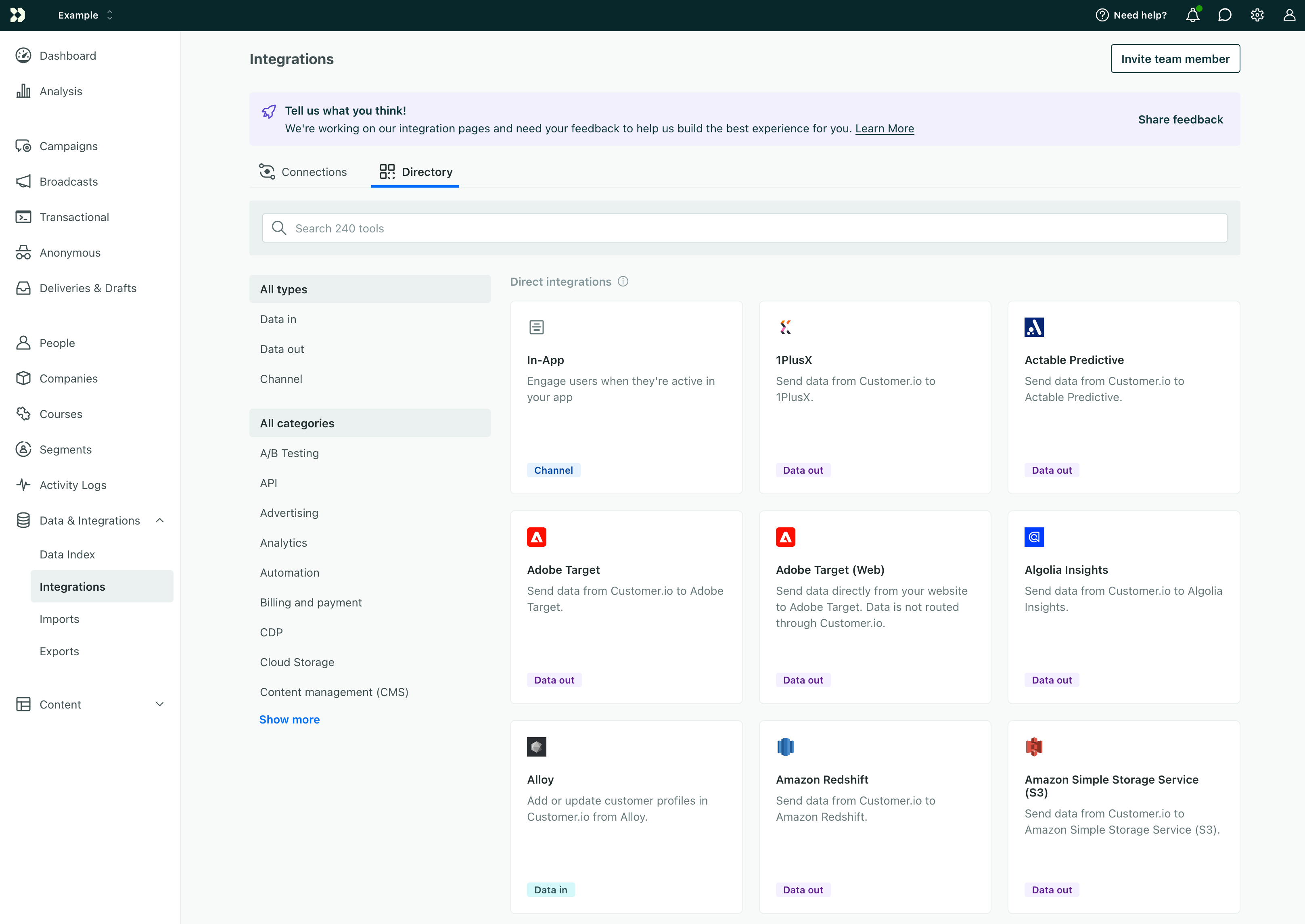
- Go to Integrations and open the Directory tab.
- Search for your platform and select it.
- Under Name your source, enter a name like “My Android app”. Use something specific if you have more than one app, so you can tell your integrations apart later.
- Copy the
cdpApiKeyfrom the Initialize the SDK code sample. You need it to initialize the SDK in your app. - Add the SDK to your app and initialize it with the key. Our SDK developer documentation covers this for each platform.
- Back in Customer.io, click Test connection. Customer.io checks whether your app has started sending data.
- Click Complete setup. You can only finish once the connection test succeeds. If you’re not ready to add the SDK to your app yet, click Save for later and complete the setup when you are.
Your integration now appears on the Connections tab, connected to your workspace. To send your app’s data somewhere else too, add a data-out integration for your analytics provider, data warehouse, or CRM.