Deep links
Deep links let you open a specific page in your app instead of opening the device’s web browser. Want to open a screen in your app or perform an action when a push notification or in-app button is clicked? Deep links work great for this!
Setup deep linking in your app. There are two ways to do this; you can do both if you want.
- Universal Links: universal links let you open your mobile app instead of a web browser when someone interacts with a URL on your website. For example:
https://your-social-media-app.com/profile?username=dana—notice how this URL is the same format as a webpage. - App scheme: app scheme deep links are quick and easy to setup. Example of an app scheme deep link:
your-social-media-app://profile?username=dana. Notice how this URL is not a URL that could show a webpage if your mobile app is not installed.
Universal Links provide a fallback for links if your audience doesn’t have your app installed, but they take longer to set up than App Scheme deep links. App Scheme links are easier to set up but won’t work if your audience doesn’t have your app installed.
Set up Universal Links
To enable Universal Links in your iOS app, follow the instructions on the Apple documentation website. Be sure to complete all of the steps required including making modifications to your website to host a new file and making modifications to your mobile app’s code to handle the deep link.
Depending on how you set up your mobile app (SwiftUI, UIKit, watchOS, etc), you may need to handle deep links in multiple functions in your code.
Handling deep links on push notification click
Our SDK automatically handles deep links for Customer.io push notifications, calling The SDK’s calls UIApplication.shared.open() for the deep link URL by default. You don’t need to process deep links yourself in userNotificationCenter(:didReceive:withCompletionHandler).
But, if you want to control URL handling and open specific screens in your app, you should implement the application(:continue:restorationHandler:) method in your AppDelegate.
class AppDelegate: UIResponder, UIApplicationDelegate {
    func application(
      _ application: UIApplication,
      continue userActivity: NSUserActivity,
      restorationHandler: @escaping ([UIUserActivityRestoring]?) -> Void
    ) -> Bool {
        guard let universalLinkUrl = userActivity.webpageURL else {
            return false
        }

        // Parse `universalLinkUrl` object to perform the action you want in your app.

        // return true from this function if your app handled the deep link.
        // return false from this function if your app did not handle the deep link and you want sdk to open the URL in a browser.
    }
}
Deep link issue with calling application(:continue:restorationHandler:)
Some 3rd party SDKs might block calls to the application(:continue:restorationHandler:) method. If you encounter this problem, you can use an alternative approach to receive callbacks when your audience clicks notifications with deep links.
@main
// Add the CioAppDelegateWrapper to handle push notifications and device token registration
class AppDelegateWithCioIntegration: CioAppDelegateWrapper<AppDelegate> {}

class AppDelegate: UIResponder, UIApplicationDelegate {
    func application(_ application: UIApplication, didFinishLaunchingWithOptions launchOptions: [UIApplication.LaunchOptionsKey: Any]?) -> Bool {
        // Override point for customization after application launch.

        // Step 2: initialize the SDK
        var cdpApiKey = YOUR_CDP_API_KEY
        var siteId = YOUR_SITE_ID

        let config = SDKConfigBuilder(cdpApiKey: cdpApiKey)
            .deepLinkCallback { (url: URL) in
                // You can call any method to process this further,
                // or redirect it to `application(_:continue:restorationHandler:)` for consistency, if you are already using it
                let openLinkInHostAppActivity = NSUserActivity(activityType: NSUserActivityTypeBrowsingWeb)
                openLinkInHostAppActivity.webpageURL = url
                return self.application(UIApplication.shared, continue: openLinkInHostAppActivity, restorationHandler: { _ in })
            }

        CustomerIO.initialize(withConfig: config.build())

        // Step 3: Initialize the in-app package
        // Change region to .EU if you're in our European Union data center!
        MessagingInApp.initialize(withConfig: MessagingInAppConfigBuilder(siteId: siteId, region: .US).build())

        // Step 4: Initialize the push package
        MessagingPushAPN.initialize(withConfig: MessagingPushConfigBuilder().build())

        return true
    }
} Handle deep links in a UIScene app
If your app adopts UIScene, or you build it with the iOS 27 SDK and run it on iOS 27 or
later, the system delivers URLs and universal links to your UISceneDelegate instead of your
AppDelegate. The AppDelegate methods above still apply to app-delegate-lifecycle apps and need
no change.
Keep CustomerIO.initialize, APNs registration, and UNUserNotificationCenter handling in your
AppDelegate. Your app still owns the scene manifest, the SceneDelegate, the root window, and the
final navigation. Customer.io does not add a SceneDelegate or choose which of your windows opens a
URL.
Route Customer.io destinations with a deep-link callback
Under UIScene, iOS delivers universal links to scene(_:continue:) instead of your AppDelegate.
The SDK’s own fallback still calls application(_:continue:restorationHandler:) directly for
http and https destinations, but it cannot deliver a URL to your SceneDelegate. Configure the
callback below to keep scene-based routing under your control.
To keep in-app routing, configure SDKConfigBuilder.deepLinkCallback where you initialize the
SDK in your AppDelegate. Return true when your app takes ownership of the URL. Return false to
let the SDK try the legacy AppDelegate continuation callback and then open the URL through the
system if the AppDelegate doesn’t handle it. Make the ownership decision synchronously and dispatch
UI work to the main thread when your router requires it.
let config = SDKConfigBuilder(cdpApiKey: cdpApiKey)
    .autoTrackDeviceAttributes(true)
    .autoTrackUIKitScreenViews()
    .migrationSiteId(siteId)
    // Customer.io hands its own deep-link destinations to your app here.
    .deepLinkCallback { url in
        guard canHandleDeepLink(url) else { return false }

        DispatchQueue.main.async {
            handleDeepLink(url)
        }
        return true
    }

CustomerIO.initialize(withConfig: config.build())
Apps that don’t use Customer.io deep-link destinations, or that intentionally accept the fallback behavior, don’t need a callback.
Handle URLs and universal links in your SceneDelegate
Your SceneDelegate owns the URLs the system delivers to the scene. Handle cold launches from
scene(_:willConnectTo:options:) and warm opens from scene(_:openURLContexts:) (app-scheme
URLs) and scene(_:continue:) (universal links).
import UIKit

class SceneDelegate: UIResponder, UIWindowSceneDelegate {
    var window: UIWindow?

    func scene(_ scene: UIScene, willConnectTo session: UISceneSession,
               options connectionOptions: UIScene.ConnectionOptions) {
        guard let windowScene = (scene as? UIWindowScene) else { return }
        window = UIWindow(windowScene: windowScene)
        // Set up your root view controller, then window?.makeKeyAndVisible().

        // Cold launch: a tap that opened the app with a URL arrives here...
        handle(urlContexts: connectionOptions.urlContexts)
        // ...and cold-launch universal links arrive as user activities.
        handle(userActivities: connectionOptions.userActivities)
    }

    // Warm app: app-scheme URLs opened while the scene is connected.
    func scene(_ scene: UIScene, openURLContexts URLContexts: Set<UIOpenURLContext>) {
        handle(urlContexts: URLContexts)
    }

    // Warm app: universal links opened while the scene is connected.
    func scene(_ scene: UIScene, continue userActivity: NSUserActivity) {
        handle(userActivities: [userActivity])
    }

    private func handle(urlContexts: Set<UIOpenURLContext>) {
        for context in urlContexts {
            // Route context.url into your app's navigation.
        }
    }

    private func handle(userActivities: Set<NSUserActivity>) {
        for activity in userActivities {
            guard let url = activity.webpageURL else { continue }
            // Route the universal link into your app's navigation.
        }
    }
}
Handle app-scheme URLs and universal-link user activities independently, as shown. App-scheme URLs come through URL contexts, and universal links come through user activities.
Setup App Scheme Deep Links
-
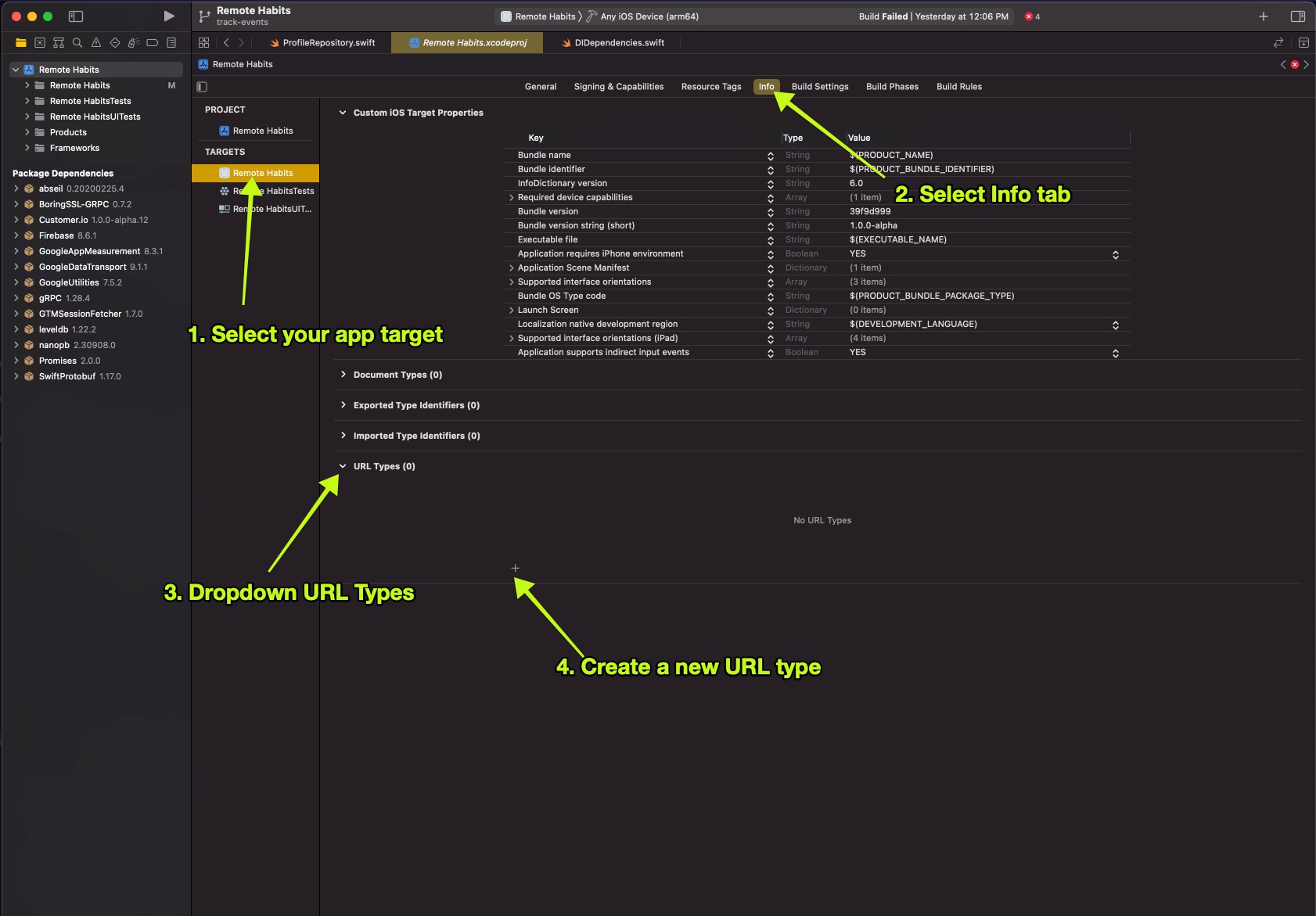
Open your Xcode project and go to your project’s settings. Select your app Target, click the Info tab, and then click URL Types > to create a new URL Type.
-
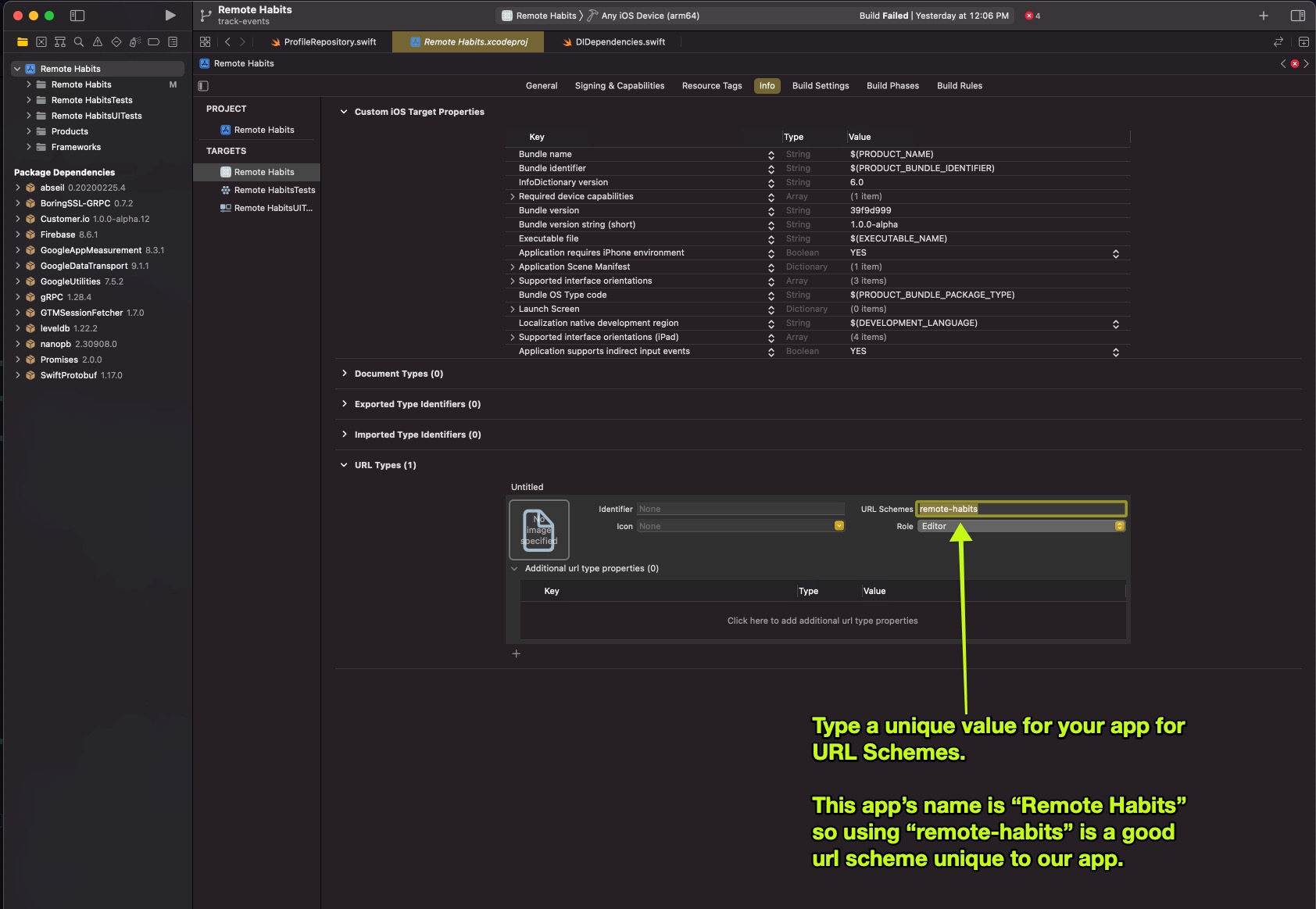
Enter a unique value for your app for URL Schemes.