

Send in-app tooltips to educate your audience
We've added a new Tooltip display type for Web-based in-app messages that anchors your message to a specific element on a page, like a button, menu item, or feature you want to draw attention to. With tooltips, you can provide contextual help, educate your audience about new features, and help orient new users.
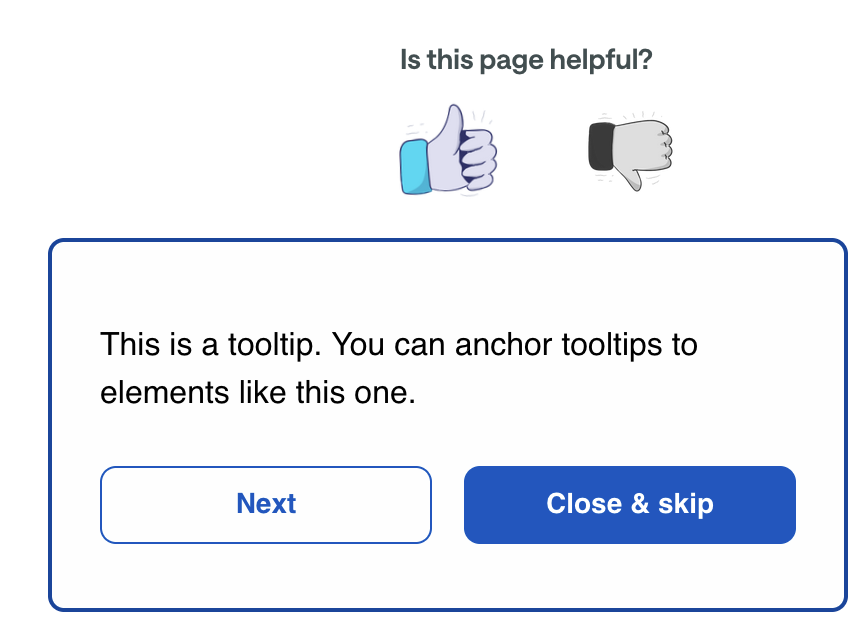
When you set up a tooltip, you’ll set a Target element, which is the element you want to anchor your tooltip to. You can use our new Live Preview feature or click Select Target in your message settings to open a preview window and select the target element that you want to anchor your tooltip—so you don’t have to manually enter a complicated CSS selector to find the right element.
You can combine tooltip messages with multi-step messages to build guided product tours. Each step can point to a different element, walking people through your interface one feature at a time. You can even mix tooltip and modal steps in the same tour: start with a welcome modal, then guide people through a series of tooltip steps highlighting key features.