Claude setup
You can integrate Claude with Customer.io in your personal settings so you can engage your workspace through Claude conversations.
Use the built-in connector
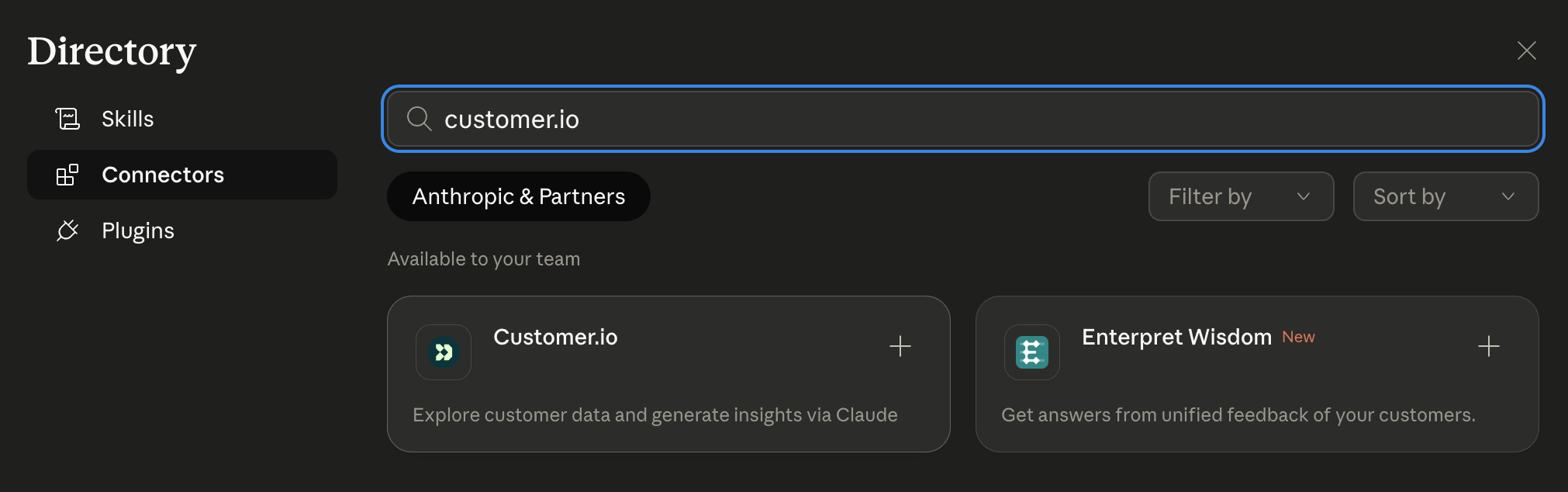
Claude Desktop has a Customer.io connector that you can enable to use Customer.io.
-
In Claude Desktop, go to Settings > Connectors.
-
Find and enable the Customer.io connector from the list. If you don’t see it, your organization may need to approve the connector. Contact your IT admin to enable it.
-
Click Connect and authenticate with Customer.io.
-
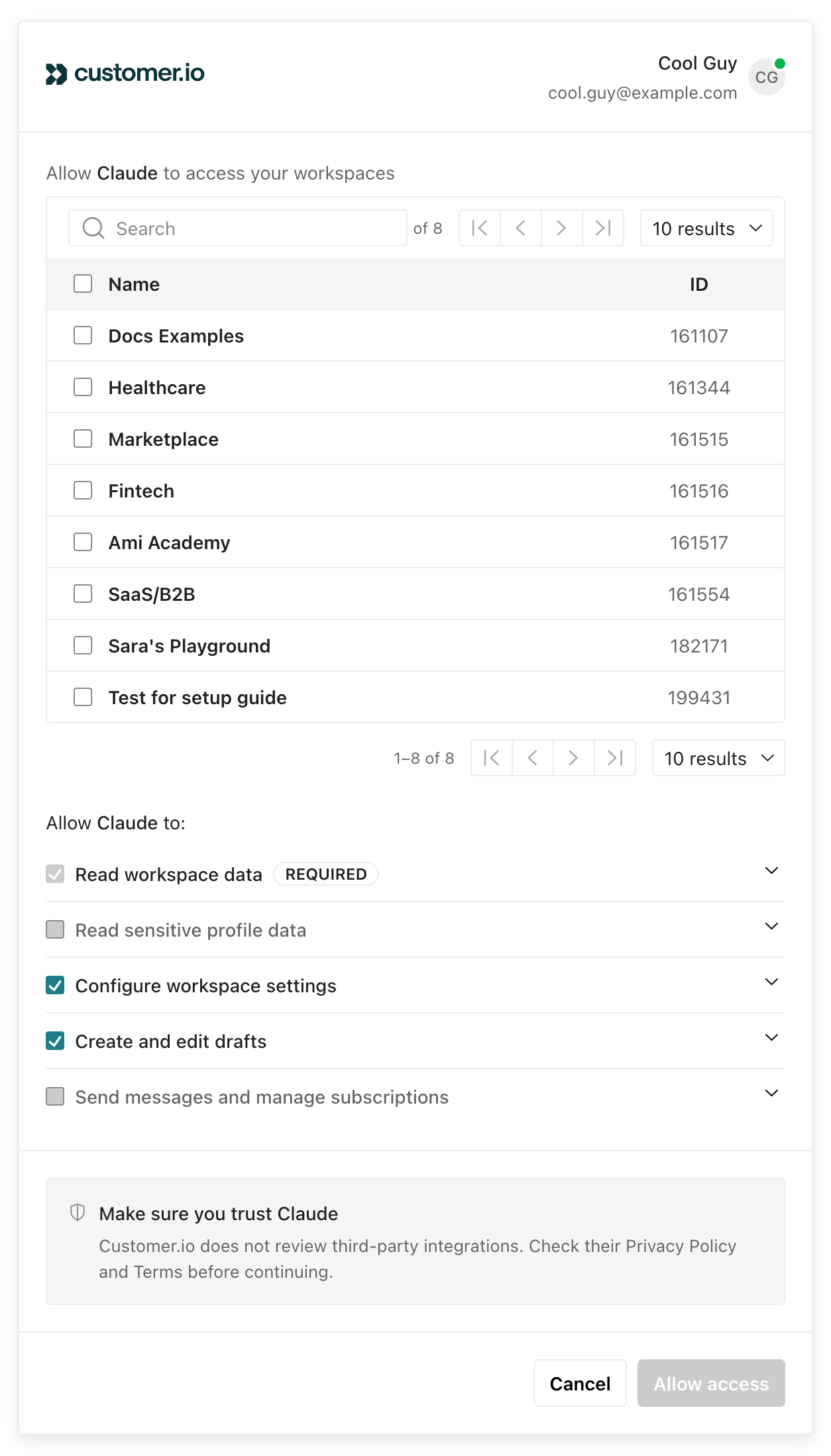
Select the workspaces and permissions you want to grant access to and click Allow access. See permission scopes for details on permissions.
Set up a custom MCP connection
If you can’t find the connector in Claude Desktop, you can add Customer.io as a custom MCP server.
You’ll need our MCP server URL:
- US region:
https://mcp.customer.io/mcp - EU region:
https://mcp-eu.customer.io/mcp
If your application requires you to set a type or transport method, set it to http. We don’t support the server-sent events (sse) transport type.
-
In Claude Desktop, go to Settings > Connectors and click Add custom connector.
-
Add the MCP server URL above.
-
Click Connect.
-
Select the workspaces and permissions you want to grant access to and click Allow access. See permission scopes for details on permissions.
Find your workspace
When you use Customer.io MCP, you’ll need to tell your AI tool which workspace to work in. You can select a workspace by name or by ID.

Manage your MCP sessions
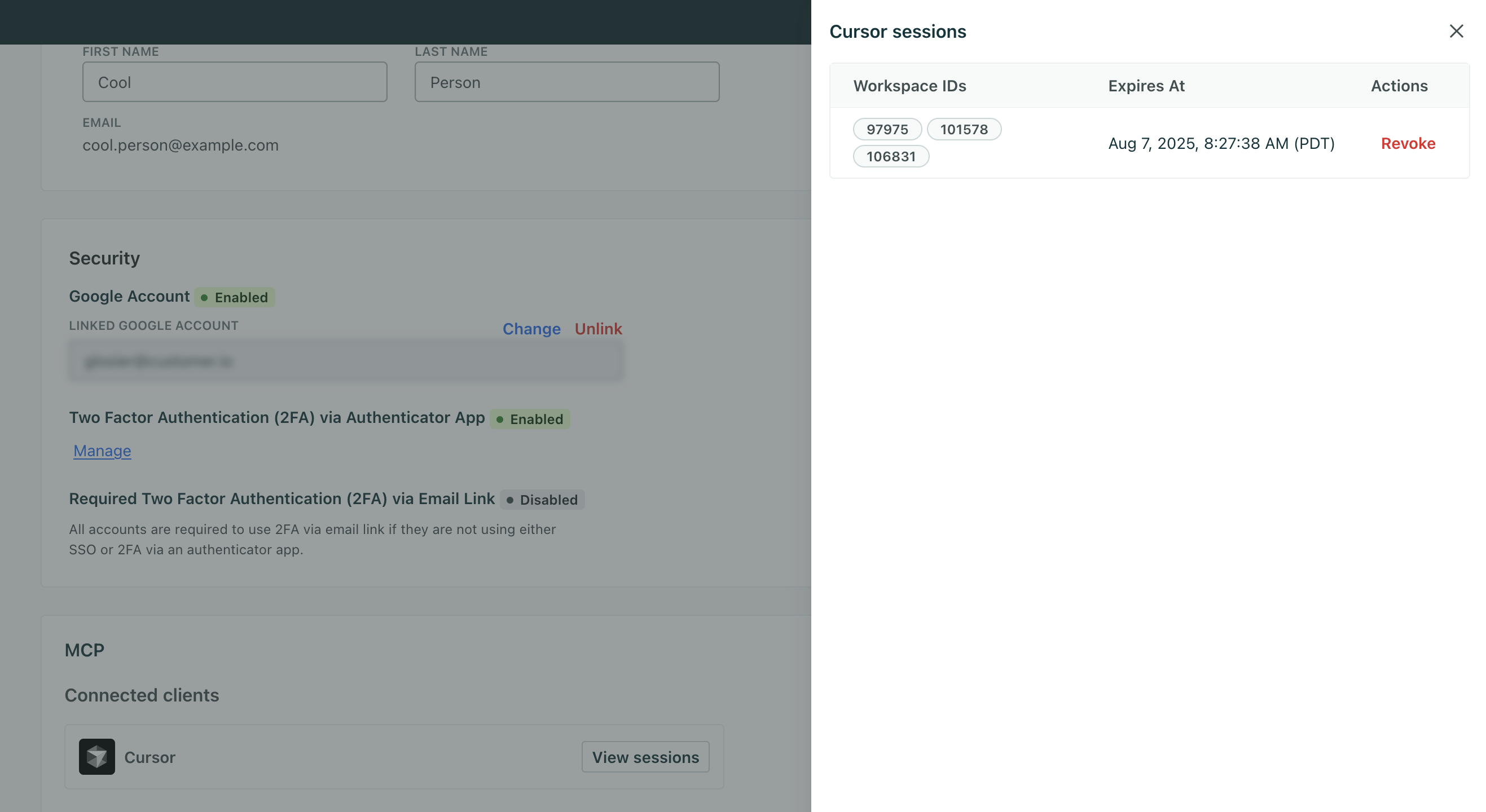
To see active sessions or revoke a connection, go to Settings > Personal Settings and click View sessions under Connected clients. Revoking a session ends it immediately and forces the client to re-authenticate.