In-app messages
Incorporate in-app messages to send dynamic, personalized content to people using your app. With in-app messages, you can speak directly to your app's users when they use your app.
This page is part of a setup flow for the SDK. Before you continue, make sure you've implemented previous features—i.e. you can't receive in-app notifications before you identify people!
How it works
An in-app message is a message that people see within the app. To set up in app messaging, install and initialize the Tracking and MessagingInApp packages.
People won’t see your in-app messages until they open your app. If you set an expiry period for your message, and that time elapses before someone opens your app, they won’t see your message.
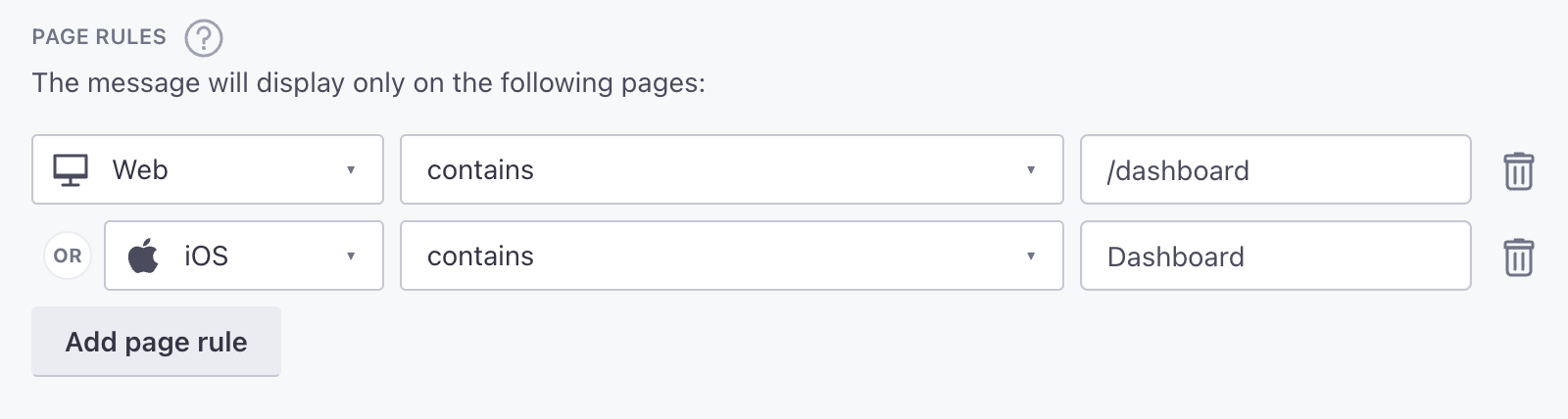
You can also set page rules to display your in-app messages when people visit specific pages in your app. However, to take advantage of page rules, you need to use screen tracking features. Screen tracking tells us the names of your pages and which page a person is on, so we can display in-app messages on the correct pages in your app.
Set up in-app messaging
-
Use Swift Package Manager to install the
MessagingInApppackage. See Getting Started for installation instructions. -
Add the
MessagingInAppmodule to your app and initialize it with your in-apporganizationId. You’ll find yourorganizationIdin Customer.io under Settings > Workspace Settings > In-App Settings.
import CioMessagingInApp
import CioTracking

// Step 1: Initialise CustomerIO SDK
CustomerIO.initialize(siteId: workspaceId, apiKey: apiKey, region: Region.US)
// Optionally configure the CustomerIO SDK:
CustomerIO.config {
 $0.logLevel = .debug
 $0.autoTrackScreenViews = true
}
// Setup In-app messaging
MessagingInApp.shared.initialize(organizationId: organizationId)
Now your app can receive in-app messages. Create an automation and send your first in-app message to test your implementation!
Page rules
You can set page rules when you create an in-app message. A page rule determines the page that your audience must visit in your app to see your message. However, before you can take advantage of page rules, you need to:
- Track screens in your app. You can add
$0.autoTrackScreenViews = trueto yourCustomerIO.configto automatically track screens or you can track screens manually. - Provide page names to whomever sets up in-app messages in fly.customer.io. If we don’t recognize the page that you set for a page rule, your audience will never see your message.
The SDK automatically uses the class name of UIViewController, minus ViewController, as the name of each page. For example, if you wanted to display an in-app message on a class called EditProfileViewController, you would enter EditProfile as your page rule.
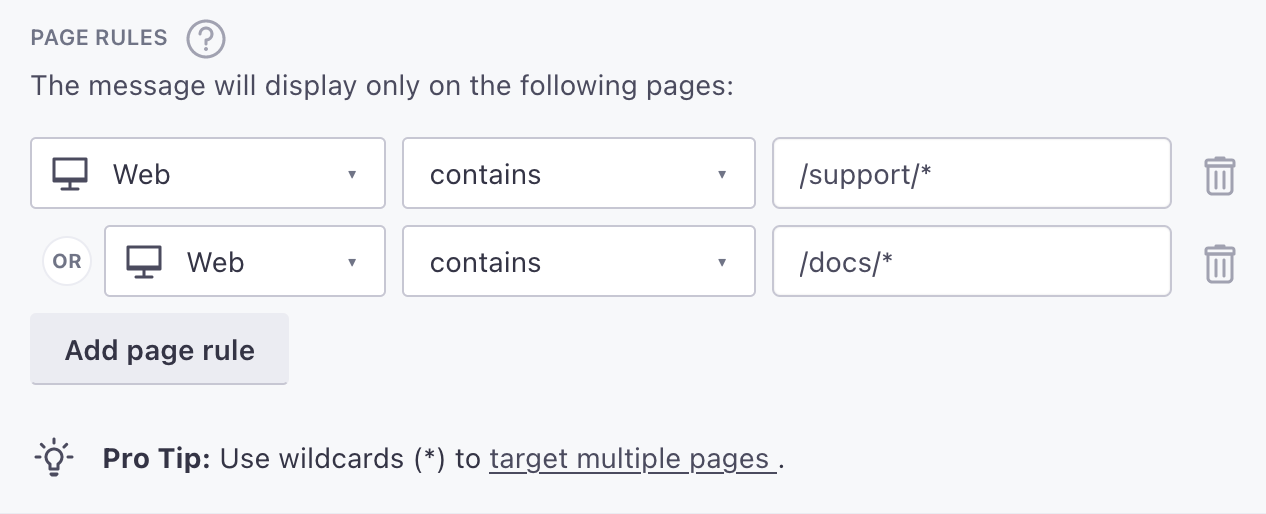
Keep in mind: page rules are case sensitive. If you’re targeting your mobile app, make sure your page rules match the casing of the name in your screen events. If you’re targeting your website, your page rules should always be lowercase.