

Rich push notifications
With rich push, you can do more than just send a simple notification; you can send an image, open a deep link when someone taps your message, and more!
This page is part of a setup flow for the SDK. Before you continue, make sure you've implemented previous features—i.e. you can't receive in-app notifications before you identify people!
Set up rich push
Rich push is included with the messaging-push-fcm SDK. For now, our rich push feature only supports images and deep links. We’ll add additional features here as we continue to develop our SDKs.
Send a rich push
To send a rich push through Customer.io, you need to use our Custom Payload editor, which takes a JSON structure. In the editor, you’ll select the type of device you want to send your message to: you can have separate payloads for Android and iOS. In our case, you’ll click Android.
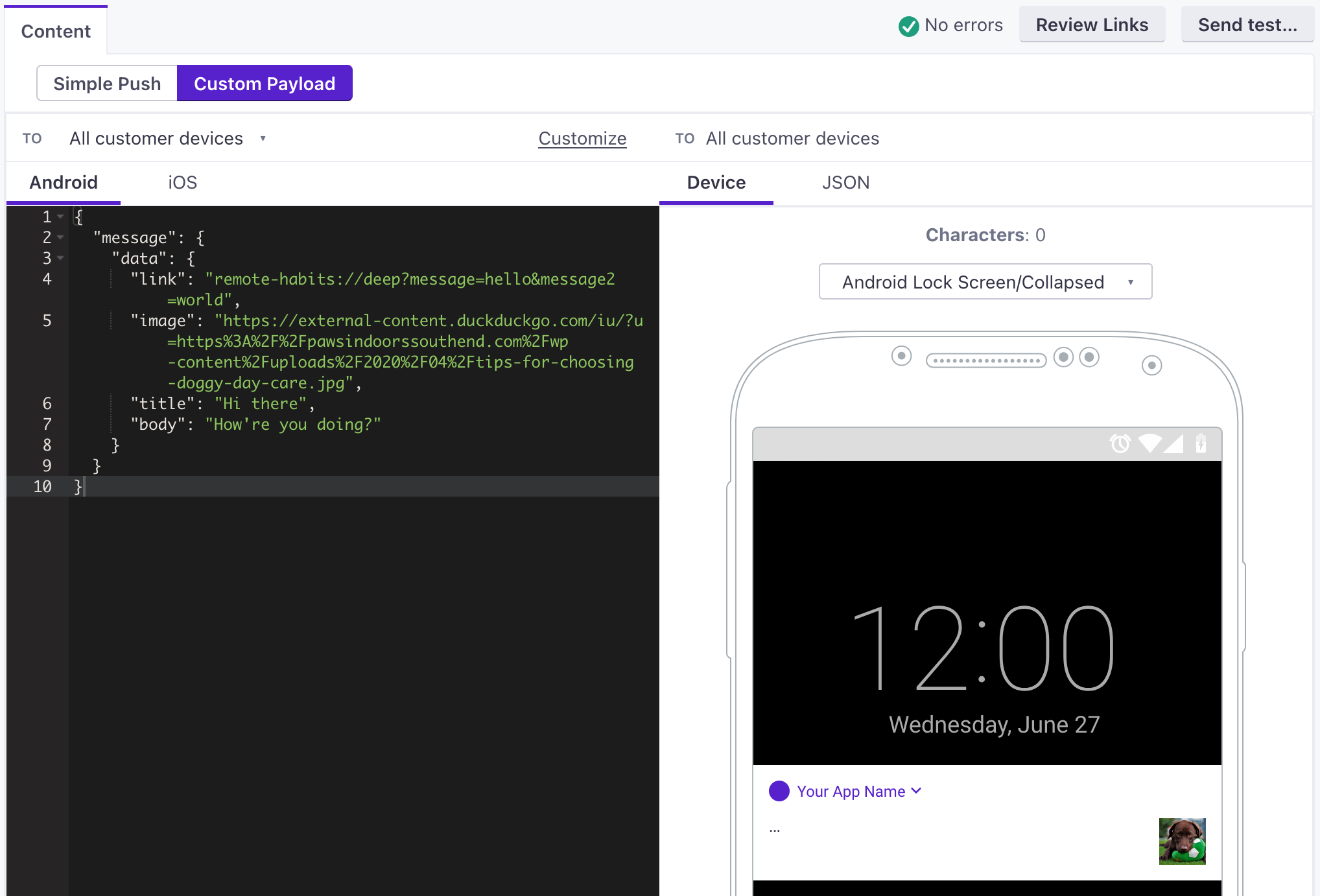
The following example shows a rich push with an image and a link. See the Deep links section below for help enabling deep links in your app.
{
  "message": {
    "notification": {
      "image": "https://thumbs.dreamstime.com/b/bee-flower-27533578.jpg",
      "title": "Hi there",
      "body": "How're you doing?"
    },
    "data": {
      "link": "remote-habits://deep?message=hello&message2=world"
    }
  }
}- The parent object for all push payloads.
Deep links
Deep links provide a way to link to a screen in your app. There are two ways to set up deep links. If you use both methods, the CustomerIOUrlHandler takes precedence.
-
Using intent filters in your
AndroidManifest.xmlfile.Click here to learn more about intent filters.
<intent-filter android:label="deep_linking_filter"> <action android:name="android.intent.action.VIEW" /> <category android:name="android.intent.category.DEFAULT" /> <category android:name="android.intent.category.BROWSABLE" /> <!-- Accepts URIs that begin with "remote-habits://deep” --> <data android:host="deep" android:scheme="remote-habits" /> </intent-filter> - Using
CustomerIOUrlHandler—a URL handler feature provided by the SDK. When configuring yourCustomerIOinstance, attach a listener using thesetCustomerIOUrlHandlermethod ofCustomerIO.Builder. You should do this in the entry point of the application, which is usually theApplicationclass.
class MainApplication : Application(), CustomerIOUrlHandler {

    override fun onCreate() {
        super.onCreate()
        val builder = CustomerIO.Builder(
            siteId = "YOUR-SITE-ID",
            apiKey = "YOUR-API-KEY",
            appContext = this
        )
        builder.setCustomerIOUrlHandler(this)
        builder.build()
    }
    override fun handleCustomerIOUrl(uri: Uri): Boolean {
        // return true if you plan to handle the deep link yourself
        // return false if you want CustomerIO SDK to do it for you
        TODO("Pass the link to your Deep link managers")
    }
}Test Rich Push
After you set up rich push, you should test your implementation. Use the payloads below to send a push in the Customer.io web app with a Custom Payload.
In both of the test payloads below, you should:
- Set the
linkto the deep link URL that you want to open when your tester taps your notification. - Set the
imageto the URL of an image you want to show in your notification. It’s important that the image URL starts withhttps://and nothttp://or the image might not show up.
Rich Push Payloads
To send a rich push in Customer.io, you need to use our Custom Payload editor, which takes a JSON structure. In the editor, you’ll select the type of device you want to send your message to: you can have separate payloads for Android and iOS. In our case, you’ll click Android.
The part of your payload interpreted by the Android SDK is contained in the message.data object. This object can contain other custom data for your app, but you’ll need to do additional development to support keys beyond title, body, link, and image—all of which are handled by the SDK.
{
  "message": {
    "notification": {
      "title": "string", //(optional) The title of the notification.
      "body": "string", //The message you want to send.
      "image": "string" //https URL to an image you want to include in the notification
    },
    "data": {
      "link": "string", //Deep link in the format remote-habits://deep?message=hello&message2=world
    }
  }
}- The parent object for all push payloads.