

Identify people
Use CustomerIO.identify() to identify a person. You need to identify a mobile user before you can send them messages or track events for things they do in your app.
This page is part of a setup flow for the SDK. Before you continue, make sure you've implemented previous features—i.e. you can't identify people before you initialize the SDK!
Identify a person
Identifying a person:
- Adds or updates the person in your workspace. This is basically the same as an
identifycall to our server-side API. - Saves the person's information on the device. Future calls to the SDK reference the identified person. For example, after you identify a person, any events that you track are automatically associated with that person.
- Associates the current device token with the person.
You can only identify one customer at a time. The SDK "remembers" the most recently-identified customer. If you identify person A, and then call the identify function for person B, the SDK "forgets" person A and assumes that person B is the current app user. You can also stop identifying a person, which you might do when someone logs off or stops using your app for a significant period of time.
An identify request takes two parameters:
- userId (Required): The unique value representing a person—an ID, email address, or the cio_id
An identifier for a person that is automatically generated by Customer.io and cannot be changed. This identifier provides a complete, unbroken record of a person across changes to their other identifiers (id, email, phone, etc).
. If you treatphoneas an identifier, you should identify people byidoremailand send the phone number as aphoneattribute. - traits (Optional): An object containing attributes
A key-value pair that you associate with a person or an object—like a person's name, the date they were created in your workspace, or a company's billing date etc. Use attributes to target people and personalize messages.
that you want to add to, or update on, a person
CustomerIO.instance.identify(userId: email, traits: {
  "name": user.displayName,
  "email": user.email,
  "age": user.age,
});
Update a person’s attributes
You store information about a person in Customer.io as attributes A key-value pair that you associate with a person or an object—like a person's name, the date they were created in your workspace, or a company's billing date etc. Use attributes to target people and personalize messages.identify() function, you can update a person’s attributes in Customer.io.
If you’ve already identified a person, and they update their preferences, provide additional information about themselves, or perform other attribute-changing actions, you can update their attributes with profileAttributes.
You only need to pass the attributes that you want to create or modify to setProfileAttributes. For example, if you identify a new person with the attribute {"first_name": "Dana"}, and then you call CustomerIO.instance.setProfileAttributes(traits: {"favorite_food": "pizza"});, the person will gain the favorite_food attribute but first_name attribute will still be Dana.
CustomerIO.instance.setProfileAttributes(traits: {
  "first_name": "Cool",
  "last_name": "User",
  "is_premium": false,
});
Device attributes
By default (if you don’t set A key-value pair that you associate with a person or an object—like a person's name, the date they were created in your workspace, or a company's billing date etc. Use attributes to target people and personalize messages. A group of people who match a series of conditions. People enter and exit the segment automatically when they match or stop matching conditions. A syntax that supports variables, letting you personalize messages for your audience. For example, if you want to reference a person's first name, you might use the variable .autoTrackDeviceAttributes(false) in your config), the SDK automatically collects a series of attributes{{customer.first_name}}.
Along with these attributes, we automatically set a last_used timestamp for each device indicating when the device owner was last identified, and the last_status of a push notification you sent to the device. You can also set your own custom device attributes. You’ll see a person’s devices and each device’s attributes when you go to Journeys > People > Select a person, and click Devices.
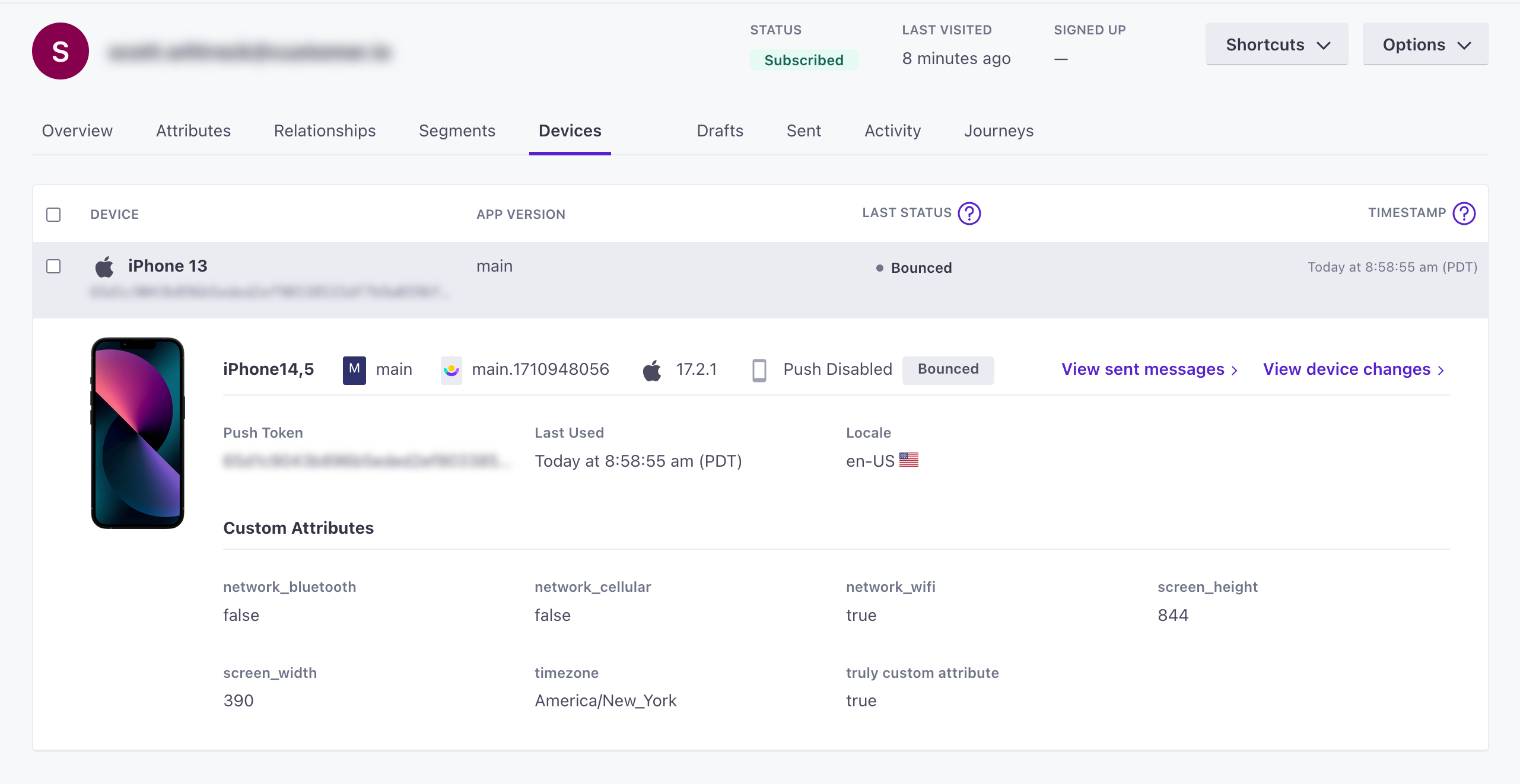
- idstringrequiredThe unique device identifier. This is an APNs token, an FCM registration token, or a Firebase Installation ID (FID).
- platformstringrequiredThe device/messaging platform.Accepted values:
ios,android - Attributes that you can reference to segment your audience—like a person's attributes, but specific to a device. These can be either the attributes defined below or custom key-value attributes.
- _last_statusstringThe delivery status of the last message sent to the device—sent, bounced, or suppressed. An empty string indicates that that the device hasn't received a push yet.Accepted values:
,bounced,sent,suppressed - app_identifierstringThe app that the device belongs to—the Bundle ID / App identifier you entered with that app's push credentials. If you have more than one app, we use this attribute to send push notifications to the right app. A device without an app identifier receives push notifications you send to your default app.
- app_versionstringThe version of your app that a customer uses. You might target app versions to let people know when they need to update, or expose them to new features when they do.
- cio_sdk_versionstringThe version of the Customer.io SDK in the app.
- device_localestring
- device_modelstringThe model of the device a person uses.
- device_osstringThe operating system, including the version, on the device.
- network_bluetoothbooleanIf
true, the device's bluetooth connection is on. - network_cellularbooleanIf
true, the device's cellular connection is on. - network_wifibooleanIf
true, the device's WiFi connection is on. - push_enabledstringIf
"true", the device is opted-in and can receive push notifications.Accepted values:true,false - screen_heightintegerThe height of the device's screen in pixels.
- screen_widthintegerThe width of the device's screen in pixels.
- timezonestringThe time zone of the device.
- Custom Device Attributes *stringCustom properties that you want to associate with the device.
- last_usedinteger(unix timestamp)The
timestampwhen you last identified this device. If you don't pass a timestamp when you add or update a device, we use the time of the request itself. Our SDKs identify a device when a person launches their app.
Set custom device attributes
You can also set custom device attributes with the setDeviceAttributes method. You might do this to save app preferences, time zone, or other custom values specific to the device. Like profile attributes, you can pass nested JSON to device attributes.
However, before you set custom device attributes, consider whether the attribute is specific to the device or if it applies to the person more broadly. Device tokens are ephemeral—they can change based on user behavior, like when a person uninstalls and reinstalls your app. If you want an attribute to persist beyond the life of the device, you should apply it to the person rather than the device.
const deviceAttributes = {
  "type" : "primary_device",
  "parentObject" : {
    "childProperty" : "someValue",
  },
};
CustomerIO.instance.setDeviceAttributes(attributes: deviceAttributes);
Disable automatic device attribute collection
By default, the SDK automatically collects the device attributes A key-value pair that you associate with a person or an object—like a person's name, the date they were created in your workspace, or a company's billing date etc. Use attributes to target people and personalize messages.autoTrackDeviceAttributes setting to prevent the SDK from automatically collecting these attributes.
CustomerIO.initialize(
  config: CustomerIOConfig(
      cdpApiKey: '<your API Key>',
      autoTrackDeviceAttributes: false,
      inAppConfig: InAppConfig(siteId: '<your siteId>'),
  ),
);
Manually add device to person
In the standard flow, identifying a person automatically associates the token with the identified person in your workspace. If you need to manually add or update the device elsewhere in your code, call CustomerIO.instance.registerDeviceToken(token).
Stop identifying a person
When a person logs out, or does something else to tell you that they no longer want to be tracked, you should stop identifying them.
Use clearIdentify() to stop identifying the previously identified person (if there was one).
CustomerIO.instance.clearIdentify();Identify a different person
If you want to identify a new person—like when someone switches profiles on a streaming app, etc—you can simply call identify() for the new person. The new person then becomes the currently-identified person, with whom all new information—messages, events, etc—is associated.
CustomerIO.instance.identify(identifier: "new.person@example.com", attributes: {"first_name": "New", "last_name": "Person"});