

Support in-app messages across multiple apps
You might have more than one mobile app in your workspace if your apps can share audience members. If you have more than one mobile app, your in-app message settings include a Where this message appears section. This is how you pick the mobile app you want to send a message to.
If each of your apps has its own workspace today, you’ll need to consolidate those workspaces before you can target your apps from one place.
How it works
When you have multiple mobile apps, you have to choose the app you want to send a message to. Whether someone sees a message depends on which of your apps they’re using, which page/screen they’re on, and whether or not they have a version of your app that supports multi-app targeting.
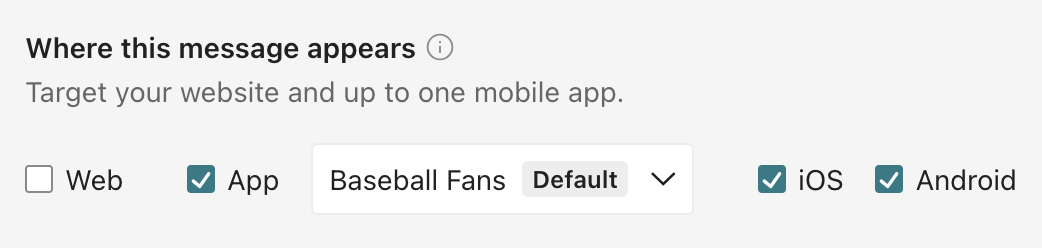
- Each message targets one mobile app, and one app only. If you want to send a message to more than one app, you’ll need to copy the message in your workflow.
- New messages start with your default app selected. When you create a message, we select your workspace’s default app and its available platforms (iOS or Android).
- Page rules apply within the app and platforms you select. You’ll only see page rule options for the platforms you select. Your app and platform choices decide which app shows your message; page rules decide which pages or screens within that app.
Minimum SDK requirements
To send in-app messages to multiple apps from the same workspace, your mobile apps need to use one of the following SDK versions or later:
- iOS: 4.7.5 or later
- Android: 4.20.2 or later
- React Native: 6.6.3 or later
- Expo: 3.7.2 or later
- Flutter: 4.3.0 or later
Who receives each message
When you have multiple mobile apps, people can get your message if they’re using the app you target and they have a version of your app that meets our minimum SDK requirements.
When someone hasn’t updated your app, their device runs an older SDK version that doesn’t report which of your apps it belongs to. Those devices receive messages that target your default app, but not messages that target any other app.
| The message targets | Devices on a supported SDK version | Devices on older SDK versions |
|---|---|---|
| Your default app | Receive it if they belong to that app | Receive it |
| Any other app | Receive it if they belong to that app | Can’t receive it |
| No app target (messages created before app-based targeting) | Receive it | Receive it |
Your platform selections and page rules still apply in every case. This table shows whether a device is eligible for a message at all.
Messages created before app targeting
If you already sent in-app messages from a workspace before you added additional mobile apps, those messages will continue to work after you add the new apps. They’ll either go to your default mobile app or wherever you initialized the Customer.io SDK (like a website using our JavaScript integration).
When you edit one of these messages, you can change the Where this message appears setting to pick a different app and platforms for the message.
See consolidate workspaces for more information about migrating multiple apps to a single workspace.
Add a new mobile app
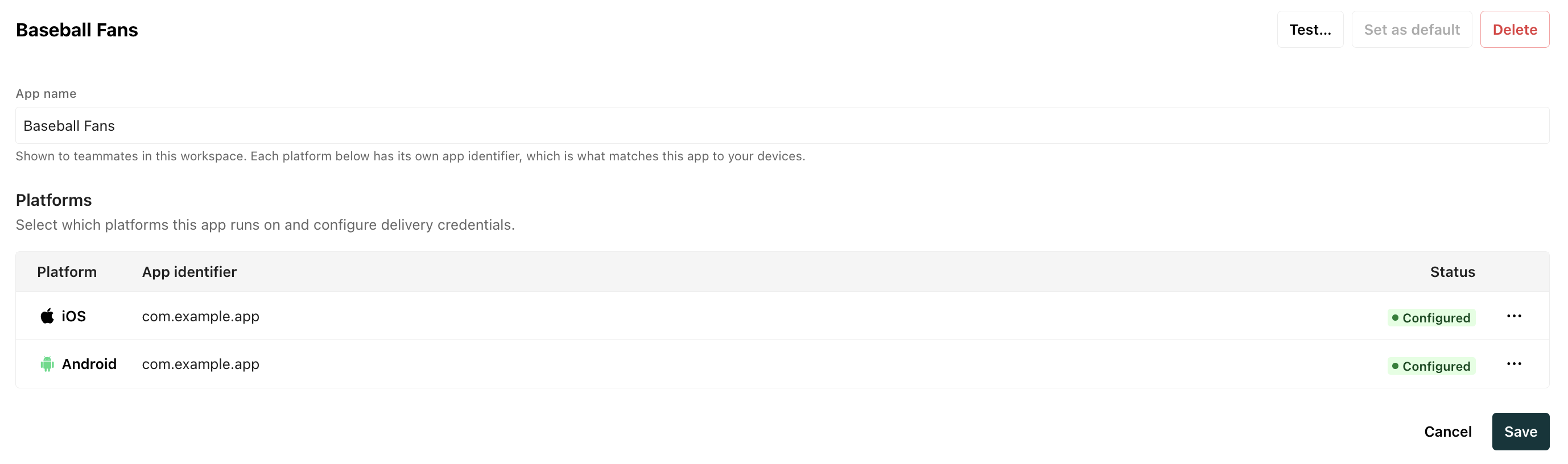
Supporting multiple mobile apps for in-app messages hinges on our mobile push setup. We use your mobile push credentials to differentiate between mobile apps.
- Go to
Workspace settings > Push. - Click Add app.
- Enter the app name and description.
- Add your app’s push credentials. For Apple’s Push Notification service (APNs), upload your
.p8key and enter your Key ID, Team ID, and Bundle ID. For Firebase Cloud Messaging (FCM), upload your service account.jsonkey. - Click Save.
Set your default app
The first app you add is your default app, but you can change it later. The default app is the app that you’ll send messages to unless you change your selection in the Where this message appears setting of your message.
- Go to
Workspace settings > Push. - Click the app you want to set as default.
- Click Set as default.

Targeting different websites
While we support multiple mobile apps in your workspace, where you’ll pick the specific app you want to send a message to, we don’t have a concept of different websites using our JavaScript integration.
If you show in-app messages on more than one website, the Web checkbox covers all of them. You must set mutually exclusive page rules to show messages on the correct site.
Design considerations: create app-specific styles
You can send to multiple apps from the same workspace, but our Design Studio doesn’t have a concept of app-specific default styles.
Instead, we recommend that you prefix your global styles with the app name, or a marker that helps differentiate styles for each of your apps. That way, when you style messages, you can easily sort for the correct styles—like app1-h1, app2-h1, etc.
This kind of labelling mechanism also helps agents better understand what styles to apply to different messages—if you use Customer.io’s agent or another LLM using our MCP or CLI tools to build an in-app message for you.
Deleting apps
You can’t delete an app while your messages still target it. When you try, we tell you how many push and in-app messages use the app, so you can point them at a different app or delete them first. That count includes drafts and messages in stopped automations, not just the ones actively sending.