Batch update
A batch update lets you apply data to a group of up to 1,000 people matching your criteria. For each person your batch update matches, you can update attributes or send events (to trigger a message automation, for example).
How it works
You can perform a batch update in any automation. A batch update lets you associate this data with one or more people—either as attributes A key-value pair that you associate with a person or an object—like a person's name, the date they were created in your workspace, or a company's billing date etc. Use attributes to target people and personalize messages. Something that a person in your workspace did. Events can trigger automations, add people to segments, etc, and you can use properties from events to personalize messages.
For example, you could create an automation that messages people when they’ve been assigned to teach an upcoming class. You could use a batch update to send events to people who have this person listed as their favorite teacher. Then you could trigger another automation based on this event and encourage these students to sign up for the new class.
Set up a batch update
-
Drag Batch Update into your workflow.
-
Add a Name, then click Add Details.
-
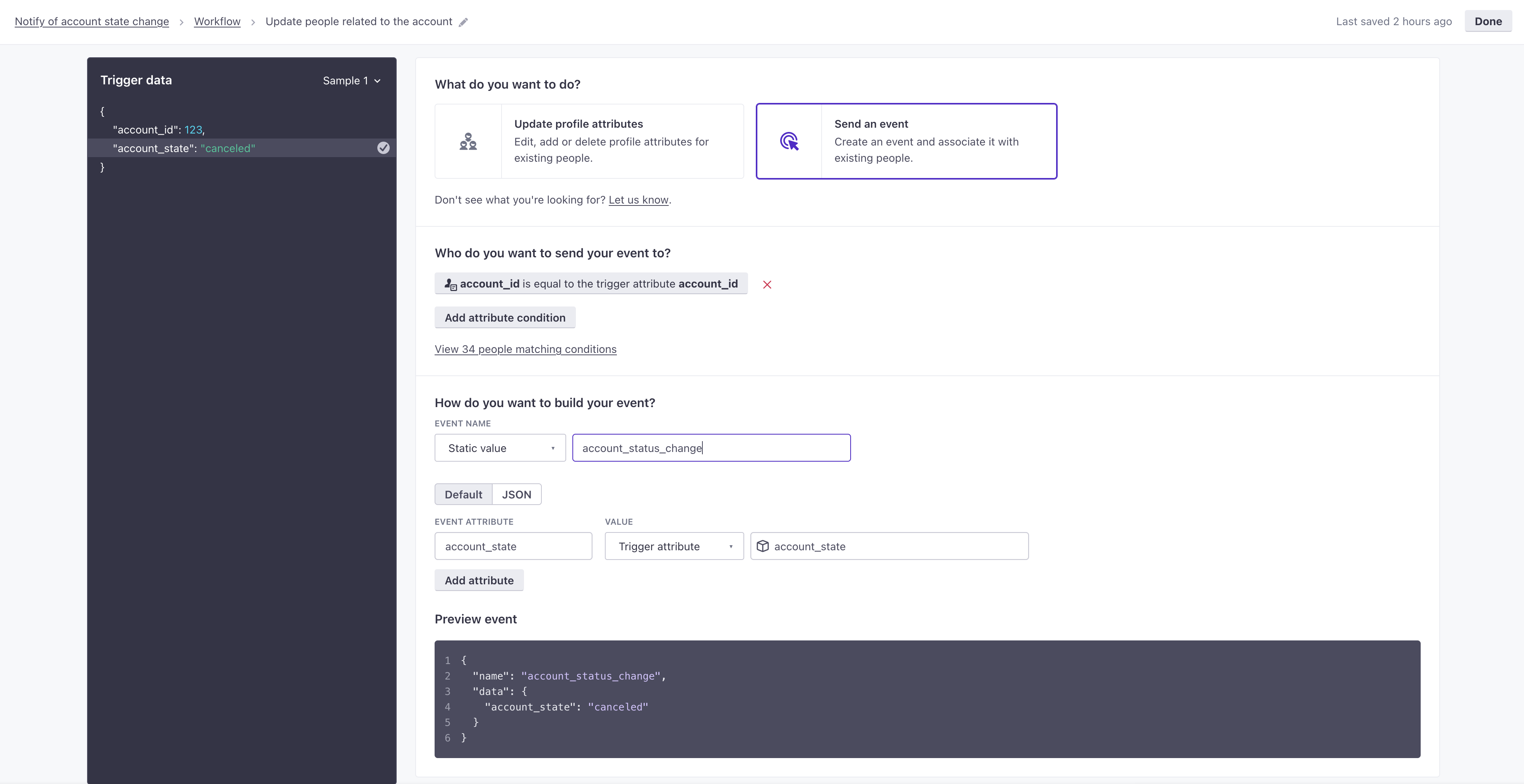
Select whether you want to Update profile attributes or Send an event.
-
Set criteria for the people you want to update.
-
Set your attributes or event data. You can use liquid
A syntax that supports variables, letting you personalize messages for your audience. For example, if you want to reference a person's first name, you might use the variable
to set attributes or event properties.{{customer.first_name}}. -
Click Save.
Matching people in your batch update
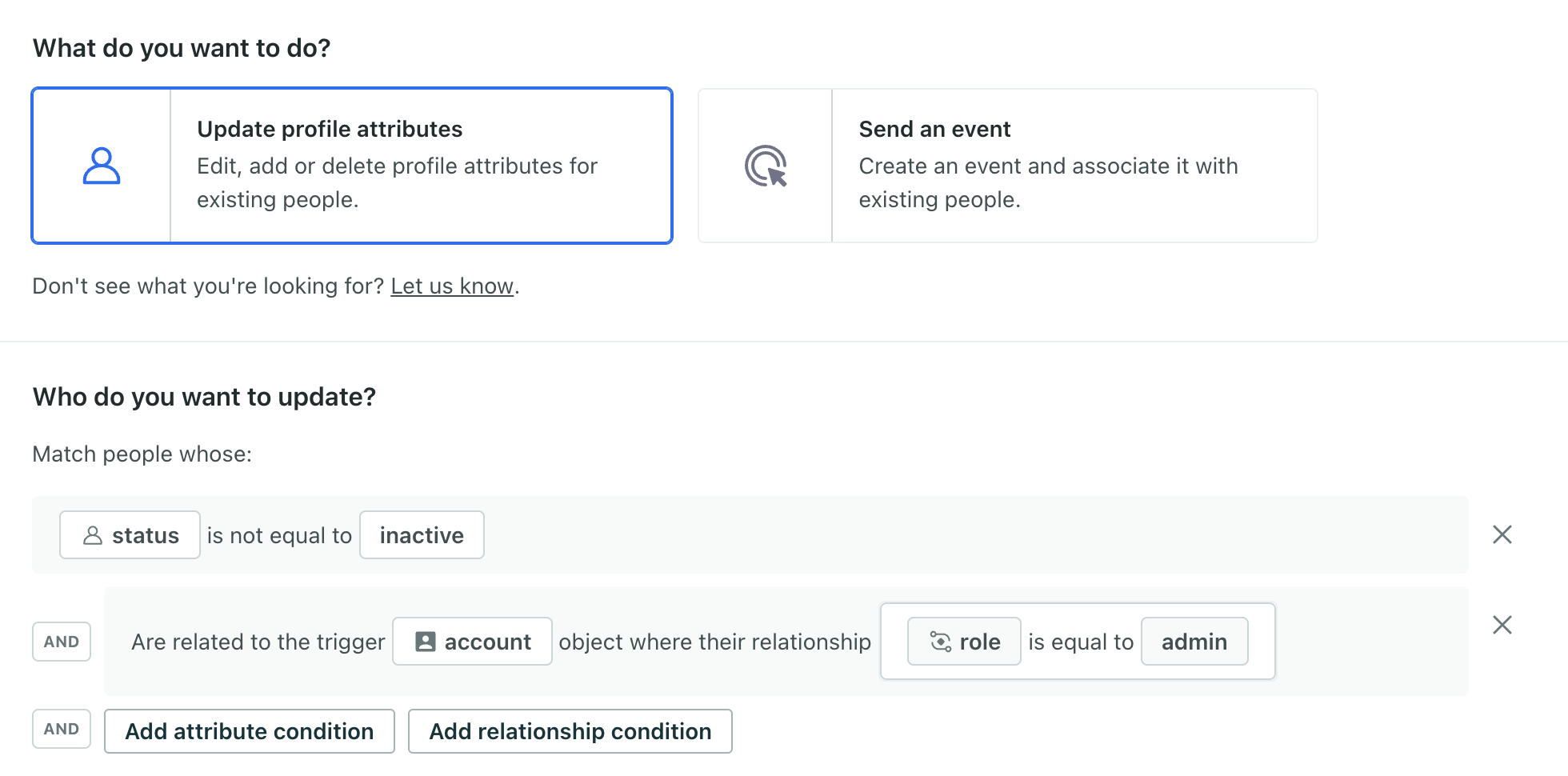
When you perform a batch update, you set criteria matching the group of people you want to update. It’s like setting up a segment A segment is a group of people in your workspace. Use segments to trigger automations, track membership over time, or fine-tune your audience. There are two types of segments: data-driven and manual. Data-driven segments automatically update when people start or stop matching criteria. Manual segments are static. A key-value pair that you associate with a person or an object—like a person's name, the date they were created in your workspace, or a company's billing date etc. Use attributes to target people and personalize messages. The connection between an object and a person in your workspace. For instance, if you have Account objects, people could have relationships to an Account if they're admins.
A batch update is limited to 1,000 people. Anytime your batch update criteria matches more than 1,000 people, we won’t run the update. Instead, we’ll skip it and report it as a Failed Action in profile activity. When you set up a batch update, we’ll warn you if your criteria matches more than 1,000 people, but you should monitor your automation to make sure that your batches don’t exceed the limit.
This example shows matching people based on both a profile attribute and relationship attribute for an account.
With object and relationship-triggered automations, you can match people based on the trigger object or any object within an object type you choose. For instance, you could match people related to any course that the current person in the journey has a relationship to:
- Goal: When a teacher is assigned to a course, I want to recommend the new course to students in the teacher’s other courses.
- Method: Set the recommended new course as an attribute on students in one automation. Then segment users based on this attribute and trigger another automation to notify them.
- Automation for batch update:
- Trigger: course - relationship updated where
roleis equal toteacher - Audience: the person who was added to the course
- Batch update: match people who are related to any course that the current person is related to where the people in the batch update have the
roleofstudent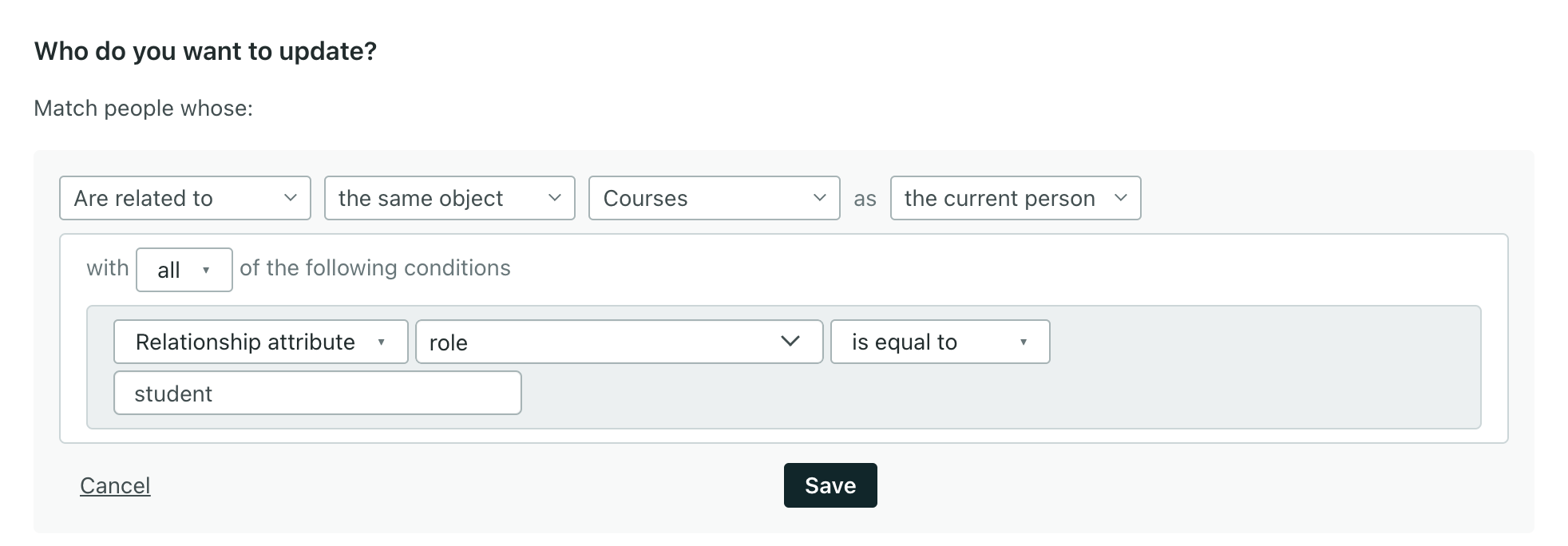
- Trigger: course - relationship updated where
- Automation for batch update:
- Method: Set the recommended new course as an attribute on students in one automation. Then segment users based on this attribute and trigger another automation to notify them.
With relationship-triggered automations, you can also match on the person triggering the automation, instead of the current person in the journey. This is helpful when the trigger person is not included in the audience of your automation, so the trigger person could never be “the current person.”
Update attributes
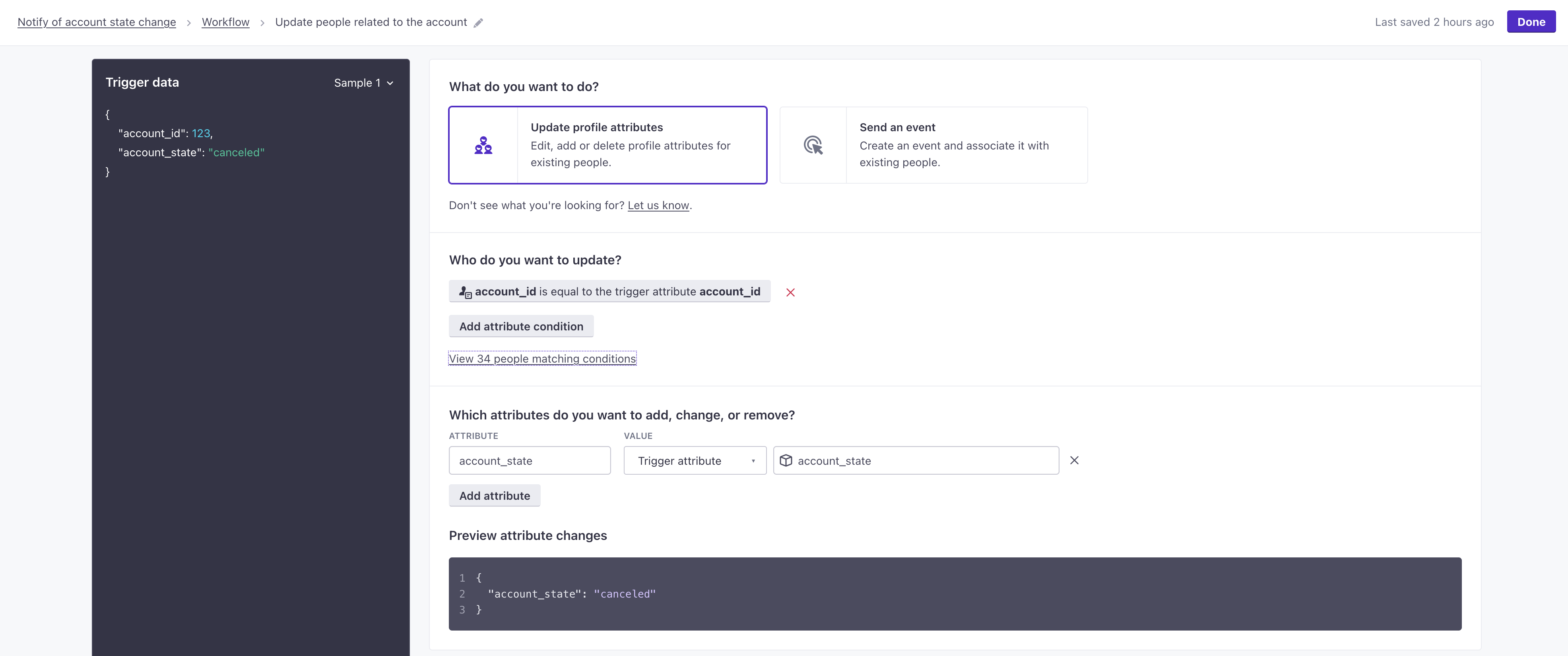
When you use the Update profile attributes option, your batch update sets or updates attributes for every person matching your conditions. You can add people to segments based on these attributes which trigger messaging automations.
In an object or relationship-triggered automation, you can update attributes based on the attributes of the trigger object or relationship.

In a webhook-triggered automation, you can set attributes to data from your incoming webhook—the A syntax that supports variables, letting you personalize messages for your audience. For example, if you want to reference a person's first name, you might use the variable trigger- using liquid{{customer.first_name}}.
Send events
When you use the Send an event option, your batch update sends an event to every person matching your conditions.
In an object or relationship-triggered automation, you can add event attributes based on the attributes of the trigger object or relationship. But if you’re trying to trigger an automation off of these events, consider triggering the automation based on the object or relationship instead.
In a webhook-triggered automation, you can set event attributes to data from your incoming webhook—the A syntax that supports variables, letting you personalize messages for your audience. For example, if you want to reference a person's first name, you might use the variable trigger- using liquid{{customer.first_name}}.