

Create multiple from addresses
You may have messages that should come from different email addresses depending on your use case—onboarding emails from customer success managers, newsletters from a general company address, etc. You can add multiple from addresses to fit your needs.
Add multiple from addresses
To add a new from address:
- Go to Settings > Workspace Settings and select Email.
- Find the sending domain you want to add the new address to and click Add from address.
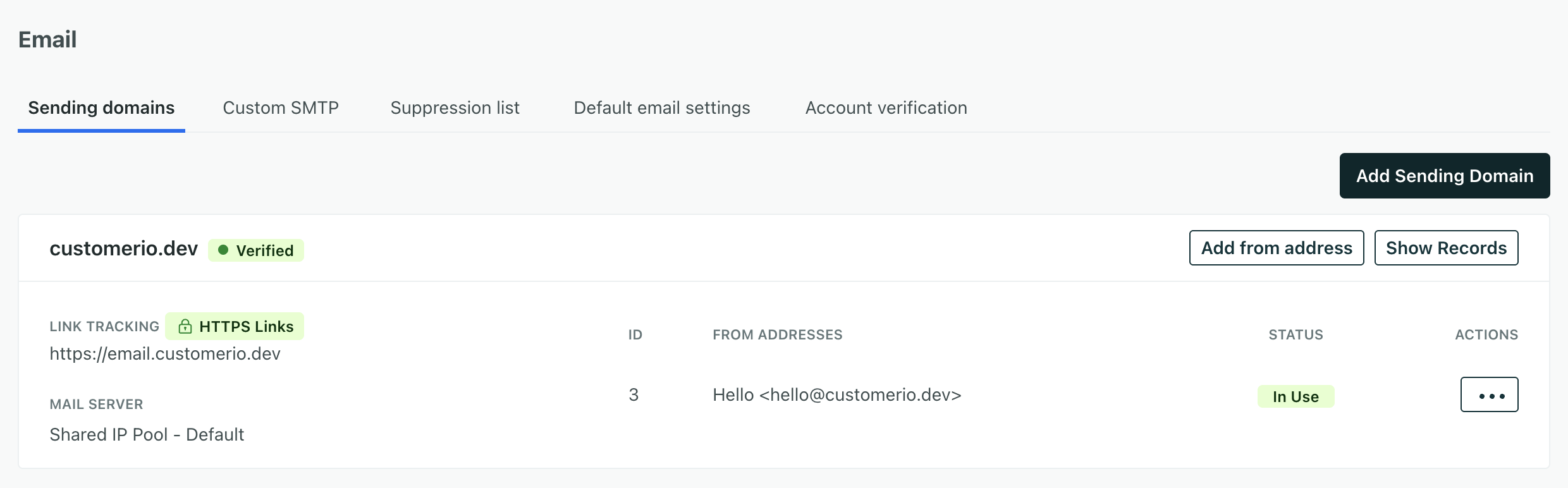
- Enter the sender name and email address.
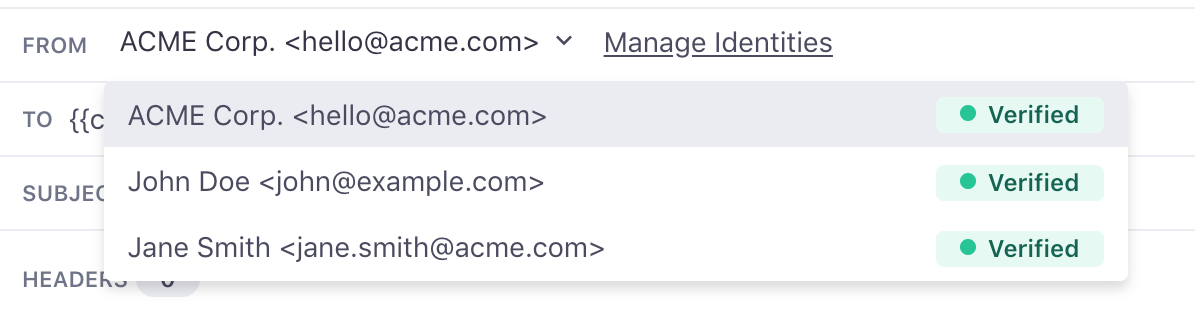
After you add a new from address and the domain is verified, you can pick your new address using the drop-down next to the From label when creating an email.
Add dynamic from addresses
You can set a dynamic from address to personalize emails based on relationships between your company and your recipients.
For example, if you assign an account manager to each of your customers, you can add a liquid statement as your from address to pull in the account manager’s email: {{customer.account_manager}}.
To set a dynamic from address, you should include a liquid statement with a fallback from address to ensure your emails always reach your customers. In this case, your workspace would send from the fallback address when a recipient doesn’t have an assigned account manager.
- Go to > Workspace Settings and select Email. Click Dynamic addresses.
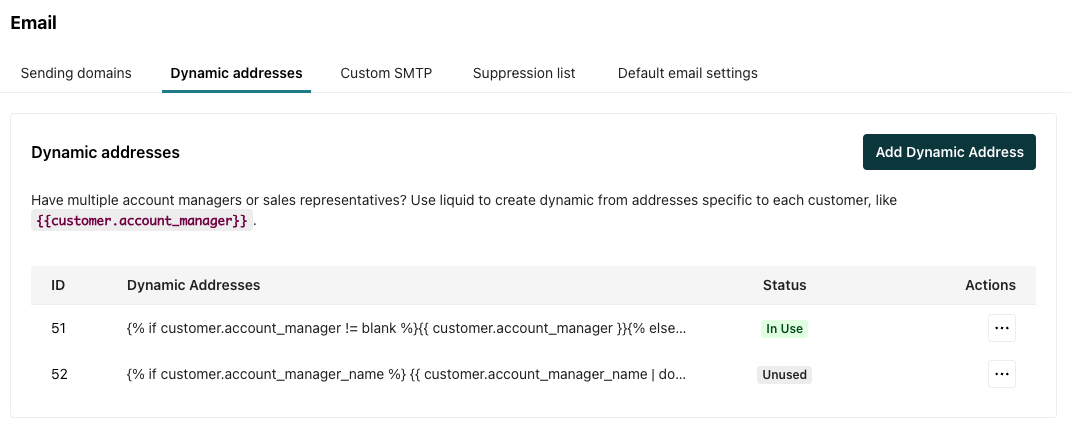
- Select Add Dynamic Address.
- Enter the display name and email address. You can use liquid in either field. For the email address, make sure you add a fallback from address for customers that don’t have the variable.
Here are a couple examples of dynamic from addresses:
{% if customer.account_manager != blank %}{{ customer.account_manager }}{% else %}accounts@example.com{% endif %}In this example, the statement sets the email based on the account manager’s name and your sending domain.
{% if customer.account_manager_name %}{{ customer.account_manager_name | downcase | replace: " ", "." }}@example.com {% else %} noreply@example.com{% endif %}Check that your dynamic addresses resolve to your verified domains
If you don’t use a custom SMTP server, you need to make sure your addresses resolve to verified domains. When an address resolves to a different domain, what happens depends on the domain’s verification status:
- If the domain isn’t in your workspace at all: Customer.io sends the email, but the envelope-from falls back to a Customer.io domain instead of the one you set via liquid.
- If you haven’t finished verifying the domain: The send fails. Our email servers won’t deliver mail from a domain whose DNS records aren’t in place yet.
From address fallback
Every email has two “from” values: the From header that recipients see, and the envelope-from (also called the Return-Path or MAIL FROM) that mail servers use for bounce processing and SPF checks. Recipients don’t see the envelope-from. Transitioning to Customer.io as a sender explains both addresses in more detail.
When your From address resolves to a verified sending domain, Customer.io sets the envelope-from to an account-specific subdomain of your domain, in the format cio#####.yourdomain.com (or cioeu#####.yourdomain.com if your account is in our EU data center).
When the rendered From domain isn’t one of your workspace’s sending domains, Customer.io falls back to its own domain for the envelope-from: delivery.customeriomail.com, or delivery-eu.customeriomail.com in the EU data center. SPF and DKIM then authenticate the Customer.io domain rather than yours, and bounces route through it too. Recipients still see the From address your liquid rendered, so if that domain publishes a DMARC policy, receiving servers can reject the message or file it as spam.
To keep the envelope-from on your own domain, make sure your From addresses, including dynamic addresses, resolve to a verified sending domain. If you send through your own SMTP provider, your provider controls the envelope-from address.
Check where from addresses are used
If you’d like to see where a specific from address is being used, search for it in your Message Library.
This is a dedicated page in your workspace where you can locate specific templates by searching on keywords, as well as locate all message actions and broadcasts that are using a specific from address. You can also filter the results based on whether the message is actively sending or drafted.