

Google Postmaster Tools
Google Postmaster Tools (GPT) shows you your Gmail spam rate and sending reputation, data that Google doesn't share with Customer.io. As of 2026, all senders are on Postmaster Tools v2.
Google Postmaster Tools (GPT) is a free service Gmail provides that shows you data about your sending reputation and Gmail spam rates. Customer.io can’t see this data on your behalf, so GPT is worth setting up even though it takes a few extra steps.
Because Google actively maintains and updates GPT, Google’s own Postmaster Tools documentation is the best source for the most current setup instructions and dashboard details. This page covers why GPT matters and how it fits into your Customer.io setup.
Stay under Google’s spam rate limit
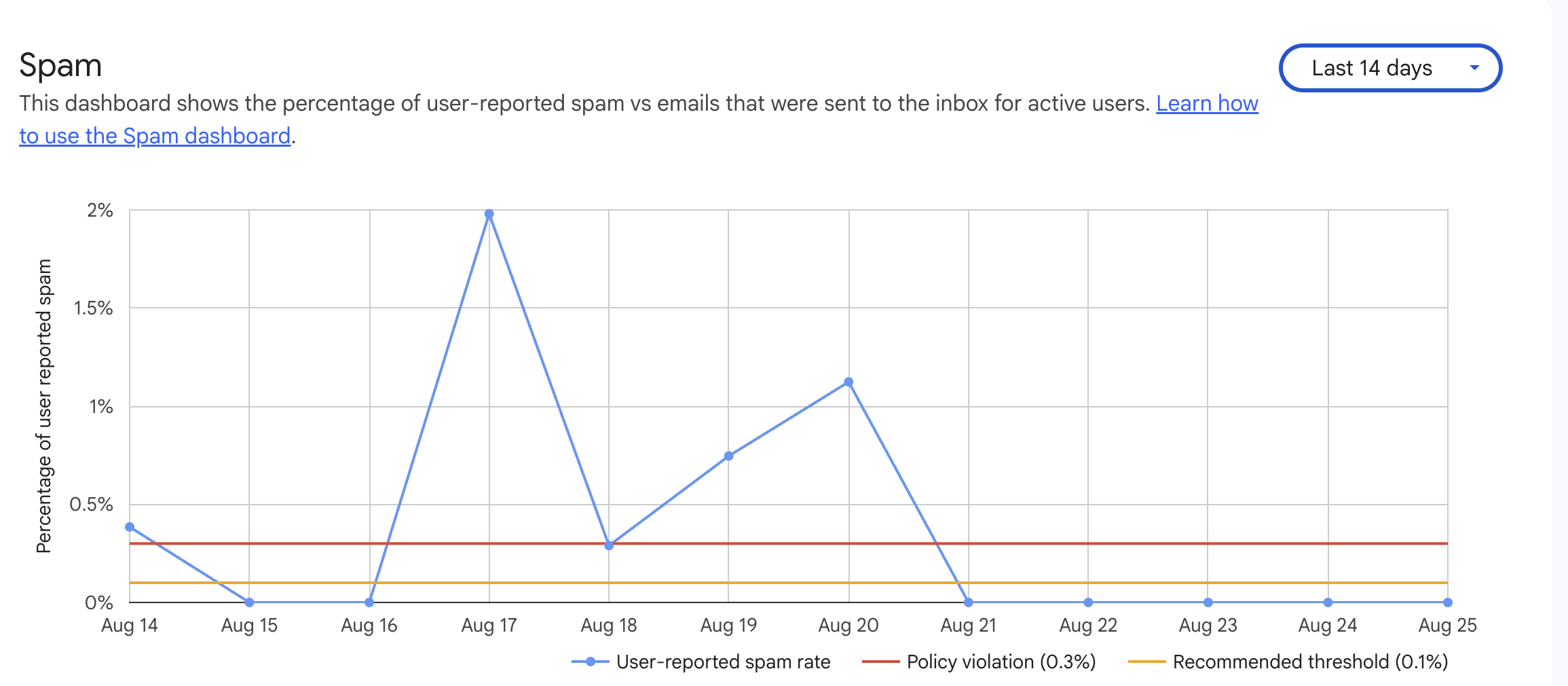
Google requires senders to stay below a 0.3% spam rate in GPT. Crossing that line can mean losing Gmail’s mitigation support until you’re back under 0.3% for seven consecutive days. But 0.3% is a hard failure line, not a target: aim to stay under 0.1%, in line with our best practices guidance.
Why you can’t see Gmail spam complaints in Customer.io
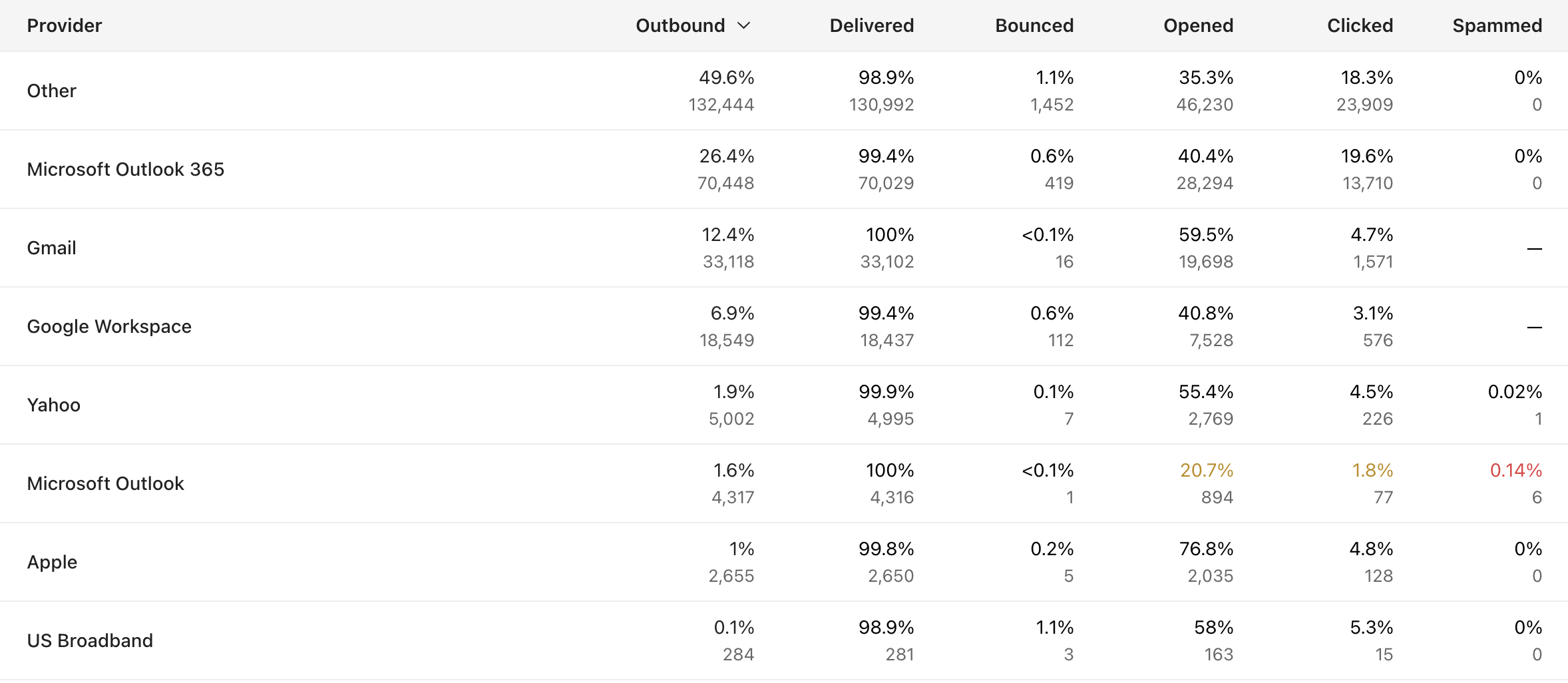
If your recipient marks a message as spam and the email service provider sends that information back to Customer.io, we’ll automatically suppress emails to that person so you can’t send to someone who clearly doesn’t want your messages in the future. However, Google does not send information about spam complaints back to Customer.io or to any other sending platform.
Google gives Gmail reputation data directly to the domain owner, not to the tools sending on their behalf, because it wants senders actively monitoring and taking responsibility for their own sending health rather than fully outsourcing it. Remember that when viewing your Customer.io dashboard, the spam information displayed does not include Gmail users.
What Postmaster Tools shows you
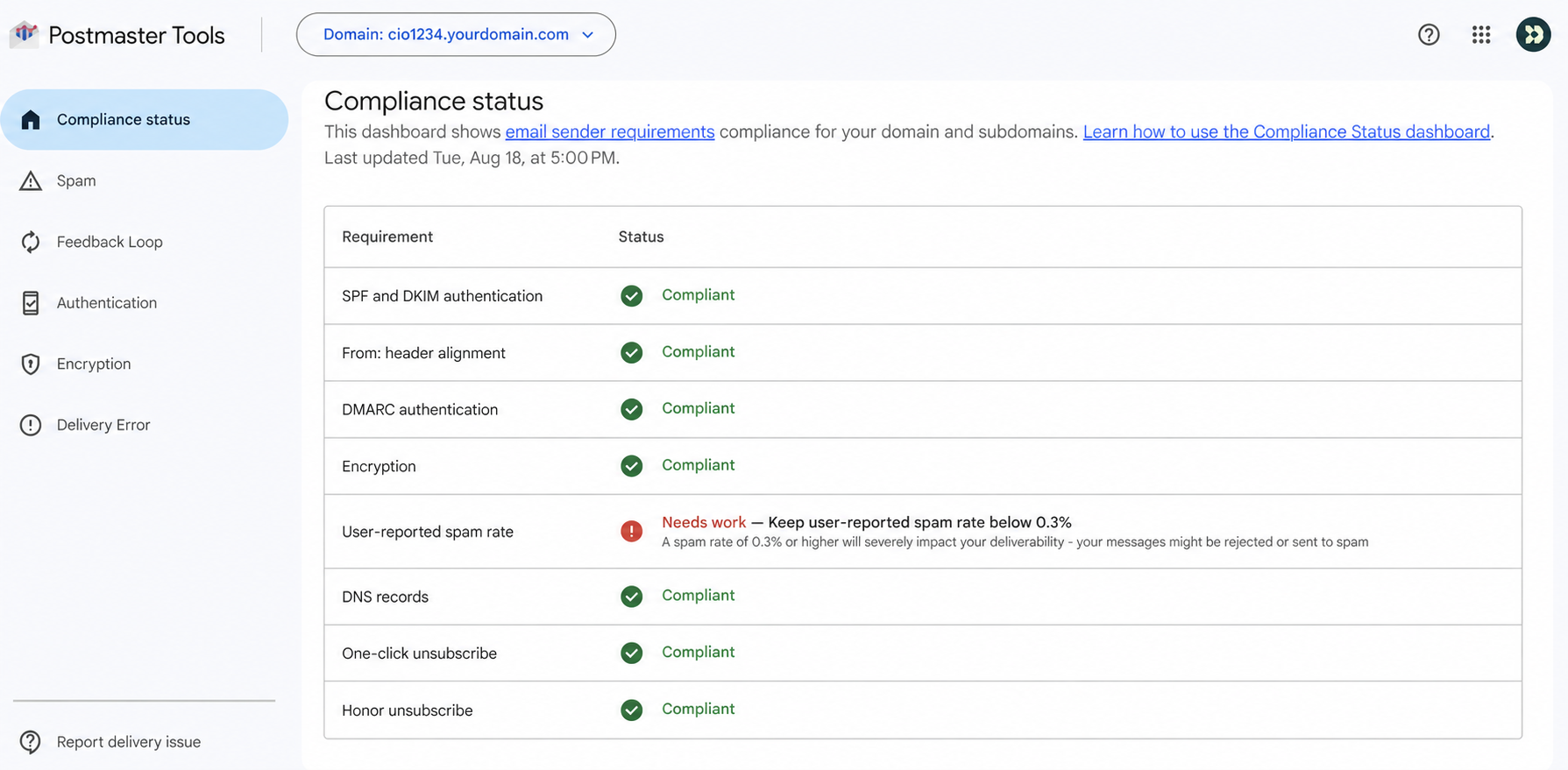
Google Postmaster Tools is the only place to view information about Gmail user-reported spam complaints. In GPT v2, you can also see:
- your Compliance Status, a pass/fail view of authentication, alignment, unsubscribe compliance, and spam rate
- a dedicated Spam Rate dashboard
- Feedback Loop data, once you set up a
Feedback-IDheader on your emails - a Deliverability Analysis section that translates your sending data into a plain-language verdict with a recommended next action
Check out our blog article to learn more about the power of Google Postmaster Tools!
Set up Postmaster Tools
-
Log in or sign up for a Google Postmaster Tools account.
-
Locate your subdomain in Customer.io: go to Workspace settings > Email and click Show Records. The subdomain is a combination of the Host Name of your MX or SPF records plus your root domain, like
cioXXXXXX.yourdomain.com. -
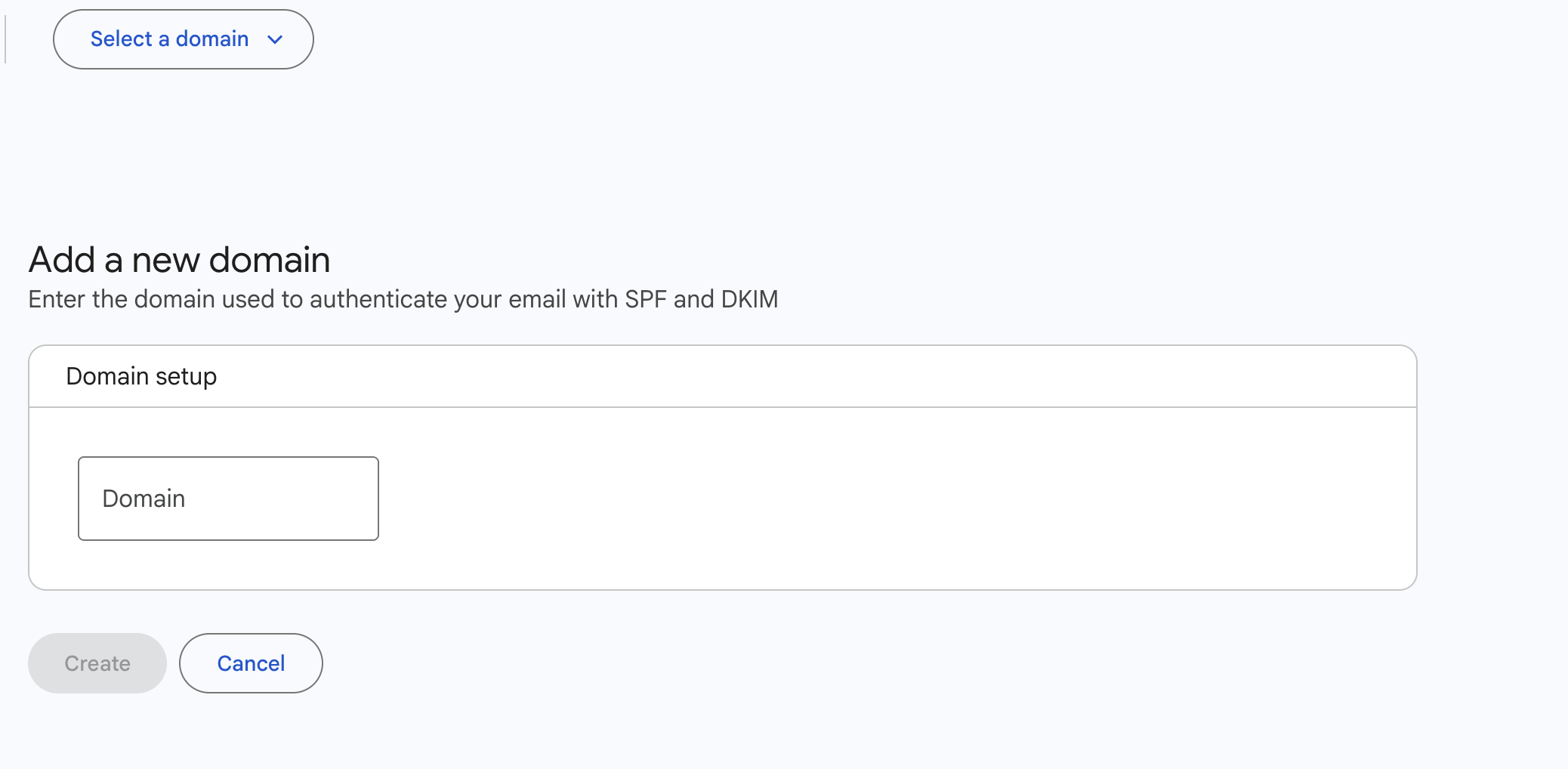
Copy the Host name record from the previous step and paste it in the domain section of your Google Postmaster Tools signup.
-
Verify your domain: add the records GPT provides you to your domain registry to prove ownership of your domain.
-
(Optional) Grant Customer.io read access to your domain so we can help you troubleshoot deliverability issues. You can only add users to a verified domain.
- In Postmaster Tools, on the Manage Domains page, click More options (the three vertical dots) next to your domain, then click Manage users.
- In the top right, click New user.
- Enter
ami@customer.ioin the Add user window, then click Add.
Now you can monitor your sending domains for Customer.io in Google Postmaster Tools. If you granted us read access, we can also see your Gmail data when we help you troubleshoot deliverability issues.
For full documentation on GPT, visit Google’s documentation on Postmaster.