

Queue draft for automation QA
Great messaging is no simple task. Deep personalization drives higher opens, clicks, engagement, and results. But it also makes your lifecycle automations more complex to design, build, and deploy. The more moving parts you add — automation, segmentation, dynamic content, and filters — the more likely that something can go wrong. This article shows you three ways to use 'Queue Drafts' to review your automations.
In most ESPs you’re either “building” your email automation or “sending” it. This means that once you hit “Start automation”, your messages go live and you can only catch errors afterwards.
Customer.io takes a different approach with a feature called Queue Draft, which enables you to start automations and generate drafts of messages without sending them. Think of this as a dry-run for your automations. You get to see who would have received what message when before actually going live.
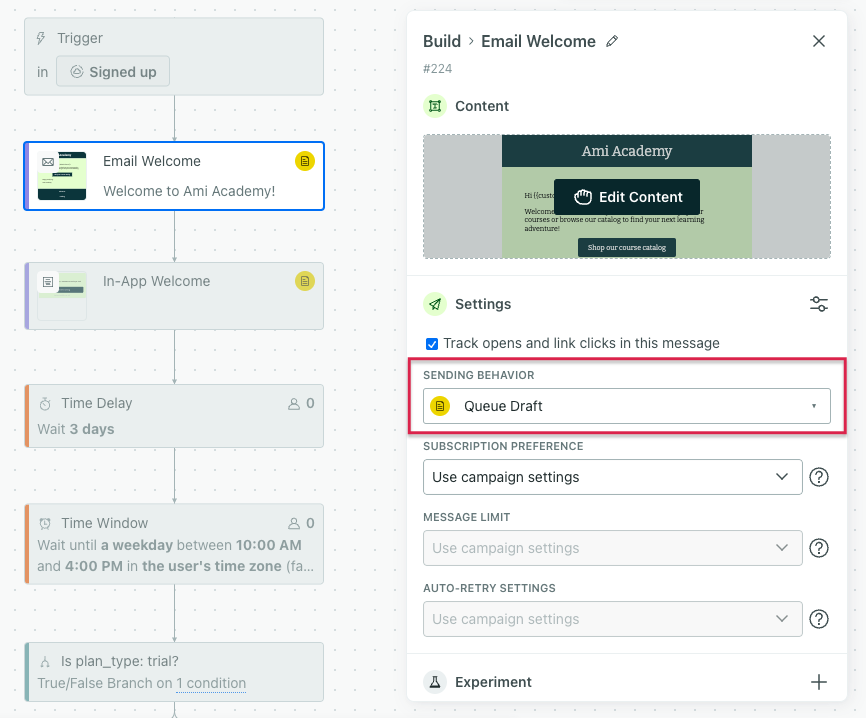
This feature makes a better quality-assurance process possible. By first setting your messages to queue drafts, you can debug your content and check the logic, all without ever sending a single message.
Check liquid and copy
Personalizing your messages is a great way to make subscribers feel warm and fuzzy. But what happens when your personalization goes wrong?
Imagine that, for example, some users don’t have a specific attribute you want to personalize on, like city_name.
When you try to use an attribute that doesn’t exist for a particular user (without adding a fallback), Customer.io won’t send the message and the delivery will fail. While this is 1000x better than sending a broken message, this doesn’t solve the fact that our message wasn’t sent!
When you set messages to Queue Draft, we will generate a draft rather than sending that message automatically. Then, you can spot-check the drafts that have been generated. Here’s an example drafted email where we tried using a variable customer.plan_name that is missing for this particular user, and we didn’t catch the error message in the composer.
.png)
When you catch message content mistakes and fix them in the composer, drafts will automatically update.
Check automation configuration
Ever sent the same message to the same person multiple times in one day? That’s every email marketer’s nightmare.
When your messages are queueing as drafts, you can see exactly who would receive what message— for example, if a user would have received the same message multiple times in a single day. (This can happen with event-triggered automations without proper filters.)
If this is the case, you can add a rule to the automation so this message only goes out if the recipient has NOT already received it in the last week.
This also helps you discover any other issues you might have never thought about, like a person receiving two drips at the same time, an exclusion filter that’s critical but missing, or something else in the automation workflow logic that you didn’t quite get right.
Check how people progress through the automation
You can go to a user’s “Journeys” tab to see a message’s status.
Here we see that an email in the “Onboarding second series” automation will draft an A/B test in two days. When you mouse over the action icon with the yellow drafting status, you can see which specific message is the next step.
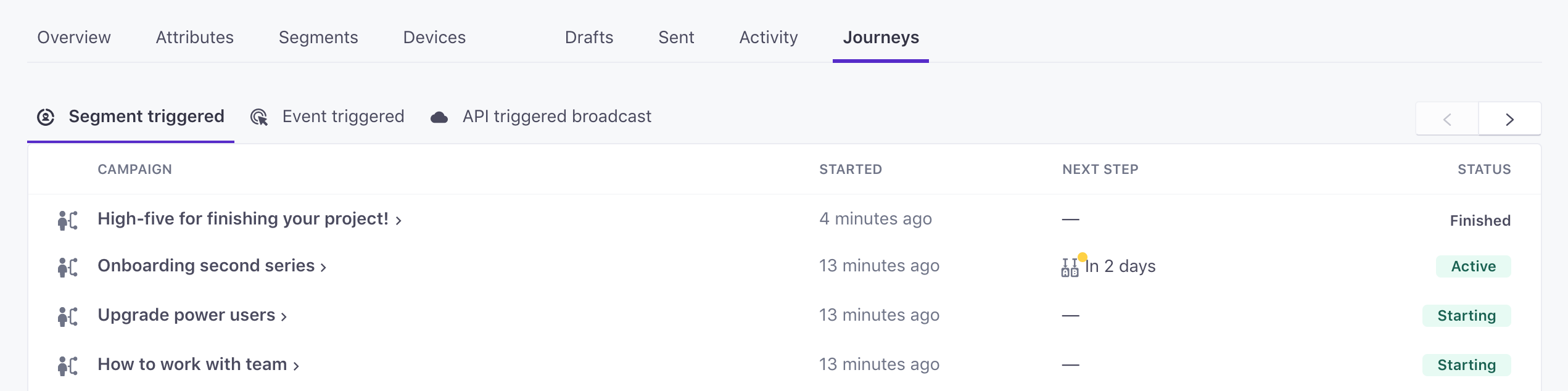
If you think this message shouldn’t be drafting in 2 days, then you can make the necessary edits to your automation flow!
When you finish reviewing
Rather than sending drafts after you finish review, you might stop the automation, duplicate it, update messages to send automatically, then start the new automation. This way, everyone starts receiving messages automatically and all of your messages and actions are timed as specified in your workflow.