

Copy workflow items
Do you have a successful automation workflow you want to replicate or a fine-tuned set of messages in one automation that you want to re-use in another? No problem! You can copy workflow items from one automation to another, even if your automations are in different workspaces!
Copy items from another workflow
When you copy items from another workflow, not all of the copied items’ settings carry over to the destination workflow. For instance, if you copy a Create or Update Person action that references trigger data from another automation, the same logic might not work in the current automation depending on its trigger. This is especially true when you’re copying items from a different workspace. Make sure that copied workflow item settings apply to your current workspace and automation before you save changes in your workflow.
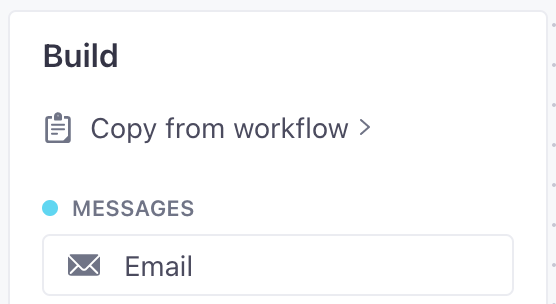
- Click Copy from workflow at the top of the Add menu.
- Select the Workspace and Automation (or broadcast) that you want to copy workflow blocks from.
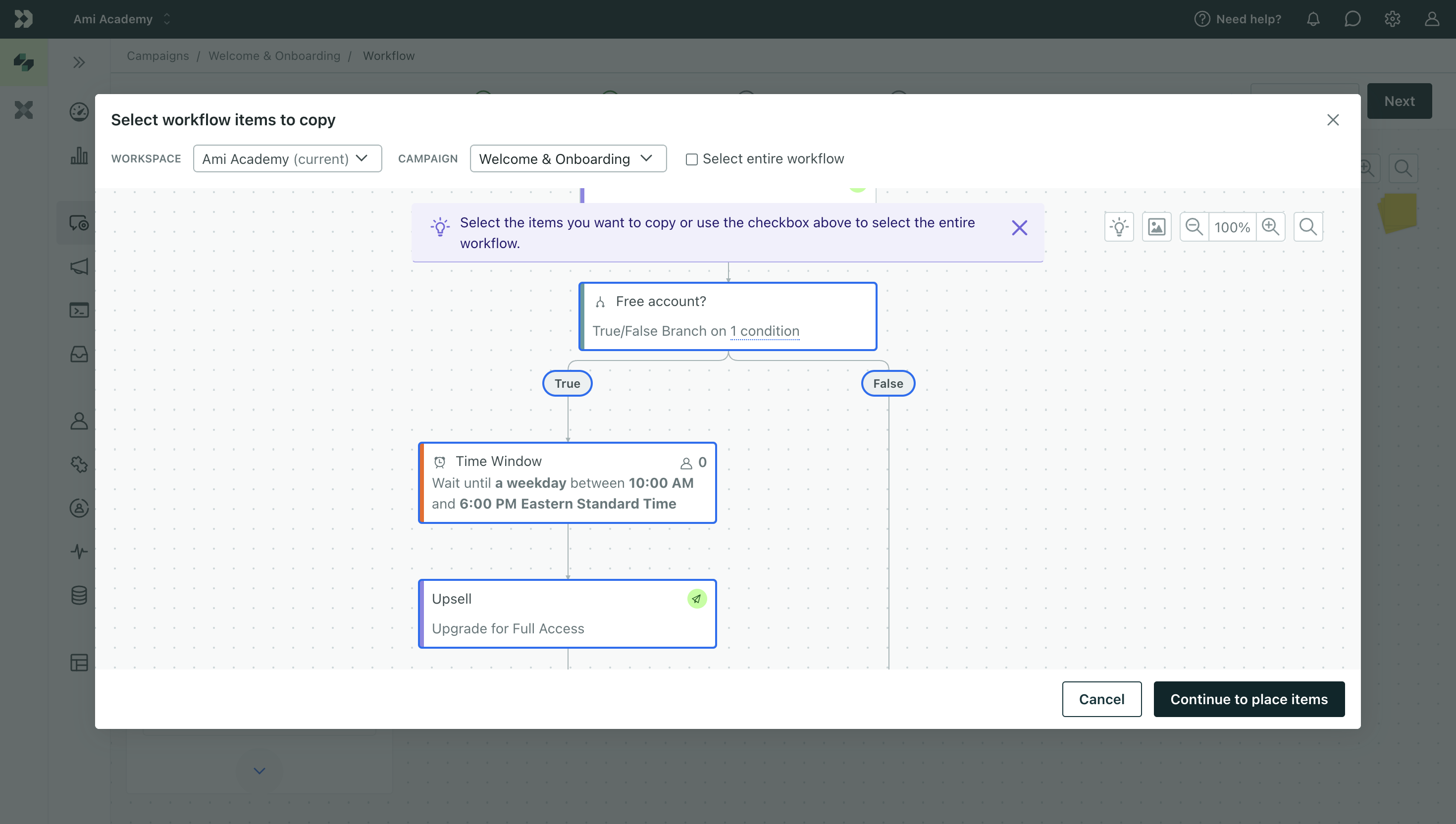
- Click and drag to select the workflow items you want to copy. Or check Select entire workflow to copy everything.
- Click Continue to place items.
- Click to place your copied items in your current workflow.
Copy items to another workflow
When you copy items to another workflow, not all of the copied items’ settings carry over to the destination workflow. For instance, if you copy a Create or Update Person action that references trigger data to another automation, the same logic might not work in the other automation depending on its trigger. This is especially true when you’re copying items to a different workspace. Make sure that copied workflow item settings apply to your current workspace and automation before you save changes in your workflow.
To copy items from your current workflow to another one:
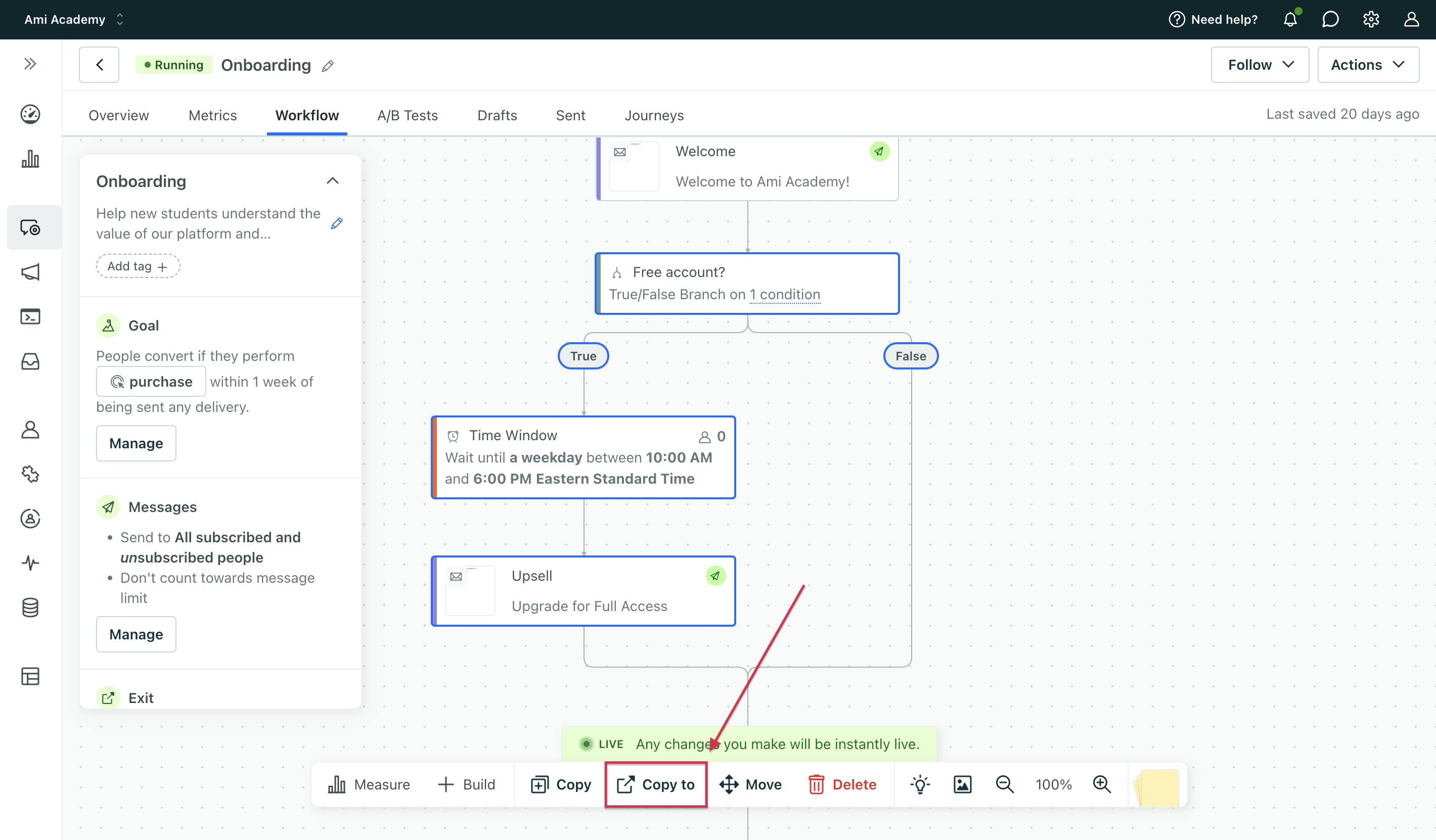
- Select the items you want to copy to another workflow.
- Click Copy to….
- Select the Workspace you want to copy items to.
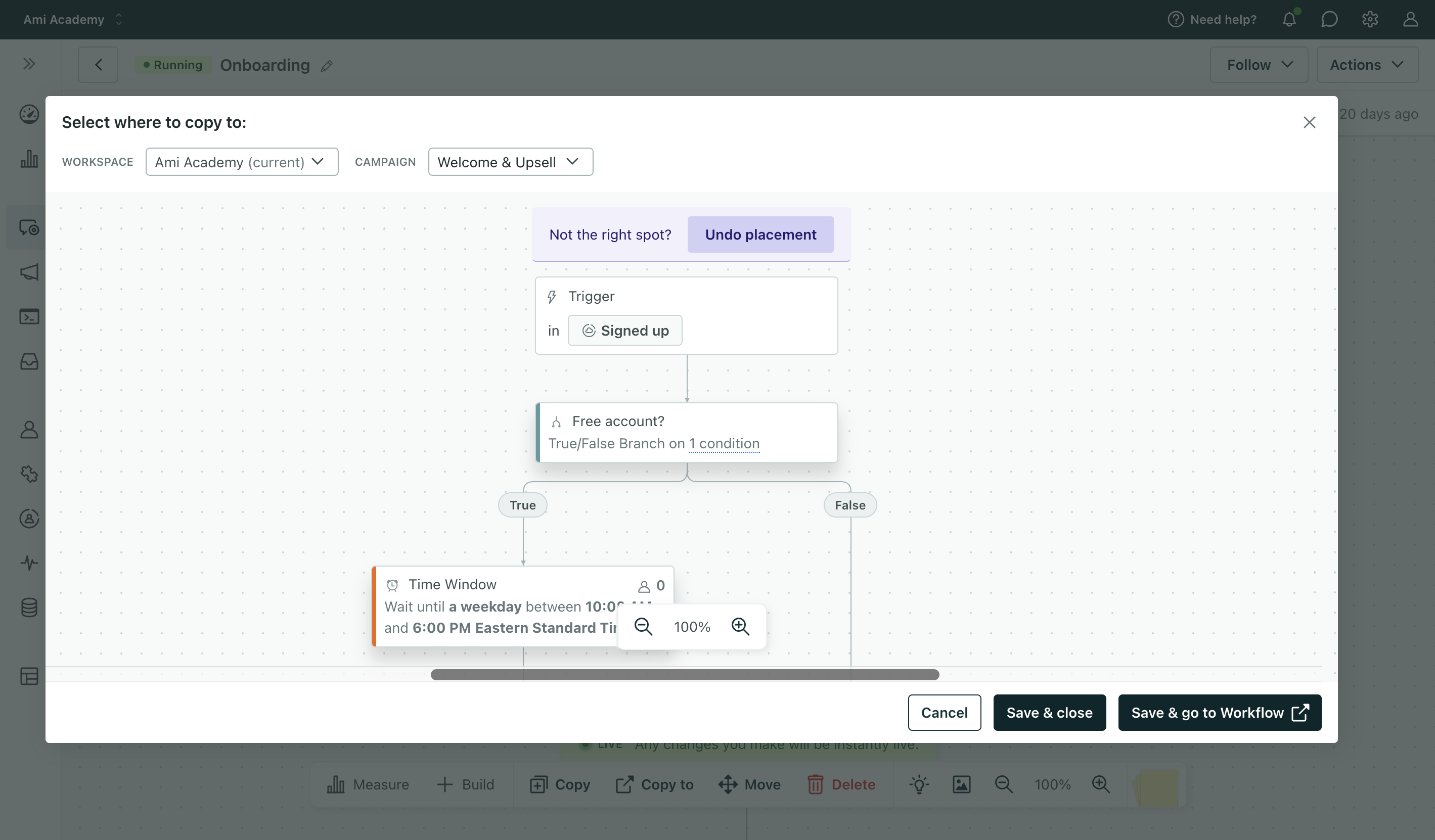
- Select the Automation or API-triggered broadcast that you want to copy items to.
- Click to place your copied items into the workflow.
- Save your changes: Click Save & close to return to the workflow you copied items from. Or click Save & go to Workflow to go to the automation you just copied items to.
Sending behavior when copying
The sending behavior of a copied message depends on the automation’s status:
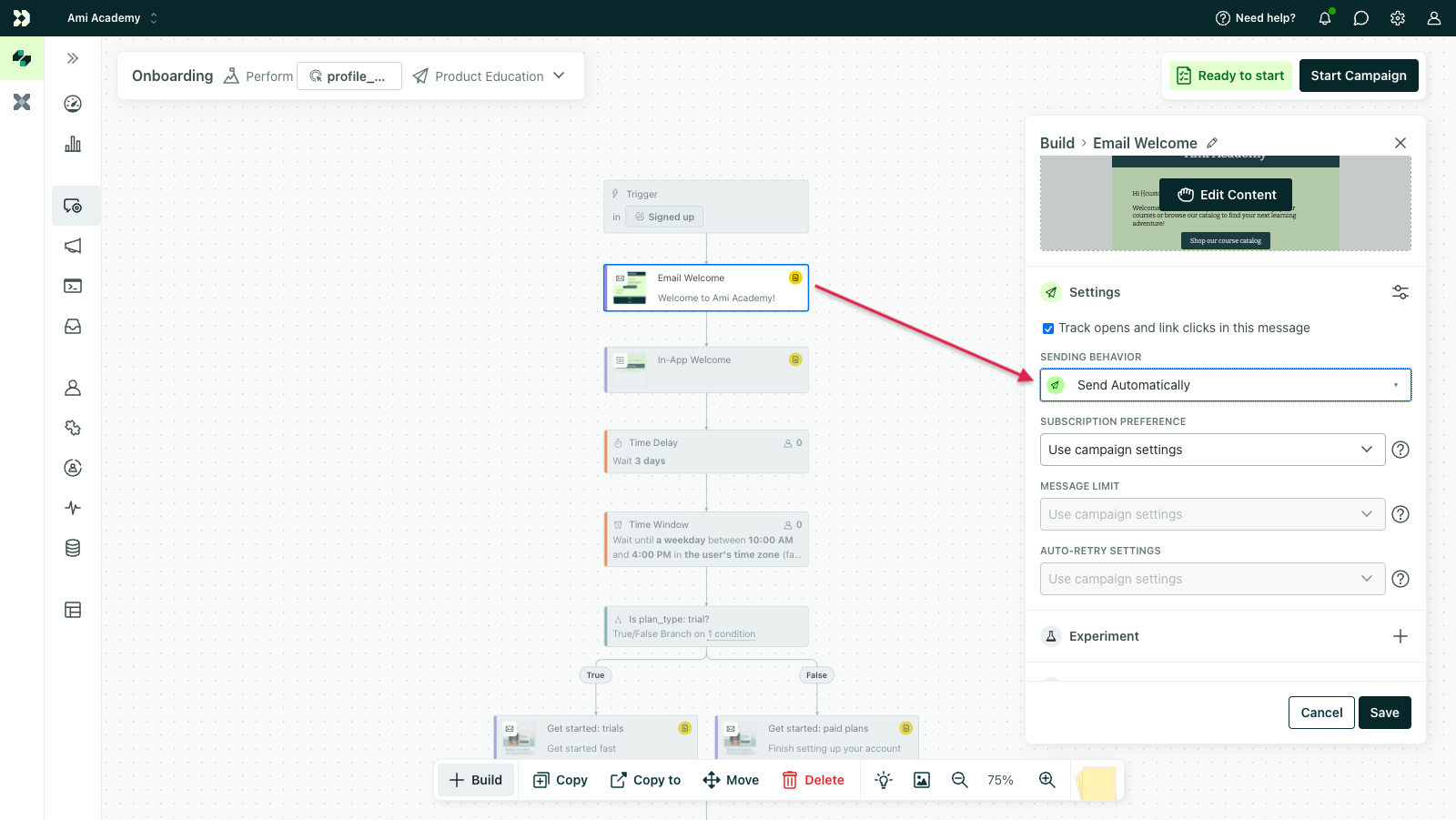
- If you copy messages into an active automation, copied messages default to Queue Draft, regardless of their original states. This prevents you from accidentally sending messages before you have a chance to edit the copied messages to fit your current workflow.
- If you copy messages into an inactive automation, the Sending Behavior doesn’t change.
For example, let’s say you copy an SMS that is set to Send Automatically. If you copy into:
- An active automation: the duplicate SMS is set to Queue Draft.
- An inactive automation: the duplicate SMS remains set to Send Automatically.
To change a message’s sending behavior, click the message block and adjust the dropdown:
Copy between workspaces
You can copy workflow blocks across workspaces. However, we won’t copy settings that typically don’t transfer across workspaces like:
- segments
- email layouts
- reply-to and from addresses
- some action conditions
- SMS, Slack or push notifications if these modules aren’t enabled in the destination’s workspace settings
Action conditions
If you copy workflow blocks that have action conditions, some settings may not copy over to the workspace. This is because your new workspace may not contain the same options as the original workspace—like segments and subscription preferences.
| Action Condition | Copied? | Why? |
|---|---|---|
| Segment conditions | ❌ | Segments are workspace-specific, so you must re-define segment conditions on workflow items that you copy across workspaces. |
| Attribute conditions | ✅ | While we copy attribute conditions over to the new workspace, you’ll need to review them to make sure they’re correct. |
| Event data conditions | ✅ | While we copy event data conditions in event-triggered automations, you’ll need to review them to make sure they’re correct. |
| Subscription preferences | Sometimes | Subscription preferences are copied if they match the automation settings or global options. Subscription preferences are not copied if you’ve overridden the subscription preference to a specific topic. In this case, the preference resets to Use automation settings because your new workspace may not contain the same topics. |
For example, consider an email with the following action conditions:
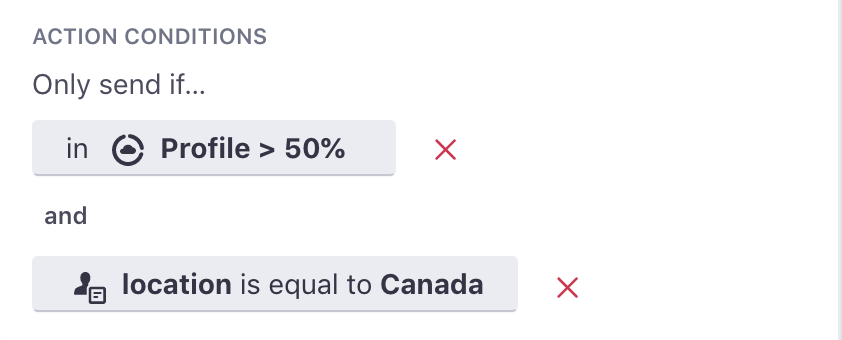
If you copy this email to another workspace, the “Canada” location attribute copies normally, but the Profile > 50% segment condition does not. Instead, you would see the following warnings on your copied email:
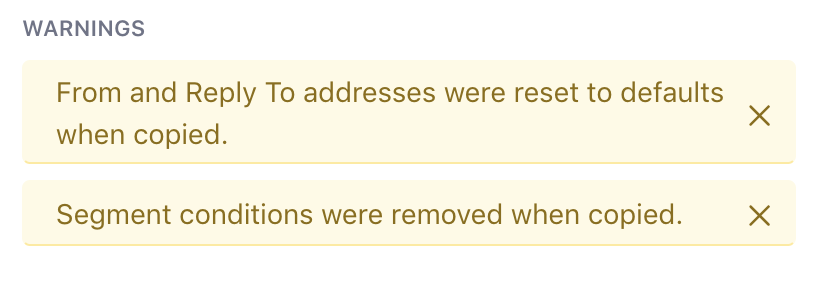
If you want the copied email to have the same conditions as the original, you must:
- Re-create the segment and re-add it as an action condition.
- Make sure the
locationattribute exists in the workspace you’re copying to.
Email layouts, reply-to, and from address
When you copy messages from one workspace to another, the Layout, Reply-to and From addresses reset to the default in your destination workspace! Your copied message may display warnings reading “Email layout was reset to default” or “Headers were reset to default.”
To address these warnings, go to the editor and check that the Layout, Reply-To, and From Address settings are correct for your copied message and automation.
Non-email messages
If you’re copying SMS, Slack, or push notifications between workspaces, make sure you’ve enabled those action types in your destination workspace! If they aren’t, you won’t be able to copy these workflow blocks over.
With in-app messages, you can copy them even if they’re not officially enabled in workspace settings.