From Design Studio's Styles page, you can automatically pull styles and content rules from a variety of sources to generate a coherent brand document for your Design Studio messages.
Global styles capture your brand’s values—a color’s hex code, a font family, and more. The brand document captures the rules: which role each color plays, which pairings you use, how much space separates a headline from its body, and the tone of your copy. AI features in Design Studio read this document before they write or edit email content, so their output is more consistent across your files.
This feature requires Customer.io AI
Generating a brand document requires Customer.io AI turned on for your account.
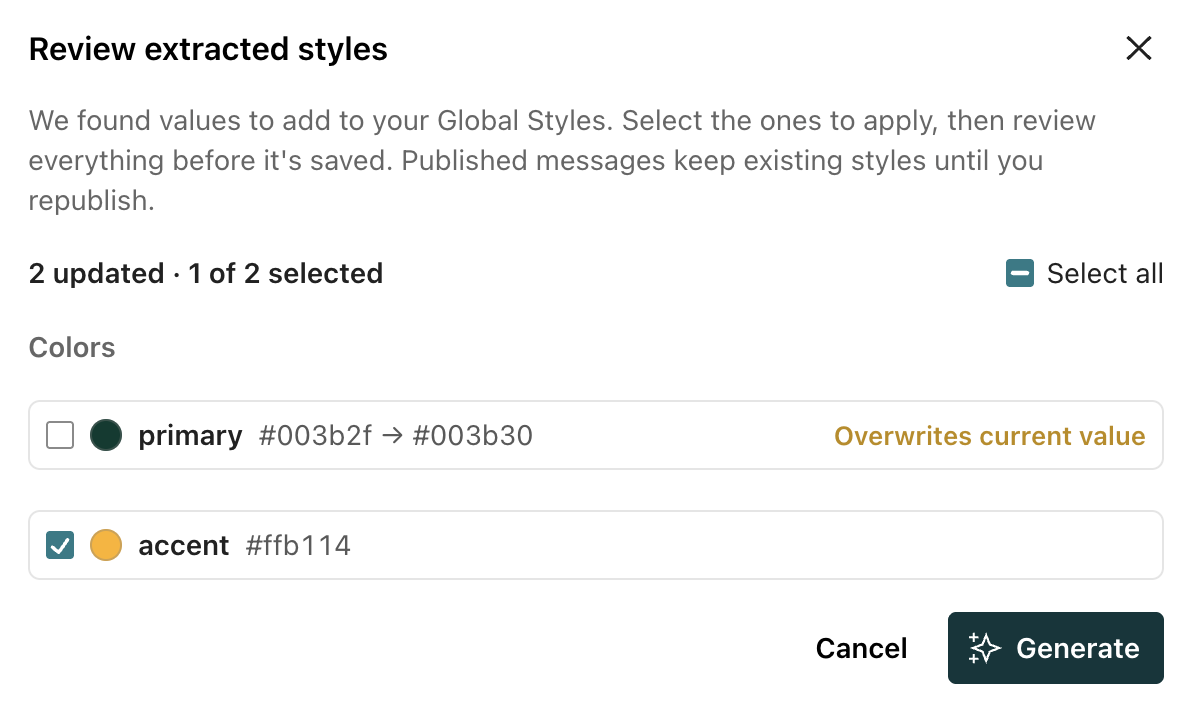
Review the suggested variables and components.
If you’re regenerating styles, make sure you understand which values would be overwritten. After the final review stage (step 7), saving styles that overwrite others may impact your emails. Look for the label “Overwrites current value”.
Make your style choices. Select each change you want, and clear the checkbox for any change you don’t want to save.
Review the brand document Design Studio writes from those sources. While Design Studio writes the document, you can watch its progress or click Keep working to leave it running in the background. Design Studio lets you know when your styles are ready to review.
Click Save updates to save your styles and brand document together.
After you save, Styles shows a sample email in your brand’s style. Click Try it now to have the agent draft a real email from your brand document and styles.
You can also update the brand document later without regenerating it. Anyone with edit access to Design Studio content can open it in Styles and revise a section directly.
Let the agent build your brand document
If your workspace doesn’t have a brand document yet, Customer.io’s agent can build one for you. Ask the agent to set up your brand, or ask it for an email. When an email needs a brand document and your workspace doesn’t have one, the agent builds the document first and then writes the email in the same conversation.
The agent builds your brand document the same way you can generate your global styles. The agent asks Design Studio to read the company website in your business context, or the website you provided when you signed up for Customer.io. You can also give the agent a different website, or attach an image of your brand, like a screenshot of one of your emails.
Treat what the agent builds as a first draft. When the agent finishes, it tells you where to find your brand document and styles so you can review them and change anything you like. If you’ve already edited your global styles or published messages, the agent keeps your current styles and adds only new colors and component variants, so any messages you’ve already created or sent won’t change.
The agent doesn’t replace a brand document you already have. To regenerate your document, click Generate in Styles, or edit the document directly.
Add your sources
Include multiple brand assets and links to generate your styles and brand rules.
You can add up to five sources per run. If you want to update styles from more than five files, run the generator again with your additional sources.
Website URLs
Add a link to a website that reflects your brand. You can enter a domain, like example.com, or the URL of a specific page, like example.com/pricing. Design Studio reads the page at the address you enter, so link to the page that shows your brand best. From that page, Design Studio gathers your colors, fonts, buttons, and brand images, including logos and carousel images.
If you link to a PDF or an image, Design Studio reads the file the same way it reads an uploaded file. Linked images must be 5 MB or smaller; linked PDFs must be 10 MB or smaller.
When you open the source form, Design Studio populates your company’s website address from your sending domain or from the website you gave when you signed up. You can change or remove the website before you generate styles and brand rules.
Design Studio can’t read internal or private network addresses, localhost, free email domains like gmail.com, or disposable domains. It also can’t read computed or interactive styles like hover states and transitions.
Your URL must load a webpage
If Design Studio can’t read a website at the address you provide, it tells you why and suggests what to do next, like uploading a screenshot of the site. You can also enter your styles manually or remove the original site and try again.
Uploaded files
Drop in screenshots or images, PDF files, or text files including CSS, HTML, JSON, Markdown, CSV, or email exports (.eml).
Customer.io can’t read Word documents, PowerPoint files, design-tool files like Figma or Sketch, video, audio, or archives. Convert or export relevant content from those into one of the supported types first.
What’s in the brand document?
The document is a brand guide based on how Customer.io’s AI interprets the sources you give it. It’s organized into the following sections:
Brand essence: a description of your brand’s visual personality, in language specific enough to distinguish you from a competitor in the same category.
Signature moves: design elements that make your brand uniquely yours, like a layout habit or a recurring color pairing.
Color system: the role each color plays—like background, text, and accent—the measured contrast ratio for any pairing that carries text, and which pairings fail accessibility standards.
Typography: the detected fonts mapped to email-safe font stacks. Includes sizes, weights, and line heights for each text style.
Layout & structure: container width, section padding, spacing between elements, and corner-radius conventions.
Components: specs for the parts of your email—header, hero, buttons, cards, dividers, footer—each dense enough to build from.
Assets: a table of any brand images you imported during style generation, their intended role, and usage rules. This section only appears when you imported assets as sources. Design Studio saves them to your asset library.
Voice & tone: a description of your reading level and sentence length, a list of words and phrases to use and avoid, and separate guidance for subject lines, preheaders, and call-to-action copy.
Evidence & limitations: what the sources actually showed, what Design Studio inferred rather than observed, and anything the sources couldn’t confirm.
Wherever a color or type value already exists as a variable, the document cites that variable directly instead of restating a hex code or pixel value. This keeps your document and styles inline.
Generate only brand rules
You can also exclusively generate brand rules if you already set up your styles.
Uncheck every box to keep your existing styles in tact.
Click Generate.
Review the brand document Design Studio writes from those sources.
Click Save updates to save your brand rules only.
Edit the brand document
After you generate the brand file, you can click Edit at any time to update the content as markdown. You don’t have to regenerate the document with AI to change the contents.
However, keep in mind that your assets library stores your brand document’s assets—screenshots, logos, and other references to your sources. So if you want to make a change to the assets referenced by the document, you have to change them in both the brand document and your assets library, located in the folder titled “Brand”. You can also ask the agent to make these changes for you.