

SMS: quiet hours
Quiet hours limit when Customer.io sends your SMS messages, based on the time where each recipient lives. Texts that come due outside a recipient's sending hours wait until those hours begin.
Many countries and US states restrict the hours when you can send marketing texts. Quiet hours let you set sending hours for each region. When you turn on quiet hours, Customer.io checks the recipient’s local time before it sends each SMS or MMS message. If the time is outside that recipient’s sending hours, Customer.io holds the text and sends it when their sending hours begin.
You’re responsible for compliance
The quiet hours in Customer.io reflect our understanding of US federal and state rules. Laws change often, and Customer.io doesn’t maintain a live compliance list, so these defaults may not reflect recent changes. You’re responsible for making sure your quiet hours meet the laws that apply to your messages. We recommend reviewing your settings with your legal team and adding or editing regions as needed.
How it works
When you turn on quiet hours, Customer.io works out each SMS/MMS recipient’s region and local time from their phone number. Then it compares the local time to that region’s sending hours:
- Inside sending hours: Customer.io sends the text.
- Outside sending hours: Customer.io holds the text and sends it when the recipient’s sending hours begin. For example, a text that comes due at 10 PM for a recipient in Florida waits until 8 AM the next morning, Florida time.
Quiet hours apply to SMS/MMS messages in your automations and broadcasts, including ones that are already running. They don’t apply to WhatsApp messages. Transactional messages are always exempt.
When you turn quiet hours off, Customer.io can send your SMS messages at any time, including outside your recipient’s local sending hours. You’re responsible for making sure that sending at those times meets the laws that apply to your messages.
Turn on quiet hours
You must be a workspace administrator to change quiet hours. Changes take up to a minute to apply.
-
Go to > Workspace settings > SMS > Quiet hours.
If you connected Twilio before July 30, 2026 and send through the Twilio Actions page, go to > Workspace settings > SMS and scroll to the Quiet hours section instead.
-
Click Turn on, and confirm.
-
Review the Sending hours by region table, and change the hours for any region you send to.
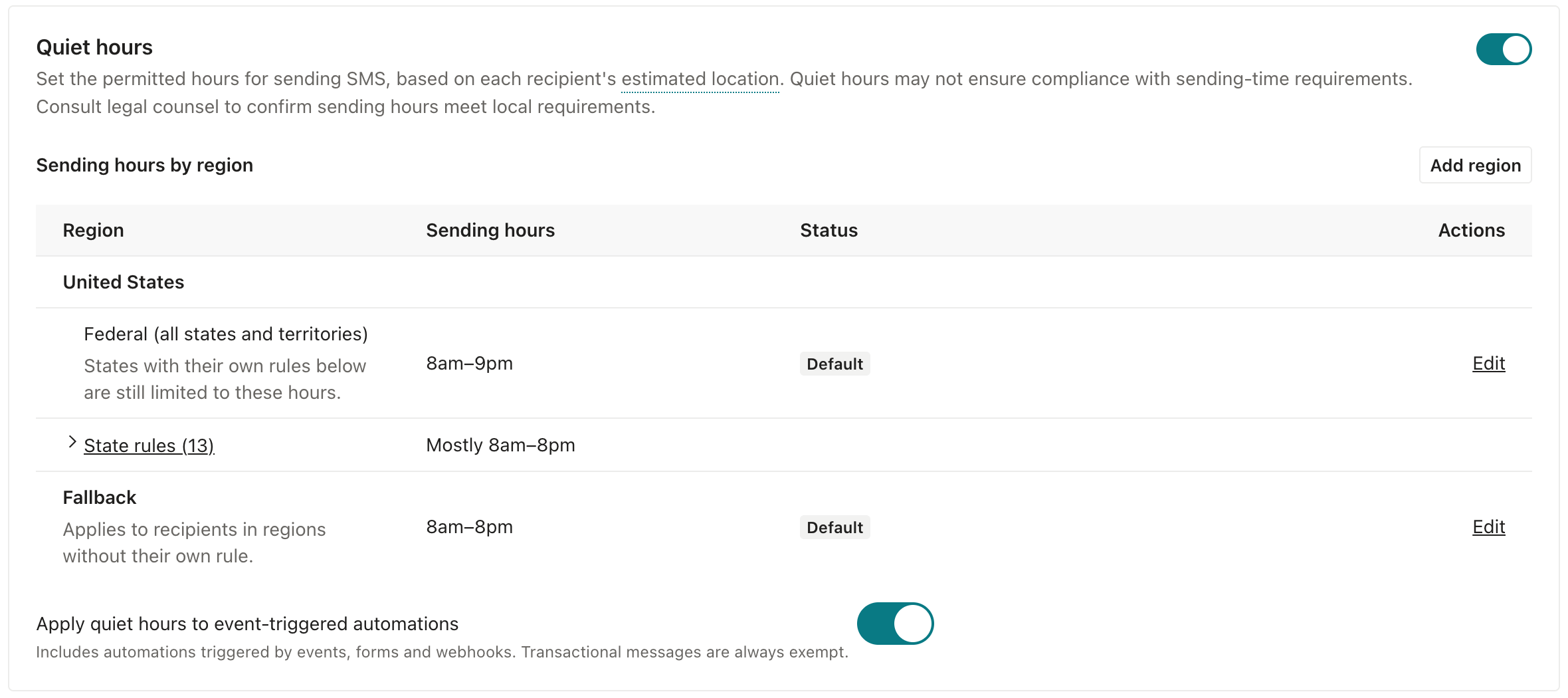
Add or change sending hours for a region
You can change the hours for any region in the Sending hours by region table, including the default regions. You can also add sending hours for a US state or a country that doesn’t have its own entry.
- In the Sending hours by region table, edit an existing region, or add a new one and select it under Region.
- Set Send from and Until for each day you want to send. You can set different hours on different days, and you can leave a day closed.
- Save your changes.
When you change a region’s hours, Customer.io uses your hours for that region from then on. If Customer.io later updates the default hours for that region, your hours stay as they are. To go back to the default hours, click Reset to default for the region.
Default sending hours
Customer.io starts with default sending hours based on US federal and state rules. Hours are in the recipient’s local time.
| Region | Default sending hours |
|---|---|
| United States (federal) | 8 AM–9 PM every day |
| Alabama, Florida, Louisiana, Maryland, Oklahoma, Oregon, Tennessee, Washington | 8 AM–8 PM every day |
| Connecticut, Nevada | 9 AM–8 PM every day |
| Mississippi | 8 AM–8 PM Monday through Saturday, no texts on Sunday |
| Pennsylvania | 9 AM–7 PM Monday through Saturday, no texts on Sunday |
| Texas | 9 AM–9 PM Monday through Saturday, 12 PM–9 PM Sunday |
| Every other country (fallback) | 8 AM–8 PM every day |
US states and territories (like Puerto Rico) without their own entry follow the federal hours.
The default hours don’t include holiday restrictions. For example, Pennsylvania restricts texts on some holidays, so you need to pause or reschedule your Pennsylvania messages on those days yourself.
Customer.io doesn’t provide country-specific default hours outside the US yet. Texts to other countries, including the UK and countries in the EU, follow the fallback hours, 8 AM–8 PM every day, until you add sending hours for that country.
For each text, Customer.io uses the hours you set for the recipient’s region. If you haven’t set hours for that region, Customer.io uses the default hours.
Customer.io can change the default hours at any time, including for existing workspaces, and doesn’t tell you when it does. Regions you haven’t changed follow the updated defaults. If you change the US federal hours, states without their own hours follow your federal hours instead of the federal default.
Rules for sending hours
Customer.io checks your hours when you save them:
- Each region must allow at least one sending hour per week.
- On each day you send, Send from must be earlier than Until. You can’t use the same time for both, or set hours that run overnight, like 8 PM to 8 AM.
- A US state’s hours must overlap your US federal hours by at least one hour per week.
- Customer.io shows a warning when your hours are longer than a region’s default (for a country, the fallback hours), or when you change the fallback hours. You can still save them, but you’re responsible for making sure your hours are within your recipient’s region’s laws.
When Customer.io sends a text, it also holds a US state to the US federal hours. When a state’s hours and the federal hours differ, Customer.io uses the narrower of the two. For example, if you set Texas to 9 AM–10 PM, Texas recipients still only receive texts until 9 PM, the federal limit.
Which messages quiet hours apply to
| Message type | Quiet hours apply? |
|---|---|
| Automations triggered by segments, attributes, dates, relationships, or objects | Yes |
| Automations triggered by events, form submissions, or webhooks | Yes, unless you exempt them in your workspace settings |
| API-triggered broadcasts | Yes |
| One-time sends | Yes, unless you exempt the send |
| Transactional messages | No |
Event-triggered texts are often time-sensitive, like an order confirmation or a login code. To exempt all automations triggered by events, form submissions, and webhooks, turn off Apply quiet hours to event-triggered automations in your quiet hours settings.
Exempting a message from quiet hours means Customer.io sends it at any hour, whatever the recipient’s local time. You’re responsible for making sure that’s allowed where your recipients live.
Exempt a one-time send
To send an SMS one-time send at any hour, turn on Exempt from quiet hours on the Schedule step. Customer.io then ignores your workspace’s quiet hours for that send, and shows a caution that sending outside quiet hours might not follow local requirements.
Override quiet hours for a single message
You can also change the quiet hours setting for an individual SMS message in an automation or API-triggered broadcast. Open the SMS action in your workflow, click Settings, and choose an option under Quiet hours:
- Use workspace setting: The message follows your workspace’s quiet hours settings. This is the default.
- Always apply quiet hours: Customer.io holds the message outside sending hours, even if your workspace exempts event-triggered automations.
- Never apply quiet hours: Customer.io sends the message right away, whatever the recipient’s local time. Use this for messages that people expect immediately, like an order update.
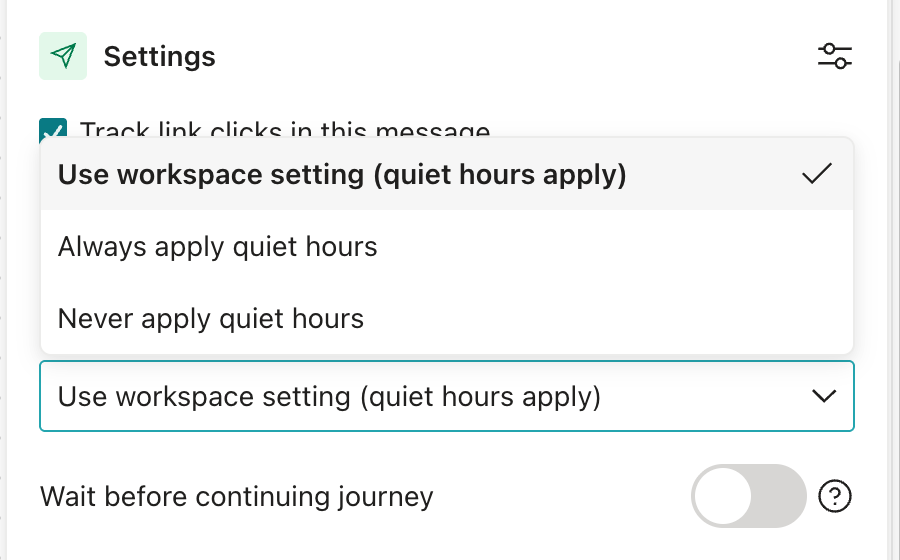
Quiet hours in automations
When Customer.io holds a text in an automation, the person waits on the SMS step until the recipient’s sending hours begin, like a time delay. Then Customer.io sends the text, and the person continues through the rest of your workflow.
Customer.io picks the send time for a held text at the moment it holds the text. If you change your sending hours or turn off quiet hours while a text is held, the text still waits until that time. If your new hours don’t include that time, Customer.io doesn’t send the text and marks it undeliverable.
How Customer.io determines a recipient’s local time
Customer.io estimates where a recipient is from their phone number, and uses that estimate to decide which region’s hours apply. The estimate might not match where the recipient is:
- The country code sets the country. A recipient whose number starts with
+44follows the hours you set for the UK, or the fallback hours if you haven’t set any, wherever they’re traveling. - For numbers without a country code, Customer.io uses the country of the number you send from. If Customer.io can’t tell which number you send from, like when you send through a messaging service, it reads the number as a US number.
- For US and Canadian numbers, the area code sets the time zone, and for US numbers it also sets the state. An area code reflects where the number was issued, which might not be where the recipient lives now.
- For countries with more than one time zone, Customer.io uses the profile’s
timezoneorcio_timezoneattribute to pick the right zone, as long as that time zone is in the number’s country. If the profile doesn’t have a time zone in that country, Customer.io only sends when the time is inside your sending hours in every one of the country’s time zones.
If Customer.io can’t determine a country from a phone number, quiet hours don’t apply to that text. You can validate phone numbers to keep invalid numbers out of your audience.
See held and skipped texts
When Customer.io holds a text in an automation, the person’s journey shows the message as Delayed for quiet hours, along with the time when Customer.io plans to send it. When you schedule an SMS one-time send, Customer.io shows a Quiet hours apply to this send banner so you know some texts might wait.
Customer.io checks the recipient’s sending hours again when it sends each text. If a text would go out outside those hours, Customer.io doesn’t send it. Customer.io marks the message undeliverable instead, with a reason that starts with “Outside permitted sending hours” and names the region and time zone it checked. This can happen when:
- You send a draft manually.
- You change your sending hours while a text is held, and the new hours don’t include the time Customer.io planned to send it.