

Keep a collection up to date from cloud storage
Keep collections in Customer.io up to date by exporting data from your systems to a bucket in Amazon S3, Google Cloud Storage, or Azure Blob Storage, and Customer.io automatically pulls in the changes.
How it works
To keep a collection up to date with data that changes in your systems, like a product catalog or a list of store locations, your systems can write files to a bucket. Customer.io then loads each file to add, update, and delete rows in the collection.
Customer.io can load files from your bucket into a collection in two ways:
- A sync: Customer.io checks a folder in your bucket on a schedule and loads each new or changed file that your systems write there. Use a sync when your systems export on a schedule. Most of this page covers syncs.
- A write request: you use the API to load a specific file into a collection. Use a write request when your systems need to know that a particular file loaded before they do something else. See Load a file when you’re ready.
When Customer.io loads a file, it doesn’t replace your collection. Instead, Customer.io uses the collection’s key field, which works like a primary key in a database table, to find the row that each row in the file changes:
- Add: If a row’s key doesn’t match an existing row, Customer.io adds the row to the collection.
- Update: If a row’s key matches an existing row, the new row replaces the whole existing row.
- Delete: If a row sets the collection’s delete field to
true, Customer.io removes the row with that key. - No change: Rows that a file doesn’t include stay in the collection as they are.
Before you begin
You need the following things:
- A value that’s unique to each row. This becomes the collection’s key field, like a product’s
sku. The value can’t be empty, and no two rows can share a value. - Credentials that can list and read the bucket. Customer.io only reads your bucket. It never deletes, moves, or renames your files.
- An export job that writes files to the bucket, or access to change the one you have. You’ll set the job up to match the steps on this page.
Prepare your exports
Before you set up a sync, set up your export job, the process in your own systems that writes the collection’s data to your bucket. A sync can only load the files that your export job writes, so the job needs to follow the rules in this section.
How a sync reads your files
A sync works like a reader that keeps a list of the files it already loaded. At each scheduled sync interval, Customer.io lists every file in the folder you tell Customer.io to check, including the folders inside it. Customer.io loads any new or updated files since the previous sync. Your export job depends on these rules:
- Customer.io loads files one at a time, in alphabetical order of their paths. When two files change the same row, the file that loads last wins.
- Customer.io loads every file that’s in the folder when you start the sync. The folder’s existing files load first, in the same alphabetical order.
- An overwritten file loads again. If you overwrite a file more than once between checks, Customer.io only loads the latest version.
- A file that already loaded doesn’t affect the collection after that. Deleting the file from the folder doesn’t remove its rows. If you put a deleted file back, Customer.io loads it again.
- Customer.io loads up to 2,000 new or changed files per check. If more than 2,000 files are waiting, Customer.io loads the first 2,000 and loads the rest at later checks.
- A file that Customer.io can’t load stops the sync. Customer.io doesn’t load the files that sort after it until you fix the failed file. If only some rows in a file are invalid, like a row without a key, Customer.io loads the rest of the file and records the rejected rows.
Mark deleted rows
Customer.io only changes the rows that a file includes, so leaving a row out of an export doesn’t remove it from the collection. To remove a row, your export needs to include it with a field that marks it as deleted.
If you use a field called deleted to mark deleted rows, you can delete rows by including "deleted": true in the row:
{ "sku": "A-100", "deleted": true }Customer.io removes the row with that key and never stores the row that marked it. Rows that set deleted to false, or leave it out, load as usual. Customer.io only removes rows this way after you set the same field as the collection’s delete field.
We recommend that each export includes only the rows that your systems added, changed, or deleted since the last export. Files stay small, so Customer.io loads them quickly.
Organize your files
Pick a folder for the collection’s files, like products/, and keep only your collection’s files in it. Customer.io tries to load every file in the folder and the folders inside it, so a file for another system can stop your sync. Then choose a naming convention for your files:
- Write a new file each time. Start each filename with the date and time, like
products/2026-11-04T0600-products.csv, so that alphabetical order matches the order that you wrote them. This approach keeps a history of your exports in the bucket. - Overwrite the same file each time. For example, your export job can replace
products/latest.csv. Customer.io loads the file again at the next check.
File requirements
Each file needs to follow these rules:
- Use JSON or CSV. Customer.io reads every CSV value as a string.
- Include each key once per file. If more than one row has the same key, Customer.io loads the first row and rejects the rest.
- Be less than 500 MB and 1,000,000 rows. If a file is over these limits, Customer.io can’t load it and stops the sync at that file. If you have larger files, you can split them into smaller files with names that sort in order, like
2026-11-04T0600-part-01.csvand2026-11-04T0600-part-02.csv.
Set up a sync in Customer.io
After your export job is ready, you set up the sync in Customer.io:
- Set a key field so that Customer.io can match each row in a file to a row in the collection.
- Set a delete field so that your exports can remove rows.
- Connect your bucket and start the sync.
- Check that your first export loaded.
Step 1: Set a key field
The key field tells Customer.io which value represents a unique row, like a product sku or a store id. You must set a key field to sync a collection.
- Under Configure data, click Collections, and go to your collection.
- Click next to Key field.
- Choose a Key field from the attributes in your collection’s rows, like
sku. - Leave the window open to set a delete field, or click Save.
When you set the key field, Customer.io checks every row in the collection first. If any row is missing a key or repeats another row’s key, Customer.io keeps the old key field and tells you which rows you need to fix.
Step 2: Set a delete field
A sync only deletes rows if you set a delete field. Set it to the field that your exports use to mark deleted rows, like deleted.
- In the Edit key fields window, type the name of the field that your exports use, like
deleted, in Delete field. The field doesn’t need to be in your rows yet. - Click Save.
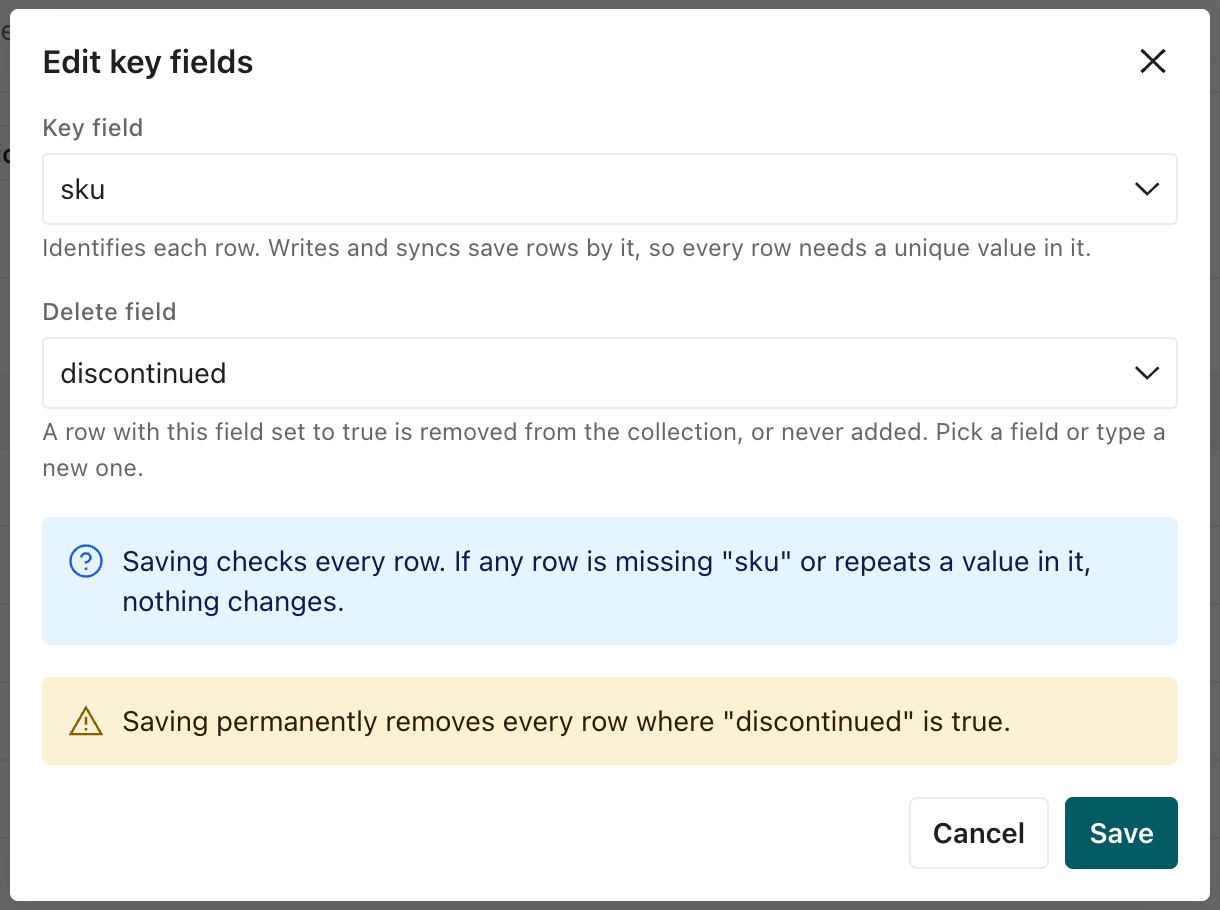
When you set a delete field, Customer.io permanently deletes every row in the collection where that field is already true. Check your rows for the field before you save.
Step 3: Connect your bucket and start the sync
-
On the collection’s page, click Set up sync in the Sync panel.
-
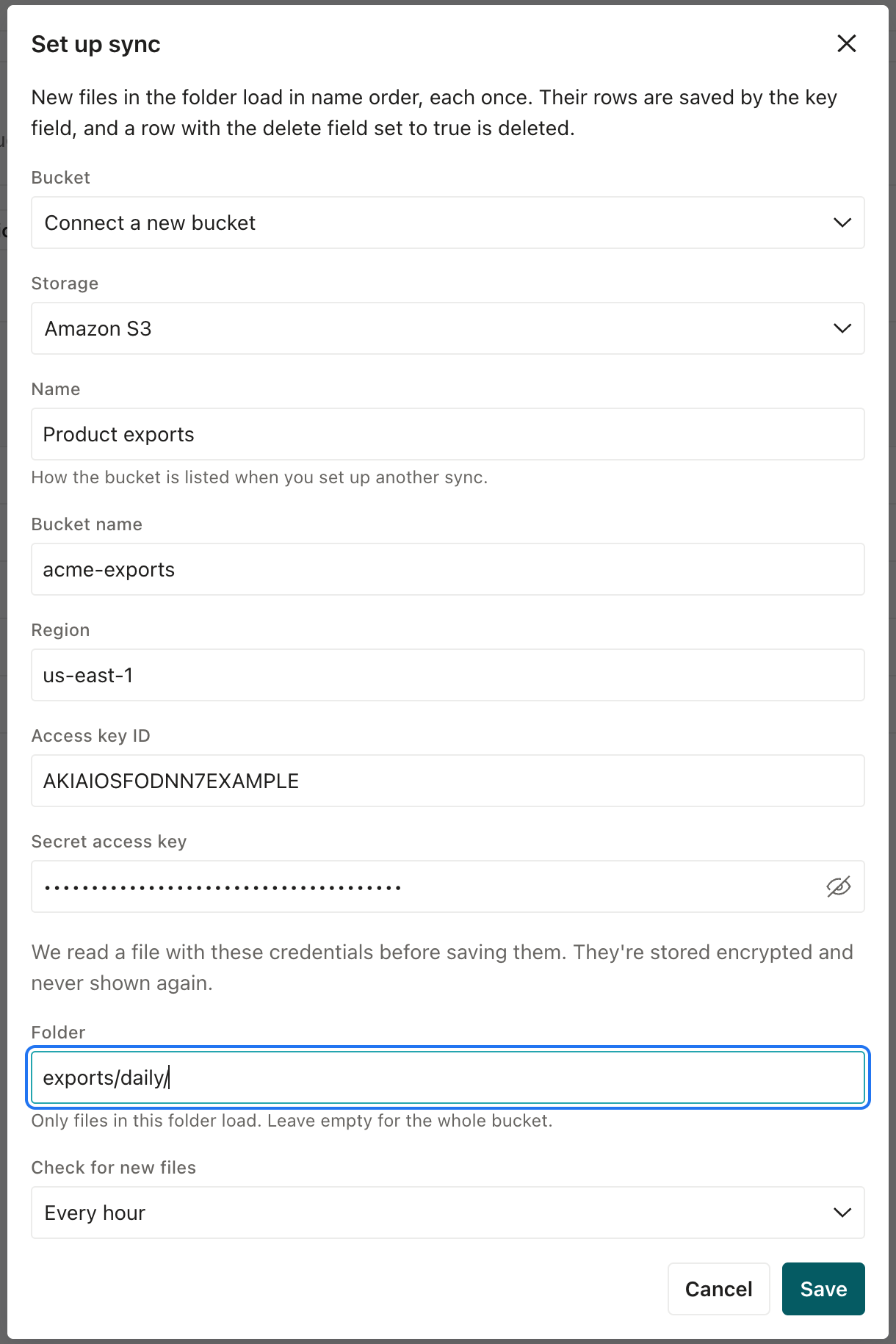
Under Bucket, choose a bucket that you connected before, or choose Connect a new bucket. For a new bucket, choose the Storage provider and give the bucket a Name. Then enter credentials that can list and read the bucket:
Amazon S3
Enter the bucket name, its Region, and the Access key ID and Secret access key of an AWS user.
Google Cloud Storage
Enter the bucket name and the Service account key, which is the JSON key file of a service account.
Azure Blob Storage
Enter a SAS URL for the container that grants read and list permissions.
-
In Folder, enter the folder that your export job writes to, like
products/. If you leave it empty, Customer.io loads files from the whole bucket. -
Under Check for new files, choose how often Customer.io checks the folder, every 1 to 24 hours.
-
Click Save. Customer.io reads a file from a new bucket before it saves the connection, so you find out right away if your credentials don’t work. If the bucket doesn’t have any files yet, Customer.io can only check that your credentials can list the bucket.
Step 4: Check that your first export loaded
- Run your export job, if it hasn’t written a file to the folder yet.
- Click Check now in the Sync panel, so that you don’t have to wait for the next scheduled check.
- Check that the Last file loaded shows your export’s file, and that Rejected rows is 0. If it isn’t, see Monitor a sync.
Monitor a sync
The Sync panel shows the sync’s status, the Last file loaded and when it loaded, the Next check, and the number of Rejected rows.
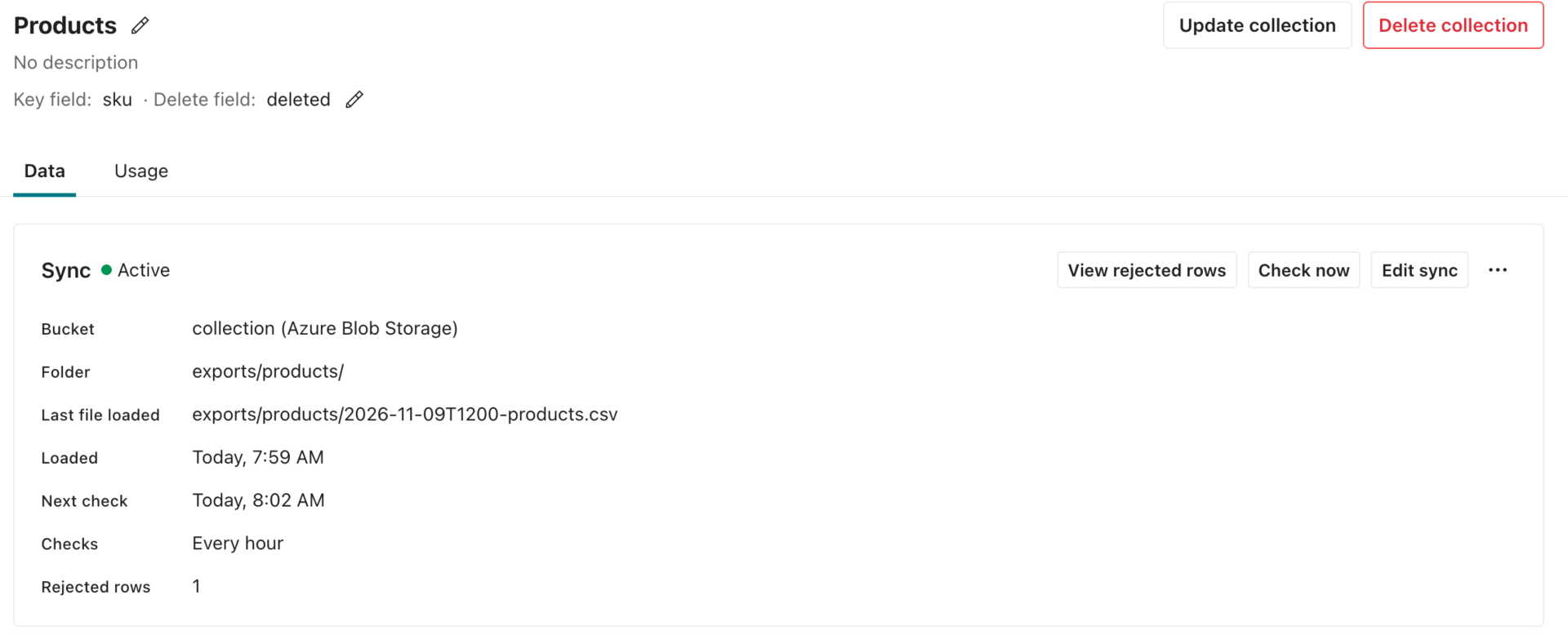
The panel can show you problems with your sync:
- The status is
Failed. The sync stopped at a file that Customer.io couldn’t load. The panel shows which file failed and why. Customer.io doesn’t load the files that sort after it until you fix the failed file. - Your latest export didn’t load. If a check passes after your export and the Last file loaded still shows an earlier file or time, Customer.io didn’t find your file. Usually, your export job wrote the file outside the sync’s folder.
- The sync rejected rows. Customer.io loads the rest of a file when some rows are invalid, like a row without a key, so the status stays Active. Click View rejected rows to see each row’s file, row number, key, and the reason Customer.io rejected it. In a CSV file, the header row doesn’t count, so row 1 is the first row of data. When Customer.io loads a file again, it clears the rejected rows from the file’s earlier version. Customer.io keeps rejected rows for 90 days.
Customer.io doesn’t send you a notification when it loads a file. To alert on these problems automatically, you can check the sync with the API after each export.
Fix a failed sync
When a sync fails, the Sync panel shows why. A sync can fail for these reasons:
- Customer.io can’t load a file. Customer.io stops at the file and doesn’t load the files that sort after it. At each check after that, Customer.io tries the same file again. To get the sync going again, overwrite the file with one that Customer.io can load, or delete the file.
- The folder holds more than 100,000 files. Move files that Customer.io already loaded out of the folder.
- You deleted the bucket connection that the sync uses. Click Edit sync and choose another bucket.
Then click Check now to check the folder right away.
Change or stop a sync
To change a sync, click Edit sync in the Sync panel. Your changes affect which files Customer.io loads:
- Changing how often Customer.io checks keeps the sync’s place.
- Changing the bucket or the folder starts the sync over. Customer.io loads every file in the folder again, starting from the first one. While the earlier files load, rows can show older values, and a large folder can take several checks to load. After Customer.io loads the newest file again, the rows match your latest export. If you changed any of those rows with write requests since then, the files overwrite your changes. To avoid loading every file again, move the files that Customer.io already loaded out of the folder before you make the change.
To stop a sync, click > Stop sync. The rows that the sync already loaded stay in the collection. Customer.io also clears the list of rejected rows, so look at them before you stop the sync.
Rotate your bucket’s credentials
You can’t change the credentials of a bucket that you connected. When you rotate a key, you need to connect the bucket again with the new credentials. If you want to avoid loading every file again, move the files that Customer.io already loaded out of the folder.
- Go to your sync and click Edit sync.
- Choose Connect a new bucket, and enter the new credentials.
- Delete the old connection with
DELETE:/v1/collections/sources/:id. You can only delete a connection with the API.
If you only changed the bucket’s permissions, use POST:/v1/collections/sources/:id/check to confirm that Customer.io can still read the bucket.
If you delete a connection that a sync uses, the sync stops loading files, and the Sync panel tells you that the bucket was removed. Edit the sync to choose another bucket.
Use the API
Everything on this page also works with the App API, so you can set up syncs from your own deployment scripts and monitor them. Use a private key (sk_) from the API Credentials page as a bearer token. Use https://api.customer.io in the US region or https://api-eu.customer.io in the EU region.
Set up a sync with the API
-
Set the key field and delete field with
PUT:/v1/collections/:id:JSON{ "key_field": "sku", "delete_field": "deleted" }Customer.io queues the change as a write request and responds with a
writethat has anid. CheckGET:/v1/collections/:id/writes/:write_iduntil thestateisapplied. If thestateisfailed, themessagenames a row that’s missing a key or repeats another row’s key. -
Connect the bucket with
POST:/v1/collections/sources. You can set aprefixon the connection, so that Customer.io can only read files in that folder of the bucket. This example connects an Amazon S3 bucket:JSON{ "name": "Product exports", "provider": "s3", "bucket": "acme-exports", "region": "us-east-1", "prefix": "collections/", "credentials": { "access_key_id": "AKIAIOSFODNN7EXAMPLE", "secret_access_key": "<your secret access key>" } }The response includes the connection’s
id. See the API reference for the fields that Google Cloud Storage and Azure Blob Storage need. -
Start the sync with
PUT:/v1/collections/:id/sync. Setprefixto the folder that holds this collection’s files, relative to the connection’sprefix. Setpoll_hoursto how often Customer.io checks the folder, from 1 to 24 hours:JSON{ "source_id": "01JD8X4Q6R2W7N3K5M9P1T0VZC", "prefix": "products/", "poll_hours": 1 }
To check the folder right away, use POST:/v1/collections/:id/sync/poll. To stop the sync, use DELETE:/v1/collections/:id/sync.
Check the sync with the API
GET:/v1/collections/:id/sync shows the sync’s state, the last file that Customer.io loaded, and the most recent error:
{
  "sync": {
    "collection_id": 12,
    "source_id": "01JD8X4Q6R2W7N3K5M9P1T0VZC",
    "prefix": "products/",
    "poll_hours": 1,
    "state": "active",
    "last_file": {
      "path": "products/2026-11-04T0600-products.csv",
      "applied_at": "2026-11-04T06:31:12Z"
    },
    "next_run_at": "2026-11-04T07:31:12Z"
  }
}
Have your monitoring alert when:
- The
stateisfailed. Thelast_errorshows which file failed and why. - More than
poll_hourspassed since your export, andlast_file.applied_atis still earlier than your export. GET:/v1/collections/:id/sync/rejectsreturns rejected rows. Each one includes the row’sfile,rownumber,key, andcode.
Load a file when you’re ready
If your systems need to know when a particular file loads, send a write request for the file instead of using a sync. For example, your system might need to wait for a price update to load before it triggers a sale announcement. You need the id of a connected bucket, which you can get from GET:/v1/collections/sources.
-
Upload the file to a folder in the bucket that a sync doesn’t check, like
on-demand/. A sync loads every file in its folder, so it would load your file again at its next check and could undo changes that you made since. -
Send the connection’s
idand the file’spathtoPOST:/v1/collections/:id/writes. Thepathis relative to the connection’sprefix.JSON{ "source_id": "01JD8X4Q6R2W7N3K5M9P1T0VZC", "path": "on-demand/2026-11-04-price-update.csv" } -
Check
GET:/v1/collections/:id/writes/:write_idwith theidfrom the response until thestateis no longerqueued.
When the state is applied, Customer.io loaded the file. When the state is failed, the code explains why. Customer.io checks every row before it saves anything, so if the code is items, the items list shows each invalid row, and Customer.io didn’t save any rows from the file. Fix those rows, upload the file again, and send another write request. Because each row replaces the row with the same key, you can send the same file more than once, and the collection ends up the same.
A write request can read a file from any folder under the connection’s prefix, and it loads a file even if you loaded it before. Customer.io keeps the result of each write request for 24 hours.
Use a sync and write requests together
You can send write requests to a collection that has a sync. Customer.io applies every change to a collection one at a time, in the order that it receives them. A sync loads a file as a series of writes of 500 rows, so a write request that you send while a file loads can land in the middle of the file. When a write request and a file change the same row, the change that Customer.io receives last wins.
To keep the results predictable, have the sync and your write requests change different rows. For example, let the sync load the products from your nightly catalog export, and use write requests for promotional rows that your export doesn’t include.