

SMS/MMS: send messages
Learn how to send sms Short Message Service: a text message, typically up to 160 characters, sent through a mobile carrier to a phone. Multimedia Message Service: a message sent through a mobile carrier to a phone that includes a picture or video.
Add SMS/MMS messages to your workflow
Before you can send messages, you need to connect an SMS provider in your workspace.
For an automation or API-triggered broadcast:
-
Drag SMS into your workflow.
-
Give your message a Name that makes sense to you. Your audience won’t see this name.
-
Click Settings in your message and update your message’s behavior.
-
Click Add Content to write up your message.
Your editing experience depends on when you integrated your SMS provider. If you integrated your SMS provider before July 30, 2026, you’re using the classic SMS composer. After this date, you’re using Design Studio, our message creation platform.
Classic SMS composer
Your editing experience depends on when you integrated your SMS provider. If you integrated your SMS provider before July 30, 2026, you’re using the classic SMS composer.
- In the From field, select the sender ID you want to send your message from. Learn about dynamically rendering sender numbers below.
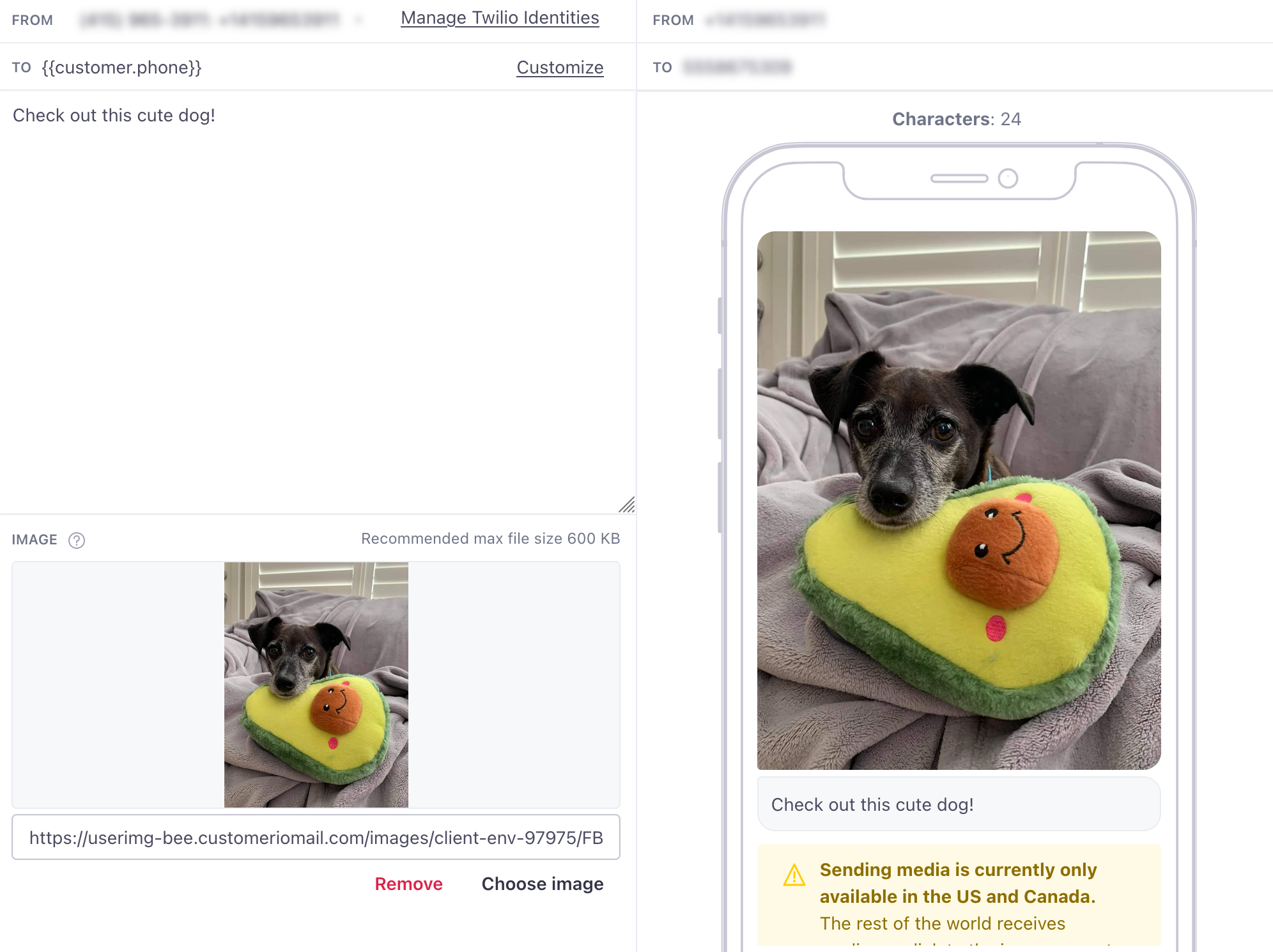
- In the To field, use liquid to set the customer’s phone number attribute—like
{{customer.phone}}if you store your audience’s phone number in thephoneattribute. - (Optional) If you want to send an MMS message, enter a URL of your image (PNG, JPEG, JPG, or GIF) in the Image field. Your image must be smaller than 1.5 MB.
- Enter the body of your message. SMS is limited to 160 characters per message, or 70 if you use some special characters like emojis. If you go over the character limit, your SMS will appear as multiple messages. See SMS “segments” or “credits” to learn more.
Design Studio
If you integrated your SMS provider on or after July 30, 2026, you’re using Design Studio to create messages. You can create an SMS message from the Design Studio dashboard before creating your automation, broadcast, or transactional message. Or you can create an SMS from within the workflow through an SMS block.
- In the From field, select the sender ID you want to send your message from.
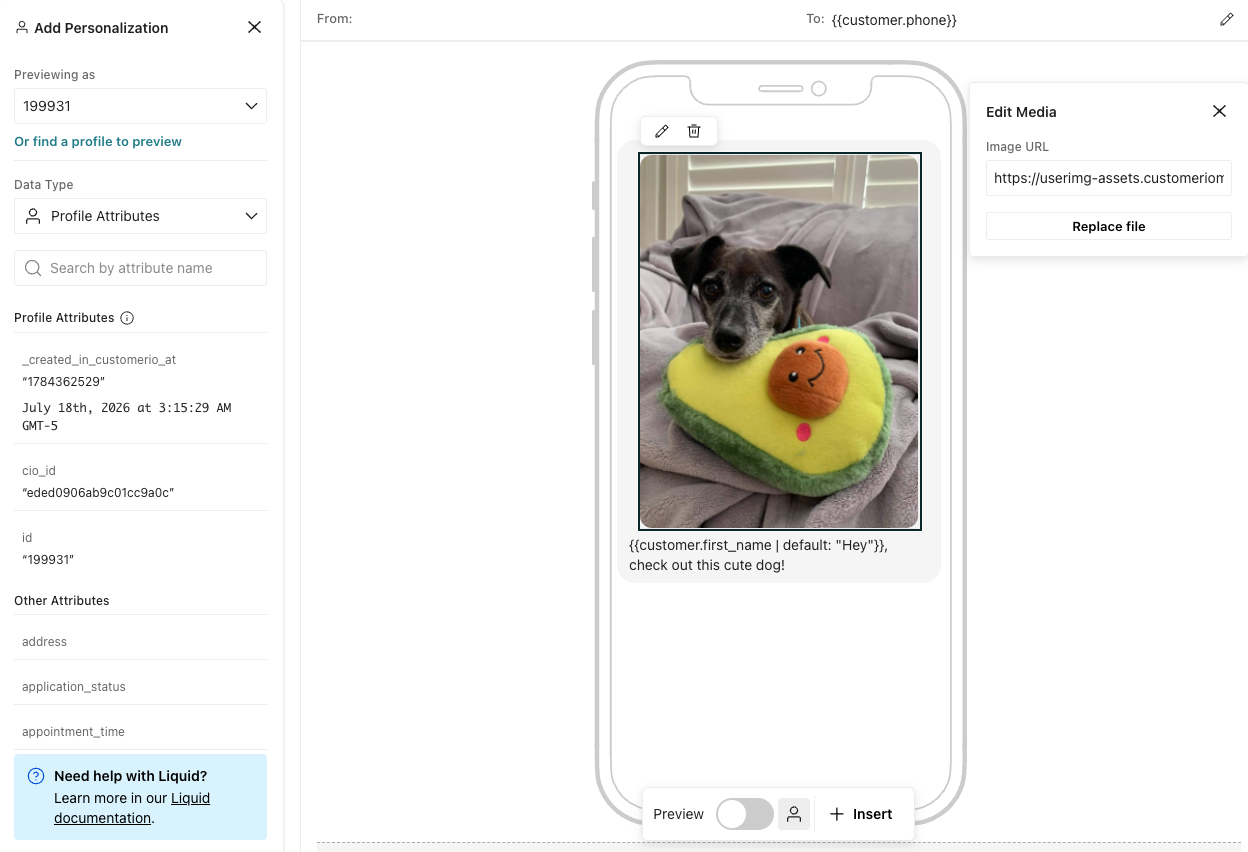
- In the To field, use liquid to set the customer’s phone number attribute—like
{{customer.phone}}if you store your audience’s phone number in thephoneattribute. - Enter the body of your message. SMS is limited to 160 characters per message, or 70 if you use some special characters like emojis. If you go over the character limit, your SMS will appear as multiple messages. See SMS “segments” or “credits” to learn more.
- (Optional) Add an image. Click Insert > Image and upload a file or insert a URL of your image (PNG, JPEG, JPG, or GIF). Your image must be smaller than 1.5 MB.
- Turn on Preview to render liquid syntax and ensure your message looks as you’d expect. Click to choose different people to preview your message against.
- If the message is already part of a workflow, click Publish to push your changes from Design Studio to your connected workflow.
If you’re familiar with Design Studio for email, you know about custom components, a way of creating custom resuseable content. Custom components are not supported for SMS messages, but you can reuse content across SMS using snippets.
SMS building blocks via API
In the API, the body of your message goes into the content field as HTML-style markup. <x-sms> wraps the whole message, <x-sms-body> holds your text, and <x-sms-media> attaches an image by URL. The href can be liquid, like {{event.product_image_url}}, if you want to send each person a different image.
<x-sms>
  <x-sms-body>Hi {{customer.first_name}}, your order has shipped.</x-sms-body>
  <x-sms-media type="image" href="https://example.com/order.png"/>
</x-sms>
An SMS is plain text, so the markup only supports a few extras inside <x-sms-body>:
- Line breaks: use
<br>to start a new line. - No other HTML: don’t wrap text in tags like
<b>or<span>. A message with text inside an unsupported tag fails to send. - The
<and>characters: write<as<and>as>, like5 < 6. We interpret these things as the starts and ends of tags causing syntax errors that may prevent your message from sending. These are the only characters you need to encode.
MMS messages
When you send an SMS message with an image, it becomes a multi-media message (MMS). MMS messages can help you make your point when 160 characters just aren’t enough. However, before you send an MMS message, you should take into account:
-
Images must be PNGs, JPEGs, or GIFs.
The URL you host must end in the image format for us to attach it to your message. -
Maximum image size is determined by recipient carrier, so you should limit image size to 600kb where possible.
While our asset library accepts files up to 3MB, and some providers allow attachments up to 5MB, the maximum image size for MMS is typically much smaller. Recipient carriers enforce their own size limits, many down to just 600kb. We recommend that you use the smallest possible images to ensure that your audience sees your image, regardless of their carrier and connection quality. If you use a short code or a toll-free carrier with Twilio, your image may be limited to 600kb. Your message can also include up to 1600 characters. -
MMS messages are slightly more expensive than SMS messages.
This is because MMS messages are typically larger than SMS messages; this pricing model isn’t unique to any provider. But you may want to reserve MMS messages for your most meaningful mobile interactions. -
MMS messages are limited to the United States and Canada.
MMS messages sent to someone in another country will fail. Through Vonage, MMS is limited to the United States.
Tracking links in messages
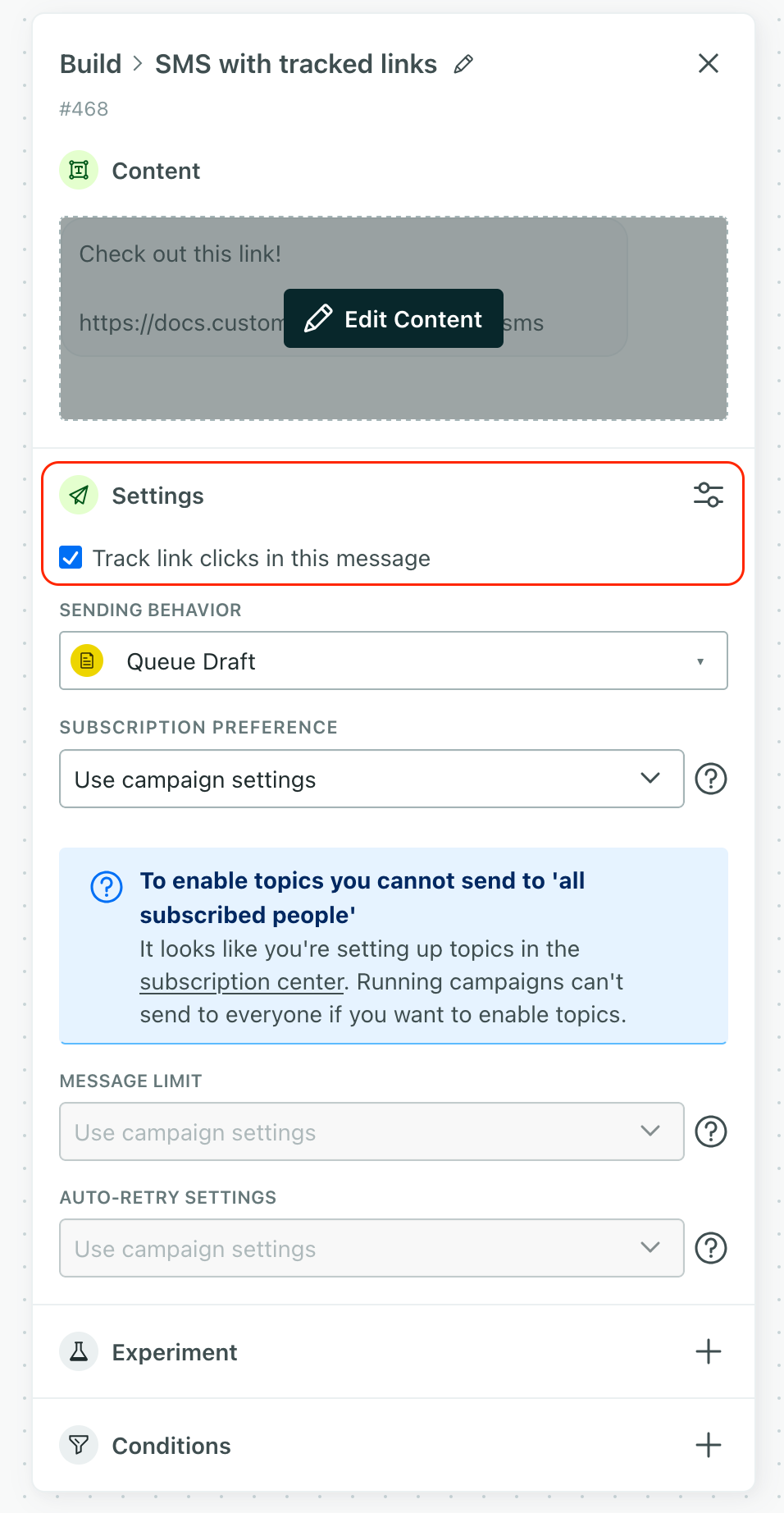
By default, we track when people click links in SMS messages by appending your link with code that Customer.io understands. This means that tracked links are long URLs and can take up a lot of space in your message. If you want to keep this behavior, you should make sure that you enable link shortening in your workspace.
If you don’t want to use Customer.io’s shortened links, then you should disable link tracking for your message. You’ll need to do this for each message individually.
While link tracking is on by default, you’ll want to use a liquid tag to group personalized links. Learn more.
You can also enable or disable link tracking on a per-link basis using the A syntax that supports variables, letting you personalize messages for your audience. For example, if you want to reference a person's first name, you might use the variable {% cio_link url:"https://example.com" track:false %} liquid{{customer.first_name}}.track parameter is a boolean where true enables tracking and false disables it. It’s true by default.
{% cio_link url:"https://example.com" track:false %}SMS “segments” or “credits”
Your billing plan indicates how many SMS/MMS messages you can send before you incur overage fees. If you’re billed for messages through Customer.io directly, we measure your messages in Credits. SMS providers like Twilio measure Segments—the chunks a long message is split into. Credits and segments don’t necessarily map one-to-one and may vary by provider.
In general, each SMS chat bubble, up to 160 characters, consumes a credit/segment. As you draft your message, we’ll show you how many credits your message consumes, so you know how much each message costs without having to count characters.
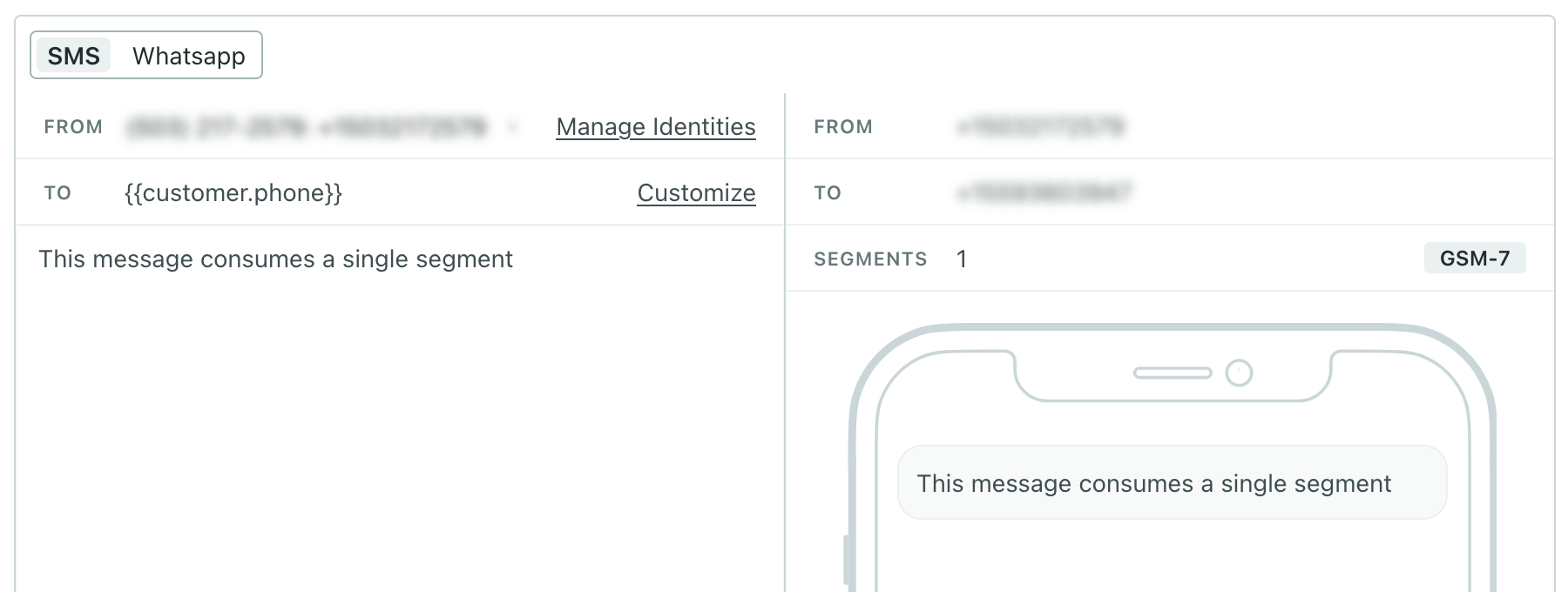
While each chat bubble can contain up to 160 characters, characters like emojis limit your messages to 70 characters. We use smart encoding to prevent this from happening whenever possible, but this doesn’t work for all characters. The Segments/Credits field updates as you type to show you what your message costs without having to count characters or learn about encoding schemes.
Send a test message
To make sure your SMS works, you can send a test message clicking Send test… in the top right-hand corner of the composer. You’ll see a modal, into which you can enter a phone number to which you can send your message.
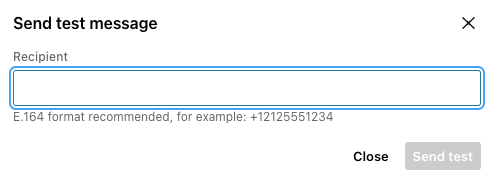
If the message includes redacted data (that is, an admin has hidden sensitive attribute values from you), then test sends will not show the values for those sensitive attributes.
Dynamically render a sender
You may want to select specific senders when you send a message to a particular person. To do this, you’ll add liquid A syntax that supports variables, letting you personalize messages for your audience. For example, if you want to reference a person's first name, you might use the variable {{customer.first_name}}.
For example, if you want to send from a different phone number depending on which Customer Success Manager is assigned to the customer, you might format your From field like this:
{% if customer.CSM == "stephen" %}
+1647STEPHEN
{% else if customer.CSM == "zack" %}
+1800GOTZACK
{% else %}
+1800CUSTOMR
{% endif %}
Or if you set the phone number as a variable, you could simply use that variable in the From field.
{{customer.csm_phone}}