

Random cohorts
How it works
If you use custom objects An object is a non-person entity that you can associate with one or more people—like a company, account, or online course. An object is a non-person entity that you can associate with one or more people—like a company, account, or online course.
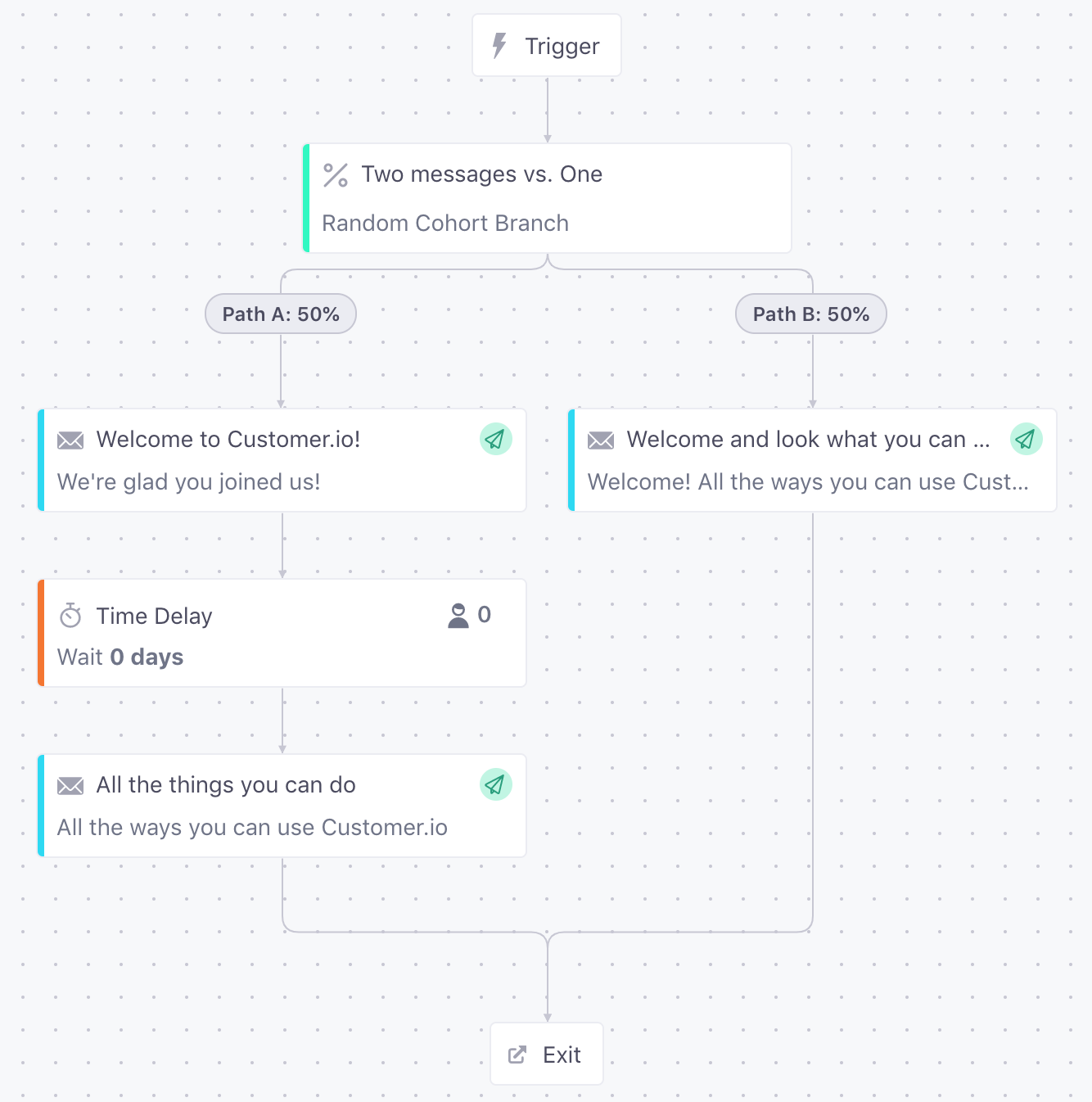
In this video, we show an automation to convert people from free to paid plans, and we use a random cohort branch to randomly distribute people down different paths to test the best time to send an offer.
Set up a random cohort branch
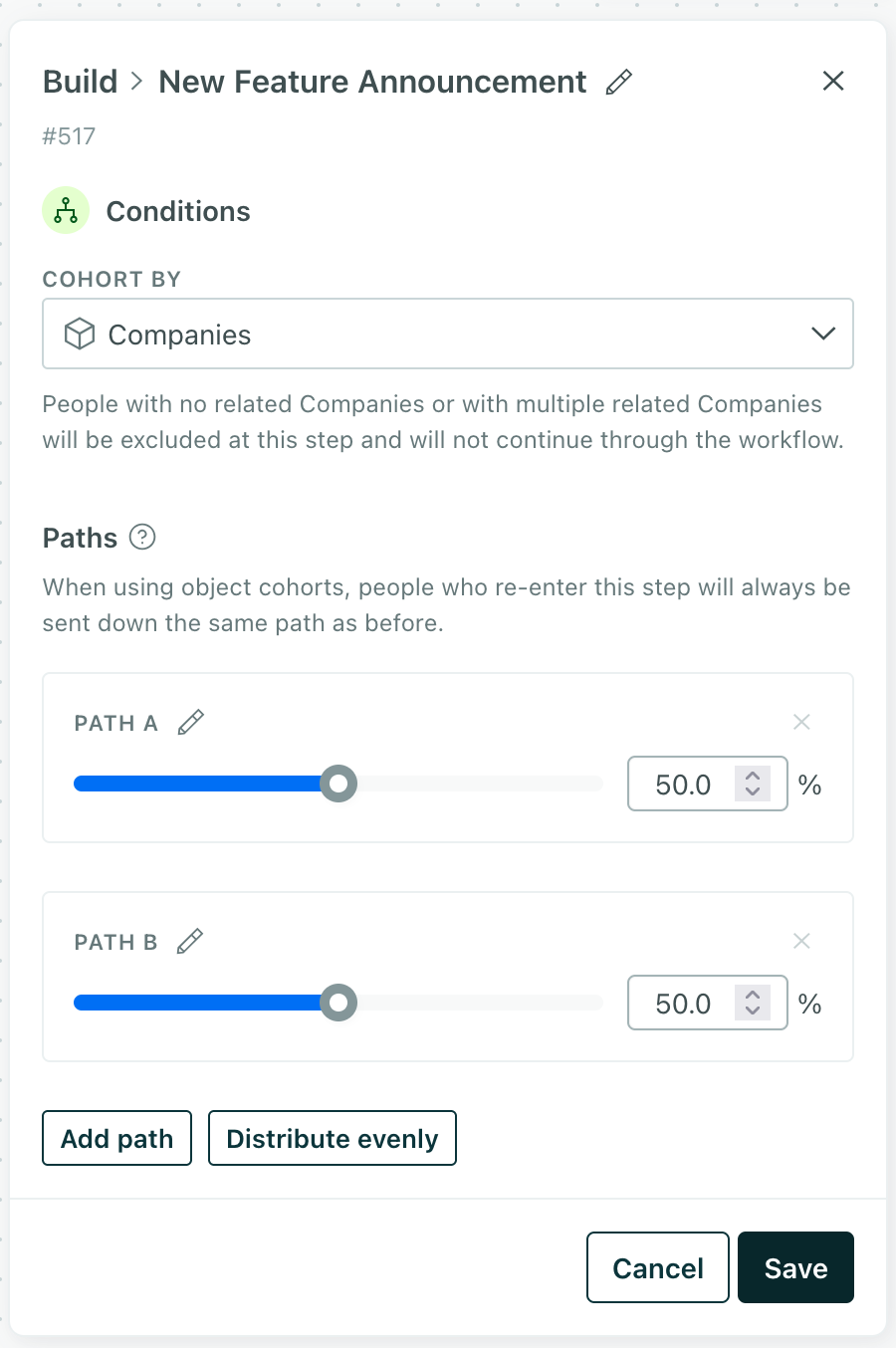
When you drag a Random Cohort Branch into your workflow:
- Pick the Cohort by setting. If you use custom objects
An object is a non-person entity that you can associate with one or more people—like a company, account, or online course.
in your workspace, pick Objects Otherwise, leave the setting set to People.- People: each person is added to random cohorts as an individual.
- Objects, like Companies, group people into cohorts by a related object. This ensures that people related to the same object—in the same company, account, class, or other object—all travel down the same path. If someone belongs to multiple objects, they’ll exit the automation immediately. See Random cohorts with custom objects for more details.
- Add up to 20 paths and set the percentage of cohorts you want to send to each path. The total distribution must add up to 100% before you can save your changes.
Random cohorts in active automations
When you drag a Random Cohort into an active automation, one path is set to 100% and the other to 0%. While you can add more paths, you should leave the distribution at 100% for the first path and 0% for all other paths.

Then you can edit your new paths without people flowing through them right away. This helps you prevent unintended consequences as you add paths to your automation.
When you’re done editing your automation to account for the new paths, return to your random cohort branch and update the distribution to reflect your new paths.
Cohort by: random cohorts with custom objects
Random cohort blocks typically send people down different paths in your workflow. But imagine a scenario where you want to use a random cohort but you want to make sure that people related to the same account all travel down the same path—you don’t want people in the same account to have different experiences!
That’s what the Cohort by setting in a random cohort branch does: it treats custom objects An object is a non-person entity that you can associate with one or more people—like a company, account, or online course.
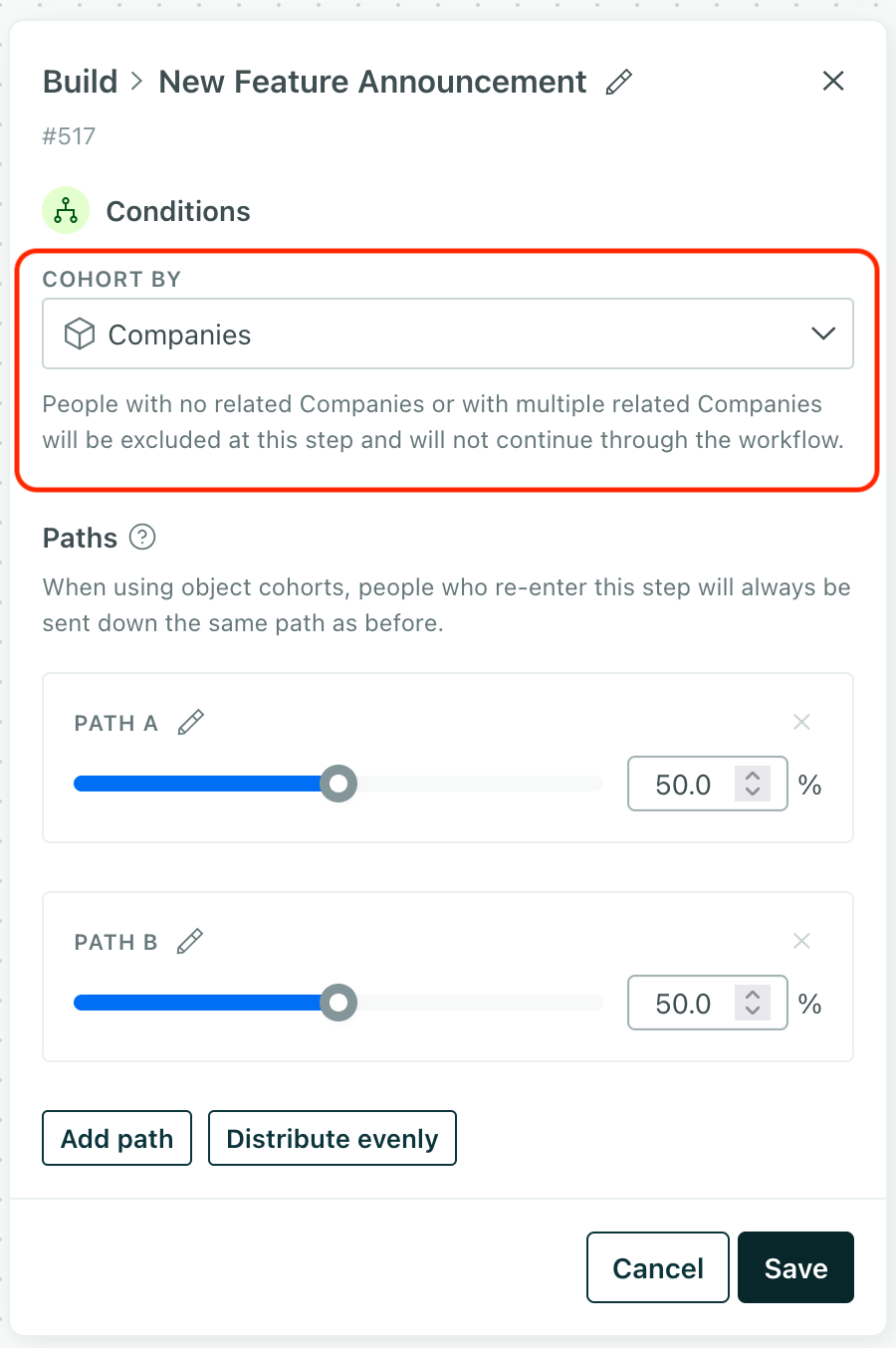
When someone reaches a random cohort block, we check their cohort. If the cohort has already been assigned to a branch, they’ll go down that branch. If the cohort has not been assigned to a branch, they’ll go down a random branch—and future members of the same cohort will follow the same path.
If someone belongs to multiple objects of the same type, we won’t know which cohort to assign them to, and they’ll exit the automation immediately! If people could have relationships to multiple objects of the same type, you should use the Cohort by: People option instead.