

Email client metrics
The Email clients tab in the Analysis section of your workspace shows which email clients your audience uses to read your emails. These metrics represent all outbound emails from your workspace over a timeframe you select.
This breakdown helps you:
- Prioritize the clients you design and test emails for. If most of your audience reads in Outlook, you’ll want to test your templates there.
- Understand how much of your audience opens email behind privacy proxies—like Apple’s Mail Privacy Protection—so you know how much to trust your open rates.
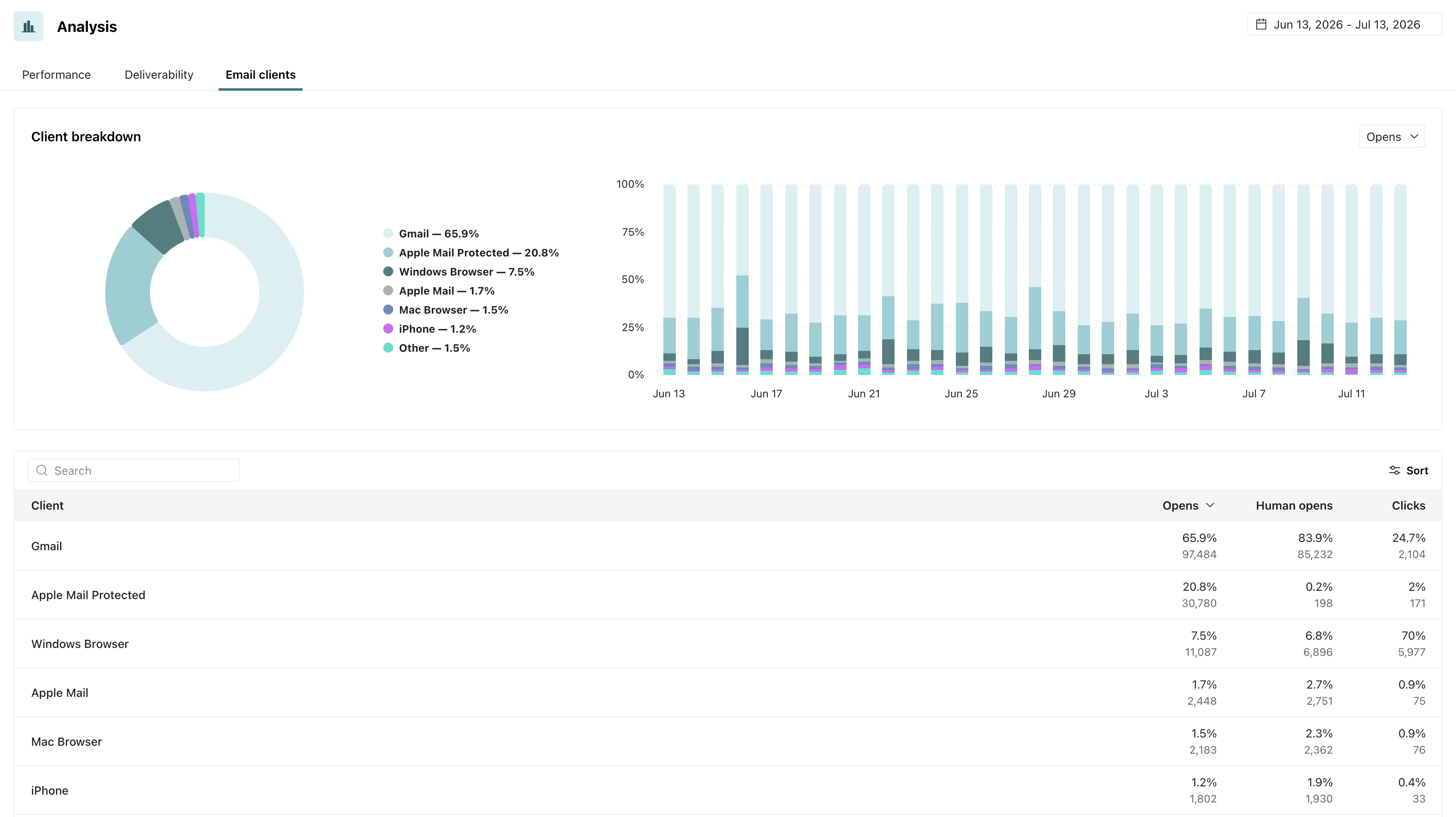
Client breakdown charts
The Client breakdown section visualizes the same data two ways:
- The donut chart shows each client’s overall share for the selected timeframe.
- The stacked bar chart shows how the mix of clients changes day by day.
Use the dropdown in the upper-right corner of the section to change the metric behind the charts. Clients with small shares of the affected metric within the time frame are grouped into Other in the charts.
The table of metrics
The table shows each client’s share of your workspace totals over the selected timeframe. Each column represents a different metric, and the percentages in each column add up to 100% across all clients. Under each percentage, you’ll see the raw count of events for that client..
- Opens: The percentage of email opens that came from the client.
- Human opens: The percentage of human opens—opens we attribute to real people rather than bots, scanners, and prefetching—that came from the client.
- Clicks: The percentage of all email clicks that came from the client.
Use the search box to find a specific client, and click Sort or a column header to change the sort order.
Date ranges and data availability
Click the calendar in the upper-right of the page to change the date range for your metrics. Data is available from April 15, 2025 onward. You won’t see client breakdowns for emails sent before that date.
When you look at daily rates, the numbers align to your workspace’s timezone.
How we identify email clients
When someone opens one of your emails, their email client requests the email’s images—including our tracking pixel—and identifies itself in that request. We use that information to attribute activity to a client.
Some things to keep in mind:
- Apple Mail Protected represents opens through Apple’s Mail Privacy Protection proxy, which hides the reader’s real client and preloads images automatically. Apple Mail represents opens from the Apple Mail app without that proxy.
- When we can identify the mail app, we report it directly: Gmail, Yahoo, Apple Mail, Outlook (desktop versions and iOS), Thunderbird, Samsung Mail, Superhuman, AOL Desktop, Lotus Notes, and Postbox.
- When we can’t identify the specific app, we fall back to the device or browser: iPhone, iPad, Android, BlackBerry, Windows Phone, Windows Browser, or Mac Browser. Browser categories generally represent webmail read in a desktop browser.
- Opens from automated systems that identify themselves as bots appear as Bot, and opens we can’t categorize at all appear as Unknown.
Client identification depends on the open tracking pixel that we use to track opens. Emails that don’t include the tracking pixel don’t appear in this breakdown. This applies to messages with open tracking turned off and to contacts whose open-tracking consent withholds the pixel.