

Getting started with inbound messages
People can reply to your SMS messages using keywords. You can use replies to track engagement or trigger automations.
How it works
SMS messages frequently include keywords that trigger downstream actions—like STOP to opt-out of messages or HELP to understand the things people can do through SMS replies.
Customer.io handles these replies, helping you trigger automations and segment your audience based on replies to your messages.
For example, you might ask people to reply to a message with a keyword if they want updates for a particular event or product. You can then add people who reply with the appropriate keyword to a segment and trigger an automation to send them follow-up messages.
Before you get started, you’ll need to:
- Make sure you’re set up for inbound messages
- Capture a
phoneattribute so we can trace inbound messages to the correct person in Customer.io
Set up inbound message handling
To capture replies—including opt-out keywords—Customer.io needs to receive your inbound (mobile-originated) SMS messages. How you set this up depends on how you send SMS.
If Customer.io manages SMS for you, this is already done. You don’t need to do anything to support inbound messages.
If you bring your own provider account, forward inbound messages to Customer.io. Copy your connection’s Inbound URL from the connection’s page, then set it as the inbound (reply) webhook in your provider’s console.
Infobip and Vonage connections each get their own Inbound URL. Twilio, Sinch, and Bird use one shared Inbound URL per region for every connection. Customer.io identifies your account from the provider’s message payload, so you’ll see the same URL across your connections and workspaces.
If you use Bird, you already did this when you connected Bird, so you can skip these steps.
- In Customer.io, go to > Workspace Settings > SMS and select Manage on the connection you want to configure.
- Copy the Inbound URL shown for that connection.
- Paste it into the inbound-message setting in your provider’s console:
- Twilio: the A message comes in webhook on your numbers (or your messaging service’s Inbound Request Config).
- Sinch: the callback URL on your Sinch Conversation API app.
- Infobip: the inbound (MO) notify URL in your Infobip portal.
- Vonage: the Inbound URL on your Vonage application.
- Save the change in your provider’s console.
Test it
Once inbound handling is configured, send a message to one of your senders and check Profile activity in Customer.io for the inbound message.
You must use the phone attribute
To successfully parse inbound messages, you must store phone numbers as a A key-value pair that you associate with a person or an object—like a person's name, the date they were created in your workspace, or a company's billing date etc. Use attributes to target people and personalize messages.phone attribute555-123-4567, but the E.164 format for that same phone number is +15551234567.
When someone sends a message, we look for a person with the phone attribute that matches the phone number in the message. This works best if everybody in your workspace has a unique phone number.
If you don’t set a phone number in E.164 format, we’ll do our best to parse numbers into this format when we resolve inbound messages to people in Customer.io—but we can’t guarantee that we’ll be able to do this. (We use Google’s libphonenumber library to parse phone numbers, and we skew towards US and Canadian numbers.)
Reformatting phone numbers to E.164
You need to use this format in Customer.io so we can read them correctly. You typically write a US-based phone number like 555-123-4567 or a UK-based phone number like 020 7183 8750. But E.164 formatted-numbers look like +15551234567 or +442071838750.
To format your phone numbers in E.164, you’ll follow this structure:
- A plus sign (+), which replaces the International Call Prefix (like 011)
- The International Country Calling Code (like 44 for the UK, 1 for North America)
- The Local Area Code
- The Local Phone Number (or Subscriber Number)
Phone numbers should be unique
To ensure that you don’t send duplicate messages and help us attribute inbound messages to the correct person, each person should have a unique phone number in your workspace.
If your workspace identifies people by phone, this uniqueness is enforced for you: the phone identifier is unique to each person, so two people can’t share the same number. This is the default setting for new workspaces.
If your workspace doesn’t use phone as an identifier, two people in Customer.io can have the same phone number, though we still recommend storing unique phone numbers for each person. If two people have the same phone number, and both of those people enter an automation that sends SMS messages, you could send duplicate messages to the same phone number.
In that case, if two people have the same phone number and you get an inbound message from that number, we’ll attribute the inbound message to the oldest profile—the person who was created first in your workspace.
If two people share a phone number, and you receive an opt-out keyword from that number, we’ll opt both people out of messages. Opt-in and opt-out keywords affect a phone number, so everybody with the same phone number is opted in or out of messages when we receive an opt-in or opt-out keyword from that number.
Inbound messages for unrecognized numbers
When an inbound message comes from a number that doesn’t match an existing person, what happens depends on whether your workspace uses phone as an identifier.
If phone is an identifier
If your workspace identifies people by phone, we automatically add a person when we receive an inbound message from a number that doesn’t already belong to a person. The new person is identified by the sender’s phone number, and we attribute the inbound message to them. This means that the inbound message isn’t anonymous, and you can segment, automate, and respond to the person like anyone else.
For us to create the person, the sender’s number must resolve to a valid E.164 phone number.
If phone isn’t an identifier
If your workspace doesn’t use phone as an identifier, and we can’t match an inbound message to a person, we treat the inbound message as an anonymous event.
This might happen when:
- You receive an SMS from someone you haven’t identified
- Your
phoneattributes aren’t in the proper E.164 format.
Even if you identify the person who sent the inbound message, the inbound message will remain anonymous. There’s no way to reconcile the anonymous inbound message with the identified person later.
We automatically handle opt-in and opt-out keywords
You don’t need to set up anything special to handle opt-out or opt-in keywords.
We automatically opt people out of messages from appropriate numbers when they reply with keywords like STOP or UNSUBSCRIBE—or opt them in if they reply with keywords like START or UNSTOP.
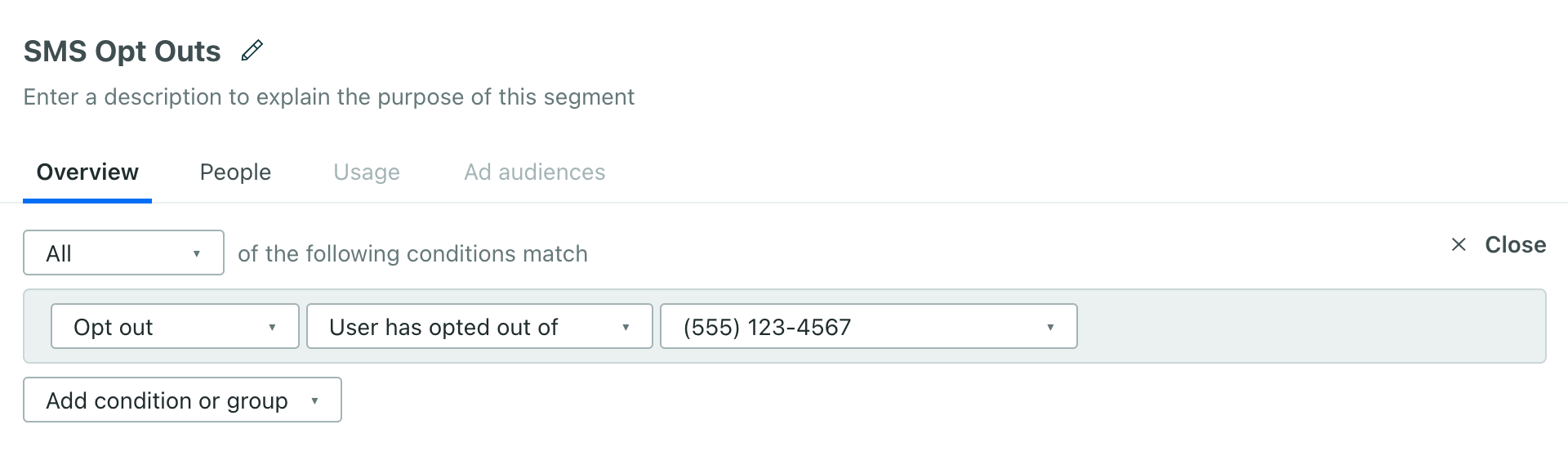
You can add people to segments based on their opt-out status using the Opt out condition. Then you can use this segment to target (or exclude) people who have opted out of a particular sender number.
Twilio automatically responds to STOP keywords
When someone responds with a STOP keyword, Twilio sends users a reply indicating that they’ve been opted out. This message doesn’t go through Customer.io and isn’t logged by us.
When someone opts out of messages this way, Customer.io logs the inbound message containing the STOP keyword and reflects the person’s opt-out status, but won’t reflect the SMS response from Twilio. You can customize this response in the Twilio console using Twilio’s Advanced Opt-Out feature.