

Geofences overview
Geofences help you trigger an automation journey, update a segment, or send a message when someone enters, stays in, or exits a physical location with your app.
Geofences help you meet your customers where they are—literally. Send retail and Quick Service Restaurant (QSR) promotions, travel information, parking reminders, venue welcome messages, or delivery notifications based on people’s locations.
How it works
A geofence is a virtual boundary you draw around a real-world place—like a store, gym, airport, or parking lot. When someone with your app on their phone crosses that boundary or stays within the boundary for a significant amount of time (called dwell time), the SDK sends a Geofence Transition event. Customer.io records it as a Geofence activity that you can use to trigger an automation, create a segment, or control the flow of people’s journeys.
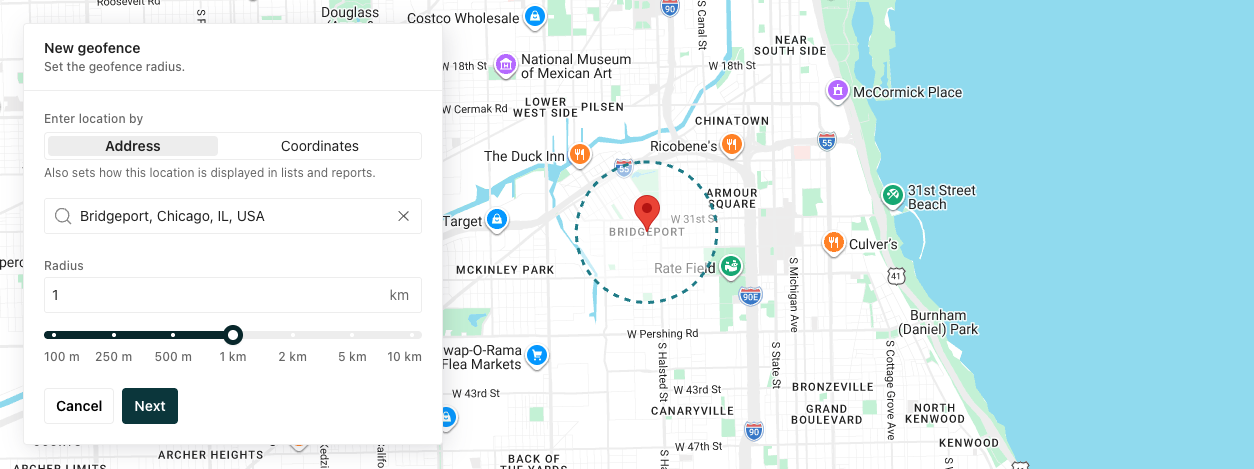
You group geofences into geofence sets. A geofence set lets you treat many geofences as one target, so an automation or segment can act on all of them at once. For example, you might group all of your stores into a geofence set, and trigger an automation when a person enters any of the geofences in the set.
You create geofences in your workspace. Then our mobile SDKs detect when someone crosses one and they send the event back to Customer.io.
Geofence boundary detection happens on the device. When the SDK refreshes nearby geofences, it sends the device’s current coordinates without identifying the person. The transition event for the person does not include precise coordinates.
Geofence transitions are not instantaneous. Detection and delivery time varies with the operating system, device movement, location accuracy, background restrictions, and network availability. Many events arrive within tens of seconds, but delivery can take several minutes. Polygon transitions can take longer when the SDK needs to recover from a missed operating-system callback.
Choose a circle or polygon
Use a circle when a center point and radius describe the location well. Mobile operating systems monitor circular geofences directly, making them more reliable and less battery-intensive than polygons.
Use a polygon when you need the boundary to follow the shape of a campus, venue, parking area, or other property. Polygons must be convex and meet the other polygon requirements. Mobile operating systems only monitor circles, so the SDK uses the polygon’s enclosing circle as a wake-up boundary and takes additional location readings to check movement into or out of the polygon boundary. Depending on the platform and device state, these checks can happen after an operating-system wake, when the app returns to the foreground, or as part of a recovery check. They may use more battery. Background restrictions and location accuracy can also delay polygon detection or cause missed enter and exit events.
The SDK setup and Geofence Transition event are the same for both shapes. Polygon monitoring does not continuously track a person’s location, and transition events never include their precise coordinates.
Polygon support starts with Android SDK 4.22.0, iOS SDK 4.9.0, React Native 6.13.0, Flutter 4.7.0, and Expo plugin 3.11.0 with React Native 6.13.0. Older SDK versions continue to monitor circles, but they don’t receive polygons.
Refer to the mobile SDK documentation for version requirements, location permissions, and more.
Location permissions
Geofences depend on a permission your customers grant in your app: background location—Always on iOS, Allow all the time on Android. Without it, the device detects crossings only while your app is open in the foreground, so you miss most of them. People rarely have your app open at the moment they walk into a store.
Your app asks for that permission; our SDKs never prompt on their own. Neither platform grants background location in a single tap, so this is worth planning with your mobile team before you build automations around geofences—your reach depends on how many people grant it. Each mobile SDK guide covers the permissions to declare and how to stage the request.
Geofencing uses background location for background detection, not just for polygons. Polygon monitoring can use additional location readings while your app is in the background because mobile operating systems don’t report polygon transitions directly. iOS and Android may show people a system reminder that your app has used, or can access, their location in the background. The operating system controls the wording and timing of these reminders, so make sure your permission messaging clearly explains why your app needs background location.
Use geofences in your workflows
You can use geofences in a variety of ways:
- Message customers who cross a geofence boundary
- Personalize messages with liquid based on geofence trigger data
- Group customers who transition through a geofence into segments
Current limitations
The following are not part of the initial release. Reach out to product@customer.io with your use case if you want to request a feature.
- Duplicating polygon geofences in the workspace
- Import of address-to-coordinate geocoding (This is available when creating geofences in the UI, just not through bulk import.)
- Scheduling based on time of day
- A/B testing for geofence triggers
- Anonymous profiles
Troubleshooting
To troubleshoot issues with geofences, like entrances and exits not triggering as you’d expect, start with the SDK docs. Missing background location permission is the most common reason transitions don’t arrive: