

Sending behavior options
We offer three sending behavior options for your messages: queue draft, send automatically, and don't send.
How it works
By default, we set messages to “Queue Draft.” This means we generate drafts, but don’t automatically send them to your audience. This is meant to be temporary; you should update your messages to “Send Automatically” when you’re confident your messages are ready to go.
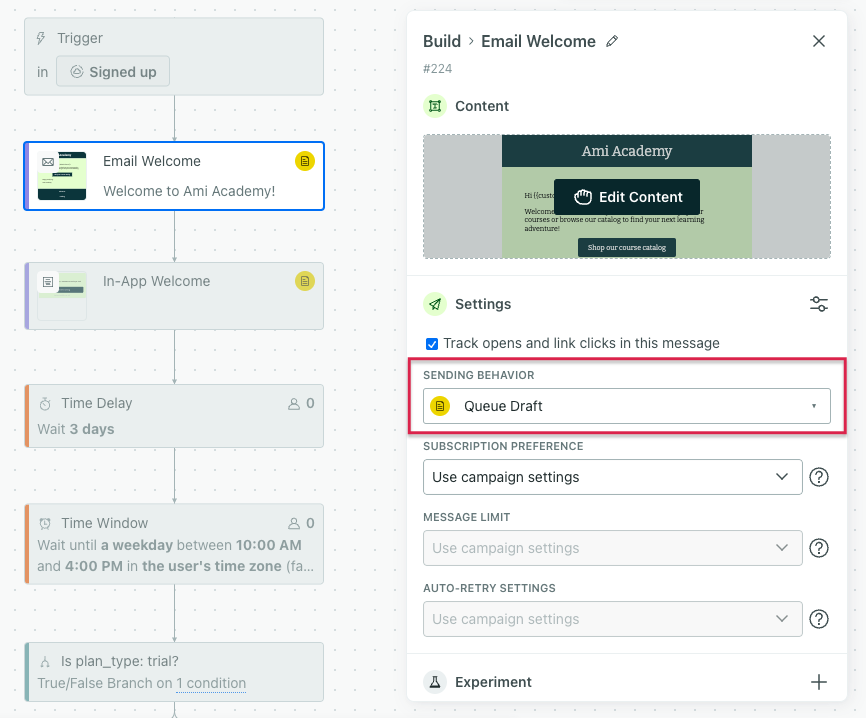
With “Queue Draft” you can see an automation in action before you actually send messages to your audience. Queueing drafts allows your complex workflow to run - matching recipients, rendering content, and emulating the automation’s behavior - without any content being sent. You can see exactly how the message you’ve prepared for a user looks (and check many users for specific personalized content). Think of this as a staging feature: everything works as it normally would, but you can audit the output before it gets sent out in the real world. Then when you’re ready, you can send drafts to your audience and update the sending behavior to “Send Automatically.”
Change sending behavior
To change the sending behavior for your messages, you have to modify each message. There is no way to change the sending behvaior for all messages at once.
- Click the message block.
- Click Settings.
- Click the status you want from the Sending behavior dropdown.
- Click Save.
Sending behavior in a live automation
Change from Queue Draft to Send Automatically
If your automation is live, “Send Automatically” only applies to future messages. You’ll still need to manually send the existing drafts to ensure all of the people in your automation receive the messages they should.
Change from Send Automatically to Queue Draft
If your automation is live, changing a message from “Send Automatically” to “Queue Draft” will cause future messages to queue as drafts. Moving forward, you’ll need to manually send the drafts to ensure all of the people in your automation receive the messages they should.
Keep in mind, people will continue to move through your automation, so it’s possible the drafted messages are no longer relevant after a time. In that case, you might delete the drafts instead.
Edit drafts
You can edit drafts to further customize them for your recipients.
- Click Drafts on an automation or on a person.
- Click the Action of one of the messages.
- Click Edit. Make your changes.
- Click Send when you’re ready.
Edit messages with drafts
When you edit a message in your automation, your drafts automatically update to match your changes! After you save your changes, all drafts will render the new content. When you send them, people receive the up-to-date message from your automation.
Send drafts
To send draft messages in a live automation:
- Click your automation.
- Click Drafts.
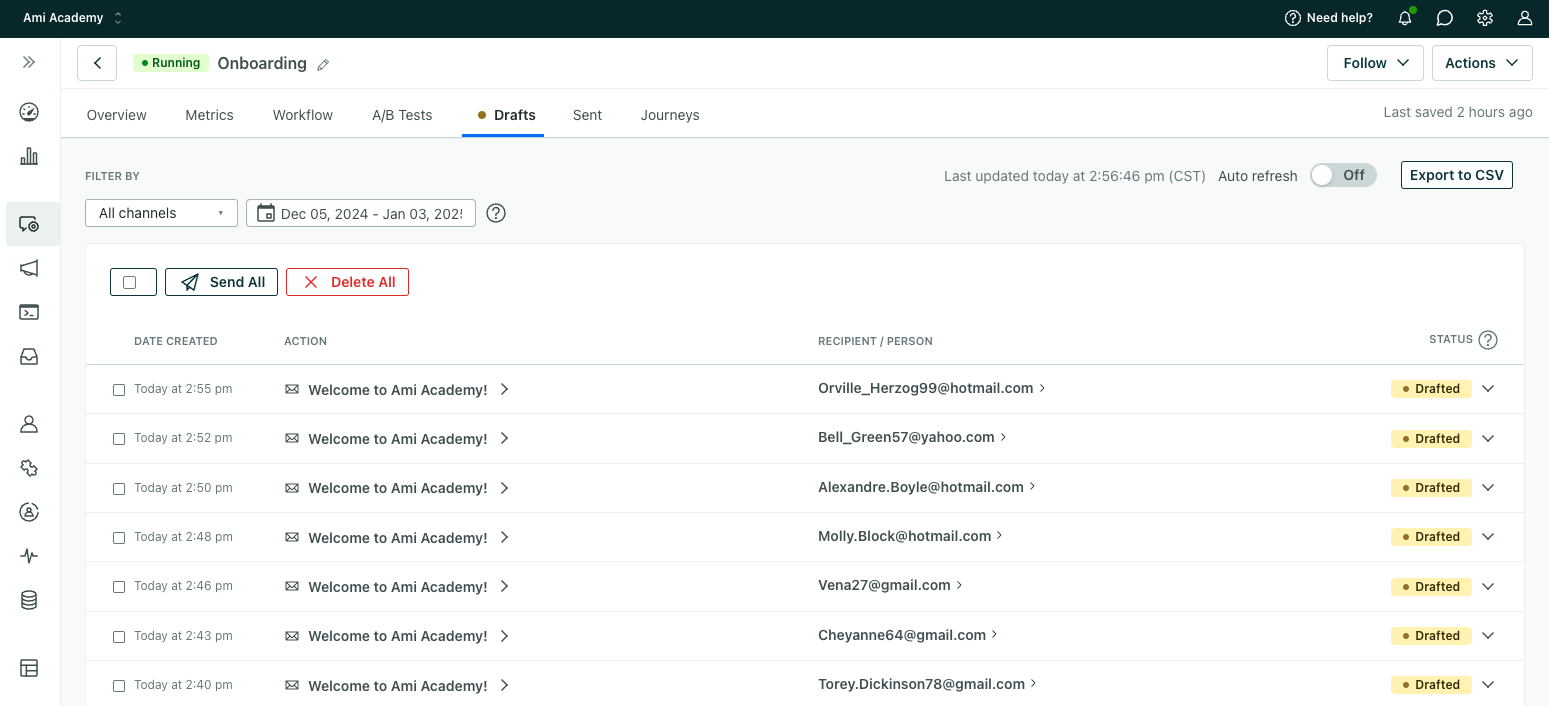
- Click Send All at the top of the table or check the box next to specific messages then click Send Selected.
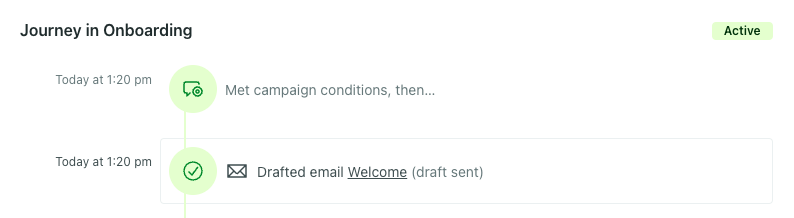
You’ll see this action reflected in a person’s journey.
Send rate for drafts
Messages that are queued to draft can take longer to send than messages set to send automatically. Once you’ve verified your automation configuration and content, change your messages to “Send Automatically.”
Delete drafts
If you no longer need your drafts, you can permanently delete them.
- Click your automation.
- Click Drafts.
- Click Delete All at the top of the table or check the box next to specific messages then click Delete Selected.
- Confirm your action.
The person’s journey will show “Drafted email.” The deletion is not reflected in the person’s activity.
Export drafts
You can export a list of drafts that have been generated for your automation, but you can’t export the content of all of your drafts.
To export a list of drafts:
- Click Drafts in your automation.
- Click Export to CSV at the top right.
You’ll receive an email with the CSV to download. Or you can go to the Exports page (under Configure data, click More) to download the CSV.
FAQs
If I change the trigger or filter of a live automation, do you re-evaluate drafts?
Changing a trigger or filter does not change the drafts we’ve queued. This means people who no longer match your trigger or filter criteria would still have a draft ready to send.
If you need to change the trigger or filter setting of a live automation, consider why you need to do this. Can you make a new automation instead? That would help you keep your metrics in check.
Otherwise, consider stopping your automation, then deleting existing drafts before you change the trigger or filter criteria. Then make the changes to your automation’s settings and restart the automation. This way, when you restart the automation, you won’t have to differentiate between who should receive drafts and who should not. Consider adding a note in the description of the automation indicating when and why you changed the trigger/filter conditions so you can reconcile this with your metrics.
To help you differentiate between which people should still receive drafts and which shouldn’t, you can export a CSV from the Drafts tab that includes a list of generated drafts and your customers’ IDs. You could compare the customer IDs against those that are aligned to your new trigger and filter criteria.
Can I make a segment based on drafts?
No, drafts are meant for testing, so we haven’t included them in conditions.
Troubleshooting
I deleted all the existing drafts, but I don’t see any new ones showing up. What went wrong?
- People may not have reached the message in your workflow yet.
- After we draft a message, people continue moving forward whether the message is sent or not. If you delete a draft, we will not re-draft the message in the same journey for that person.