Find messages using the Message Library
The Message Library helps you search for messages across your automations, broadcasts, and one-time sends. This makes it easier to find specific messages, or automations containing a specific message.
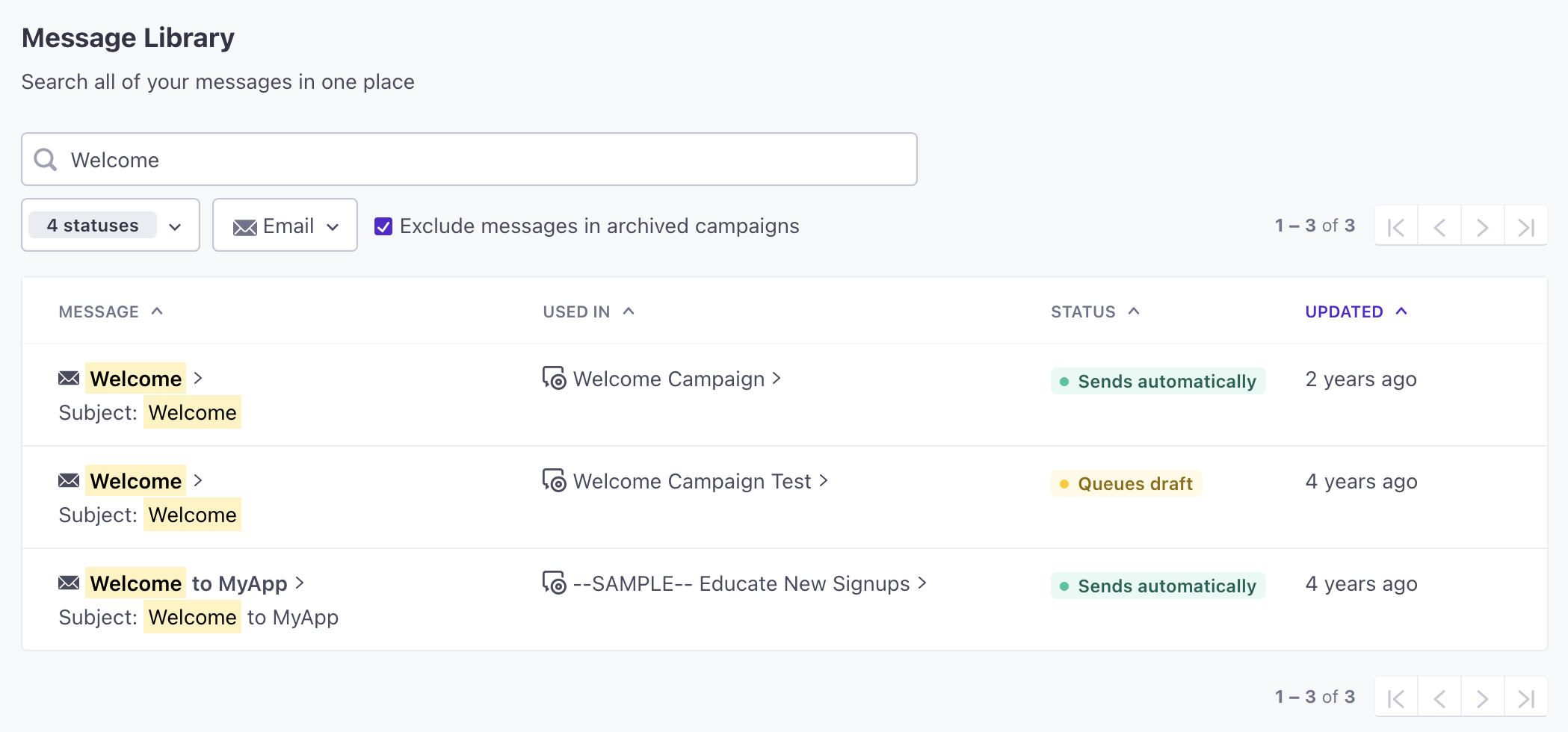
Go to Message Library to see a list of all the messages in your workspace and their current status. You can search for messages by name, subject, content, or from address. You can sort messages based on when they were last updated. Click to switch between ascending and descending sorting.
Click any message in the list to go directly to the message. From here, you can edit your message or edit settings in the automation or broadcast containing the message.
Search for and filter messages
You can search for messages in your workspace by name, subject, content, or even the from address it sends from. We do support partial results, making it easy to find messages based on a particular word or phrase you use in your messages.
Additionally, you can filter the results on the page by status (Sent, Active, Drafted, etc.) and message type (Email, Push Notification, SMS, etc).
Click on a result to go directly into the message. If your message is in an active automation and you want to make changes, learn more about how changes to your message would affect people in the automation.