

Create and manage geofences
Create geofence sets and geofences in the UI, share a geofence across sets, and learn what happens when you edit or delete a geofence that's in use.
To add many geofences at once, import them from a file instead.
Create a geofence set
In your workflows, you can add conditions for geofence sets, not individual geofences. So when you create geofences, first consider if you want to take action on them collectively. If not, that’s a signal to create multiple geofence sets to separate your geofences into.
Every geofence belongs to a geofence set. You either add a geofence to an existing set or create a geofence set followed by a geofence.
Under Configure data in the lefthand menu, go to Geofences, and then click Create a new geofence set. You only need to give it a name, but make sure it’s easy to understand so you can find it when creating automations, segments, and conditions.
After you create a geofence set, you can either import multiple geofences—names, boundaries, and any custom metadata—or add them manually.
Create a geofence manually
To create a geofence through the UI, first create a geofence set.
- Select your geofence set.
- Click Create geofence.
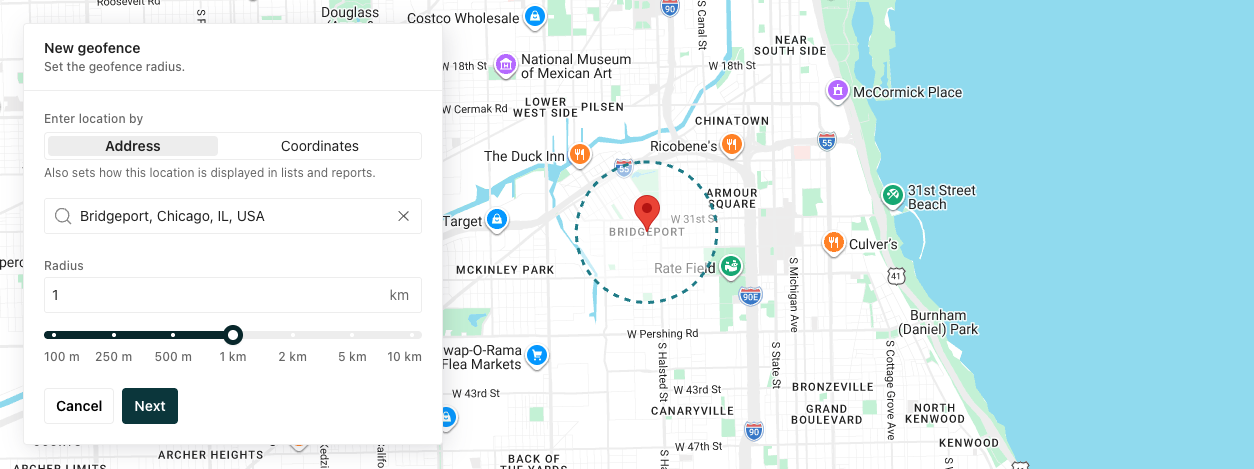
- Choose Circle or Polygon for the shape.
- Define the boundary:
- For a circle, search for the place, business, or address, or select Coordinates to specify a longitude and latitude. Then set the Radius in meters.
- For a polygon, find the area on the map and draw its boundary. The boundary must meet the polygon requirements.
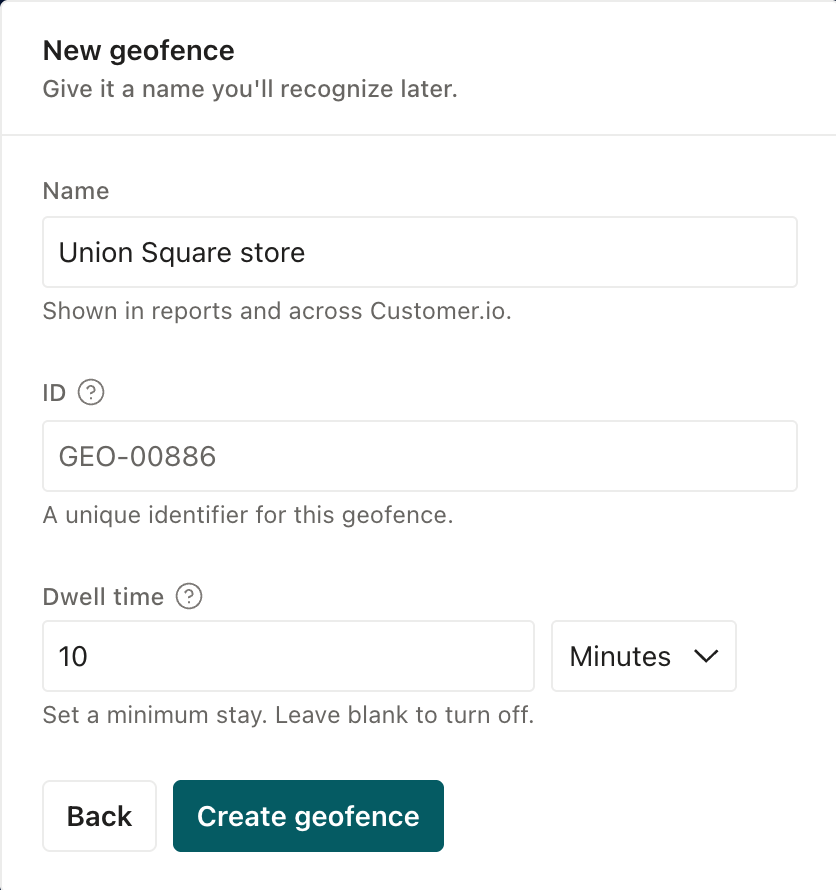
- Add a Name to easily identify your geofence and use it across your workflows.
- (Optional) Add an identifier; otherwise, your workspace generates one for you.
- (Optional) Set a Dwell time: how long a person needs to stay inside the geofence, in minutes or hours, before the SDK sends a dwell event. Leave this field empty if you don’t require users to stay inside the geofence for a minimum amount of time. Learn more about time spent in a geofence.
Sync shared geofences across geofence sets
You can share a geofence across geofence sets so the same physical location stays in sync across your sets.
For example, imagine you have two geofence sets, one is for grocery stores and another is for convenience stores. Sometimes a grocery store is also a convenience store so you create a geofence around the same store in both sets. You tie them together by giving them the same ID. If later you update the radius of the geofence, every geofence that shares that ID updates to match the new settings.
To share a geofence with another set, import it into that set using the same external_id. Customer.io keeps one fence record, so later edits apply everywhere it’s used. For example, if you update the geofence, like its radius, in the UI, that updates the radius across geofence sets.
Edit a geofence in use
When you edit geofences in use in your workspace—as an automation trigger, segment condition, or wait until condition—changes reach devices on their next SDK refresh. Depending on the platform and the device’s current location, a geometry change may produce a transition after it is applied.
For example, if you expand the radius of a geofence that’s part of an automation trigger, the automation could suddenly trigger for more people in the area. Similarly, if you shrink the radius, people could suddenly exit the automation.
You can filter for automations triggered by geofences from the Automations page.
Delete a geofence in use
You can’t delete a geofence set in use; you first have to remove it from any automation or segment that uses it.
However, you can delete individual geofences from a geofence set that’s in use. Deleting a geofence does not trigger a geofence transition event, which is what causes people to enter or exit automations. Deleting a geofence does not log a Geofence Exited event for the person.
So if you have an automation triggered by entering a geofence set and then deleted one of its geofences, people who entered the geofence initially would not exit the automation, even if the exit condition was “Exited Geofence Set”.
Export a list of geofences
You can export geofence metadata by going to a geofence set and clicking Export.