

Geofence dwell time
Set how long a person needs to stay inside a geofence before you message them, and see how long each visit lasted when they leave.
How it works
Geofence enter and exit events tell you that a person crossed a boundary. Dwell events tell you when a person stayed inside a geofence for a minimum amount of time—they “dwelled” in the geofence. Customer.io sends dwell events if you set a dwell time for a geofence.
For example, you might send a coupon or a daily special to people who spend at least 10 minutes in your store. This ensures you don’t message people who are just passing by.
The diagram below follows one visit to a geofence with a 10-minute dwell time. The SDK sends one event when the person enters the geofence, one when they’ve stayed for the dwell time, and a final event when they leave the geofence. You can trigger automations based on any of these events.
Set dwell time
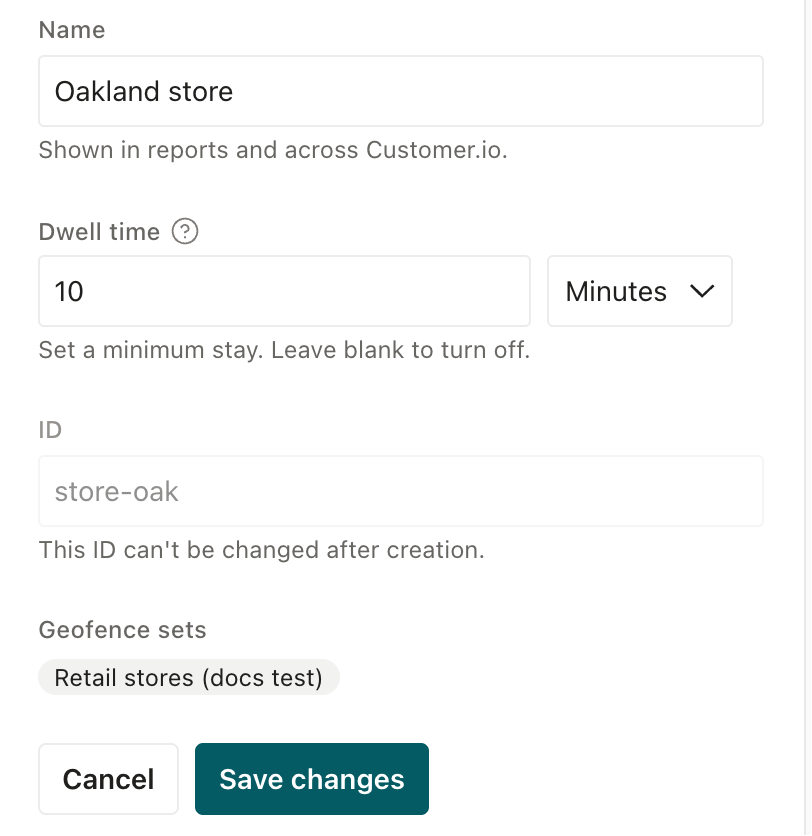
Each geofence can have a dwell time. This is the minimum time that a person needs to stay inside the geofence before the SDK sends a dwell event.
- When you create or edit a geofence in the Customer.io UI, you’ll set this time in minutes or hours.
- When you import geofences using GeoJSON or CSV files, you set dwell times in seconds with the
dwell_threshold_secondsfield.
Set dwell time for geofences in a set
You can set a dwell time for multiple geofences in a set. This saves you the trouble of setting dwell time for each geofence individually.
While you can set a dwell time for a set of geofences, the dwell time setting belongs to each geofence. If a geofence is in multiple sets, it will have the same dwell time in each set.
- Open your geofence set and click Set dwell time….
- Choose Set a time and enter a Minimum stay.
- Pick which geofences you want to apply it to:
- Geofences with dwell time off sets the dwell time for geofences that don’t have one yet. Geofences that already have a dwell time keep their current setting.
- All N geofences replaces the dwell time on every geofence in the set. The option shows how many geofences your set has, like All 3 geofences.
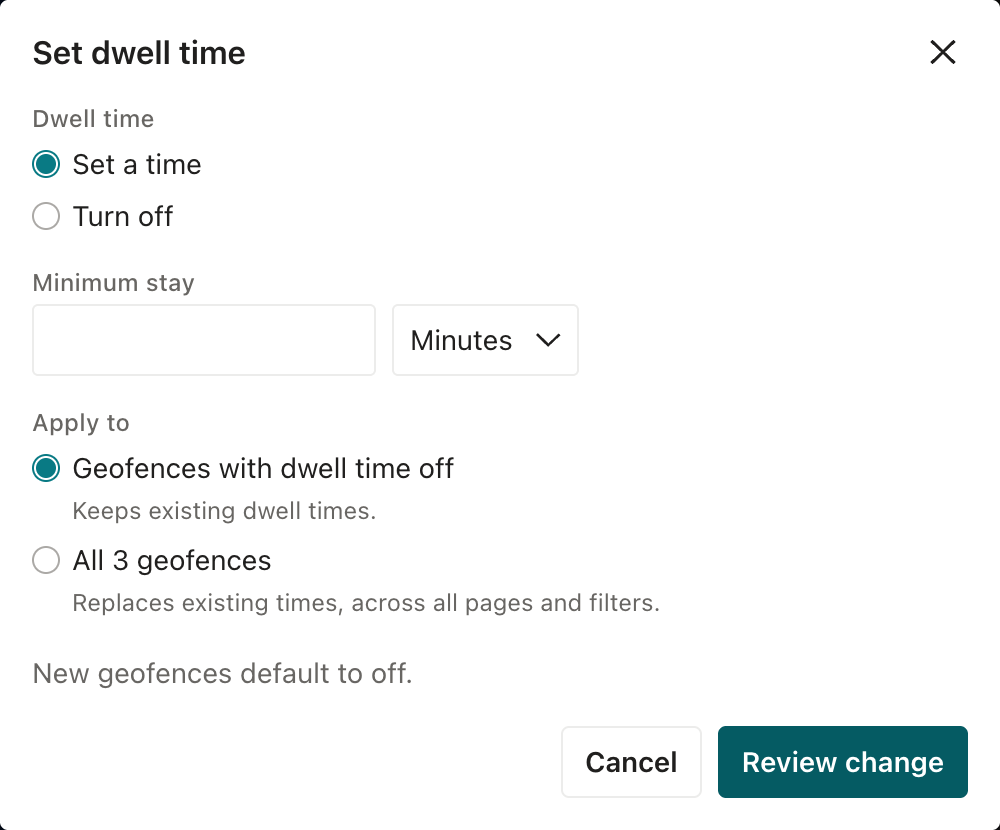
- Click Review change to check the change before you apply it. If any of these geofences are also in other geofence sets, the review lists those sets, and you need to agree to change them too. Then click Update to apply the change. The button shows how many geofences change.
Use Turn off to remove the dwell time from all geofences in the set.
How the SDK tracks dwell time
The SDK keeps track of how long a person stays inside a geofence on the device. When the dwell time passes, the SDK checks that the person is still inside the geofence before it sends the Geofence Transition event with transition set to dwell. The SDK sends at most one dwell event per visit, no matter how long the person stays inside the geofence.
Background restrictions can delay this check, especially on iOS and for polygons. Location accuracy can also prevent confirmation, especially near a geofence’s edge or inside a small polygon. The SDK makes a limited number of confirmation attempts per visit, so even a long visit may not produce a dwell event.
Dwell events might not arrive in Customer.io immediately. Tracking location and geofence transitions can still happen on the device, even if the device is offline or disconnected from the internet.
To make sure that automations triggered by dwell events are relevant to your audience, Customer.io only triggers automations from dwell events that happened within the last hour. This prevents you from sending dwell-based messages like “enjoy your visit” to a customer whose device was offline and delivered the dwell event more than an hour after the fact.
Visit duration on exit
When the SDK can time a visit reliably, exit events include the seconds from entry until it detects departure. Detection can happen after the person leaves, especially for polygons or when the device has been still, so this may exceed the actual stay. The SDK can also detect the entry after the person arrives, so the actual stay can begin before the recorded entry. The SDK rounds durations up to whole seconds. You don’t need to set a dwell time for this; the SDK tracks visit duration for every geofence.
You can use visit duration to filter geofence exits in automation triggers and conditions. For example, you can trigger an automation when a person exits your store after more than 20 minutes inside. Some exits don’t include a duration because the SDK didn’t observe the whole visit, such as when the person was already inside the geofence when your app started monitoring it. A duration filter never matches those exits.
Dwell and visit duration require a minimum Customer.io SDK:
- Android SDK 4.26.0
- iOS SDK 4.13.0
- React Native 6.16.0
- Flutter 4.10.0
- Expo plugin 3.14.0
Older SDK versions that support geofences still send enter and exit events, but they don’t send dwell events or visit durations.