

CSS pre-processing
What’s CSS pre-processing?
CSS pre-processing converts your CSS styles to inline attributes in your emails. This can make your email more compatible with email clients.
Why disable CSS pre-processing?
You may want to disable CSS pre-processing if your HTML has already been processed. For instance, if you copy/pasted a custom email template with styles already inlined, repeating CSS pre-processing may cause issues with your layout. This most frequently happens with responsive email templates on mobile devices.
Disabling CSS pre-processing means that your CSS stays exactly as specified in your template, avoiding these problems.
How we pre-process CSS
By default, emails made in the rich text or code editors are pre-processed. You can disable this on a per-email basis. You can enable CSS pre-processing for emails made in Design Studio, but never for those made in the drag-and-drop editor.
| Email editor | CSS pre-processing | How to change |
|---|---|---|
| Design Studio | Disabled by default | Transformer: CSS inlining |
| Drag-and-drop | Disabled always | N/A |
| Rich text | Enabled by default | Email setting |
| Code | Enabled by default | Workspace setting and/or email setting |
Customer.io pre-processes CSS using Juice. If you’re sending emails made using our legacy liquid renderer, we emulate Premailer’s behavior under the hood. We did this so long-term customers experienced as few changes as possible when we migrated over to a single pre-processing tool. The main difference is that CSS pre-processing no longer downloads and processes external stylesheets, which Premailer did. Other than that, you may see some formatting differences in the source code, but those would not impact what your recipients see.
Note, we do not pre-process CSS for emails made in the drag-and-drop editor; we do not convert CSS or external stylesheets to inline styles.
Convert external stylesheets to style blocks
CSS pre-processing converts your embedded CSS to inline styles, but it does NOT download and process external stylesheets (<link rel="stylesheet" href="....css" />). Instead you should convert your stylesheet to <style> blocks within your emails to ensure as many email clients as possible can process the styles. However, if you continue to link to an external stylesheet, we do keep the stylesheet tag intact for email clients that can process them.
If you use Design Studio, you can convert external stylesheets to global styles to reuse across your emails.
Code editor
In the code editor, you manage CSS pre-processing at the workspace and email level.
These settings do not apply to the code editor in Design Studio.
Workspace-level setting
Within Workspace Settings > Email, click the Default Email Settings tab to find “CSS Pre-processing with the Code Editor.”
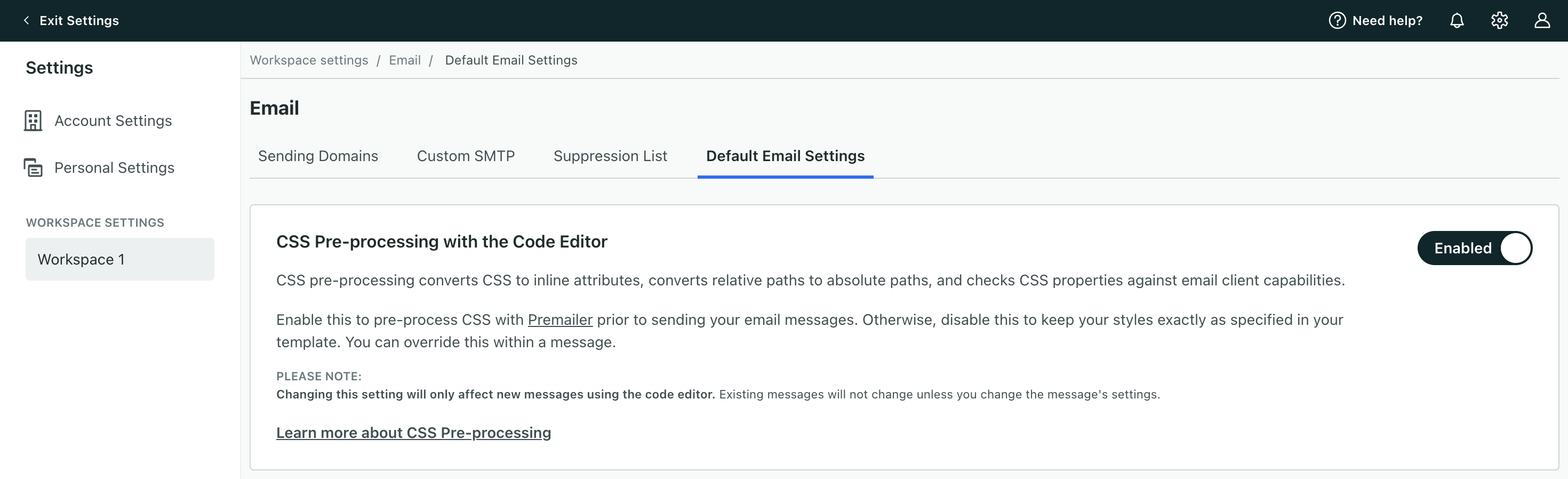
By default, the setting is enabled across your workspace. It only influences emails created in the code editor, not those made in the rich text or drag and drop editors.
Send a test message to yourself to see how your email looks with pre-processing enabled.
Disable workspace setting
If you disable the workspace-level setting, we do not apply pre-processing to any new emails created in the code editor. We continue to pre-process CSS in any emails created while the workspace-level setting was enabled.
To change pre-processing on existing messages, change the email-level setting.
Send a test message to yourself to see how your email looks with pre-processing disabled.
Email-level setting
Within an email created in the code editor, you’ll see a checkbox for CSS pre-processing. By default, this is set to your workspace setting. The email-level setting takes precedence over the workspace-level toggle if, for instance, CSS pre-processing is disabled in your workspace but enabled for a message.
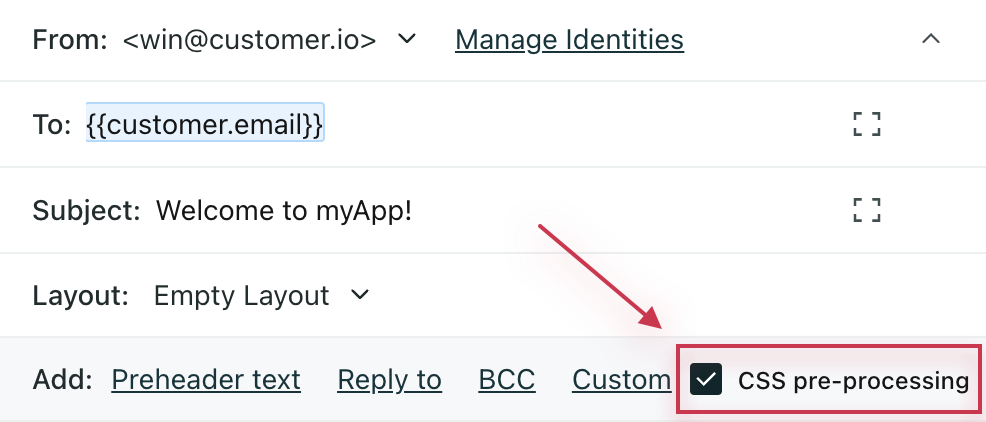
Send a test message to yourself to see how your email looks with pre-processing enabled.
Rich text editor: email setting
Within an email created in the rich text editor, you’ll see a checkbox for CSS pre-processing. This is on by default but you can change the setting on a per-message basis.
Send a test message to yourself to see how your email looks with pre-processing enabled.
Disable pre-processing for a single email
With the drag-and-drop editor and Design Studio, CSS pre-processing is off by default.
For rich text or code editors, pre-processing is on by default. To disable CSS pre-processing on an email, select the CSS pre-processing box in the header to remove the setting.
Send a test message to yourself to see how your email looks with pre-processing disabled.