

Email click heatmap
See which links people click in your emails. The click heatmap shows your email with each tracked link marked by how many times your audience clicked.
How it works
The click heatmap shows your email with heat spots over tracked links. The more clicks a link gets, the hotter its spot. We also show a list of links ranked by clicks.
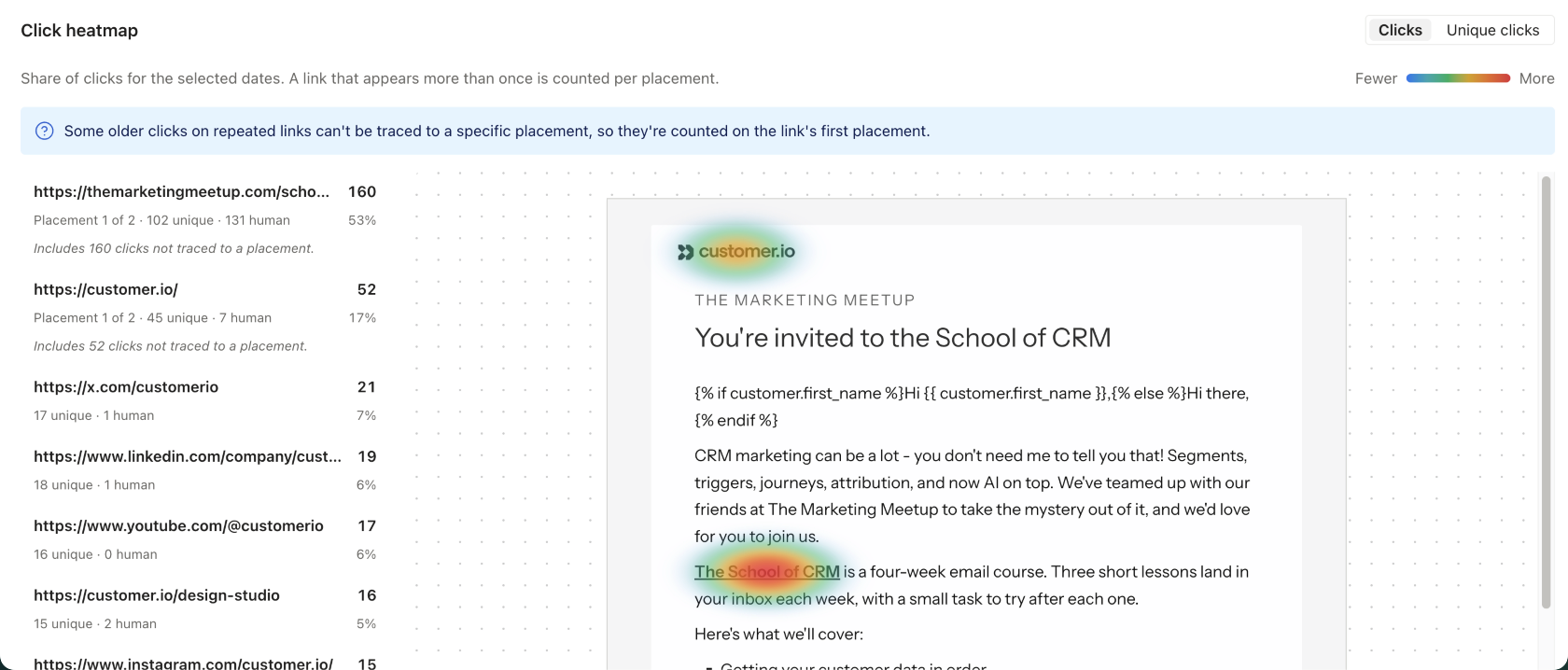
The heatmap helps you answer questions that a list of URLs can’t, like whether people click the button at the top of your email or the one at the bottom. If the same URL appears more than once in your email, the heatmap counts each copy separately. We call each copy of a link a placement.
Open the click heatmap
The click heatmap is on the metrics tab for your email messages. Where you find it, and which clicks it counts, depends on the type of message:
- Automations and API-triggered broadcasts: go to the Metrics tab and scroll to the bottom. The heatmap counts clicks for the dates you select at the top of the tab.
- One-time sends: open the Metrics tab for your one-time send. The heatmap appears when the send has link tracking turned on, and it counts clicks from the day you sent the message through the next four months.
- Transactional messages: go to the Metrics tab. The heatmap counts clicks for the dates you select at the top of the tab.
When there’s more than one email, like an automation workflow with multiple emails or a one-time send with translations, use the dropdown at the top of the heatmap to pick a specific message.
- In an automation, you choose from each email in the workflow, including A/B test variations and translations.
- In a one-time send, you choose a variation, and your choice also changes See Metrics For on the report.
- In a transactional message, you choose a language.
Read the heatmap
Use the Clicks and Unique clicks toggle to choose what the heatmap shows you:
- Clicks counts every click, including repeat clicks from the same person.
- Unique clicks counts each person once per link.
Each link in the list shows its clicks or its unique clicks, depending on the toggle. Under that number, the list also shows the link’s other count and its human clicked This metric is available for tracked links in emails since April 20, 2025. Compared to the clicked metric, the human clicked metric excludes clicks from automated security scanners, bot user agents, known proxy services, and repetitive click patterns identified by our proprietary algorithm as non-human interactions.
The percentage next to each link is that link’s share of all the clicks on the email’s links. It isn’t a click rate. If one link shows 50%, half of the clicks on your email went to that link, no matter how many people received the email.
Hover over a link in the list to highlight it in the email, or hover over a heat spot to find its link in the list.
What the heatmap shows
The heatmap shows your email template before Customer.io renders Liquid. This affects what you see in a few ways:
- Liquid appears as plain text, so you see
{{ customer.first_name }}instead of a person’s name. - A link inside a Liquid loop appears once, and that one spot holds all of the loop’s clicks.
- Customer.io only counts clicks on tracked links. If your email has no tracked links, the heatmap tells you so. To count clicks, add a link or turn on link tracking for the message.
If you removed a link from your email after people clicked it, the link appears in the list under Not in the current email, with the clicks it got before you removed it.
Repeated links and older clicks
Customer.io started counting each placement of a repeated link on November 5, 2026. Before that date, every placement of the same URL shared one count.
Clicks on messages sent before November 5, 2026 can’t be traced to a specific placement, so the heatmap counts them on the link’s first placement. The link’s other placements show 0% for those clicks. When this happens, a banner appears at the top of the heatmap. The note on the link’s first placement tells you how many of its clicks came from messages sent before November 5, 2026. Clicks on messages sent on or after November 5, 2026 count toward the placement that the person clicked.
If you edit an email after it starts sending, the heatmap numbers placements based on the email as it is now. When an edit changes the order of a repeated link’s placements, some clicks from before the edit might appear on a different placement of the same link. The heatmap shows a banner with the date of the edit when this might happen.