

Types of branches
Flow controls and branches
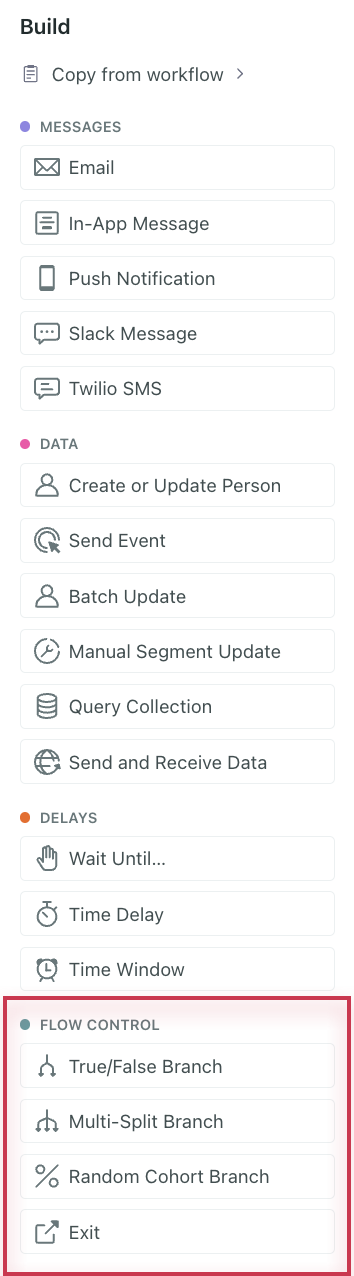
We offer three types of branching flow controls that you can place anywhere in your workflows:
- True/False Branches: Send people down one path if they match a condition, or down the other path if they don’t.
- Multi-Split Branches: Send people down different paths where each path has its own conditions.
- Random Cohort Branches: Send people down different paths based on a random distribution. This is a great way to test different flows in an automation, like a more robust version of our A/B testing feature for individual messages.
Walkthrough of different branch types
Check out this walkthrough to understand how you could use each branch type:
Moving branches
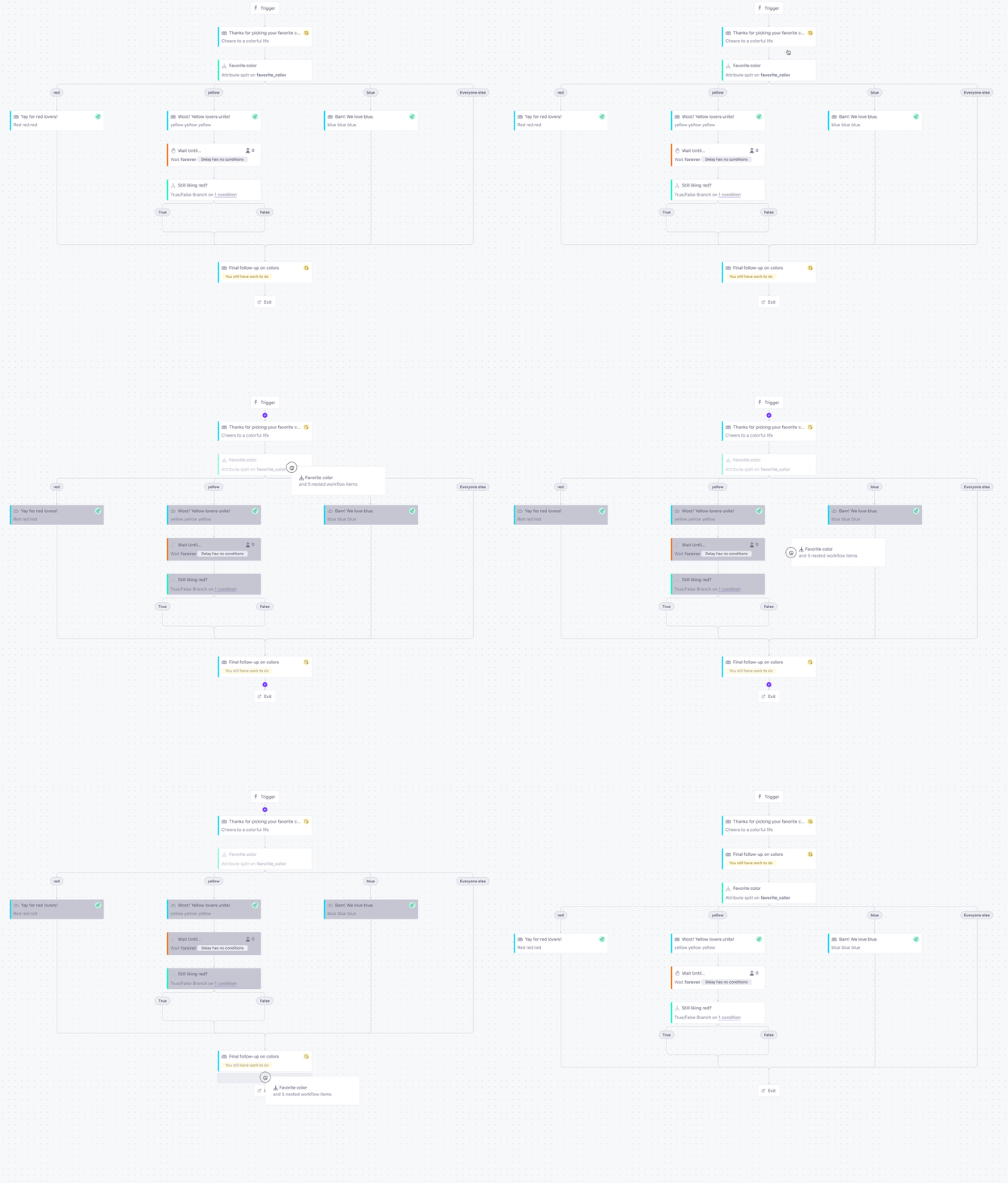
You can move branches like any other items in the workflow. When you click and drag a branch, you’ll carry everything along its paths. That way, wherever you drop the branch, everything stays together.
Moving delays in active automations
If a branch contains a delay that currently has people waiting in it, and you move the branch, the people in your automation will move with the delay.
Deleting branches
You can’t delete a branch until you’ve removed all items from it. If you need to delete a branch, first delete or move all items out the branch’s path. Then, select the branch and click Delete.
Copying branches
You can copy branches to/from other workflows by clicking Copy from workflow at the top of the Add menu or selecting a branch then Copy to at the bottom.