

Review your email for quality and accessibility
Use the Review panel to pinpoint errors that could prevent your email from sending, see how your email renders in real inboxes, and get tips for improving the quality of your message.
If your email has one or more translations, the panel only validates the language variant you’re viewing. If you’re looking at your default translation, the errors reflect the default email only. Make sure you review each translation, especially if it has additional content and different liquid syntax.
Review tab: check if your email is ready to send
The Review panel validates your liquid syntax, links, images, and accessibility. It also shows you a SpamAssassin score so you know how likely inboxes are to filter it out as spam.
Click Review at the top of the editor to see a summary of the email’s quality and accessibility:
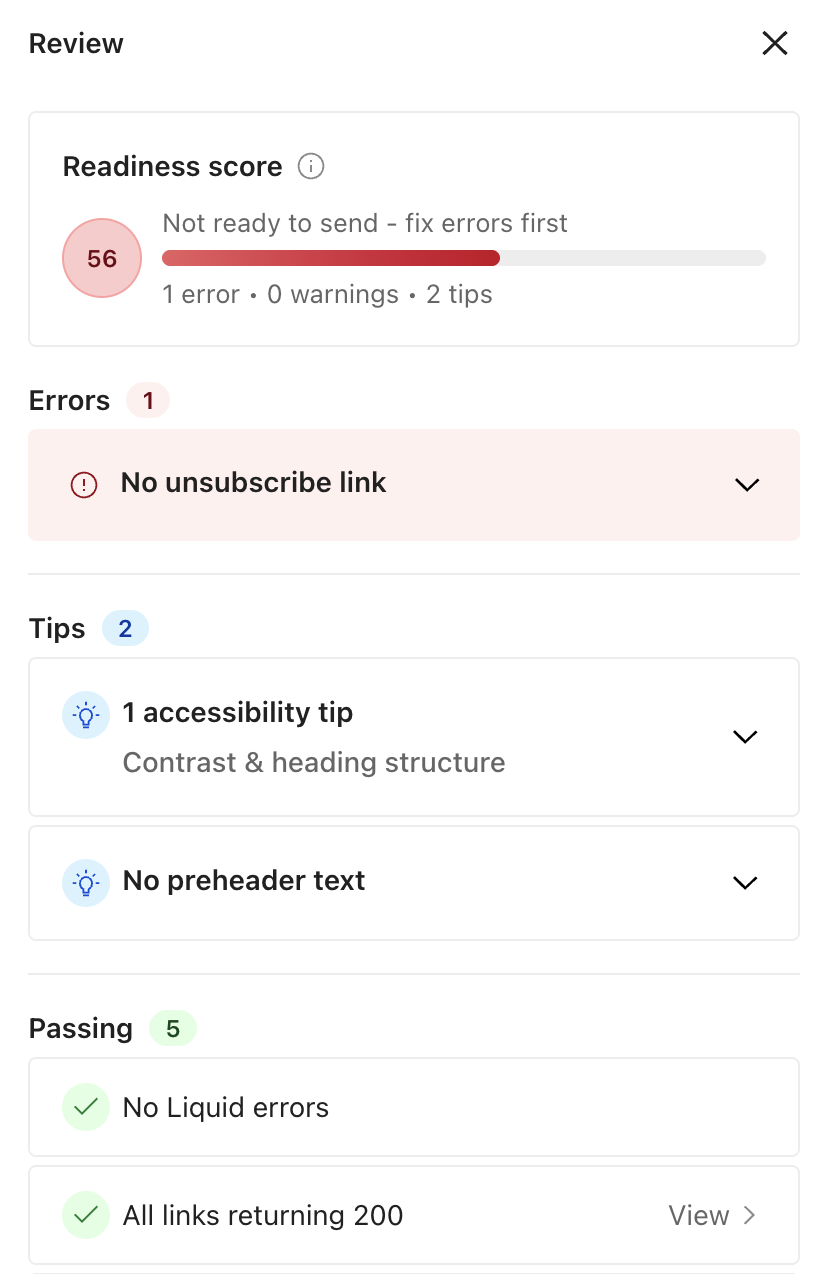
In the panel, you first see a Readiness score, which is a 0-100 score that helps you understand if your email is ready to send. The score is a sum of the errors, warnings, and tips surfaced in the rest of the panel.
The panel is either red, yellow, or green, depending on the issues found, not the score itself. The score (0–100) reflects overall email quality and rises as you resolve errors and apply suggested improvements.
- Red: An error could cause your email to fail to send or cause a compliance issue. Fix it before sending.
- Yellow: Review these items to improve the quality of your email.
- Green: Your email is ready to send.
Learn more about previewing your message after making changes in the visual editor.
Fix errors before sending
It’s best practice to fix all errors before sending your email to make sure it’s compliant and sends successfully to your recipients.
These are the errors you might encounter:
- Issue with liquid syntax—the message won’t render correctly
- No unsubscribe link—compliance risk
Make sure you add fallback values to your liquid and preview your message with multiple people to see how your message renders.
From the visual editor, turn on Preview to check how liquid renders in your message.
Inbox previews: see how your email renders in inboxes
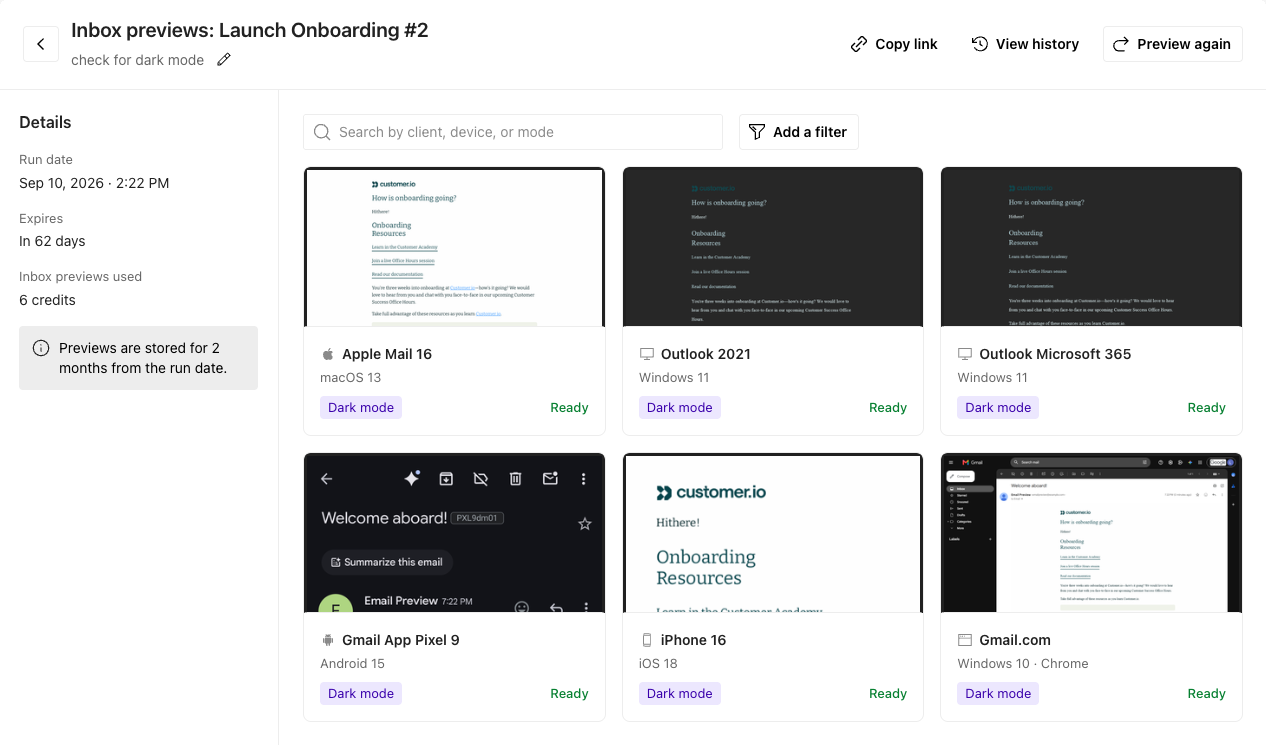
Where Preview mode lets you simulate the viewport dimensions of different devices, Inbox previews show you how your email would actually render in email clients. Generating inbox previews returns real screenshots of your email as it actually renders across different devices, email clients, and operating systems. This helps you catch styling issues that only appear in certain inboxes.
Inbox previews are helpful for troubleshooting rendering problems. When a recipient reports that your email looks broken in their inbox, generate an inbox preview for that client to reproduce the issue and pinpoint what’s going wrong.
You can also pair inbox previews with the Review tab. Depending on the issues the panel surfaces, you can decide which inboxes are worth previewing.
Generate inbox previews
When you generate an inbox preview, you use up an inbox preview credit. You have 25 free monthly credits to use, and have the option to purchase more if you need. Learn more about how we bill inbox previews.
To generate one or more previews for an email, follow these steps:
- In the Design Studio editor, click Review and select the Inbox preview tab.
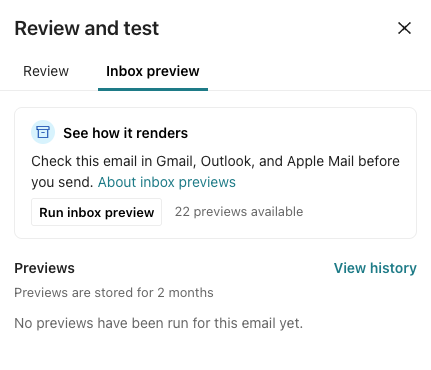
- Click Run inbox preview.
- (Optional) Describe what you’re checking for like dark mode, and Customer.io’s agent will recommend which clients to select.
- Click Select data in preview mode if you want to change the language variant and/or choose a different person profile for your liquid syntax to pull from.
- Select one or more previews. You can search by device type, client, OS version, browser, or light/dark mode. If you added a description for why you want to create inbox previews, click View recommendations to see which previews Customer.io’s agent recommends.
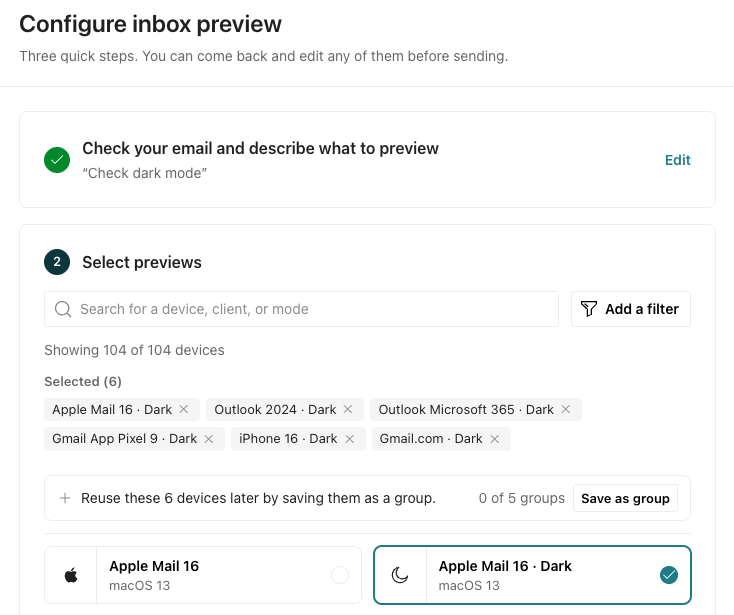
- Click Send for previews. At this point, Customer.io sends your email to the specified inbox(es) and returns a snapshot of the email. Each inbox preview uses an inbox preview credit. Learn more about how we bill inbox previews.
Click a preview to view or download it to share.
Revisit inbox previews
Inbox previews are available across your account. No matter who generated a set of previews, other teammates can open and view them. You can open a saved preview as many times as you need—viewing a saved preview never generates a new one or counts towards your credit usage.
From the Review panel, select the Inbox preview tab and choose an option under the preview history.
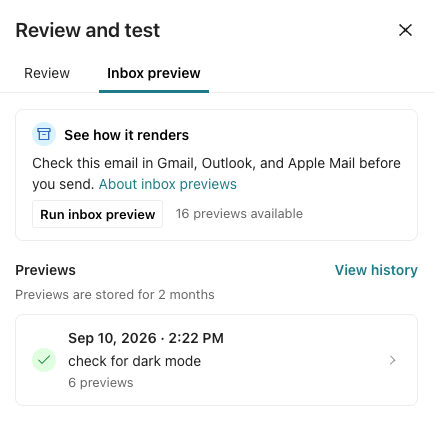
Saved previews remain available for two months. To see who generated previews and how many your account has used, check the Inbox preview usage tab. You must have access to the billing page to view.