

Awareness: announce events
Business-to-business (B2B) companies often need to track and drive growth across both individual users of their product and non-people entities like the company they work for or webinars they want to attend. In Customer.io, objects An object is a non-person entity that you can associate with one or more people—like a company, account, or online course.
For this recipe, imagine you work at a design platform, Sketcher.io, which offers graphic design and product design tools. We track when users sign up to be notified of event registration and which events they’ve attended. Specifically, they can sign up for Webinars, which will be a type of object in the workspace. You want to drive registration for webinars by announcing upcoming webinars that expand on webinars they’ve already attended.
To accomplish this, let’s build a segment around people who attended beginner webinars. Then we’ll send a broadcast to this segment of users encouraging them to take the intermediate-level webinars.
Prerequisites
- Access to create segments
A segment is a group of people in your workspace. Use segments to trigger automations, track membership over time, or fine-tune your audience. There are two types of segments: data-driven and manual. Data-driven segments automatically update when people start or stop matching criteria. Manual segments are static.
and broadcastsA message sent to a group of people at the same time. Unlike automations, where individuals can enter automations and receive messages on their own time, you'll trigger a broadcast for everybody meeting your criteria at once. When you send a broadcast, you can personalize broadcasted messages for individual members of your audience; everybody doesn't have to get exactly the same message.
- Integrate non-people data as objects and relationships in your workspace
Set up objects and relationships
In this example, the workspace includes Webinar objects and we track people’ registration status on their relationships The connection between an object and a person in your workspace. For instance, if you have Account objects, people could have relationships to an Account if they're admins.
If you’re not yet integrated but want to test this out, you can import objects and relationships via CSV.
Create a segment of people who have attended a beginner event
- Go to Segments and click Create Segment.
- Add a name like “Recent Attendees of Beginner Webinars,” and click Create Data-driven Segment.
- Click the dropdown “Add condition or group” and choose Relationship.
- Specify that the relationship between a person and Webinars exist with the following conditions (or other conditions that fit your needs):
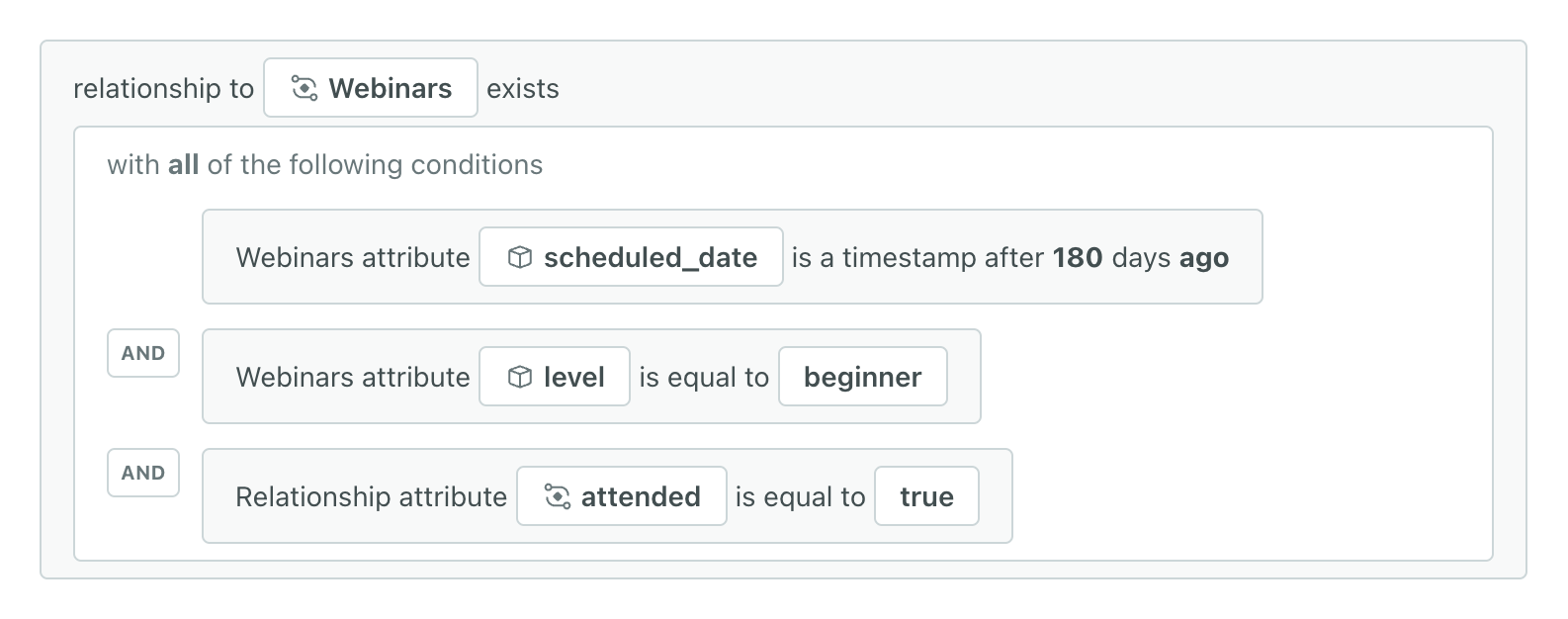
In this example, Sketcher.io tracks when each webinar was scheduled (scheduled_date) and the level of the webinar (level), so we’ll include these attributes in conditions to filter for the right webinars. We also track when people attended the event (attended) on the relationship between the webinar and person, so we’ll set that to true. Consider what attributes in your own data would help filter for these users!
- Click Save Changes.
Now you’re ready to create a one-time send to announce registration for the next level of webinar!
Create a one-time send to announce upcoming, intermediate events
-
Go to Broadcasts and click Create Broadcast.
-
Enter a title and choose One-time send, like “Upcoming Intermediate Webinars Announcement.” Then click Create Broadcast.
-
On the Recipients step, click People matching conditions. Add a segment condition that targets people in “Recent Attendees of Beginner Webinars,” the segment you made earlier. Click Save & Next.
-
On the Goal step, mark people as converted when they register for an intermediate webinar. You’ll want to track this as an event
Something that a person in your workspace did. Events can trigger automations, add people to segments, etc, and you can use properties from events to personalize messages.
.In this example, we’ll mark them as converted after performing the event
webinar_registrationwhere the webinar has alevelofintermediate.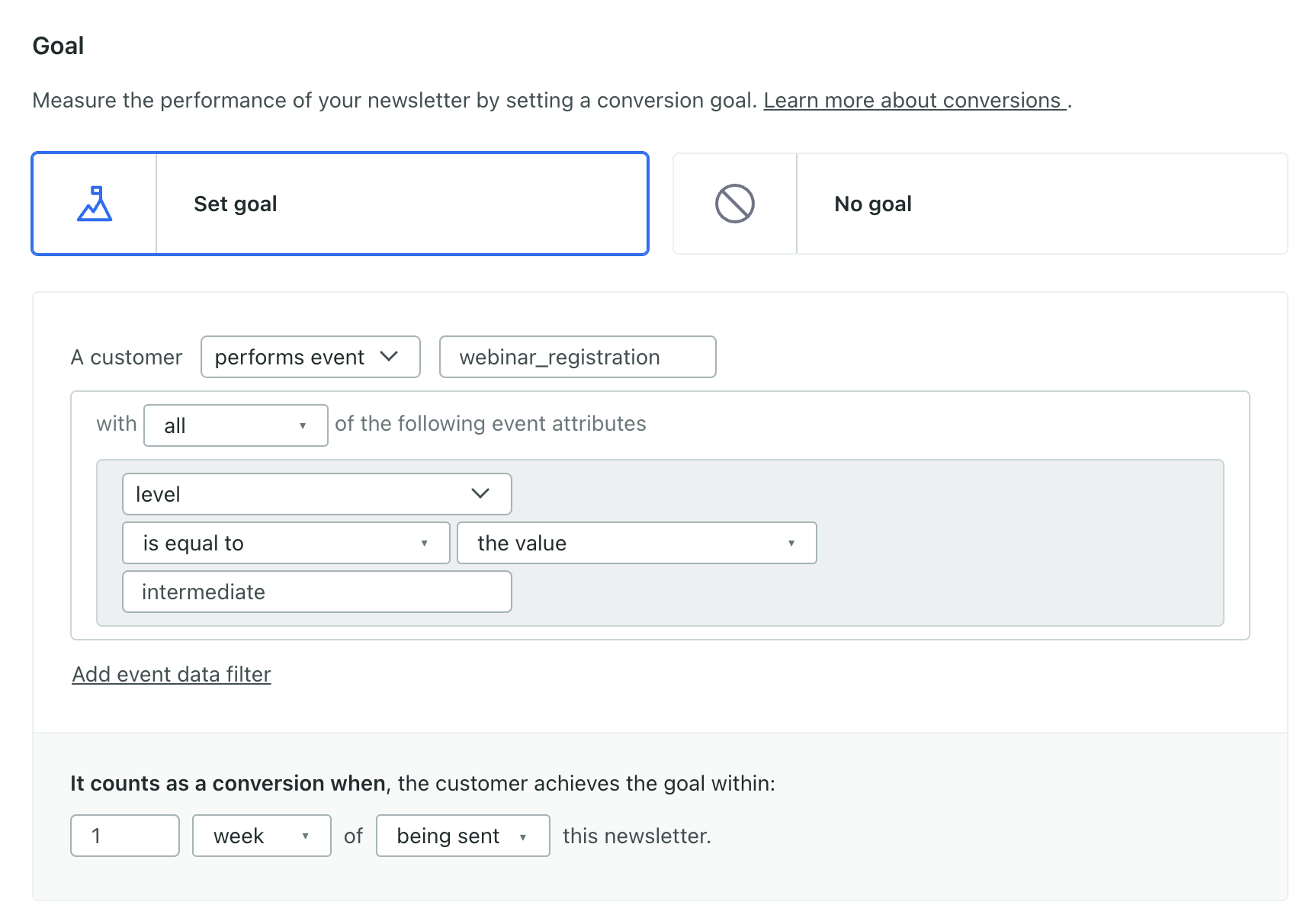
We’ll mark this as a conversion if accomplished within 1 week of being sent this one-time send, but you can change that depending on the time you think your customers or sales team needs. Click Save & Next.
-
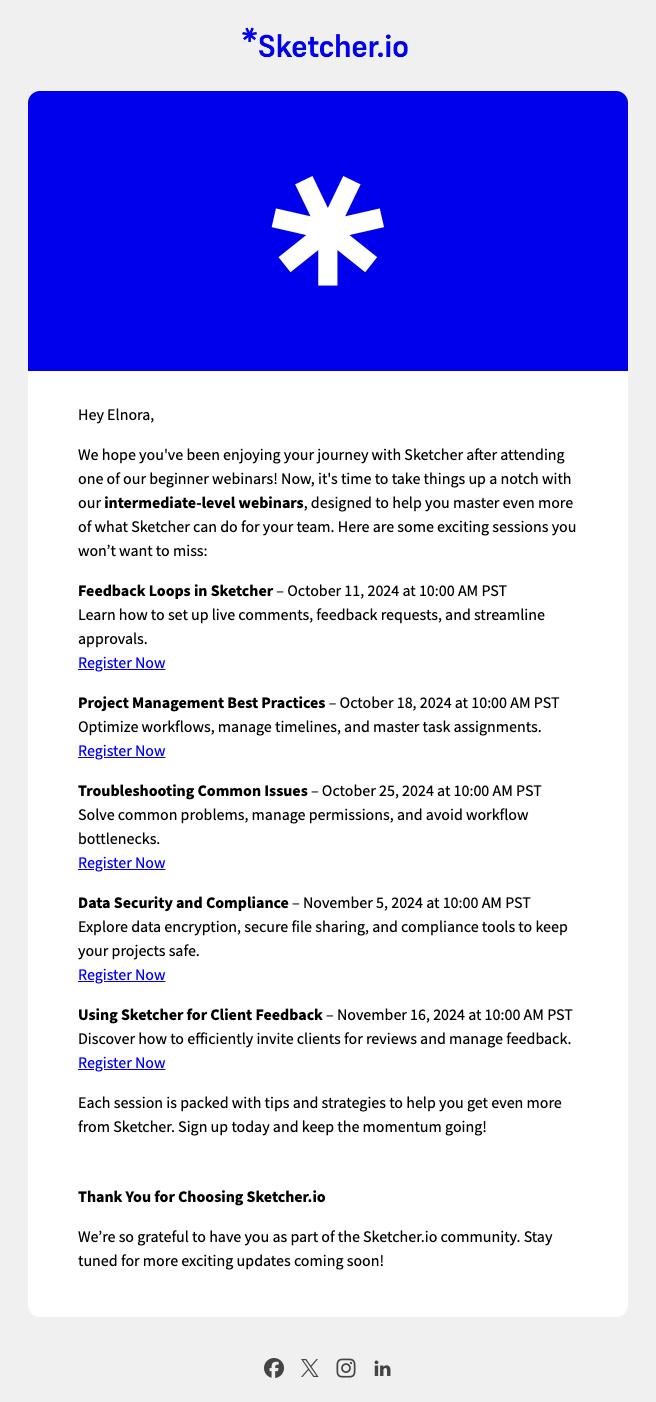
On the Content step, click Email and either start a message from scratch or build from an existing email. Here’s an example of one you could make! It includes the upcoming, available intermediate webinars.
- Click Save then Back to Content.
- Click Next to review your broadcast.
- On the Review step, check that your recipients and other settings are correct, then click Send at the bottom or click Schedule to send it later.