

Track anonymous activity
Track page views, screen views, and custom events from people you haven't identified yet so their activity is ready to use as soon as you identify them.
How it works
Anonymous activities are actions people take on your website or app before logging in or identifying themselves. These people are often leads or prospects. When you identify anonymous users, Customer.io merges their anonymous activity into a profile An instance of a person. Profiles start journeys through automations, join segments, and more. You reference a person's profile attributes in messaging using the liquid key customer, like {{customer.email}}.
You can track anonymous users’ activity, like the pages they visit and the actions they take, but you’re limited in how you can message them until you identify The Customer.io operation that adds or updates a person. When you identify a person, Customer.io either adds a person if they don't exist in your workspace, or updates them if they do. Before you identify someone (by their email address or an ID), you can track them anonymously.
We retain anonymous events for up to 30 days. If you haven’t identified the person after 30 days, we delete the activity.
Track & store anonymous data
You can track anonymous activity on your website or app and store it in Customer.io.
Our JavaScript libraries and mobile SDKs automatically assign people an anonymous ID and track page or screen views.
Our server-side libraries and APIs don’t automatically track anonymous activities. If you want to track anonymous data with these libraries, you’ll need to assign an anonymous ID to people and send events manually.
You can also track custom events, like adding items to a cart, as anonymous activities, but you’ll need to manually set up this tracking for each of the methods above. After you track them, your workspace automatically merges them into identified people like page and screen views.
You can forward anonymous activities from Customer.io to analytics platforms or data warehouses to track traffic and other metrics, even before you identify the people generating them.
Message anonymous users
If you’re on a premium or enterprise plan, you can send in-app messages to anonymous users. Any other messaging requires you identify them first.
Message identified people based on anonymous activity
After an anonymous event merges into an identified person, the event can trigger an automation if it happened within the past 72 hours.
However, you can trigger automations based on older anonymous activities through segments. If the event happened more than 72 hours ago and your segment includes the event as a condition, people join the segment, which can trigger automations.
Review merged activity
You might review merged anonymous activity to check why someone triggered an automation. Keep in mind, anonymous activities performed within 72 hours of the person becoming identified can trigger workflows.
You can find this information in the Profile activity page:
- Click Anonymous to view a running list of anonymous activities. When events merge with a person, they move to Identified.
- From Identified, you can filter by Anonymous Data Merged to locate previously anonymous activities that merged into identified people. This activity records the number of anonymous events merged, the unix timestamp for the oldest event, and the anonymous ID associated with the user.
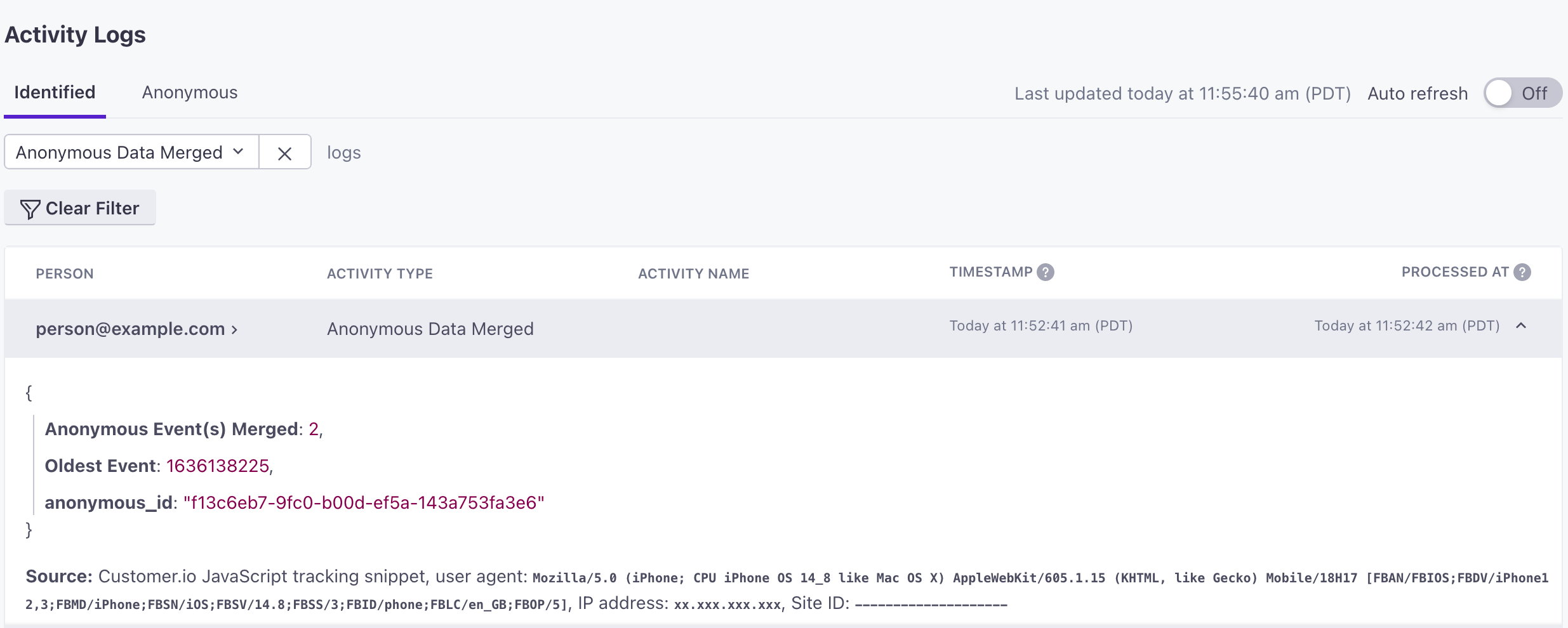
You can also filter for this data from a person’s Activity tab.
Disable merging anonymous activities into identified people
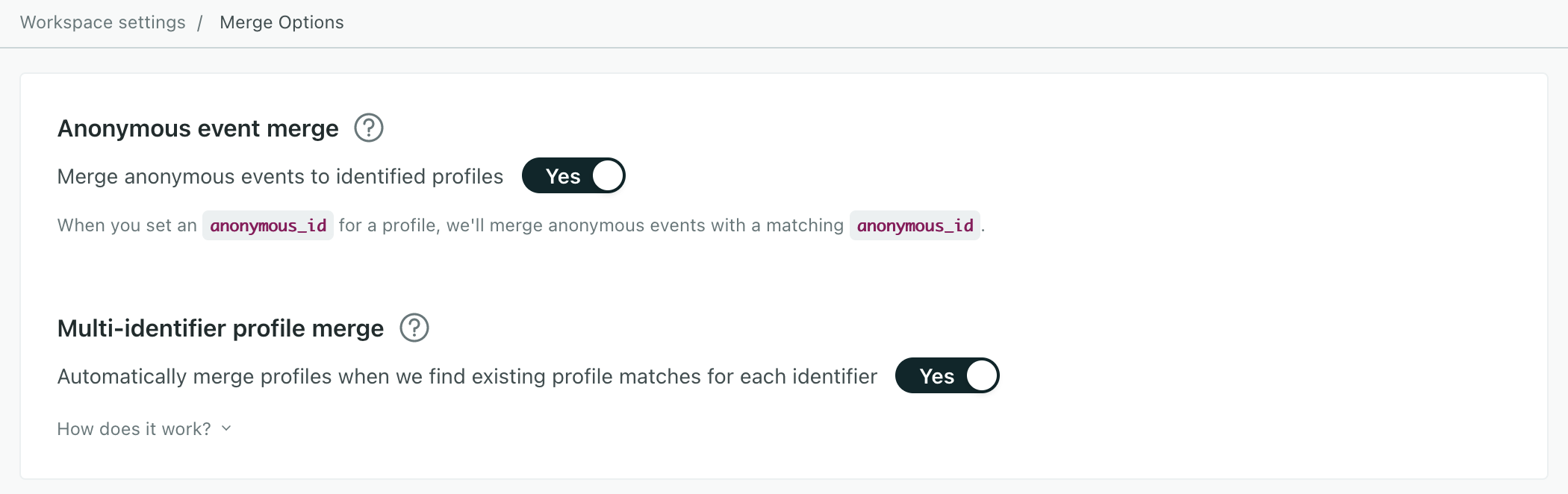
Customer.io automatically merges the past 30 days of anonymous activity into identified people. We recommend leaving anonymous event merging on. If you turn it off, then identified people won’t inherit the activities which influences which automations are triggered, segments they join, and more.
If you want to disable auto merge, follow these steps:
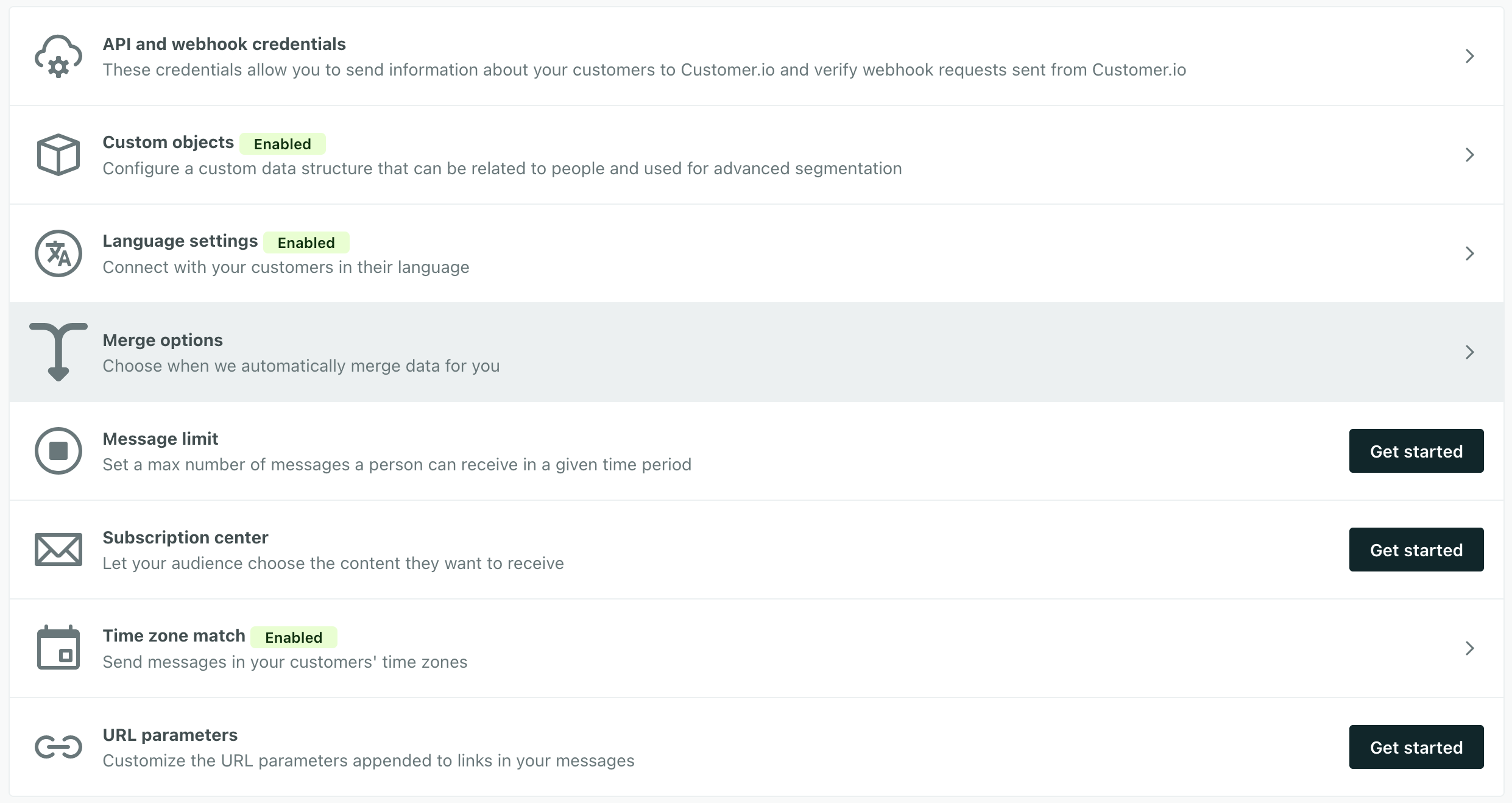
- Go to Settings > Workspace Settings and click Merge Options.
- Turn off the Anonymous event merge setting.
- Set up an integration that sends events to Customer.io. Our JavaScript snippet makes this easy.