

Automation journeys
When a person enters an automation, they start a journey. You can follow each person's history through an automation like the deliveries they've received, conversions, and when they entered/exited. You can find them in the Journeys tab of an automation.
View and troubleshoot journeys
Journeys help you track each person’s current or historical pathway through your automation. This helps you troubleshoot issues like people not proceeding in your workflow or exiting automations when you’d expect.
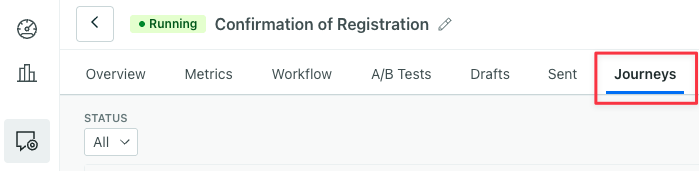
To access individual journeys, go to the Journeys tab of Automations or a person.
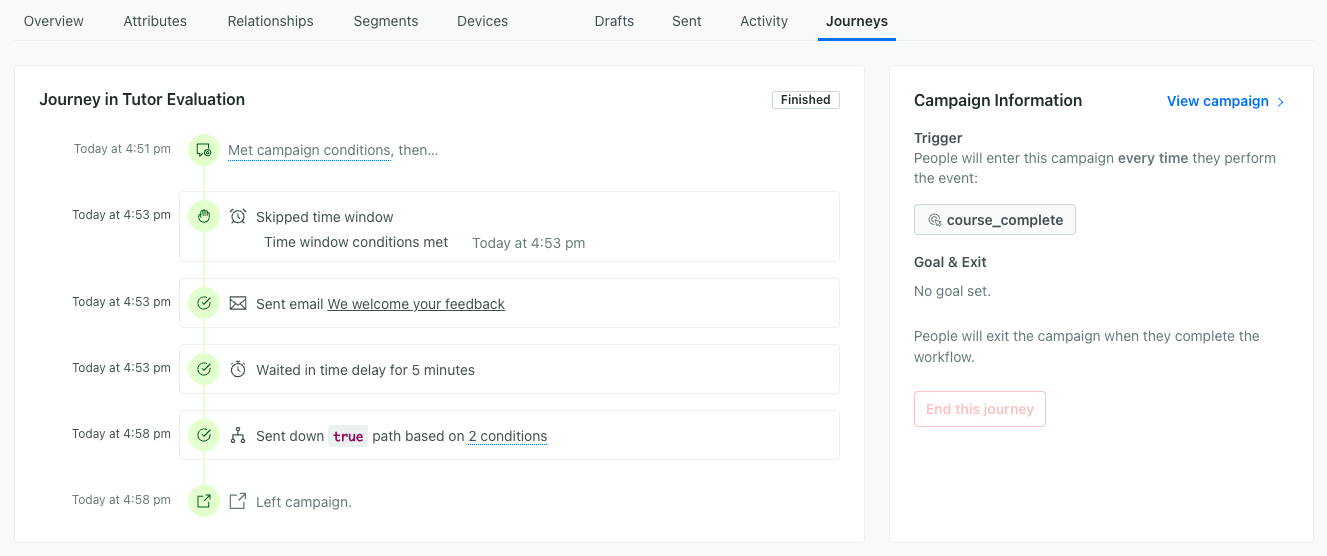
In this automation, you can see this person entered the automation at 4:51pm and left it at 4:58pm, a short journey! You can see how the person was impacted by each workflow action along the way.
Learn more about using this page to help you troubleshoot why people aren’t entering or why people aren’t receiving messages when you’d expect.
When journeys begin
If your automation doesn’t have filter conditions, the journey starts immediately when a person matches your trigger criteria.
If the automation has filter conditions, the following happens:
-
For legacy segment-triggered automations, a journey starts as soon as a person matches the automation’s trigger conditions. If they don’t match the filter conditions, they’ll wait to continue your workflow until they meet these conditions or exit after a period of time. Learn more about how we evaluate filters for legacy segment-triggered automations.
You know you’re using a legacy segment trigger if the trigger panel has filter conditions; the latest segment trigger does not have filters. Check out Triggers with segments for more on the differences.
-
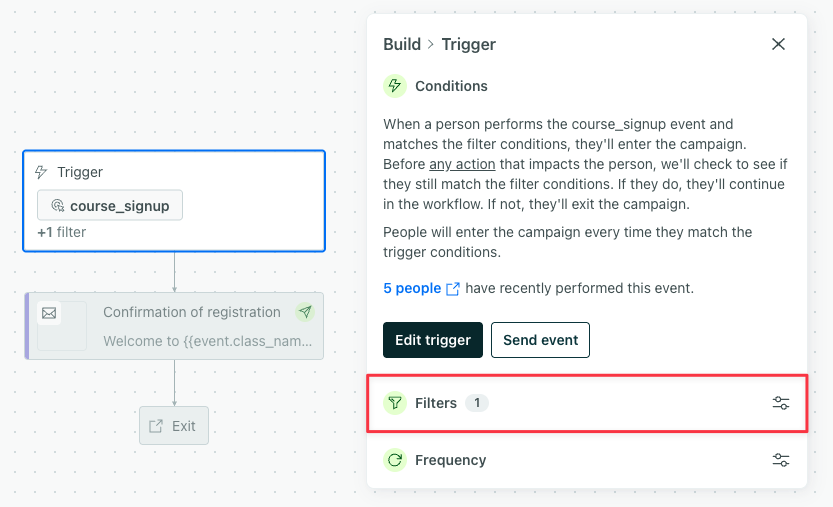
For automations triggered by an event, object, relationship, date or form, a journey starts after the trigger conditions AND filter conditions are met. Keep the following in mind:
- If the person does not meet the filter conditions when we receive the event, we will retry for up to 30 minutes.
- If the person matches your filter conditions within 30 minutes, they start a journey.
When journeys end
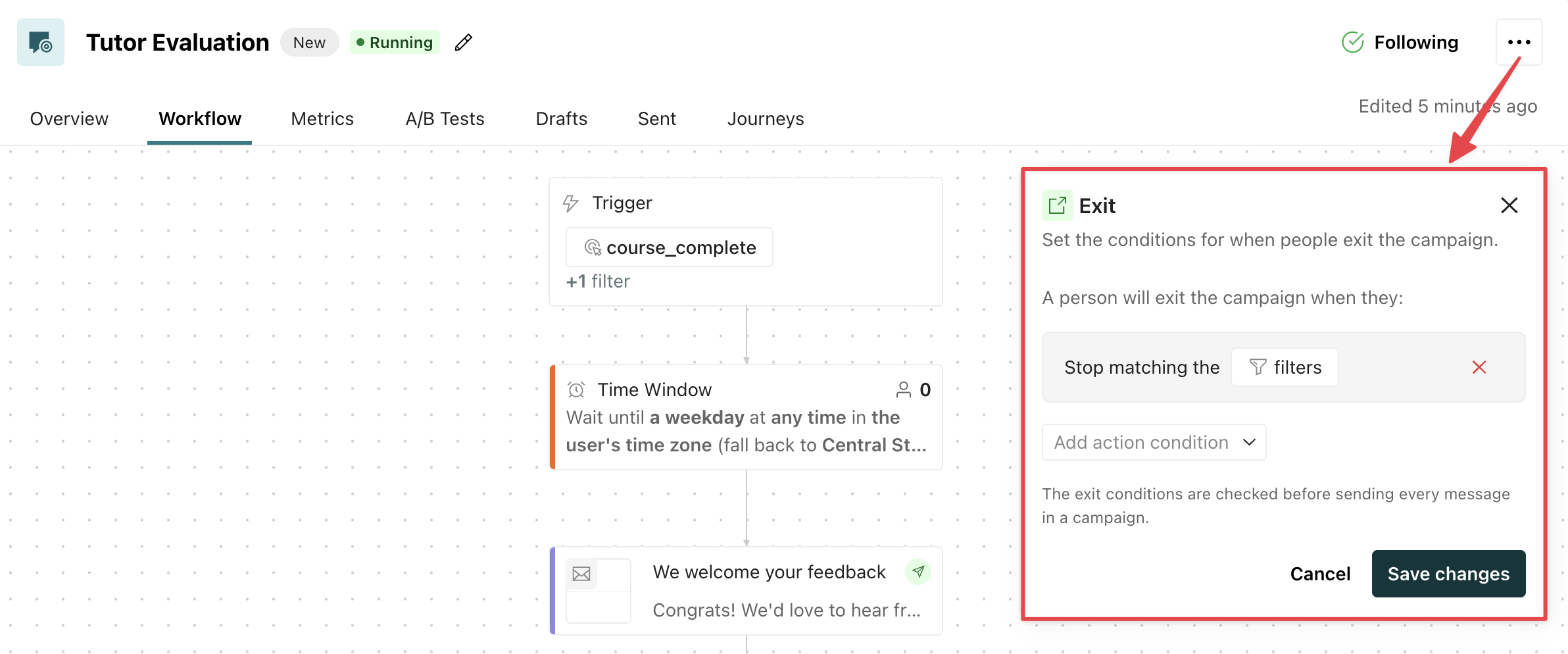
When journeys end depends on your exit conditions, which you can modify in your automation’s settings.
You know a person exited if the journey shows “Exited early” or “Finished”.
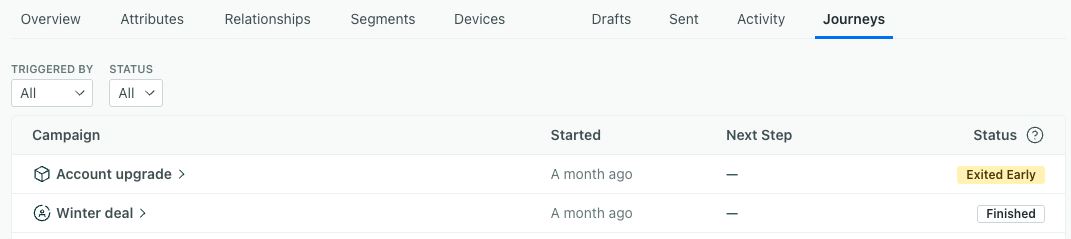
The journey log will show “Left automation” next to the timestamp.

Manually end a journey
You can end a journey for a person from the Journeys tab of an automation or a person.

- Click the journey you want to end.
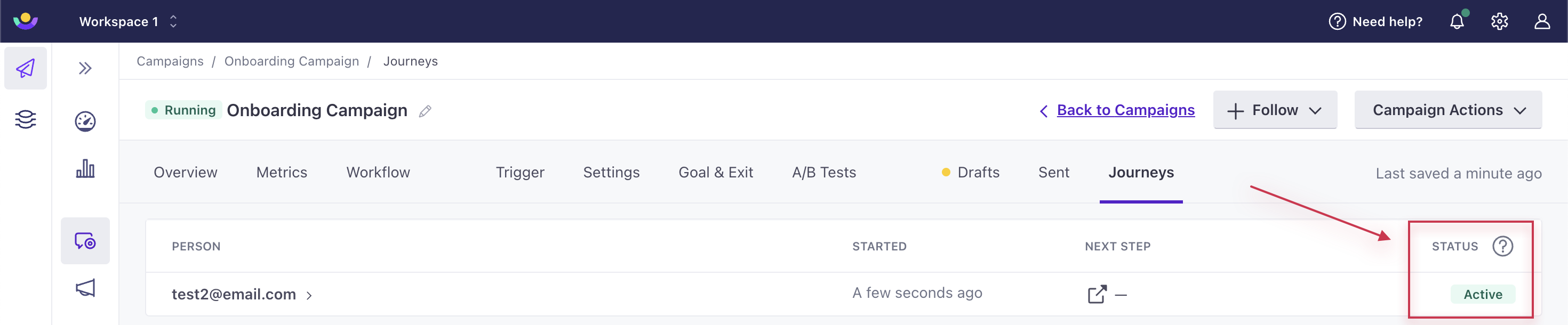
- Then click End this journey on the right.
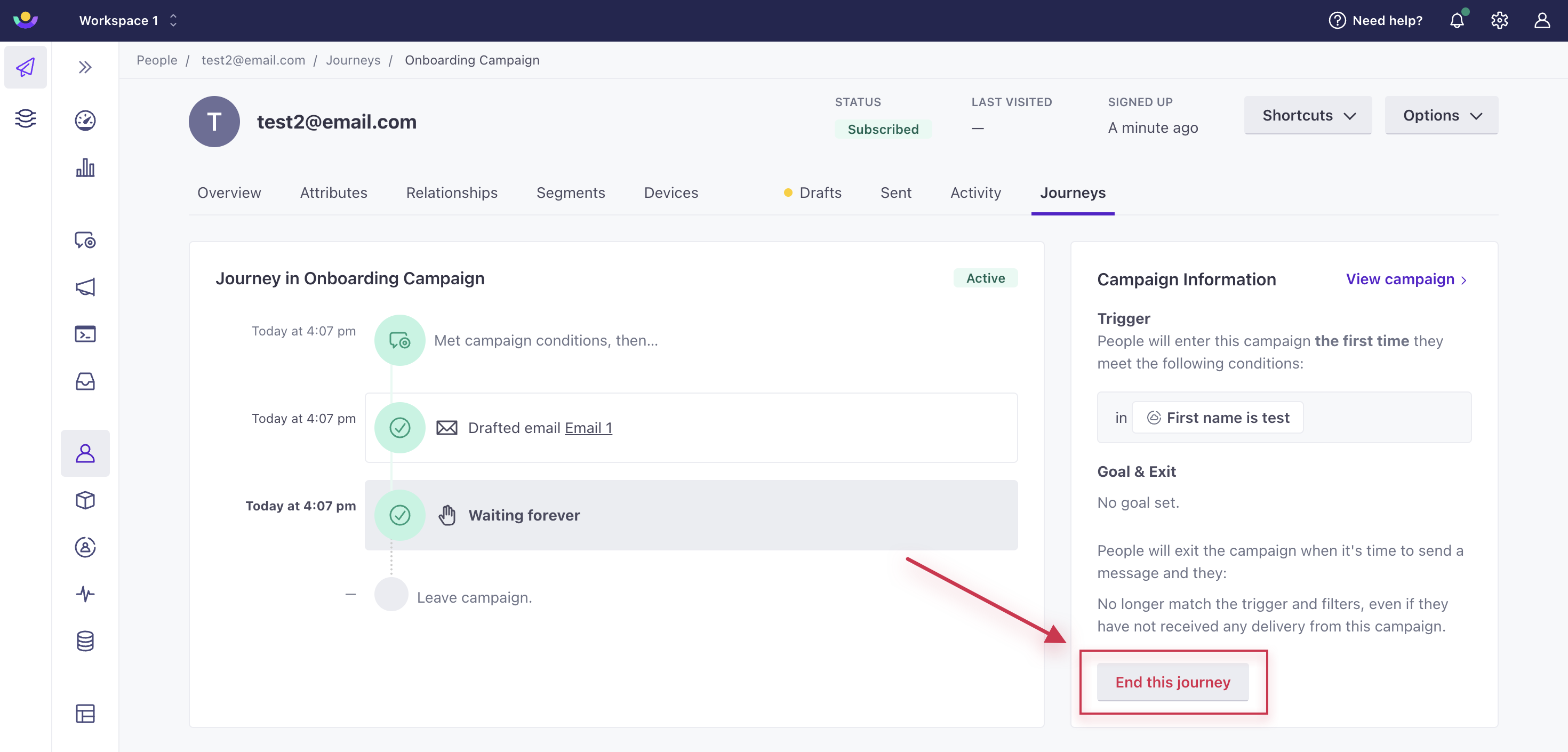
The journey will update to “Exited early.” And you’ll see this as the reason: “The person was manually removed from the automation.”
Pause journeys if they haven’t received a message
If you want people to wait in an automation until a message or webhook is sent or all retries are exhausted, then adjust the action’s settings.
Click your message block or Send and receive data (webhook) block, and select Settings. Turn on Wait before continuing journey.
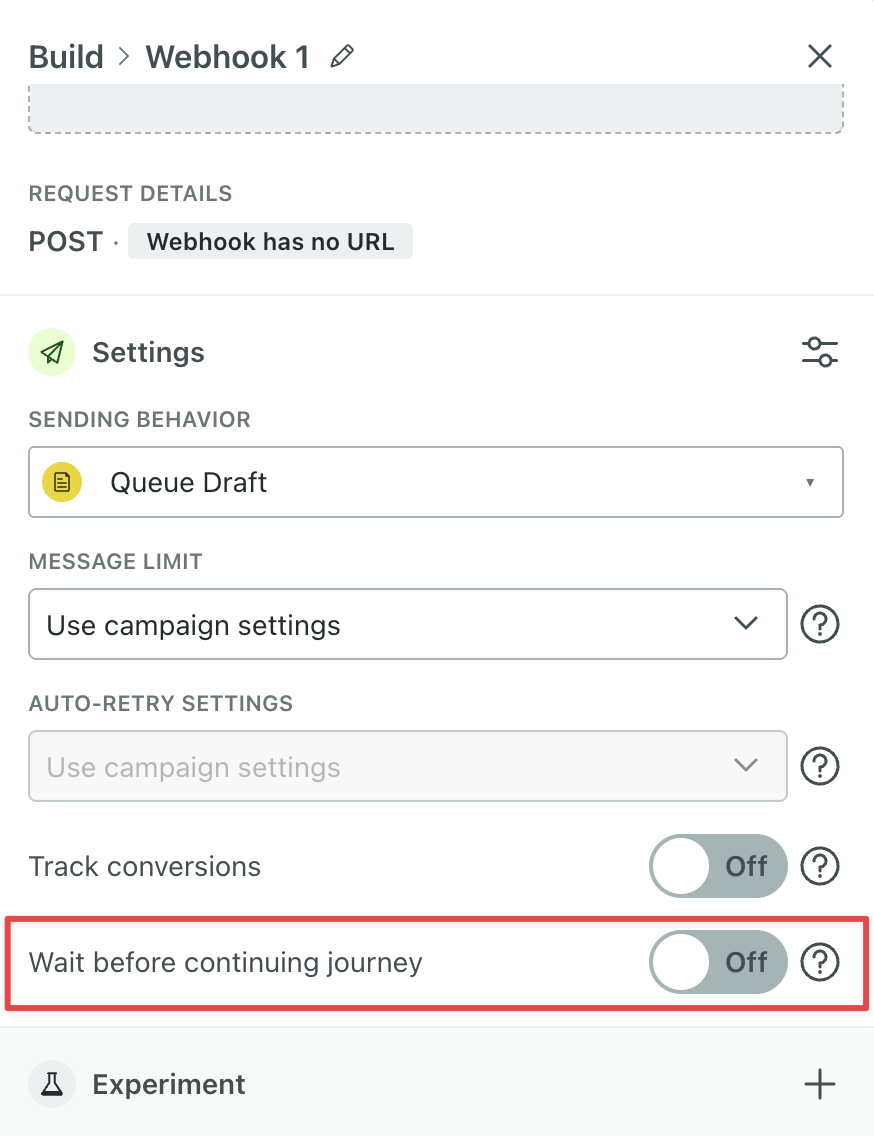
This setting complements rate limiting in your automation. If you want to make sure people receive your messages before moving forward in a rate-limited automation, then you should enable this setting.