

Set up a transactional push
Transactional messages are email or push notifications that your audience implicitly opts-into, like a transaction receipt or a password reset request. You can send transactional messages programmatically through Customer.io.
Before you begin
Before you can send transactional push notifications you need to:
- Enable Push Notifications in your workspace for Android and/or iOS.
- Set up your app to receive push notifications from Customer.io. We strongly recommend that you use our SDKs. If this isn’t an option, you can follow the instructions here to configure push without our SDKs.
Create a transactional push notification
-
Go to the Transactional page and click Send your first message or Create message—depending on whether there are already transactional messages in your workspace.
-
Name your message and provide a description. These fields help your team members understand what kind of message this is (like “Password Reset Instructions”). You can also use the Name of your message instead of the
transactional_message_idwhen you send your message..png)
-
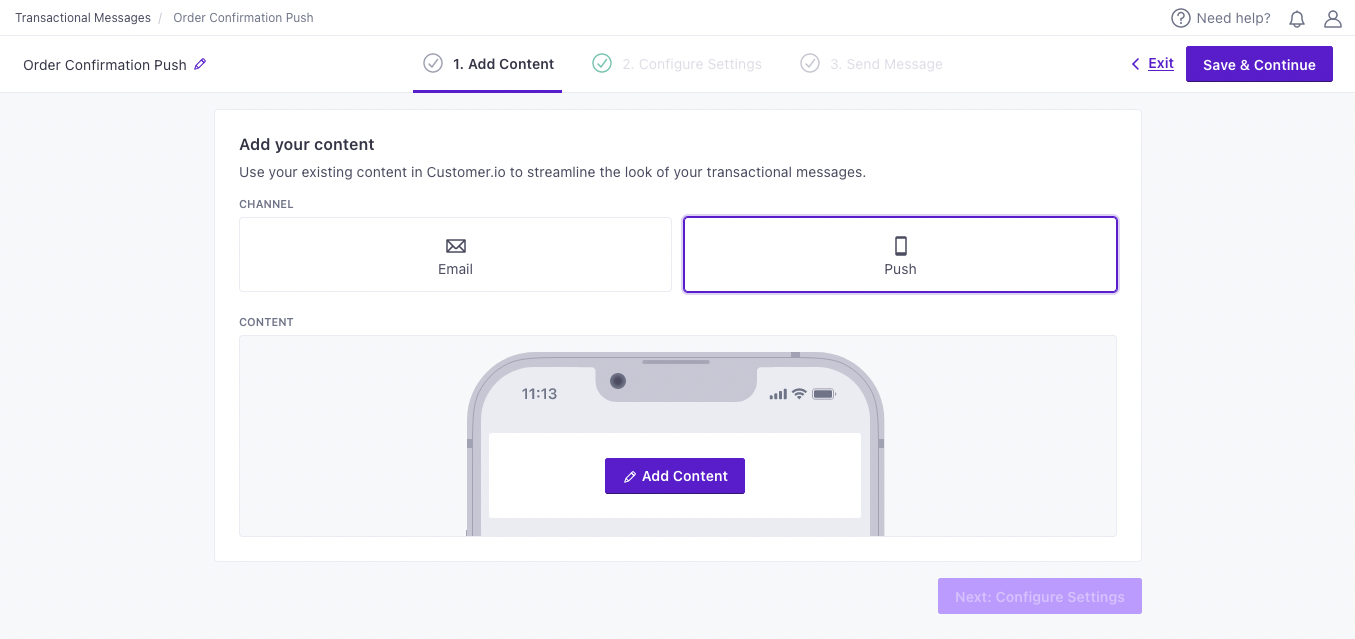
Click Next: Add Content to go to the next step. Select Push to create a transactional push notification.
-
Click Add Content and compose your push notification. Add images, deeplinks and custom data through the editor, or provide these values in the API request. You can also use attributes (
customer.<attribute>) or trigger data (trigger.<data-object-property>) to customize your message.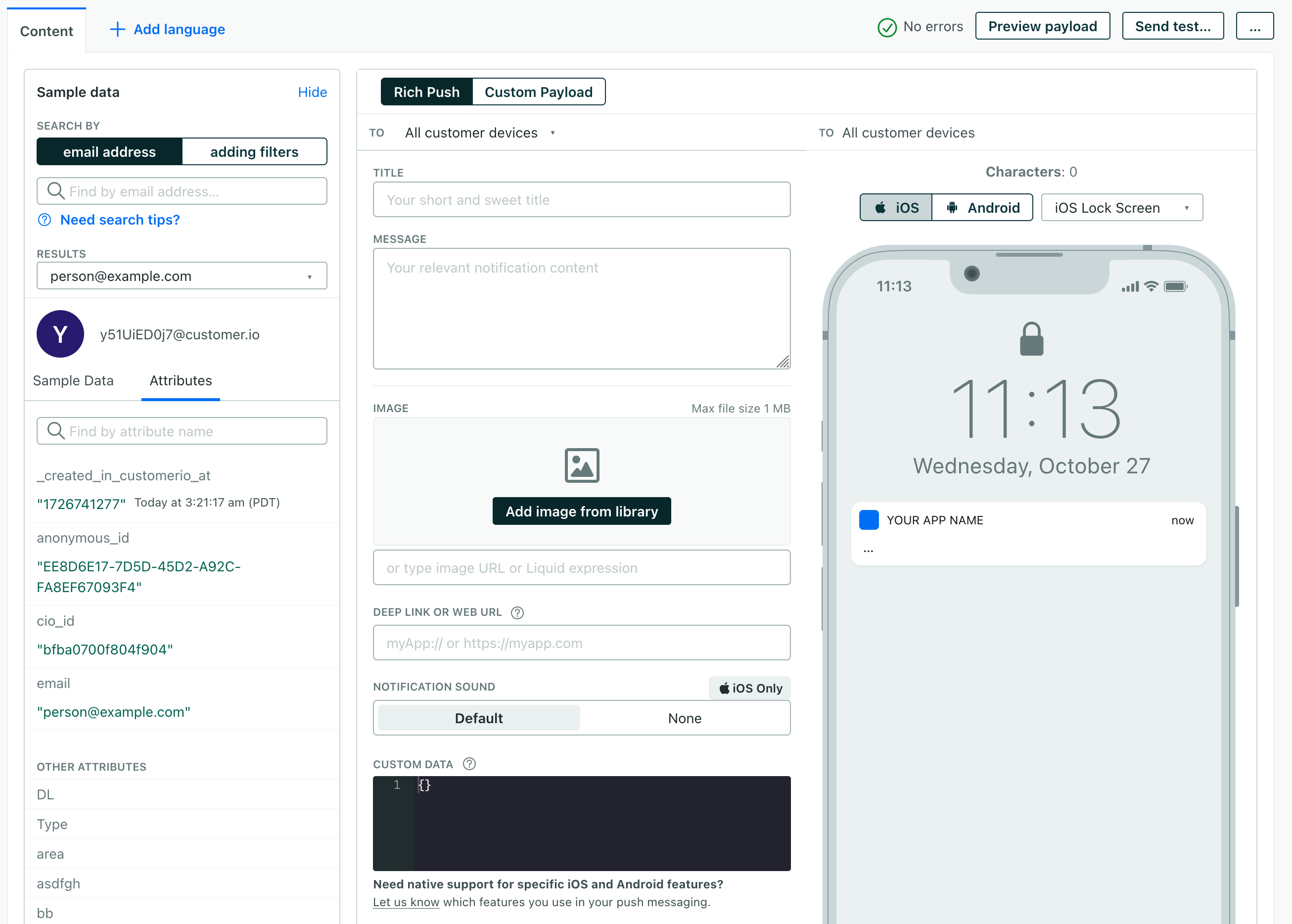
-
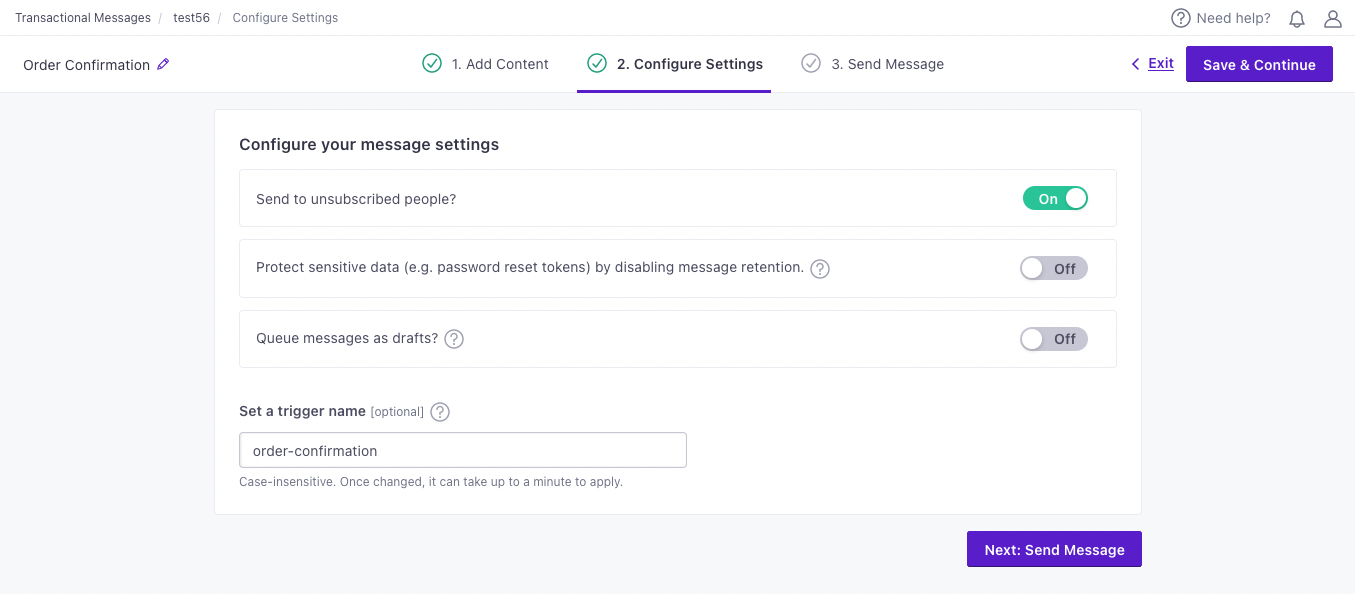
Configure your message settings.
-
Send to unsubscribed people? Unsubscribed people usually still want to receive your important transactional messages.
-
Protect sensitive data by disabling message retention? This setting prevents Customer.io from retaining your message content in delivery history and associated API calls. You might want to do this to conceal sensitive content, like password reset tokens.
-
Queue messages as drafts? This setting generates a draft for every message you trigger, rather than sending them automatically. You can review these messages under the “Drafts” tab and decide whether to send or delete them.
-
Set a Trigger Name: This is a friendly name for your message that you can use instead of the
transactional_message_idwhen you send your message. It may help make your integration more human-readable if you use triggers that represent the kinds of messages you send—likepassword resetororder confirmation.
-
-
To complete the setup, you need to call the API and trigger a message. If you’re not yet ready to send a message directly from your code, you can use an HTTP client like Postman or send a cURL request from your terminal to test your message and complete the setup process.
Identify your recipient
You must include an A syntax that supports variables, letting you personalize messages for your audience. For example, if you want to reference a person's first name, you might use the variable identifiers object so we can attribute the message to the right person and resolve any liquid{{customer.first_name}}.to is a token, you still need an identifiers block.
The to field is optional and selects which of the identified person’s devices to send to—all, last_used, or a specific device token belonging to that person. If you omit to, we default to all.
Auto-create push records
If you’re working with Our CLI tool or otherwise building your message from code, you can include the auto_create parameter along with a transactional_message_id string the first time you send a message.
Then you’ll include the transactional_message_id in subsequent sends to attribute metrics to the same “message” in Customer.io.
If you don’t include a transactional_message_id in your request, Customer.io attributes metrics to "transactional_message_id": 1. And, if you send different kinds of messages with the same transactional_message_id, they’ll all roll up under that single ID in your metrics, making it difficult to see metrics for each type of message.
Transactional messages created with auto_create don’t contain message content. You’ll pass full message payload (the body, subject, and from fields) with every send. If you want to store message content in Customer.io, you’ll need to use our UI or work with our command line interface (CLI) to populate your template with message content.
Examples and API parameters
Below is a basic transactional push payload, followed by the full list of parameters. Your payload changes based on whether you reference a transactional_message_id (a template) or not. See our REST API documentation for the full reference, including code samples in cURL and several languages.
{
  "transactional_message_id": 44,
  "title": "Did you really login from a new location?",
  "identifiers": {
    "email": "person@example.com"
  },
  "message_data": {
    "password_reset_token": "abcde-12345-fghij-d888",
    "account_id": "123dj"
  }
}- Identifies the person represented by your transactional message by one of, and only one of,
id,email, orcio_id.- idstringrequiredThe identifier for the person represented by the transactional message. NOTE: If your workspace identifies people by email, use the
emailidentifier instead.
- The transactional message template that you want to use for your message. You can call the template by its numerical ID or by the Trigger Name that you assigned to the template in the UI (case insensitive).The ID of the transactional message you want to send.integer
- auto_createbooleanDefault:
falseIftrueand yourtransactional_message_iddoesn't match a record, Customer.io creates an empty record using that value as the Trigger Name. The ID must be a string. If the name already belongs to another channel, the request fails with400, and numeric IDs ignore this setting. See details. - custom_dataobjectOptional key/value pairs you want to attach to the push payload. Firebase only supports string values. This overrides the Custom Data from your transactional template.
- A device to perform an upsert operation at the time of send. The device will be added/updated on the profile from the Identifiers block.
- platformstringrequiredThe device/messaging platform.Accepted values:
ios,android - tokenstringrequiredThe device token.
- Attributes that you can reference to segment your audience—like a person's attributes, but specific to a device. These can be either the attributes defined below or custom key-value attributes.
- last_usedinteger(unix timestamp)The
timestampwhen you last identified this device. If you don't pass a timestamp when you add or update a device, we use the time of the request itself. Our SDKs identify a device when a person launches their app.
- Optional key/value pairs you want to attach to the push payload. Firebase only supports string values. This overrides all other payload values, including the Custom Payload from your transactional template.
- A custom push payload for Android devices.
- Your payload changes depending on whether you send to iOS devices through Google's Firebase Cloud Messaging (FCM) or Apple's Push Notification service (APNs).
- disable_message_retentionbooleanDefault:
falseIf true, the message body is not retained in delivery history. Setting this value overrides the value set in the settings of yourtransactional_message_id. - image_urlstringAn image URL to show in the push. This overrides Image from the transactional template (referenced by
transactional_message_id). - languagestringOverrides language preferences for the person you want to send your transactional message to. Use one of our supported two- or four-letter language codes.
- linkstringA deep link to open when the push is tapped. This overrides Link from the transactional template (referenced by
transactional_message_id). - messagestringThe message body for your notification. This overrides the notification body of the transactional template (referenced by
transactional_message_id). - An object containing the key-value pairs referenced using liquid in your message.
- Liquid Data *any typeInsert key-values that you want to reference in your message here.
- queue_draftbooleanDefault:
falseIf true, your transactional message is held as a draft in Customer.io and not sent directly to your audience. You must go to the Deliveries and Drafts page to send your message. - send_atintegerA unix timestamp (seconds since epoch) determining when the message will be sent. The timestamp can be up to 90 days in the future. If this value is in the past, your message is sent immediately.
- send_to_unsubscribedbooleanDefault:
trueIf false, your message is not sent to unsubscribed recipients. Setting this value overrides the value set in the settings of yourtransactional_message_id. - soundstringDefault:
defaultFor iOS Only: your notification can alert users with the device's default notification sound or play no sound at all.Accepted values:default,none - titlestringThe title for your notification. This overrides the title of the transactional template (referenced by
transactional_message_id). - tostringDefault:
allThe devices you want to send this push to—all,last_used, or a custom device token from the identified profile. Defaults toalland overrides theTovalue from your transactional template.Accepted values:all,last_used,$device_token