

Add or update people
How it works
People are the recipients of your messages. You manage people by their identifiers—unique values that represent a person. You define which fields are identifiers in your workspace settings—email, id, or phone.
When you add or update people, you can store attributes—data unique to that person like names, dates they became your customers, the types of subscriptions they have, and other information you want to act on in your marketing campaigns. Keep in mind, some attributes serve specific functions in Customer.io. These are called reserved attributes. Check out our reference.
Every person has a profile you can access from the People page. It includes their identifiers, attributes, message subscription status, mobile devices, and more.
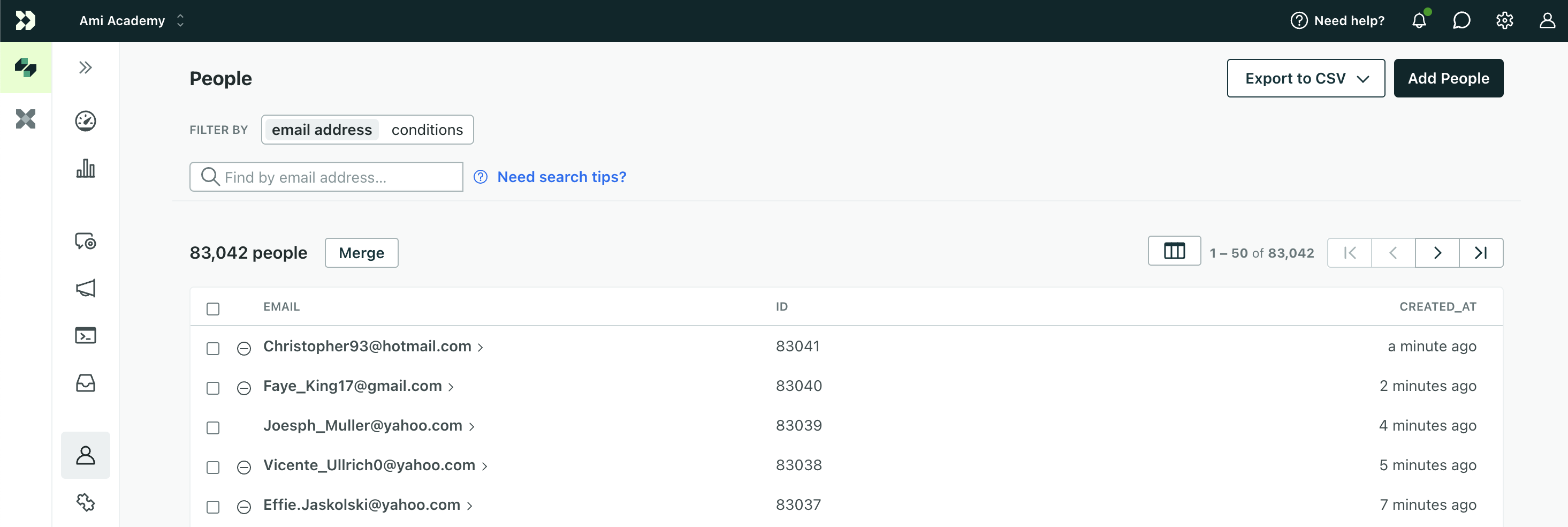
Typically, you add and update people through one or more integrations. This way your systems stay in sync with Customer.io, and your automated messages go to the right people. But when you want to make one-off modifications, import a static list of leads, or set up a test profile, you can do so through your workspace’s UI:
| Method | Use case |
|---|---|
| People page | Add or edit one person at a time. You can also manage email consent tracking and global subscription statuses for multiple people at once. |
| CSV import | Add or update many people from a file. |
| Create or update person action | Create or update a person from the data available in an automation. |
When to store data on a person
You should store data that’s unique to a person on their profile, like their latest purchase or favorite products.
If multiple people share the same data, like they belong to the same account or take the same course, consider creating custom objects An object is a non-person entity that you can associate with one or more people—like a company, account, or online course.
To temporarily store data that you only want to use in an automation, like properties from a webhook or data from a collection query, create journey attributes instead.
Identifiers
An identifier is an attribute whose value is unique to one person. You use identifiers to tell Customer.io which person you want to create or update. Every person needs at least one identifier, and you can’t add or edit a person without one.
You define which attributes are identifiers in workspace settings:
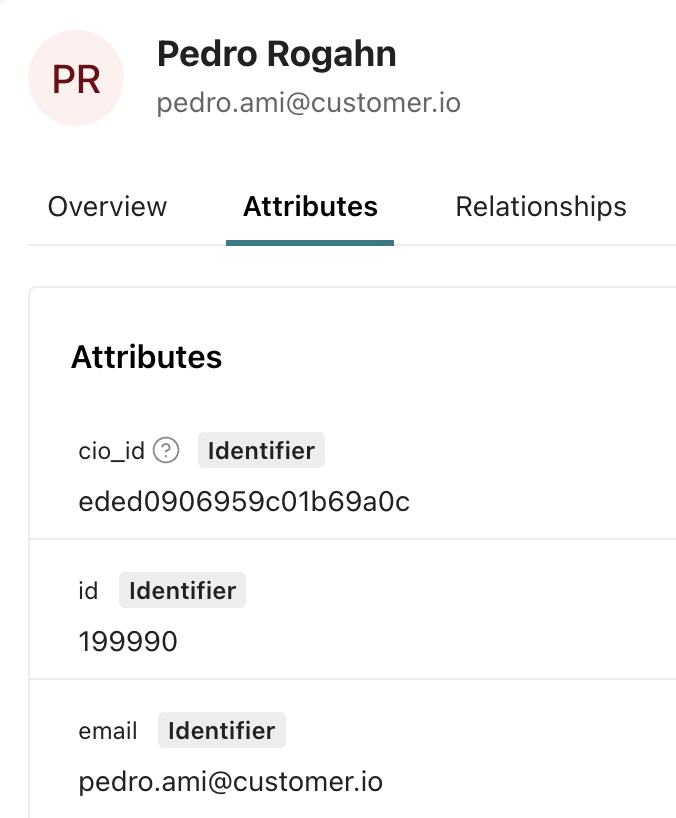
id: A case-sensitive, unique identifier that you assign a person. Generally, this value represents a person in your backend systems, like the user ID of someone who has an account with you.cio_id: A unique, immutable identifier that Customer.io generates when you add a person. When you identify a person bycio_id, you can update that person’s other identifiers.email: A person’s email address. You might use this identifier to track leads before they become customers.phone: A person’s phone number, in E.164 format (like+14155552671). You might use this identifier for SMS or WhatsApp audiences to ensure that each phone number is unique to a person in Customer.io. Keep in mind that most integrations can’t identifyThe Customer.io operation that adds or updates a person. When you identify a person, Customer.io either adds a person if they don't exist in your workspace, or updates them if they do. Before you identify someone (by their email address or an ID), you can track them anonymously.
people byphone; check which sources support the phone identifier before you rely on it.
Set allowed identifiers in workspace settings
When you create your workspace, you set which attributes are identifiers. You can always identify people by id and cio_id.
By default, you can also identify people by email and phone. However, if you have an older workspace, you may need to enable phone as an identifier.
To change whether email or phone are identifiers, go to your General workspace settings. Learn more about the implications of enabling or disabling email or phone, especially if you already store these values on people.
If you’re not sure which setting is best, we recommend you leave the default setting where all ids are options. This doesn’t require you to add an email address or phone number to every person. It simply gives you the option to add or update people by email or phone.
Case sensitivity
id values are case sensitive. This means that the values of ab100 and AB100 represent two distinct people.
email addresses are not case sensitive, which means ami@cusotmer.io is the same as AMI@customer.io.
Review our info on case sensitivity across the platform for help adding conditions, writing liquid logic, and finding the exact data you’re looking for.
Email address validation
When you add people by email address or update a person’s email address, Customer.io validates the new address against the RFC 5322 standard. In general, that means your addresses are formatted first last <first.last@domain.com> or name@domain.com.
The validation standard for email addresses is dense, but if an address is invalid, check for the following things:
- The address contains an
@character. - The address “name” (the portion before the
@) contains letters and numbers, and doesn’t have a leading or trailing period. - The domain (the portion after the
@) contains only letters and numbers, and doesn’t have leading or trailing-characters.
Add a person in the UI
You might add a person through the People page to create test profiles for your messages and automations.
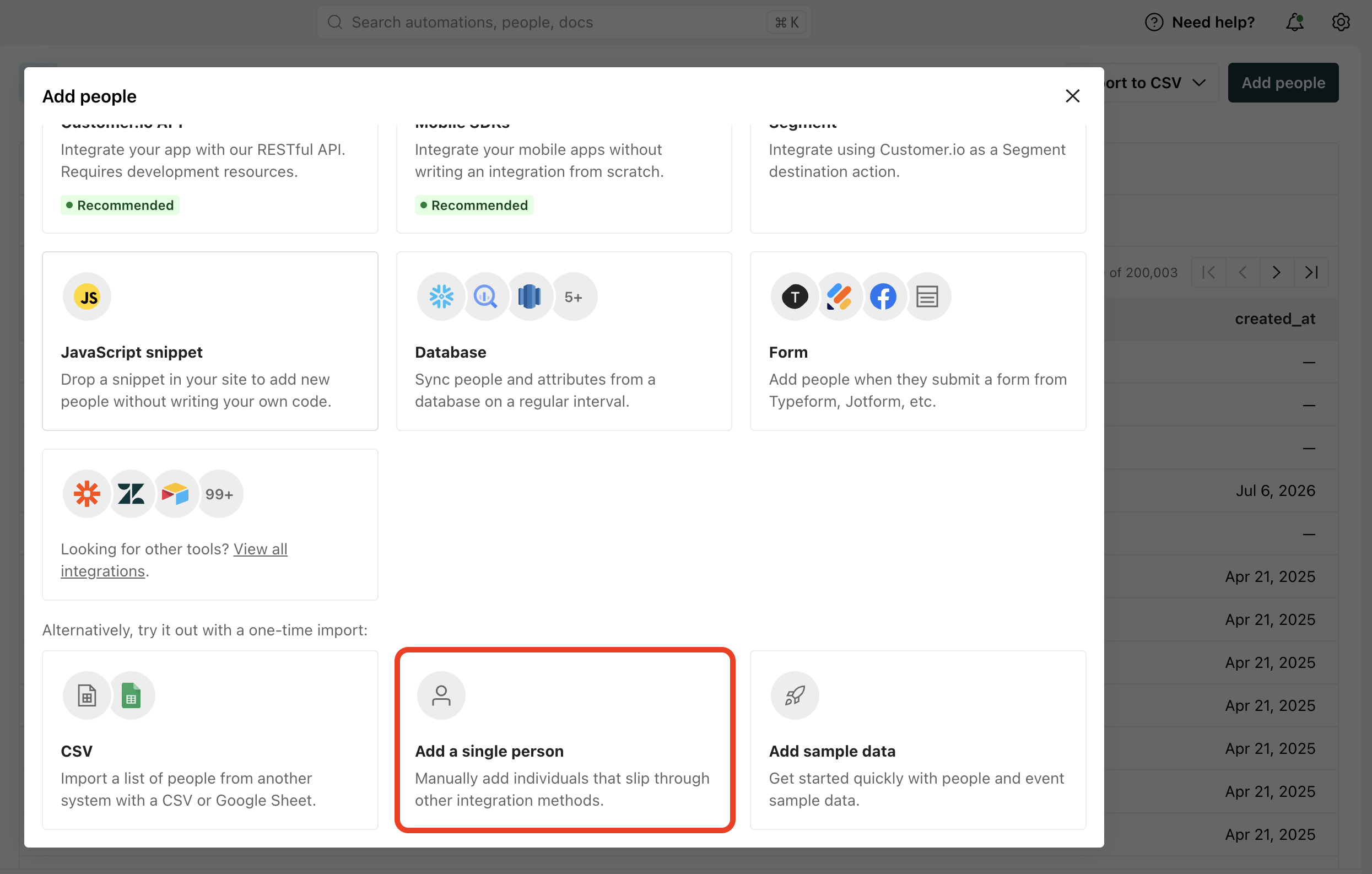
- Go to People and click Add people. Scroll to the bottom of the modal and click Add a single person.
- Under Identifiers, enter at least one identifier. The identifiers you see depend on the ones your workspace allows. You only need one identifier to create a person.
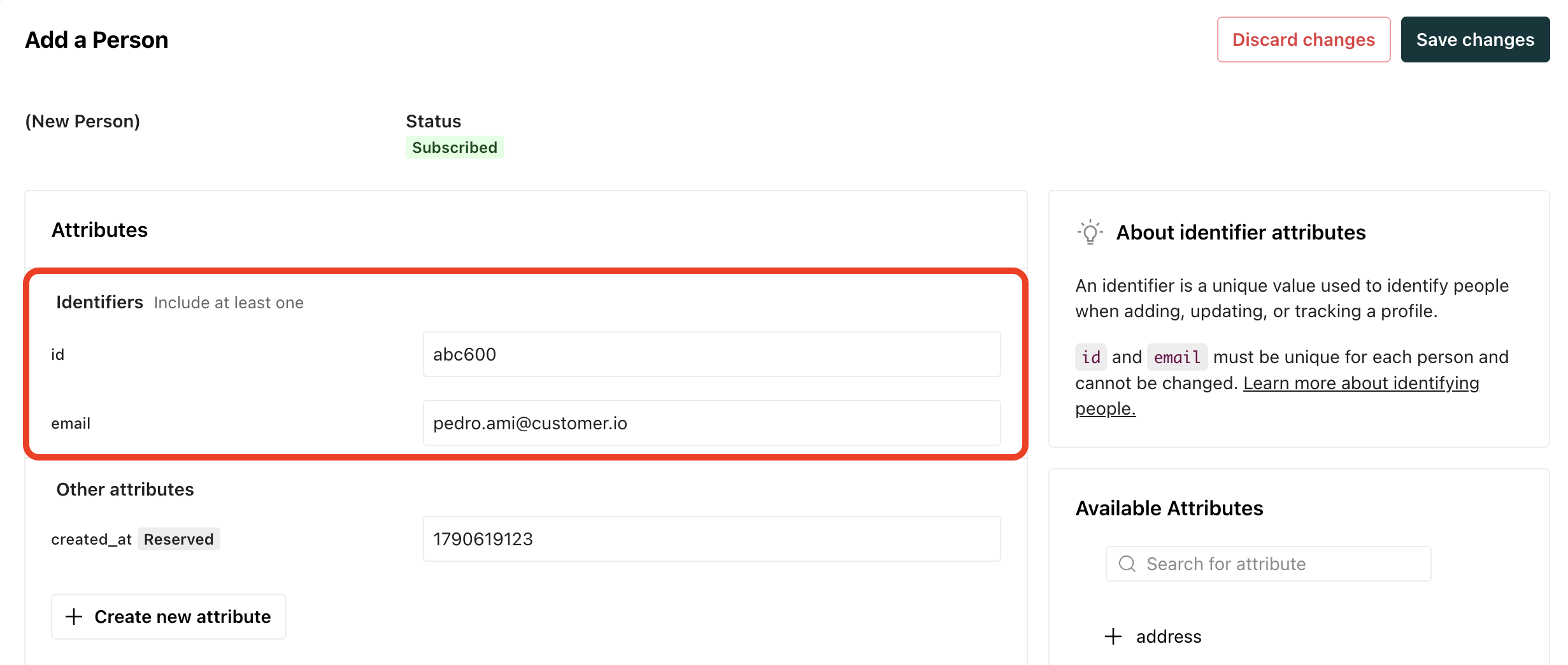
- (Optional) Click Create new attribute or choose from the available attributes in the panel to store additional information on the person. Learn more about formatting and editing attributes.
- Review the profile. After you save, the person may immediately join segments and trigger automations, depending on the conditions you set, so make sure it’s accurate.
- Click Save changes.
Edit a person in the UI
You might edit a person through the People page to correct a CSV import or backfill data that isn’t available in any of your integration syncs.
To edit a person in the UI, search for them on the People page and click their table row to open their profile:
- To edit custom data or change the values of their identifiers, click Manage under Attributes. Identifiers follow extra rules based on your workspace settings. See Update a person’s identifiers below.
- To change subscription preferences for message channels, you edit individual topic preferences or a global subscription status.
- To manage relationships to custom objects
An object is a non-person entity that you can associate with one or more people—like a company, account, or online course.
, go to the Relationships tab.
Update a person’s identifiers
Before you change a person’s identifiers, check which attributes are identifiers in your workspace: email, phone, or id.
This chart shows what it means to update email or id based on those settings. phone follows the same rules as email. cio_id is a permanent id that Customer.io generates for each person, which you can’t update. It’s useful when you update a person’s other identifiers, and you typically need it when you update people programmatically:
If the workspace allows identification by email, phone, and/or id (the first two charts above):
- You can change a person’s
idwhen you identify them bycio_idthrough the People page, but not through CSV imports. - You can change a person’s
emailorphonewhen you identify them byidorcio_id. If the identifier is enabled but you can only reference the person bycio_id, then you can only usecio_idto changeemailorphone.
If the workspace is id-only (the third chart above):
- You can’t change
idunless you change your workspace settings. - You can update
emailandphonelike any custom attribute.
Delete a person’s identifiers
If your workspace lets you identify people by email, phone, or id, you can unset them as long as each person keeps at least one of id, email, or phone. You can’t leave a person with cio_id as their only identifier.
If your workspace lets you identify people by id only, you can’t unset id. Whether you can change it depends on your workspace settings.
You can’t delete cio_id, no matter your workspace settings. Customer.io always needs this id for CSV imports, and it ensures each of your people has a unique identifier, which helps you and our support team troubleshoot issues.
Resolve duplicate people
When your workspace identifies people by email, phone, or id, Customer.io automatically merges duplicate people. Learn more in Merge duplicate people.