

Sign-up form submissions
Learn what Customer.io does when someone submits your sign-up form, how to trigger automations from submissions, and how to measure your form's performance.
What happens when someone submits your form
Every sign-up form submission needs an email address or a phone number. If your form collects both, Customer.io uses the email address to find the person.
When someone submits your form, Customer.io:
- Looks for a person with the same email address or phone number. If there isn’t one, Customer.io creates a new person.
- Stores the other fields in your form as attributes
A key-value pair that you associate with a person or an object—like a person's name, the date they were created in your workspace, or a company's billing date etc. Use attributes to target people and personalize messages.
s on the person who submitted the form. - Records a
form_submitevent for the person.
Identify people after they submit your form
When someone submits your form, Customer.io creates or updates a person in your workspace, but it doesn’t identify them in their browser. They stay anonymous as they keep browsing your website or app. You can identify them when they come back in one of these ways:
- From a link in an email. In an email you send after they submit, like a welcome email that the
form_submitevent triggers, addajs_uid=cio_{{customer.cio_id}}to links that go to your website. When the person clicks the link and lands on a page with the Customer.io JavaScript client, the client identifies them. See Automatically identify people who click links in your messages.LIQUID<a href="https://example.com/welcome?ajs_uid=cio_{{customer.cio_id}}">Get started</a> - When they sign in. If your website or app has accounts, call
identifywhen the person signs in or creates an account.
When you identify the person in the browser where they saw your form, it also counts toward your form’s goal.
The form_submit event
The form_submit event is sort of like an event you’d send from your own app. You can use it to trigger an automation, like a welcome series or a message with a coupon code. The event includes your form’s ID and name, and everything the person submitted. Each key in submission is a field’s Name:
{
  "name": "form_submit",
  "data": {
    "form_type": "sign_up_form",
    "form_name": "Newsletter sign-up",
    "form_id": "d5594d2b-aaae-4e02-bdc6-52ab3ea8d277",
    "submission": {
      "email_address": "ada@example.com",
      "first_name": "Ada"
    }
  }
}
To trigger an automation from a specific form, filter on form_id in your automation’s trigger. The form_name value can keep your form’s original name after you rename the form, so form_id is the more reliable filter.
See your form’s responses
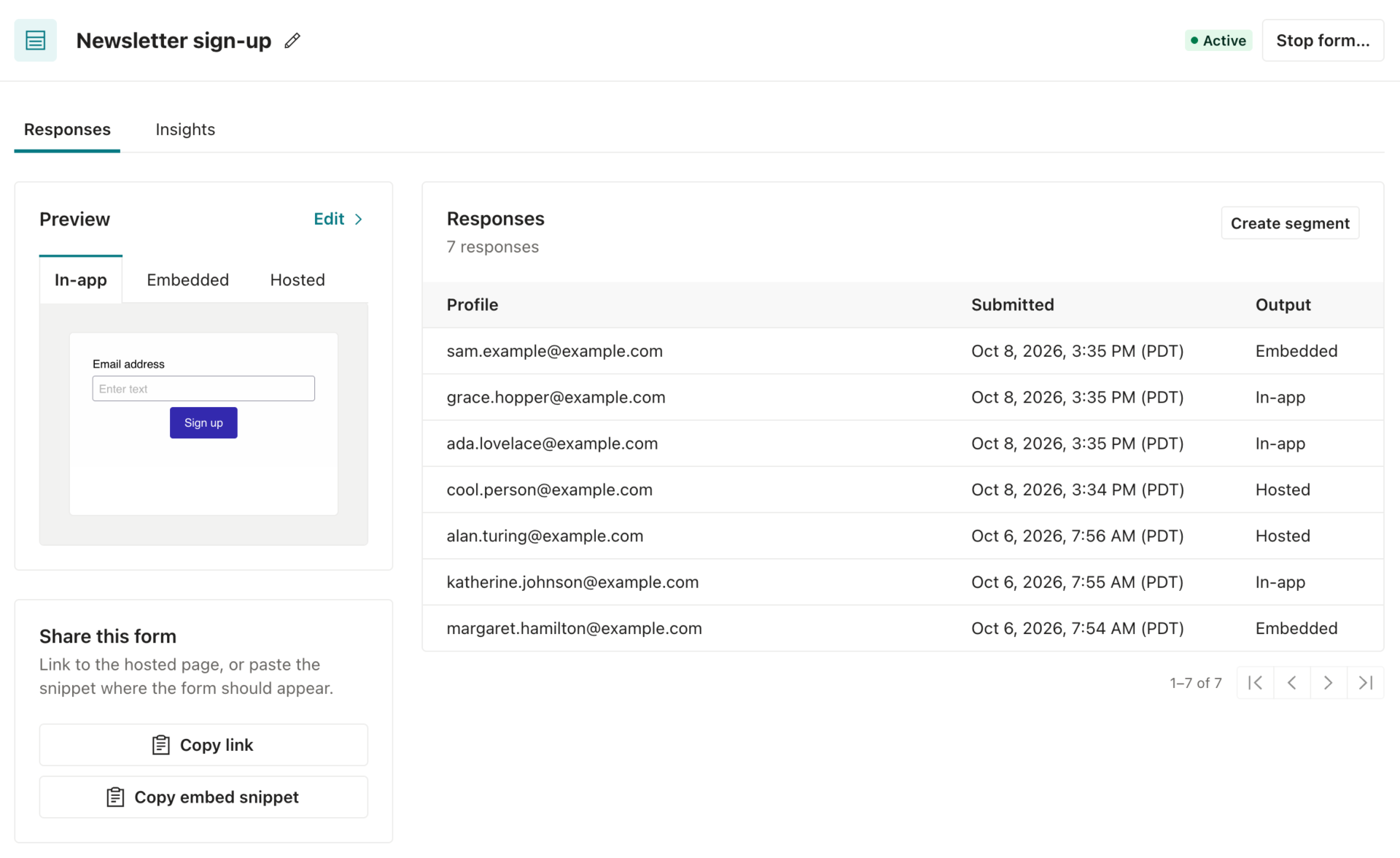
The form’s Responses tab lists every submission, with the profile that the submission created or updated, when it arrived, and the format the person used.
Create a segment of people who submitted your form
A form’s segment includes everyone who has submitted the form, and Customer.io adds new people as their responses come in. You can use it like any other segment A segment is a group of people in your workspace. Use segments to trigger automations, track membership over time, or fine-tune your audience. There are three types of segments: data-driven, snapshot, and manual. Data-driven segments automatically update when people start or stop matching criteria. Snapshot segments capture everyone who matches at a point in time and only change when you refresh them. Manual segments are static groups of people.
- Go to the form’s Responses tab.
- Click Create segment at the top of the Responses table.
You can create a segment this way while your form is scheduled or live. Customer.io automatically keeps the segment’s conditions up to date; you can’t edit them. The segment’s page links back to your form. If you delete the segment, the button changes to Restore segment, so you can restore it.
Remove people who never engage
Each new person your form creates counts toward your bill, and some people who submit your form never follow up. To keep your bill predictable, your workspace free of inactive profiles, and protect your sending reputation, you should regularly remove people who submitted your form but don’t engage beyond that.
Base your rule on the reason for your form, like the event you use in your form’s goal. For example:
- Webinar or event registration: remove people who didn’t attend the event a week after the event.
- Waitlist or product sign-up: remove people who never signed in or made a purchase after 30 days.
- Newsletter sign-up: people who haven’t opened or clicked one of your messages in 60 to 90 days.
You can’t edit your form’s segment, so create a new segment of people who are in your form’s segment, add the conditions for your rule, and delete the people who match. See Reduce billing overages for when to delete profiles so they don’t count toward your next billing cycle.
Measure your form’s performance
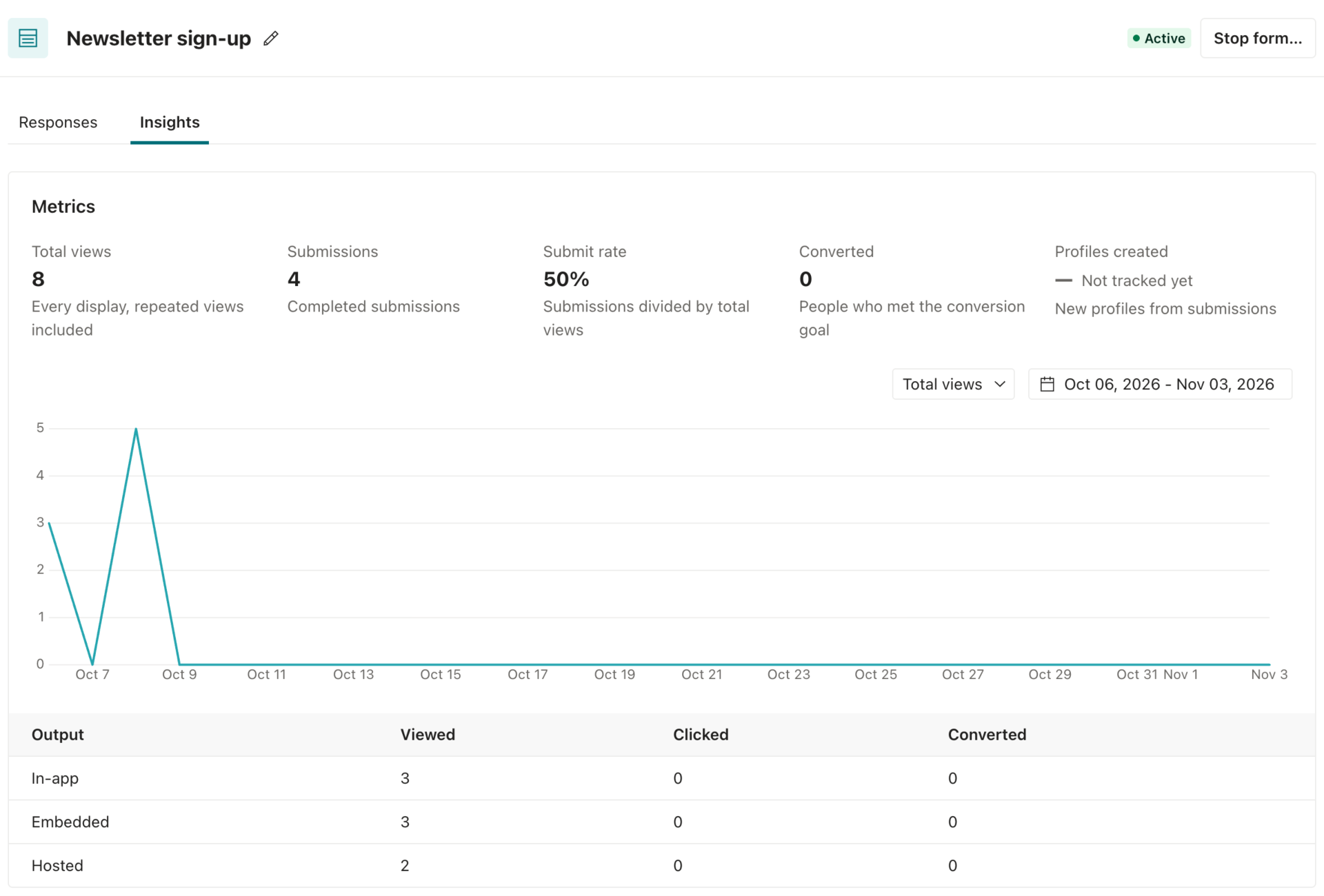
The form’s Insights tab shows how your form performs over the last 30 days. To look at a different period, use the date picker at the top of the chart to pick a range between the day you created the form and today, or the day your form stopped. Every metric on the tab follows the range you pick:
- Totals for your form as a whole:
- Total views: every time your form appeared, including repeat views by the same person.
- Submissions: completed submissions.
- Submit rate: submissions divided by total views.
- Converted: people who achieved your form’s goal.
- Profiles created: new profiles from submissions.
- A daily chart of your form’s views, submissions, or clicks. Use the menu at the top of the chart to pick which one it shows.
- A table that breaks down each format by these metrics:
- Viewed: people saw your form.
- Clicked: people clicked a button or link in your form that has a Tracked Name. See in-app metrics for more about tracked names.
- Converted: people achieved your form’s goal within its conversion window.
The Sign-up forms list also shows each form’s lifetime Views, Submissions, Submit rate, New profiles, and when someone last submitted it, so you can compare your forms at a glance.
A high view count with few submissions can mean that your form asks for too much, or that it appears somewhere people aren’t ready to sign up. Compare your formats to find the locations that work best.