

Opt-out keyword handling
People can opt out of SMS messages by sending an opt-out keyword to your sender number—like STOP or UNSUBSCRIBE. In Customer.io, we respect your audience's preferences and show you which senders people have opted out of, so you can see whether or not they're eligible to receive your messages.
How it works
While Customer.io doesn’t handle SMS replies as a conversation, we capture opt-in and opt-out information so that we respect your audience’s preferences and show you which numbers people have opted out of.
Opt-out keyword handling works the same for all our SMS providers—Twilio, Sinch, Infobip, Vonage, or Bird. When someone texts an opt-out keyword like STOP to one of your senders, we mark them as opted out of that sender and stop sending them messages from it. If they later text an opt-in keyword like START to the same sender, we opt them back in.
We show a list of Opt-outs on a person’s profile. This list updates in near real-time as people opt out or back into SMS messaging for a given phone number. If you’ve turned on consent records, the Consent state panel replaces the Opt-outs section and shows whether the person is opted in or out of each of your numbers.
Customer.io also writes a consent record whenever a person texts an opt-out or opt-in keyword. The record includes when the person replied, the number they replied to, and the text they sent, so you have a history of each person’s opt-out and opt-in decisions for compliance purposes.
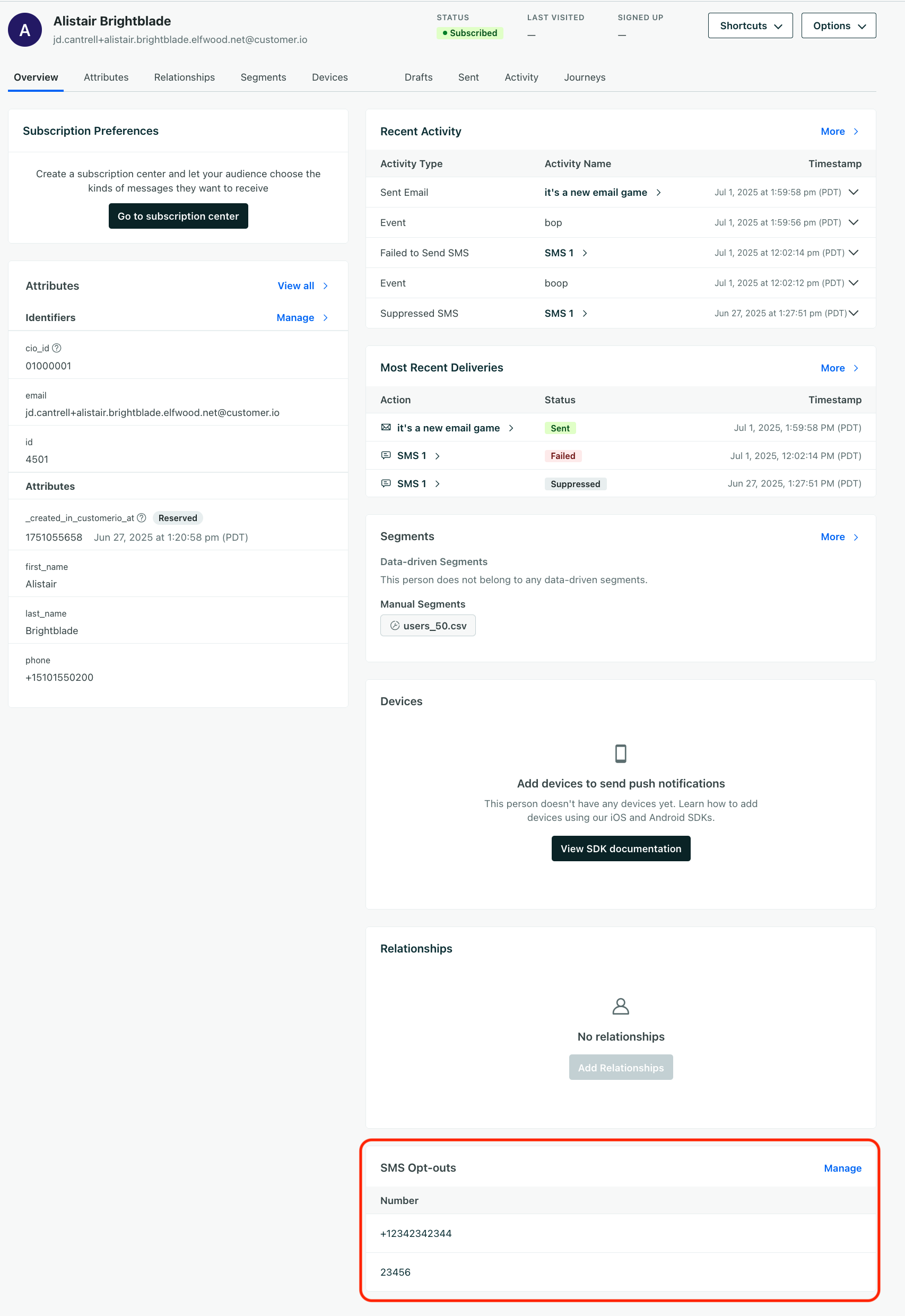
This list only shows explicit opt-outs for a given phone number. While it updates if someone opts out or into SMS messaging for a given phone number, it doesn’t show the numbers people have opted into.
To capture opt-out keywords in the first place, Customer.io needs to receive your inbound SMS replies. If we manage SMS for you, this is already set up. If you bring your own provider account, copy the Inbound URL from your connection’s page and set it as the inbound webhook in your provider’s console—see Set up inbound message handling.
Opt-out keywords for alphanumeric senders
Alphanumeric sender IDs are one-way, so opt-out keywords sent to a sender like mybiz won’t reach you. People can’t opt out by replying to an alphanumeric sender, and because opt-outs are tied to the sender, opt-outs captured on your other senders don’t apply to alphanumeric senders. For alphanumeric senders, you need to give your audience another way to opt out (like an attribute in Customer.io), and honor it when you send messages using that sender.
Opt-out and opt-in keywords
Carriers and Customer.io process these reserved keywords automatically as a matter of compliance, no matter which provider you send through. People don’t have to match the exact keyword—we normalize the supported terms below.
| Keyword | Supported terms | What it does |
|---|---|---|
STOP | STOP, CANCEL, UNSUBSCRIBE, OPTOUT, END, QUIT, REVOKE, STOPALL | Opts the person out of SMS messages |
START | START, UNSTOP | Opts the person back into SMS messages |
HELP | HELP, INFO | Triggers a help or information response |
Because we process these keywords automatically—outside of automation workflows—you shouldn’t use them as automation triggers or branch conditions. Instead, base your automation logic on the downstream effect (a change to opt-out status) rather than the keyword itself. See Respond to inbound keywords for more.
Override an opt-out
You might want to remove someone from the list if they were mistakenly marked as opted out, or if you changed their opt-in status manually with your provider.
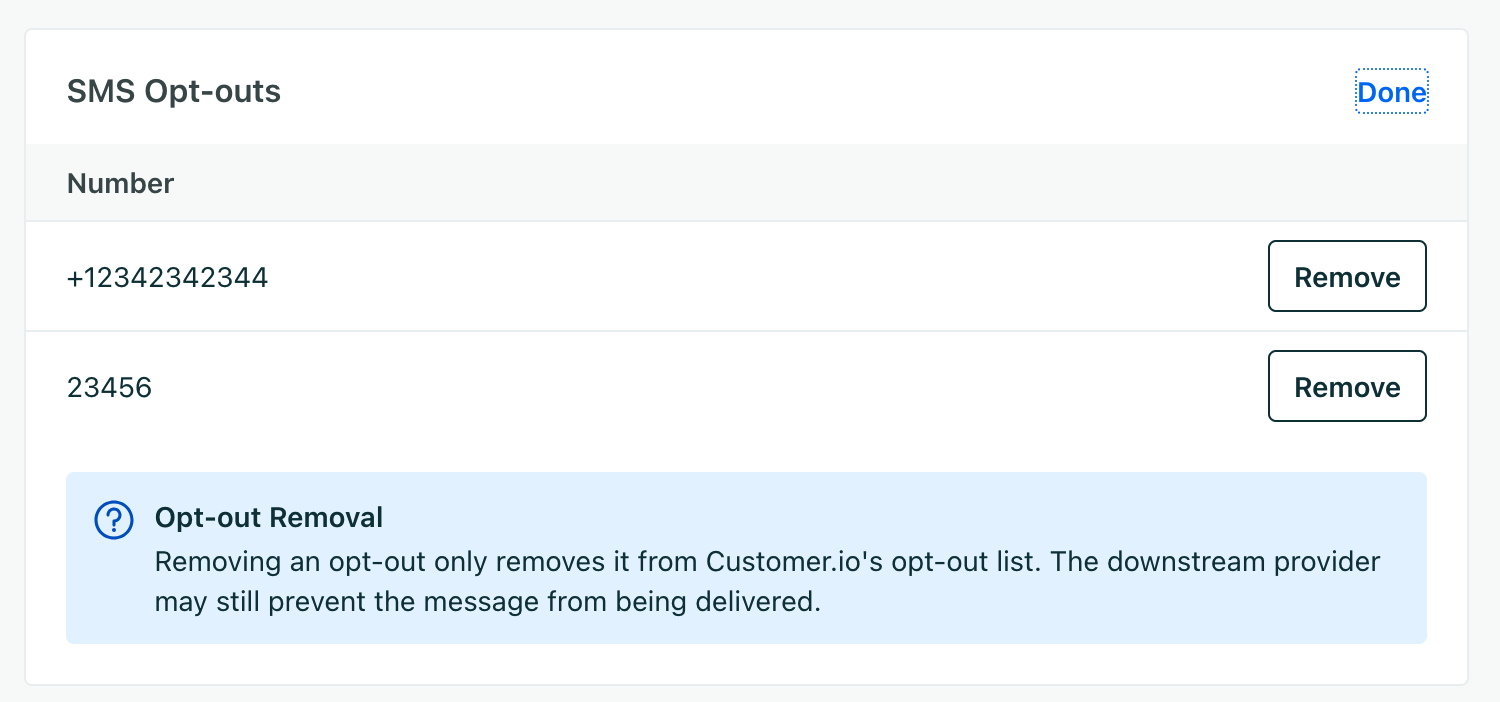
Removing an opt-out entry only removes the opt-out from the person in Customer.io; it doesn’t change their opt-out status with your provider. If a person is still opted out with your provider and you try to send them a message, the provider (or the carrier) can block the message and the opt-out will re-appear in Customer.io. For example, Twilio blocks messages to a recipient who texted STOP, regardless of what Customer.io sends.
To override an opt-out:
- Go to the People page.
- Select the person whose opt-out you want to override.
- Scroll to the Opt-outs section and click Manage. If you’ve turned on consent records, click Manage > Manage opt-outs… in the Consent state panel instead.
- Click Remove next to the number you want to override.
Customer.io writes a consent record for the change, with the collection point set to operator.
Segment users by SMS opt-out status
When you send an SMS message, we’ll automatically ignore members of your audience who’ve opted out of messages. You might segment people who have opted into or out of SMS messages to target the right people with SMS messages.
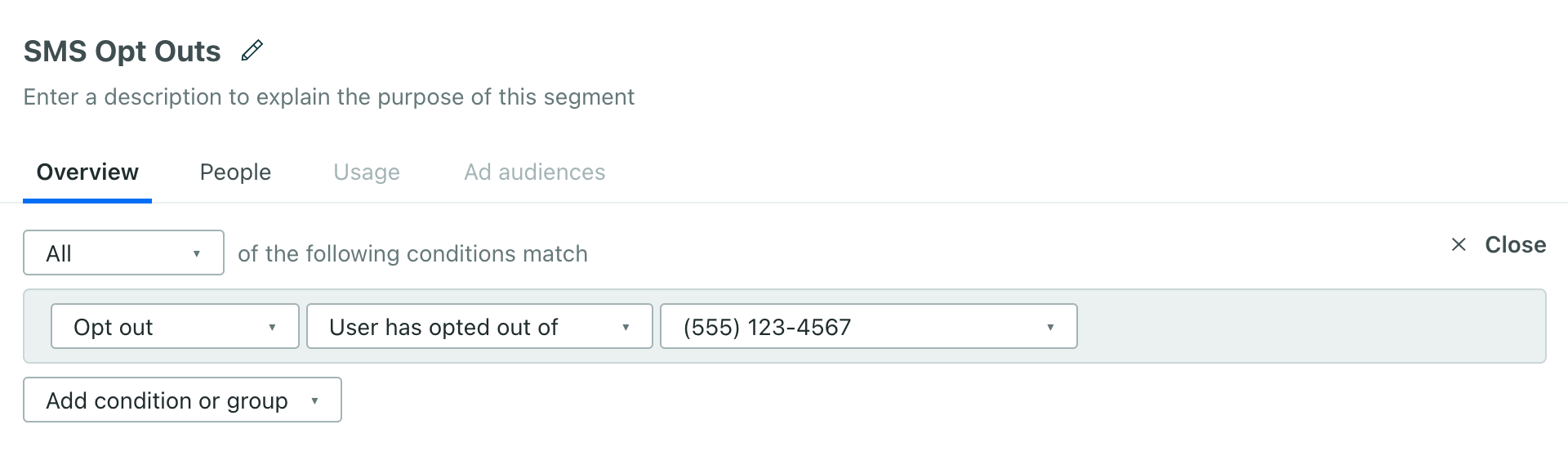
When you create a segment, you can use the Opt out condition to include or exclude people who’ve opted out of a particular sender number. Then you can use this segment as a filter for messages.
If you’ve turned on consent records, the Current Consent State condition replaces Opt out. Choose opted out, then choose SMS and the sender number. Segments you saved with the Opt out condition keep working, and they still show that condition when you edit them.
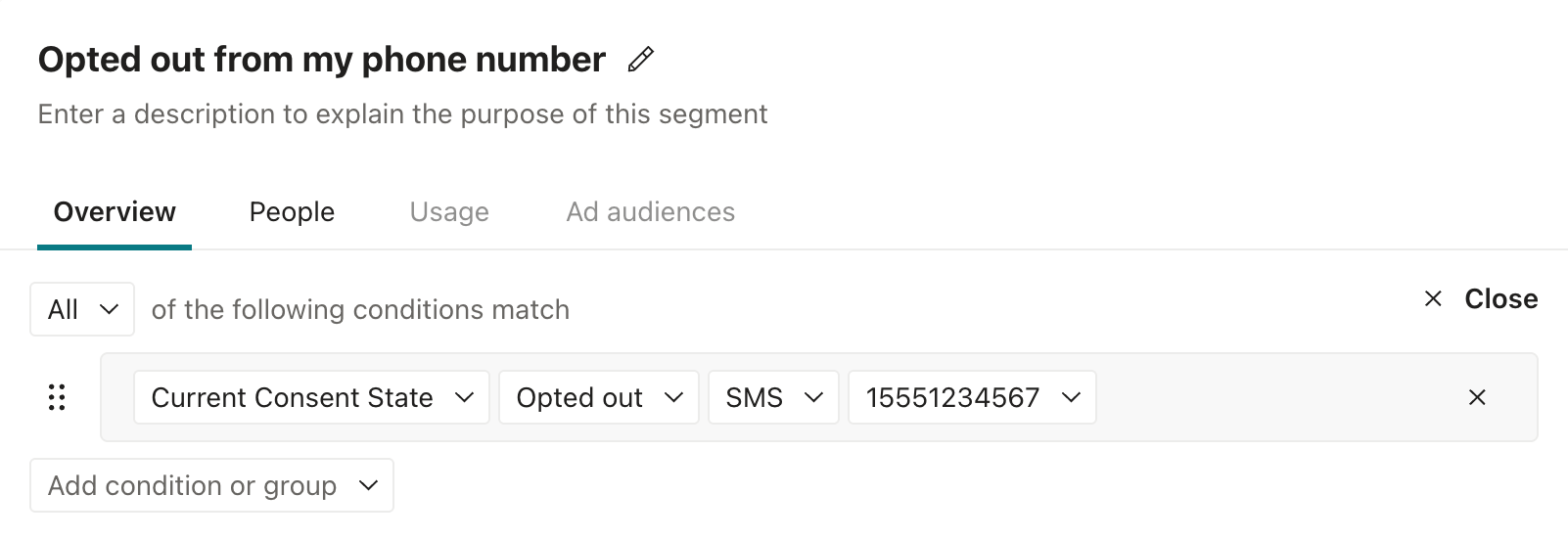
The two conditions don’t match exactly the same people. Current Consent State also counts a person as opted out when their unsubscribed attribute is true, because Customer.io doesn’t send them messages from any number. Opt out only checks the person’s opt-outs for that number.
To find people who opted out by texting a keyword during a period of time, rather than people who are currently opted out, use the Consent Records condition instead.
SMS opt-out in automations
When someone opts out of SMS messages but reaches an SMS message in an automation, we’ll skip the message. While this ensures that your automations comply with various regulatory requirements, it means you may skip parts of your automation workflow for certain users.
You can handle this situation gracefully by setting up segments containing people who’ve opted out of SMS messages and then filter people based on their opt-out status. The examples below use the Opt out condition. If you’ve turned on consent records, use Current Consent State in the same places.
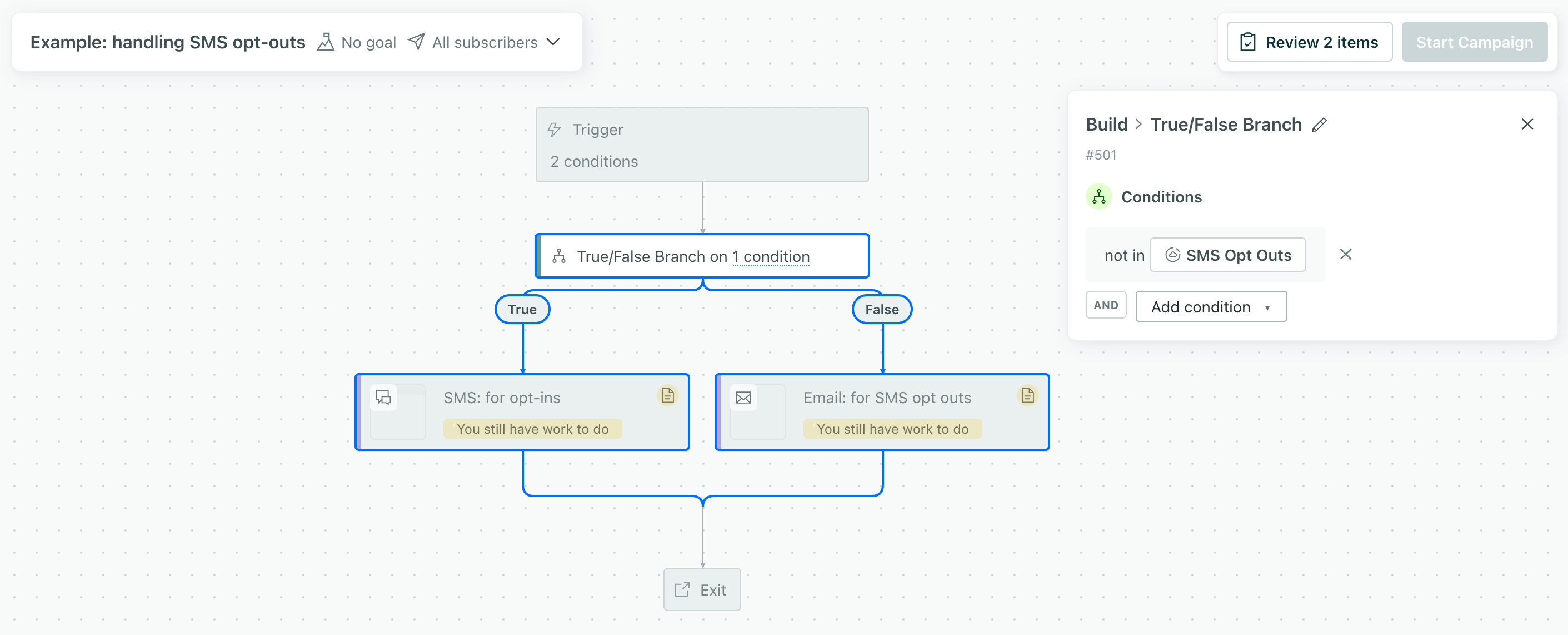
- Use True/False branches to send someone alternative messages if they opt out of SMS.
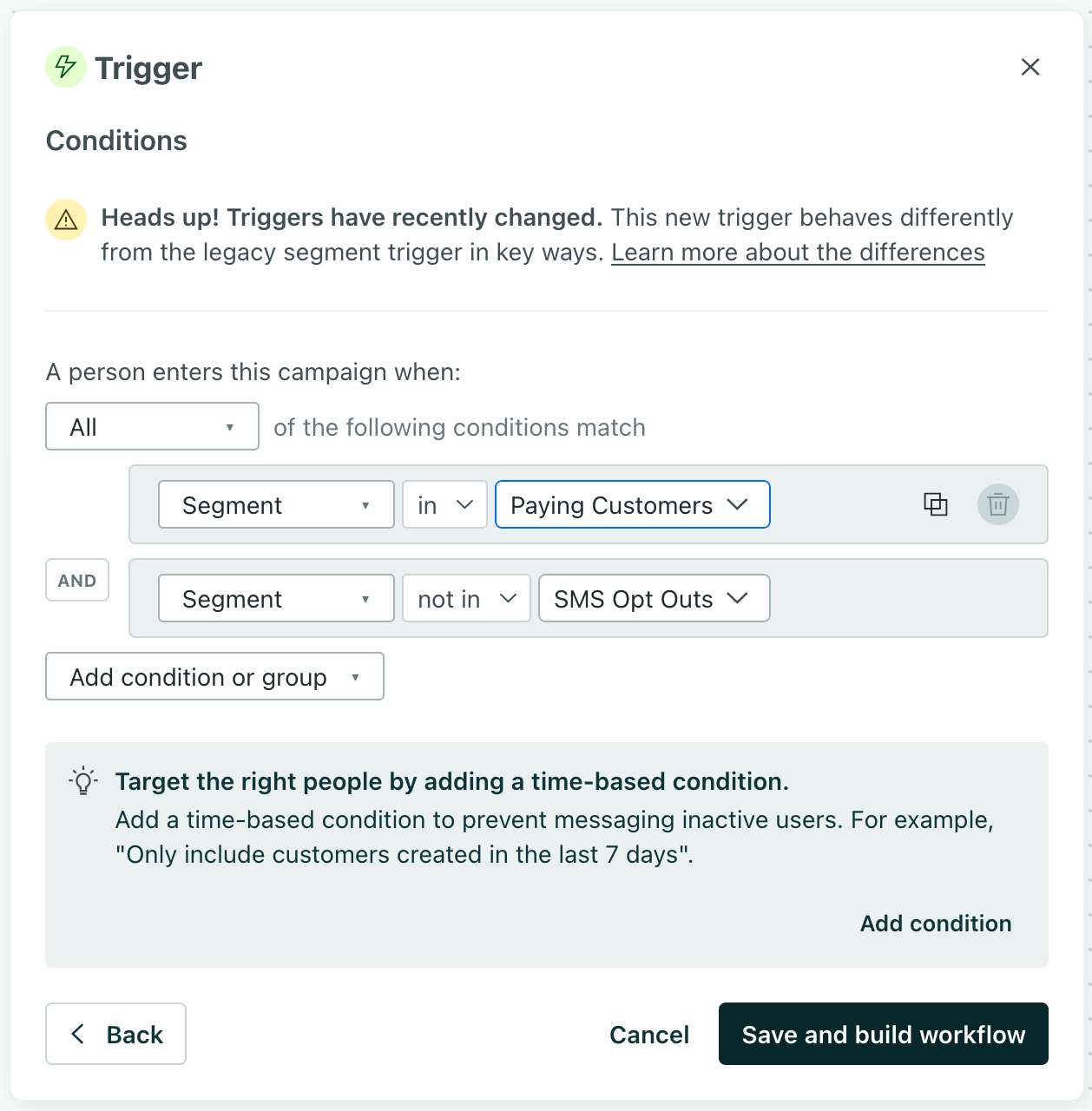
- Filter users out of your attribute or segment-triggered automation entirely by setting up a condition for the automation that excludes people who are in your opt-out segment.
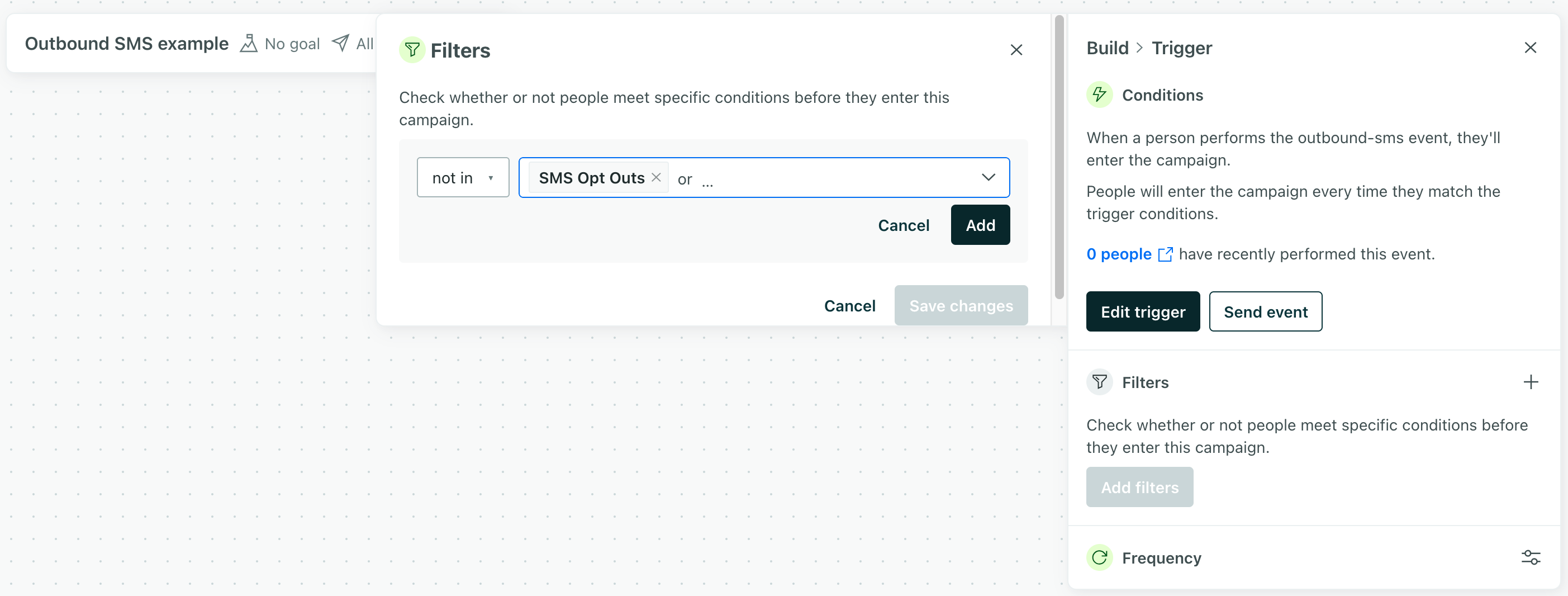
- Filter users out of your event-triggered automation entirely by setting an automation filter to exclude people who belong to your “people who opted out of SMS” segment.
Migrating opt-outs from Twilio
If you’ve used Twilio before joining Customer.io, you may have stored opt-out statuses that aren’t reflected in Customer.io. Contact Customer.io to ask us about migrating opt-outs from Twilio to Customer.io.
Turning on consent records doesn’t bring in opt-outs or consent history from your provider. When you turn on consent records, Customer.io writes a starting record for each opt-out that’s already logged in Customer.io. Opt-outs that exist only in your carrier’s console won’t be reflected in Customer.io’s consent record history.
While this isn’t strictly necessary—any message sent from Customer.io through Twilio to a person who’s opted out of SMS will be blocked by Twilio—migrating opt-outs to Customer.io prevents you from skewing your delivery metrics as you populate opt-out information in Customer.io. It also can save you a bit of money: each message “bounced” by Twilio costs 1/10th of a message credit, which can add up as you populate opt-out information in Customer.io.
Migrate from a webhook-based opt-out solution
Before we supported SMS opt-out keywords in Customer.io, you might have set up a webhook to pass opt-out statuses to Customer.io and store them in an attribute A key-value pair that you associate with a person or an object—like a person's name, the date they were created in your workspace, or a company's billing date etc. Use attributes to target people and personalize messages.
But, to bridge your old opt-out data with our newer opt-out solution, you’ll want to:
- Disable your opt-out webhook.
- Set up inbound messaging so we can capture opt-out statuses.
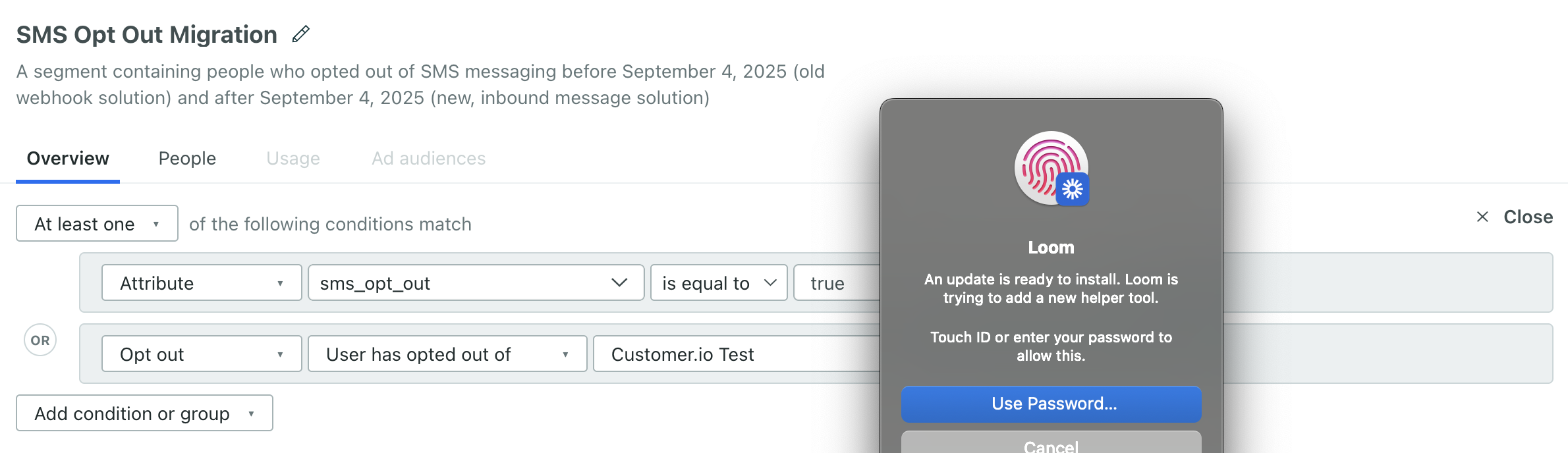
- Set up segments that capture both the old opt-out attribute and the newer opt-out per phone number. For example, to capture users who are opted-out of SMS messages from a particular sender number, your segment should allow Any of the following conditions:
- The person’s opt-out attribute is true.
- The person is opted-out of SMS messages from a particular sender number.
Consent records don’t include opt-outs that you stored in attributes. If you need a history of those opt-outs, use the opt-outs endpoint to add them as opt-outs for each sender. Customer.io writes an api consent record for each one.
FAQ
What if someone opts out without using a keyword?
Imagine someone wants to opt out of SMS, but they tell you via phone call, email, or another channel. In this case, you’ll need to manually update their status—either with your provider or in Customer.io. To opt them out in Customer.io, use the opt-outs endpoint to opt them out of each sender. Customer.io writes an api consent record for each opt-out.
If you change someone’s status with your provider (for example, in the Twilio console), it will not automatically update their opt-out status in Customer.io until you attempt to send them a message. When you send messages, Twilio, Infobip, Vonage, and Bird tell Customer.io that the person opted out. Customer.io drops the message, adds the opt-out for that sender, and writes a carrier_report consent record.
Sinch doesn’t report opt-outs this way, so if you send through Sinch, you’ll need to opt the person out in Customer.io as well.
A user opted-out but I don’t see them on the opt-outs list
In general, this probably means that the opt-out wasn’t triggered by a keyword.
But we also rely on receiving your inbound messages to capture opt-outs. If someone sends an opt-out keyword but it isn’t reflected in Customer.io, it’s possible that inbound message handling isn’t fully set up for that provider, or that there was an interruption in the service we use to capture inbound messages. See Set up inbound message handling.