

SMS sender numbers
When you connect an SMS provider, we sync your sender identities—phone numbers, short codes, and sender IDs. This page explains how to manage your senders so you can select different senders for different messages.
Your senders come from your SMS provider: we sync the phone numbers, short codes, and sender IDs you’ve set up with your provider, and you pick one when you compose a message.
If Customer.io manages SMS for your account, your senders are already in your workspace, and your connection appears as SMS rather than under a provider’s name. You don’t need to “sync” anything.
Sync your senders to Customer.io
If you add or change any of your sender identities with your provider, you need to sync them to Customer.io before you can use them.
- Go to > Workspace settings > SMS settings.
- Click Manage next to the connection you want to sync.
- Click Sync sender identities.
Hide senders you don’t want to use
When you sync senders, we import all of the sender identity on your provider account. If you don’t want to use all of these senders, you can click Hide sender identity to hide individual senders. When you hide a sender, you and your team members can’t use it to send messages in Customer.io.
Hiding a sender in Customer.io doesn’t change anything with your provider—select Show sender identity to make it selectable again.
Manual sender identities
In general, you’ll sync your senders from your SMS provider. However, you can also add senders manually. You might do this for:
- Dynamic senders using liquid
A syntax that supports variables, letting you personalize messages for your audience. For example, if you want to reference a person's first name, you might use the variable
: this lets you pick a sender for each message based on the context of the message. See Dynamically render a sender for examples.{{customer.first_name}}. - Alphanumeric sender IDs and other static values that can’t be synced from your provider: If you want to add a sender this way, your provider has to accept the value you enter. This often means you’ll need to set up the sender value with your provider first. For example, you might enable alphanumeric sending in Twilio.
To add a manual sender, go to > Workspace settings > SMS. Under Manual sender identities, click Add sender identity.
When you add a manual sender, you choose the Provider credential that sends it. If you’ve connected more than one provider, you can choose Automatic instead: Customer.io renders the value and matches it against your synced senders to decide which provider to use. With Automatic, the rendered value must match one of your synced senders.
Alphanumeric sender IDs
Alphanumeric sender IDs, like InfoSMS, let you send from your brand name instead of a number.
Customer.io syncs alphanumeric sender IDs from Infobip and Twilio:
- Infobip: register the ID with Infobip and it syncs alongside your numbers. See Set up SMS with Infobip.
- Twilio: add the ID to a Messaging Service in Twilio and it syncs alongside your numbers, short codes, and Messaging Services. Synced IDs appear as
<ID> (Alphanumeric)—for example,ACME (Alphanumeric). You’ll only see the ID once, even it belongs to more than one Messaging Service. See Set up SMS with Twilio for more details.
On any other connection—or for an ID that isn’t on a Twilio Messaging Service—add the ID as a manual sender identity. Your provider has to support alphanumeric senders, and some require you to enable or register the ID first.
Alphanumeric senders come with a few constraints:
- They’re one-way: people can’t reply to them, so opt-out keywords like STOP never reach you. You must give your audience another way to opt out.
- People still need to opt in: recipients must consent to messages from your sender ID, and you must tell them how to opt out.
- Country support varies: many countries—including the United States—don’t allow alphanumeric senders, and some require you to register the sender first. Check your provider’s coverage for the countries relevant to your audience and business.
If you connected Twilio before July 30, 2026
Older Twilio integrations have their own settings page, Twilio Actions. It works a little differently from the SMS page.
To sync senders, go to > Workspace settings > SMS and select Sync from Twilio.
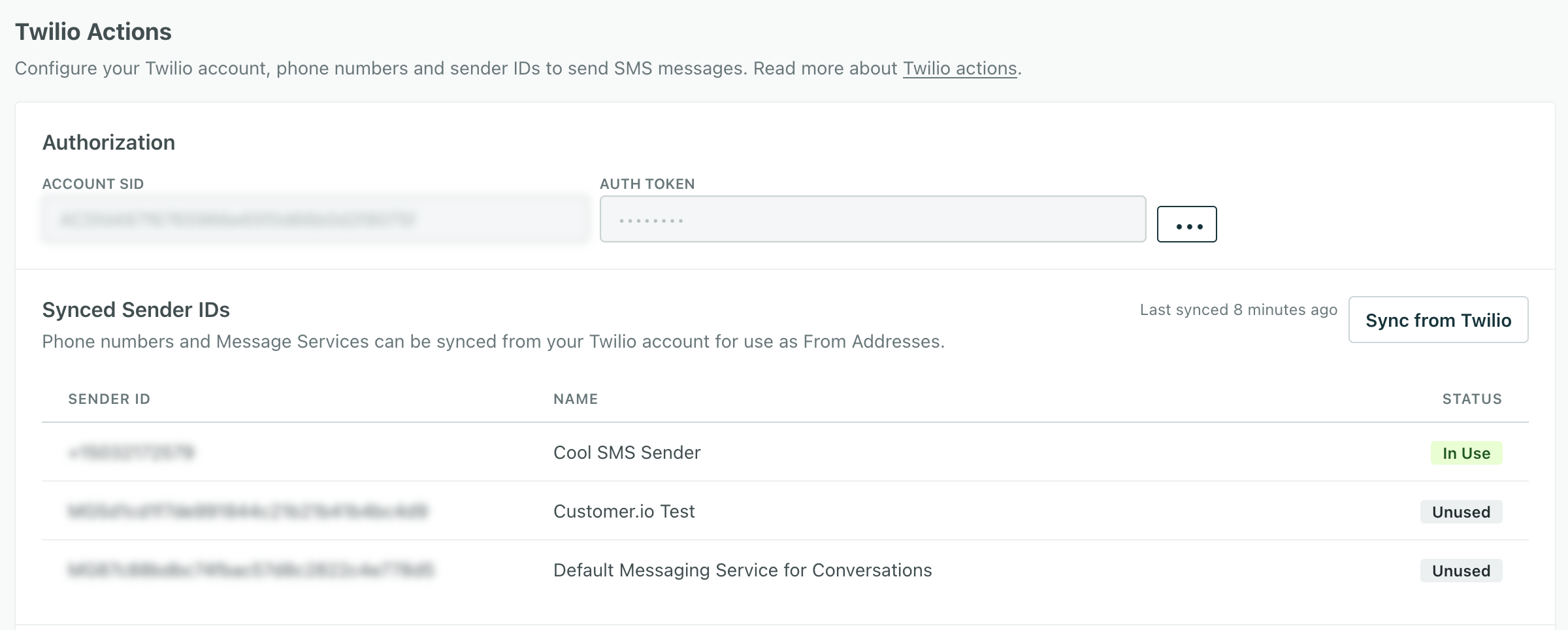
Manual sender IDs
Under Manual Sender IDs, you can add an alphanumeric sender ID, a messaging service ID, or Liquid that picks the sender ID for each message. See an example of a Liquid sender.
.png)
Add an alphanumeric sender ID
-
Enable alphanumeric IDs in Twilio first. You can add alphanumeric senders in Customer.io, but messages using them fail until you enable the feature in Twilio.
-
Go to > Workspace settings > SMS and select Add Sender ID.
-
Enter your Sender ID and the Name you’ll use to refer to your sender.
- Name: this is how you refer to the ID internally; your audience doesn’t see it.
- Sender ID: you can use upper- and lower-case ASCII letters, digits 0 through 9, and spaces. Your ID must contain at least one character that isn’t a number.