

Export people data
You can export the data Customer.io stores for a single person, or export a group of people to a CSV. You might do this to test your integration when you're getting started, to answer a data request, or to transfer people to another workspace or external system.
Ways to export people
You can export people data from a few places in Customer.io, depending on how many people you need and what data you want:
- A single person’s page: export JSON files that include the bulk of your customer’s data, including attributes, events, devices, relationships, and deliveries. See Export a single person’s data.
- The People page:
- Export a CSV of all your people, or the people who meet certain conditions, with all of their attributes or a selection. See Export multiple people.
- Export duplicate people or all devices in your workspace.
- Workspace suppressions: export the identifiers you’ve suppressed for GDPR compliance.
Exports can take a little while. We email you when your export is complete, or you can find exports on the Exports page (under Configure data, click More).
After 60 days, the export expires, and we delete it from your workspace. If you need the export again, you can always generate a new one!
Export a single person’s data
Go to the person’s page and click Options > Export profile data in the top right.
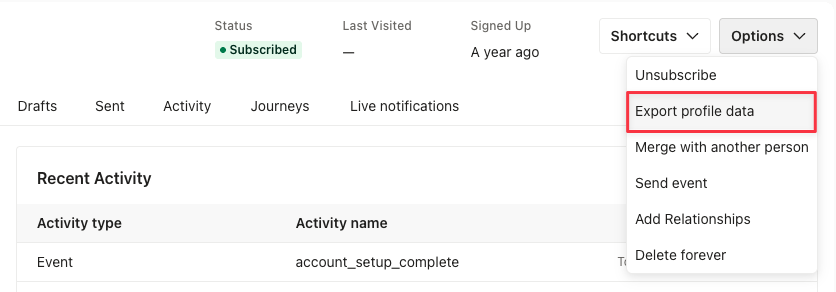
This exports all the data we have for that person. The export appears on the Exports page when it’s ready:

Hover over the count of rows/items exported for more details.
Data in a single-person export
For each person, an export contains several types of data across multiple json files:
- All current attribute values are stored in
attributes.json. - Event data is split across two files, based on how long ago the events happened. Together, the files cover the person’s full event history, and no event appears in both.
events.json.gzcontains the person’s more recent events.events2.json.gzcontains older events that Customer.io has moved to long-term storage. It isn’t a continuation ofevents.json.gz, so open both files to see everything. If a person has no events in long-term storage, the export doesn’t includeevents2.json.gz.- Both files list one event per line, along with the data attached to it. They’re compressed (
.gz), so you’ll need to unzip them before you can read them. - If a person has more than 10,000 events in long-term storage,
events2.json.gzincludes only their 10,000 most recent ones and leaves out the oldest. In that case, the export also includesevents2.truncated.json, which says how many events were included and how many were left out. If you don’t see this file,events2.json.gzis complete.
- All relationships to objects are stored in
relationships.json. - Mobile device data
- This info is present if you send mobile device information to Customer.io.
devices.jsoncontains the device ID, platform, and when the device was last used, for up to 25 devices you associate with a person (sorted bylast_used).
- Deliveries
- All deliveries (messages and webhooks) for that person, with their full content, are stored in
details.json. - Delivery metrics are stored in
metrics.jsonand includes all individual delivery stats (timestamps for activities and meta information), one delivery per line.
- All deliveries (messages and webhooks) for that person, with their full content, are stored in
Export multiple people
Go to the People page and click Export to CSV:

You see four options:
- All attributes: Export all people and all their attributes.
- Displayed attributes: Export all people with the attributes currently displayed in the People table (set with the Edit Displayed Attributes button ), plus
id,city,state, andcreated_at. - Choose attributes: Pick which attributes to export across all the data you send to your workspace.
- Export other: Export duplicate people or all devices in your workspace, with every attribute or a selection.
Export specific attributes
You can limit an export to specific attributes by clicking Choose attributes in the export dropdown.
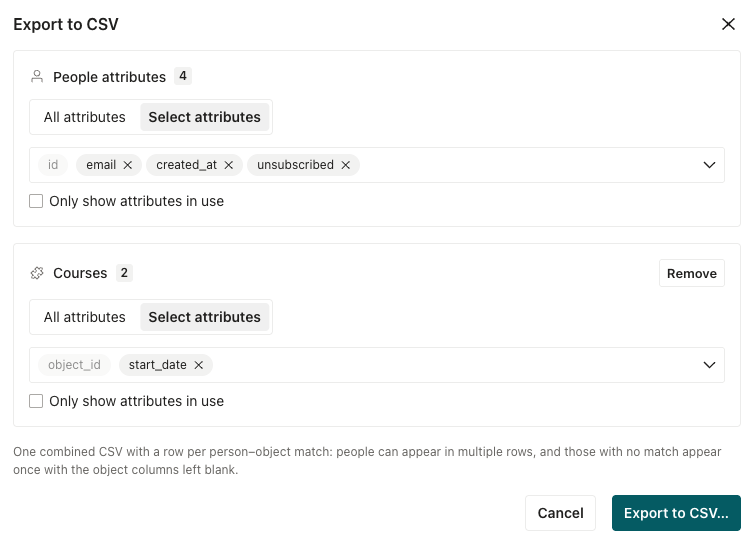
You can combine this with exporting people who meet certain conditions to filter your export further.
Export people who meet certain conditions
You can filter the People page to export customers that meet certain conditions. You can’t export based on “Filter by: Email address”, only “Filter by: Conditions.”
- Click Conditions to filter people by attributes, mobile devices, event or message data, and more.
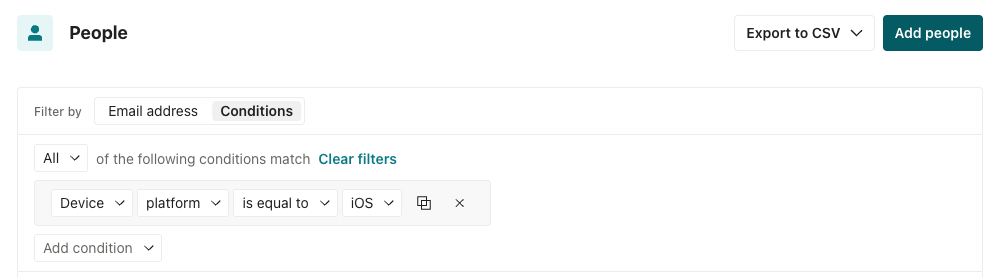
- Click Export to CSV and decide whether to export these people with All attributes, the Displayed attributes, or to export specific attributes through Choose attributes.
- Review your attribute selection and initiate export.
For example, if you export everyone in a specific segment, your CSV might look like this:

The 13 in _segment:13 is the ID of the segment you filtered by. You can find it on the Segments page. The timestamp reflects when the person joined the segment, in UNIX format.
The column to the right _segment:13_RFC3339 is a more human-readable version of that timestamp in ISO 8601 format (UTC).
Export relationships
To include people’s relationships to custom objects An object is a non-person entity that you can associate with one or more people—like a company, account, or online course.
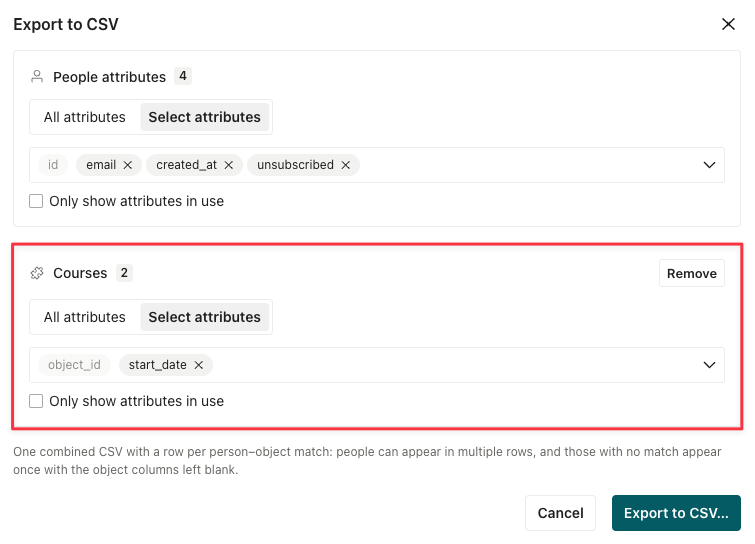
You can identify people by their cio_id attribute in the relationships file. If you attempt to export more than two million relationships, the export fails.
Export duplicate people
You can export a list of people who share the same attribute in your workspace. You might do this to deduplicate people in your workspace by a non-identifier The attributes you use to add, modify, and target people. Each unique identifier value represents an individual person in your workspace.
For example, if you don’t use email as an identifier in your workspace, you might export duplicates to figure out if you have multiple instances of the same email address. The same principle works for phone numbers as well!
Your export shows a list of people, grouped by the duplicate attribute, as shown below. Regardless of the attributes A key-value pair that you associate with a person or an object—like a person's name, the date they were created in your workspace, or a company's billing date etc. Use attributes to target people and personalize messages.
| id | cio_id | first_name | |
|---|---|---|---|
| 1 | acb50600a307a401 | person@example.com | Alex |
| 123b41623a307a402 | person@example.com | Alexandra |
To export a list of people with the same attribute:
- Go to the People page.
- Click Export to CSV and click Export other.
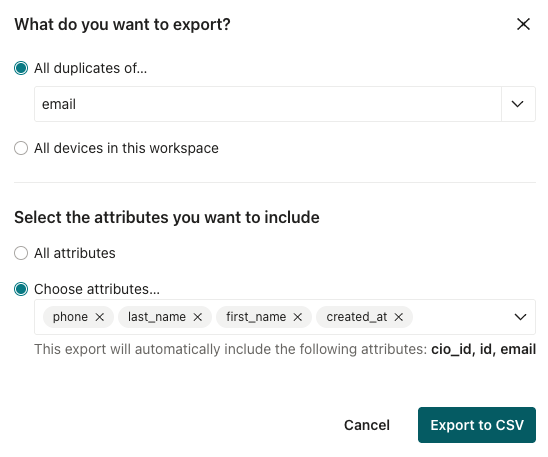
- Pick the attribute you want to deduplicate on under All duplicates of….
- (Optional) Determine the specific attributes you want to export. This can help you limit the time it takes to export your file, and the amount of data you see.
- Click Export to CSV.
Export all devices
You might want to export a list of mobile devices to clean up bounced/suppressed devices in your workspace. Or, in rare cases where people share a device, you might export devices to find duplicate tokens: a single device token shared by more than one person in your workspace that might result in duplicate notifications.
- Go to the People page.
- Click Export to CSV and click Export other.
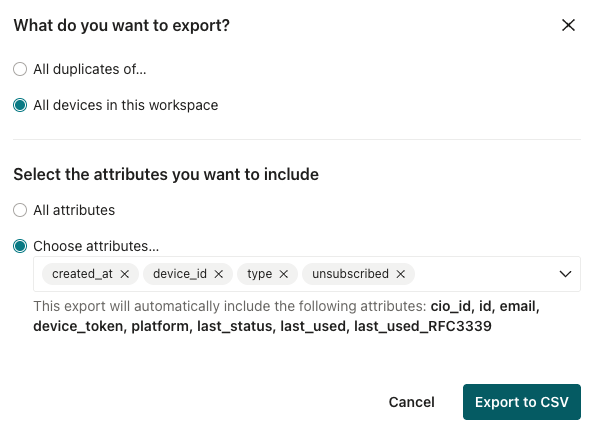
- Select All devices in this workspace.
- (Optional) Determine the specific attributes you want to export. This can help you limit the time it takes to export your file, and the amount of data you see. Regardless of the attributes you choose to show, the list always includes your audience’s identifiers.
- Click Export to CSV.
The device_token_type column shows the kind of ID each FCM device uses: fid for a Firebase Installation ID, or token for an FCM registration token. The column is blank for devices registered without a type, like APNs devices and devices from older SDKs. An FCM device with a blank type is still an FID if its ID is 22 characters or fewer.
Export suppressed identifiers
You can export a list of the identifiers you’ve suppressed for GDPR compliance as a CSV file. You might do this if you need to verify that someone’s identifier (email or id) is suppressed, or to remove them from the suppression list.
- Go to > Workspace Settings > Workspace Suppressions.
- Under GDPR suppression list, click Export CSV. Customer.io queues the export.
- When the export is ready, download it from the Exports page.
See How to manage suppressions for more detail about the suppression list.
The CSV has three columns: cio_id, id_sha256, and email_sha256. We hash the id and email values with SHA-256 to protect the privacy of the people on the list. Because hashing is one-way, you can’t reverse the hash to the original identifier. To check whether an email address is on the list, hash the address with SHA-256 and look for the result in the email_sha256 column. We write hashes as lowercase hexadecimal. The same comparison works for id values and the id_sha256 column.
We don’t hash cio_id, Customer.io’s own identifier for a person. If you stored that value elsewhere, you can compare it against the export directly.