Geolocation & time zone data
Customer.io can gather geolocation and time zone data from your audience, helping you coordinate messages at times that are appropriate for them.
How it works
Customer.io determines a person’s location from two possible sources:
- IP-based geolocation: We infer location from IP addresses. This happens when you identify
The Customer.io operation that adds or updates a person. When you identify a person, Customer.io either adds a person if they don't exist in your workspace, or updates them if they do. Before you identify someone (by their email address or an ID), you can track them anonymously.
someone from a supported source. - Mobile device-based geolocation: Our mobile SDKs (iOS, Android, Flutter, React Native, and Expo) can capture GPS coordinates directly from a person’s device. This is more accurate than web-based geolocation.
We store one canonical location per person. When both sources are available, device-based location takes precedence because it’s more precise. The cio_location_source attribute on a person tells you which source provided their current location—ip or device.
You can use geolocation data to segment your audience by location or time zone. You can also use time zone data to send messages at the right time for your audience with our recommended send time feature or our time zone match features.
IP-based geolocation
IP-based geolocation is the default source of geolocation data because we have more sources of IP address than we do for mobile device coordinates. When you enable Automatic Geolocation Data Collection and identify The Customer.io operation that adds or updates a person. When you identify a person, Customer.io either adds a person if they don't exist in your workspace, or updates them if they do. Before you identify someone (by their email address or an ID), you can track them anonymously.context.ip field, we look up their approximate location using MaxMind’s GeoIP database. Our JavaScript client and mobile SDKs capture IP addresses automatically; you need to pass context.ip manually with server-side libraries and the Pipelines API.
IP-based location is accurate to roughly a city or region. That’s enough to set a person’s time zone, segment people by country or region, and localize content. It isn’t precise enough to target people at a specific address or store. For that, use device-based geolocation or our geofencing feature.
Sources that support IP-based geolocation
Geolocation works based on identify calls from the sources below. We ignore the IP address in context.ip when you identify someone from any other source, including sources that connect third-party tools. Every request has an IP address, but for most sources it’s the IP address of the server that sent the request, not your person’s IP address.
For sources with automatic collection, we use the IP address you pass in context.ip. If you don’t pass one, we use the IP address of the request, which comes from your person’s browser or device.
| Source | IP collection | Additional requirements |
|---|---|---|
| JavaScript client | Automatic | |
| iOS SDK | Automatic | |
| Android SDK | Automatic | |
| React Native SDK | Automatic | |
| Flutter SDK | Automatic | |
| Expo plugin | Automatic | |
| Node.js library | Manual | Pass context. in your identify calls and turn on Enable geolocation for the source. |
| Go library | Manual | Pass context. in your identify calls and turn on Enable geolocation for the source. |
| Python library | Manual | Pass context. in your identify calls and turn on Enable geolocation for the source. |
| Customer.io Pipelines API | Manual | Pass context. in your identify calls and turn on Enable geolocation for the source. |
Device-based geolocation (mobile SDKs)
Our mobile SDKs can provide GPS-level accuracy by capturing coordinates directly from a person’s device. This is more accurate than IP-based geolocation, which can only approximate location to a city or region.
Device-based location reaches a person through two pathways:
- Identify calls: When a mobile SDK sends an identify call with the Location module enabled, it includes GPS coordinates alongside the IP address. We check device coordinates first—if they’re present, we use them instead of the IP address.
- Location Update events: Mobile SDKs can send a
Location Updatetrack event with latitude and longitude. This updates the person’s geolocation attributes.
To set up device-based location tracking, see the location tracking guides for your platform:
To message people when they enter or leave an area, like a store or a venue, use our geofencing feature. Our mobile SDKs monitor geofences on the device and send an event when a person enters or exits one, which you can use to trigger an automation. See the geofencing guide for iOS, Android, Flutter, React Native, or Expo.
Location precedence
We only store one set of location values per person. When we receive new location data, we compare it to the existing data and apply the following rules:
When the source changes (for example, from ip to device), we rewrite all geolocation attributes to clear stale values from the previous source.
Enable or disable automatic geolocation data collection
Enabling Automatic Geolocation Data Collection lets us gather and set location and time zone data for people you identify based on their IP addresses or device GPS coordinates. This setting is on by default in our US data center. If you’re in our EU data center, you’ll need to enable it manually.
- Go to Workspace Settings > Time Zone & Geolocation Settings.
- Enable or disable Automatic Geolocation Data Collection.
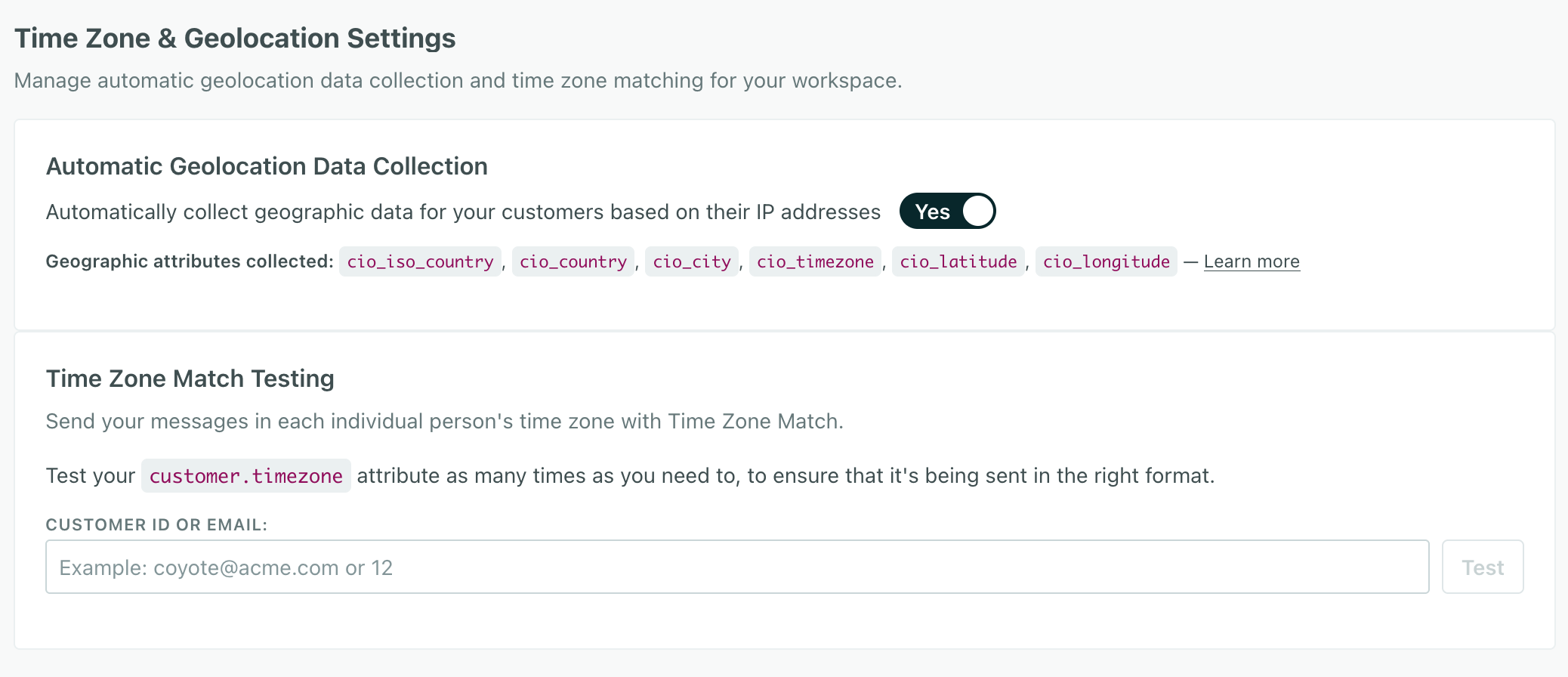
Note that turning this setting on doesn’t:
- Enable geolocation for server-side libraries. You’ll need to enable geolocation for server-side libraries manually.
- Backfill data for existing people. You’ll need to identify people from our JavaScript client or mobile SDKs to get their geolocation data.
Enable or disable geolocation for server-side libraries and the Pipelines API
To support geolocation for server-side libraries (our Node.JS, Go, and Python libraries) and the Pipelines API, you’ll need to enable geolocation services. Then you’ll need to capture your users’ IP addresses and set them in the context.ip field in your identify requests.
- Go to Integrations.
- Go to your Node.JS, Go, Python, or Customer.io API source and click the Settings tab.
- Change the Enable geolocation setting.
Capturing IP addresses for geolocation
Automatic geolocation is based on the context.ip field in identify requests, and only the sources listed above support it. We automatically capture IP addresses from our mobile SDKs or JavaScript client.
If you use our backend libraries (like our Node.JS or Go SDKs) or our Pipelines API, you’ll have to capture the IP address yourself and pass it in the context.ip field in your identify requests. We’ve added some examples below showing the context.ip field in your identify requests to our backend SDKs.
| SDK/Integration | context.ip field |
|---|---|
| JavaScript client | Automatic |
| Mobile: iOS | Automatic |
| Mobile: Android | Automatic |
| Mobile: React Native | Automatic |
| Mobile: Flutter | Automatic |
| Mobile: Expo | Automatic |
| Node.JS SDK | Manual |
| Go SDK | Manual |
| Python SDK | Manual |
| Pipelines API | Manual |
Node.JS SDK
cioanalytics.identify({
  userId: '019mr8mf4r',
  traits: {
    name: 'Cool Person',
    email: 'cool.person@example.com',
    plan: 'Enterprise',
    friends: 42
  },
  context: {
    ip: '123.45.67.89'
  }
});
Go SDK
func main() {
    client := analytics.New(os.Getenv("WRITE_KEY"))

    client.Enqueue(analytics.Identify{
        UserId: "user123",
        Traits: analytics.NewTraits().
            SetEmail("john@example.com").
            SetName("John Doe"),
        Context: &analytics.Context{
            IP: net.ParseIP("192.168.1.100"),
        },
    })
}
Python SDK
cioanalytics.identify('f4ca124298', {
    'email': 'cool.person@example.com',
    'first_name': 'cool',
    'last_name': 'person',
    'context': {
        'ip': '123.45.67.89'
    }
})
What happens to data when you disable automatic geolocation data collection?
When you disable automatic geolocation data collection, we’ll stop gathering location and time zone data for people you identify. You can also choose to delete existing geolocation data for people you’ve already identified.
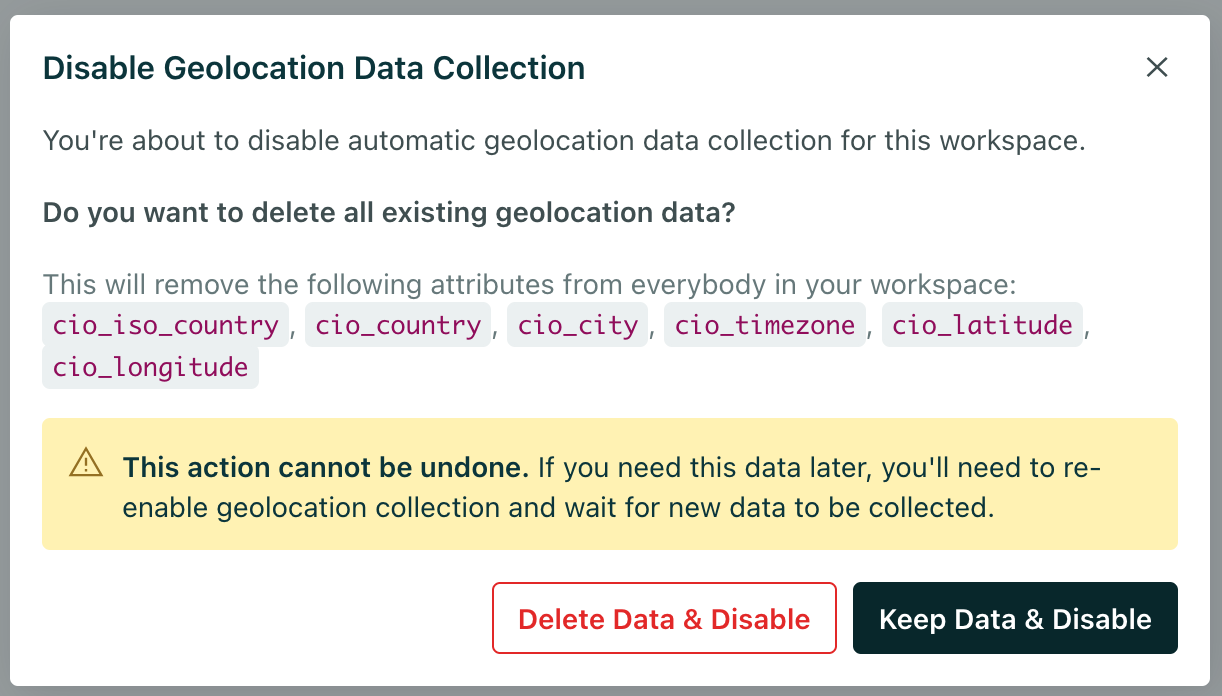
If you disable automatic geolocation data collection, there’s no harm in keeping this data around. But it might clutter people’s profiles if you don’t use this data.
We geolocate people when you identify them
We don’t add or update geolocation data until you identify The Customer.io operation that adds or updates a person. When you identify a person, Customer.io either adds a person if they don't exist in your workspace, or updates them if they do. Before you identify someone (by their email address or an ID), you can track them anonymously.context.ip field or device GPS coordinates in the same request, from a source that supports geolocation. Remember, our mobile SDKs and JavaScript client automatically capture IP addresses for you, but you’ll need to capture the IP address yourself if you use our backend libraries (like our Node.JS or Go SDKs) or our Pipelines API directly.
Even if you’ve already identified someone, additional identify requests can update a person’s geolocation data.
Automatic geolocation attributes
When you enable automatic geolocation data collection, we automatically capture the following attributes when you identify The Customer.io operation that adds or updates a person. When you identify a person, Customer.io either adds a person if they don't exist in your workspace, or updates them if they do. Before you identify someone (by their email address or an ID), you can track them anonymously.
You shouldn’t set these attributes yourself. If you do, it’s likely that we’ll overwrite your data with our own values whenever you identify a person.
| Attribute | Purpose | Editable | Data Format |
|---|---|---|---|
cio_city | City name. | No, system-generated | String |
cio_continent | Continent name, like North America. | No, system-generated | String |
cio_country | Country name, like United States. | No, system-generated | String |
cio_iso_continent | ISO continent code, like NA for North America. | No, system-generated | String |
cio_iso_country | ISO 3166-1 alpha-2 country code, like US. | No, system-generated | String |
cio_iso_region | ISO region code, like CA for California. | No, system-generated | String |
cio_latitude | Latitude of the person’s location. For IP-based geolocation, this is the approximate latitude of the city. For device-based geolocation, this is the precise GPS latitude. | No, system-generated | Decimal degrees |
cio_location_source | Which source provided the person’s current location: ip (IP address lookup) or device (mobile SDK GPS coordinates). | No, system-generated | String: ip or device |
cio_longitude | Longitude of the person’s location. For IP-based geolocation, this is the approximate longitude of the city. For device-based geolocation, this is the precise GPS longitude. | No, system-generated | Decimal degrees |
cio_postal_code | Postal or ZIP code, approximated from the IP address. It may not be exact. | No, system-generated | String |
cio_region | Region name, like California. Usually a state, province, or administrative division. | No, system-generated | String |
cio_timezone | The person’s time zone. Customer.io uses it for recommended send time and as a fallback when timezone isn’t set. | No, system-generated | String, region format |
The timezone attribute
You can set the timezone attribute (in a recognized format) to support our recommended send time feature or our time zone match features. This attribute takes precedence over our cio_timezone attribute. You should set it if:
- You don’t use automatic geolocation data collection and you want to support recommended send times or time zone match features.
- You identify people from sources that don’t support IP-based geolocation, like sources that connect third-party tools.
- You want to set a “home” time zone for people who frequently travel across multiple time zones.
When you send someone a message using a time zone-related feature, we’ll use the timezone attribute if it exists and conforms to our supported formats. If it doesn’t exist, we’ll use the cio_timezone attribute as a fallback.
If the timezone and cio_timezone attributes don’t exist, we’ll use the fallback time zone that you set for a message. This ensures that people who don’t have time zone data still get messages.
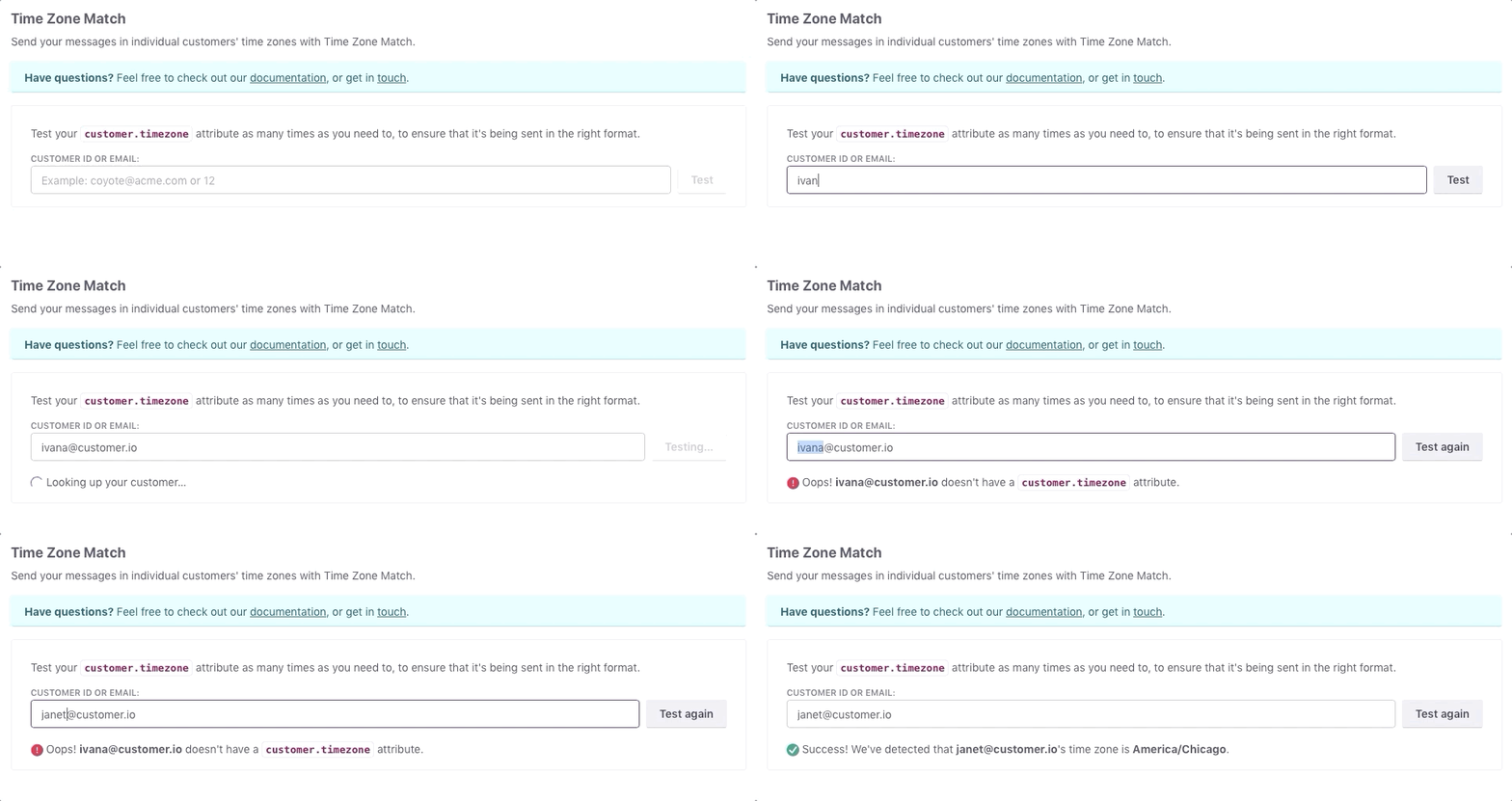
Test your timezone attribute
If you set your time zone attribute manually, you can test it to make sure that you’re using a format we support.
Go to Workspace Settings > Time Zone & Geolocation Settings.
Enter the id or email address of a person in your workspace, and we’ll tell you if the timezone attribute is in the correct format.