

Message frequency limits
A message frequency limit is the maximum number of messages someone can receive in a specific time frame. You can set message limits for one or more message channels so your customers get the right amount of communications from you. Message frequency limits help you stay in compliance, control the cost of messaging, and maintain good rapport with your audience.
How it works
In Customer.io, you create message limits in your workspace settings that apply to one or more message channels. Then you decide which workflows count towards your limits. By default, no workflow counts towards a limit.
Message limits are optional, and they only apply to the workflows you choose. Separately, push, in-app, and webhook messages are subject to the fair use limits in our Usage Policy, which vary by plan.
You can set message limits for any workflow to ensure you don’t overmessage your audience. Within an automation or API-triggered broadcast, you can set an overarching limit on the workflow and also change the limit for individual messages.
You might set a limit for SMS marketing automations to stay in compliance of state laws, but not set one for transactional messages that send order confirmations or broadcasts that inform people of updates to your terms and conditions.
When your workflow tries to send to a recipient that’s reached your message limit, your workflow records the message as Undeliverable, unless you enabled a retry window.
Which message channels can you limit?
| Channel | Sent through | Can limits apply? |
|---|---|---|
| Customer.io | Yes | |
| Custom SMTP | Yes | |
| Push notifications | Yes | |
| Webhooks (Send and receive data action) | Yes | |
| SMS | Twilio | Yes |
| Customer.io | Yes | |
| Vonage | Yes | |
| Infobip | Yes | |
| Sinch | Yes | |
| Bird | Yes | |
| Twilio | Yes, but WhatsApp sent through Twilio counts towards the SMS frequency limit. See note below. | |
| Meta/WhatsApp Business | Yes | |
| LINE | Yes | |
| In-app | No | |
| Inbox messages | No | |
| Slack | No |
You can apply your workspace’s message limits to email, push notifications, LINE, webhooks, SMS and WhatsApp message channels.
If you integrated with Twilio before July 30, 2026, you can send both SMS and WhatsApp through Twilio. In this case, the SMS message frequency limit applies to both SMS and WhatsApp, not just SMS.
This message limit feature doesn’t apply to in-app or inbox messages, but there are other mechanisms you can use to limit those. To limit in-app or inbox messages, you can set expiration dates. With in-app messages, you can also set page rules to limit your messages.
Calculating message limit time frames
Your workflow calculates the time frame of a message limit—minutes, hours, or days—by comparing message delivery The instance of a message sent to a person. When you set up a message, you determine an audience for your message. Each individual "send"—the version of a message sent to a single member of your audience—is a delivery.
This is particularly important to remember for daily message limits. Your workflow applies message limits through a relative window—the time between messages—rather than real calendar days.
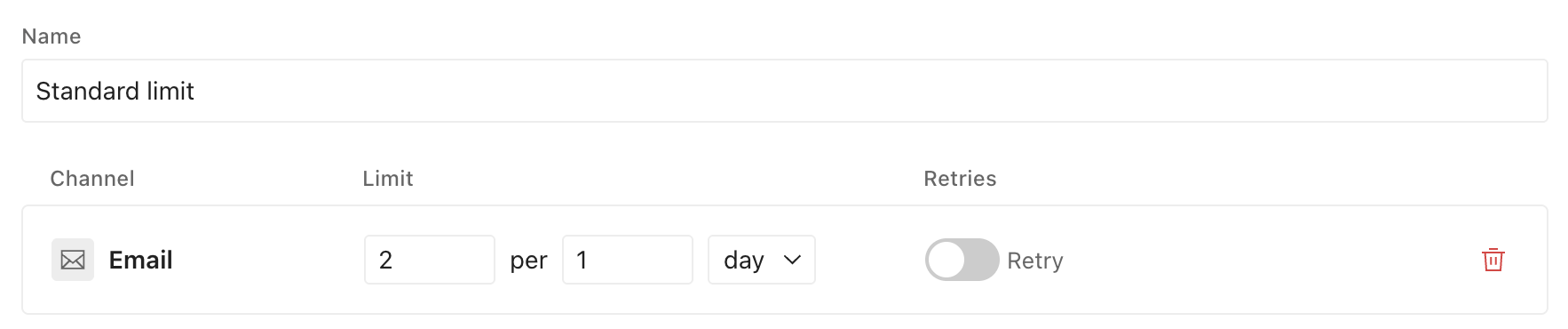
For example, say you have a couple running automations that count towards the same message limit called “Standard limit” of two emails per day, and the retry window is off.
Workspace message limit:
Automation message settings:
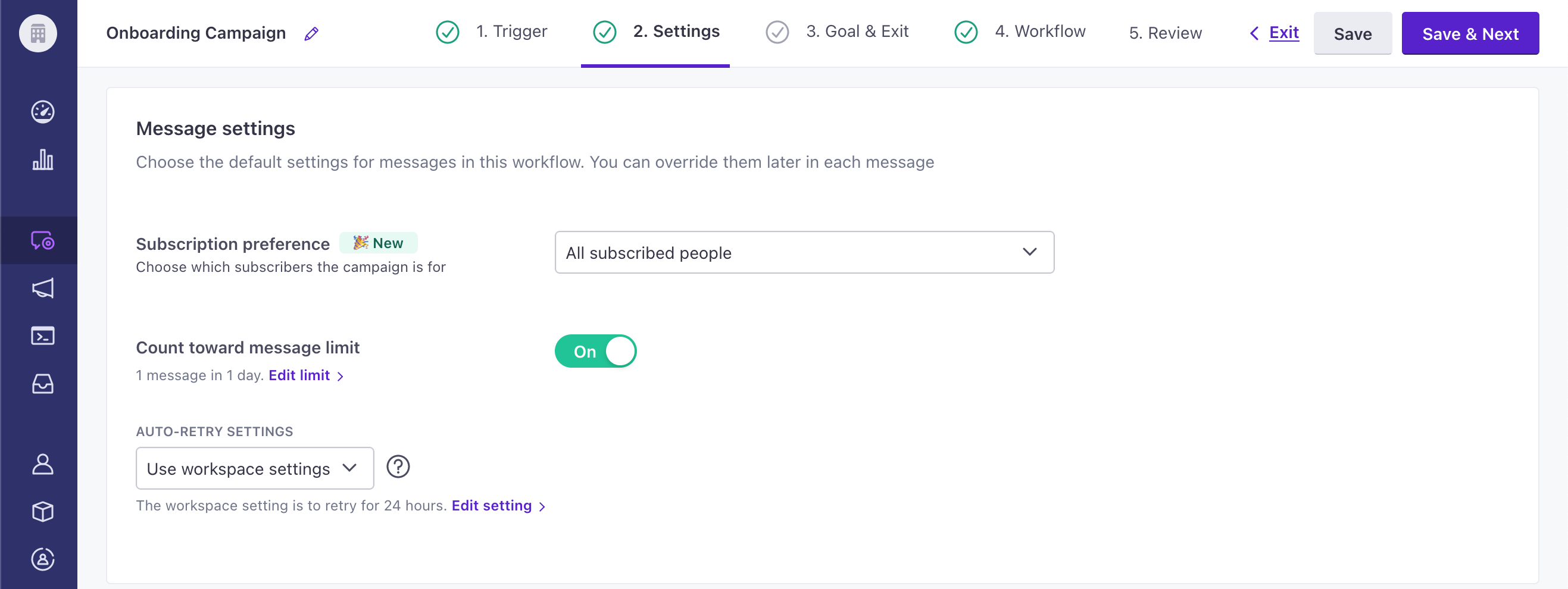
A person receives two emails across these automations within a 24-hour period. When one of these automations attempts to send them a third email while those two still count towards the limit, it’s blocked. The email isn’t retried; the email is marked Undeliverable right away, and the person continues forward in the workflow.
Note, this person only stops receiving messages from the automations with the “Standard limit” set. They could still receive emails from other automations without message limits or with a different message limit. Check out the examples below for more info.
Retry windows
You can automatically retry messages that hit the message limit by adding retry windows. They help ensure relevant messages make their way to your audience and help account for timing edge cases when Customer.io processes messages.
If you set your workflow to auto-retry messages that hit the limit, your workflow first records the message as Attempted and then follows your retry window. During this time, a person waits at that step in their journey. If after the retry window the message wasn’t delivered, then the message is recorded as Undeliverable and the person moves on in the workflow.
You assign retry windows to automations or API-triggered broadcasts. You can’t assign automatic retries to one-time sends or transactional messages. A window can be up to 48 hours. The automation or API-triggered broadcast holds the person in the workflow until the Attempted messages is delivered.
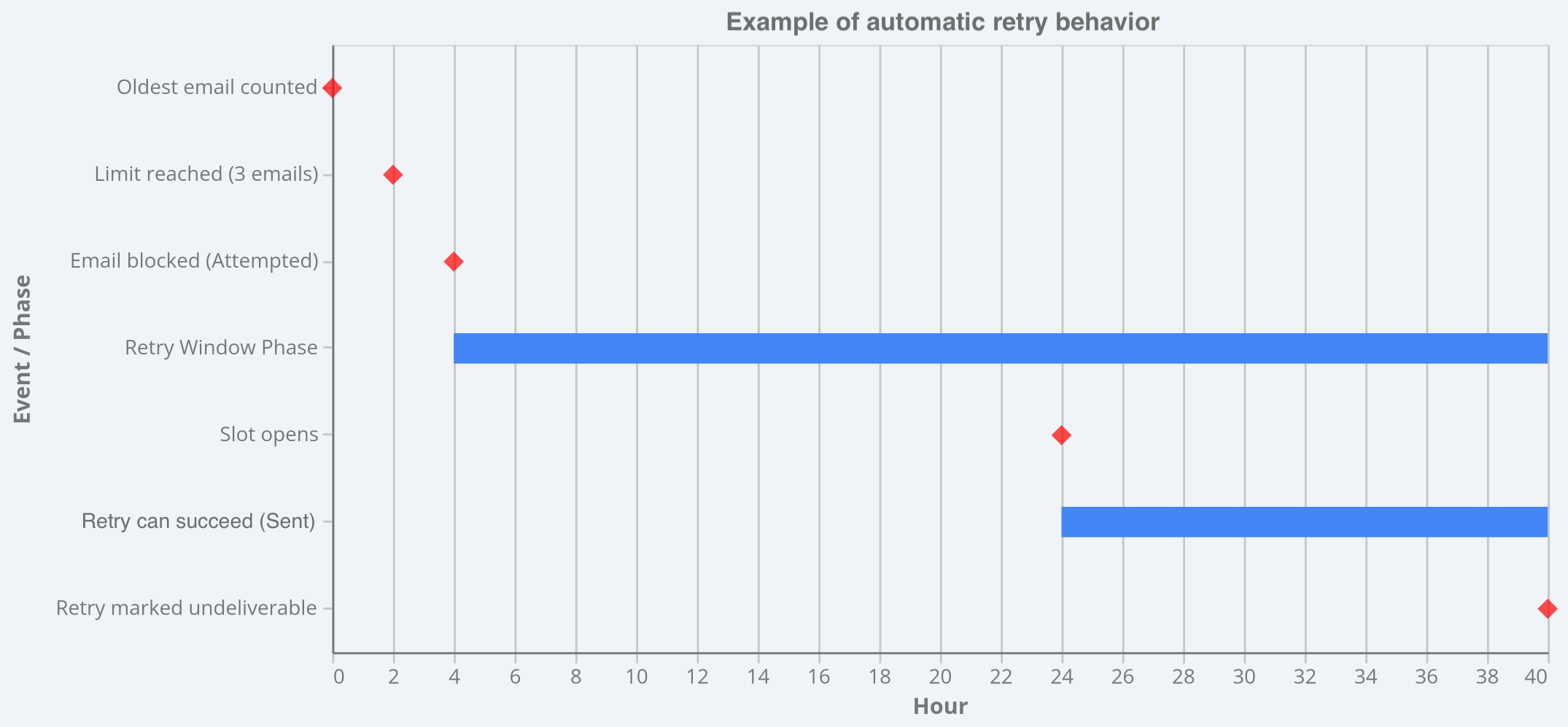
A retry window starts when your message hits the message limit—it’s attempted, but blocked. Your workspace retries the message when a slot opens up, which happens once the oldest message counted towards the limit ages out of the limit’s time frame. If a slot doesn’t open up before the retry window ends, the message is marked Undeliverable, and your workflow stops trying to send it.
For example, imagine your automation counts towards a message limit of 3 emails per day and the retry window is 36 hours. A person reaches the message limit 2 hours after the first email that counted towards the limit. Then 2 hours after that, a message is blocked from sending. 24 hours after the oldest counted email was sent, a slot would open up and a retry of an attempted email could succeed. If the retry window passes (36 hours after the message was first attempted) and the attempted message still hasn’t sent, it’s marked Undeliverable and the system stops retrying.
Examples
A person enters 2 campaigns with different message limits for the same channel
You assign message limits to workflows and messages, but we calculate message limits per person. In practice, this means that any workflow with a limit for a message channel, like email, will count towards the limit for that channel.
For example, imagine Sid is part of two campaigns. You assigned the limit 2 emails/week to Campaign A and the limit 5 emails/week to Campaign B.
- On Monday, both campaigns send 1 email. This means Sid received 2 emails total.
- On Tuesday, Campaign A tries to send another email. The message is blocked by the limit because Sid has already received 2 emails for the week. It doesn’t matter than one of the emails was sent from a campaign with a different limit.
- On Wednesday, Campaign B sends another email successfully to Sid because Sid hasn’t reached the email limit set on that campaign.
When a message limit has an individual & shared limit for the same channel
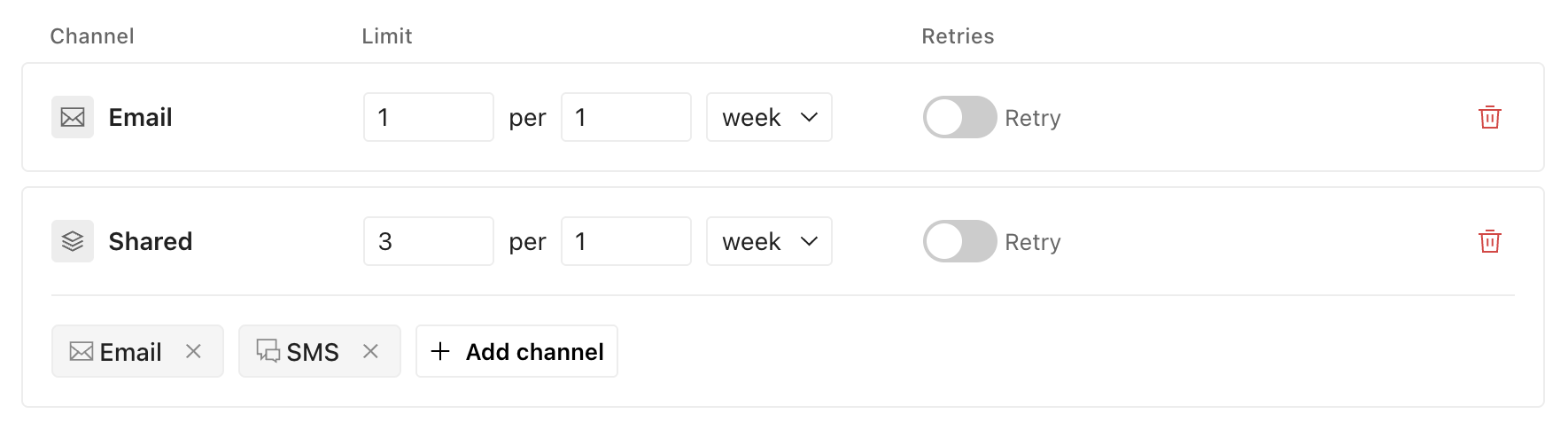
You can combine individual channel and shared limits so a person doesn’t surpass a total number of messages.
For example, if you had a shared limit of 3 emails and SMS per week and an individual channel limit of 1 email per week, then people would receive up to 3 texts per week and no more than 1 email.
When a message overrides the limit set on a campaign
If a message action differs from the campaign’s message limit, then journeys follow the settings on the message.
For example, let’s say you assign an SMS limit to a campaign. You set one of the SMS messages to not count towards any limit. When a person gets to this SMS message, they receive the SMS message no matter the number of texts they’ve received in your campaign or workspace. This message does not count towards any message limit.