

Automation goals & conversion criteria
How goals work
A goal is what you want your audience to accomplish during your automation, like purchase a product, sign up, or subscribe. When you set up a goal, you define conversion criteria, which are the rules that determine when we mark a message or journey as “converted.”
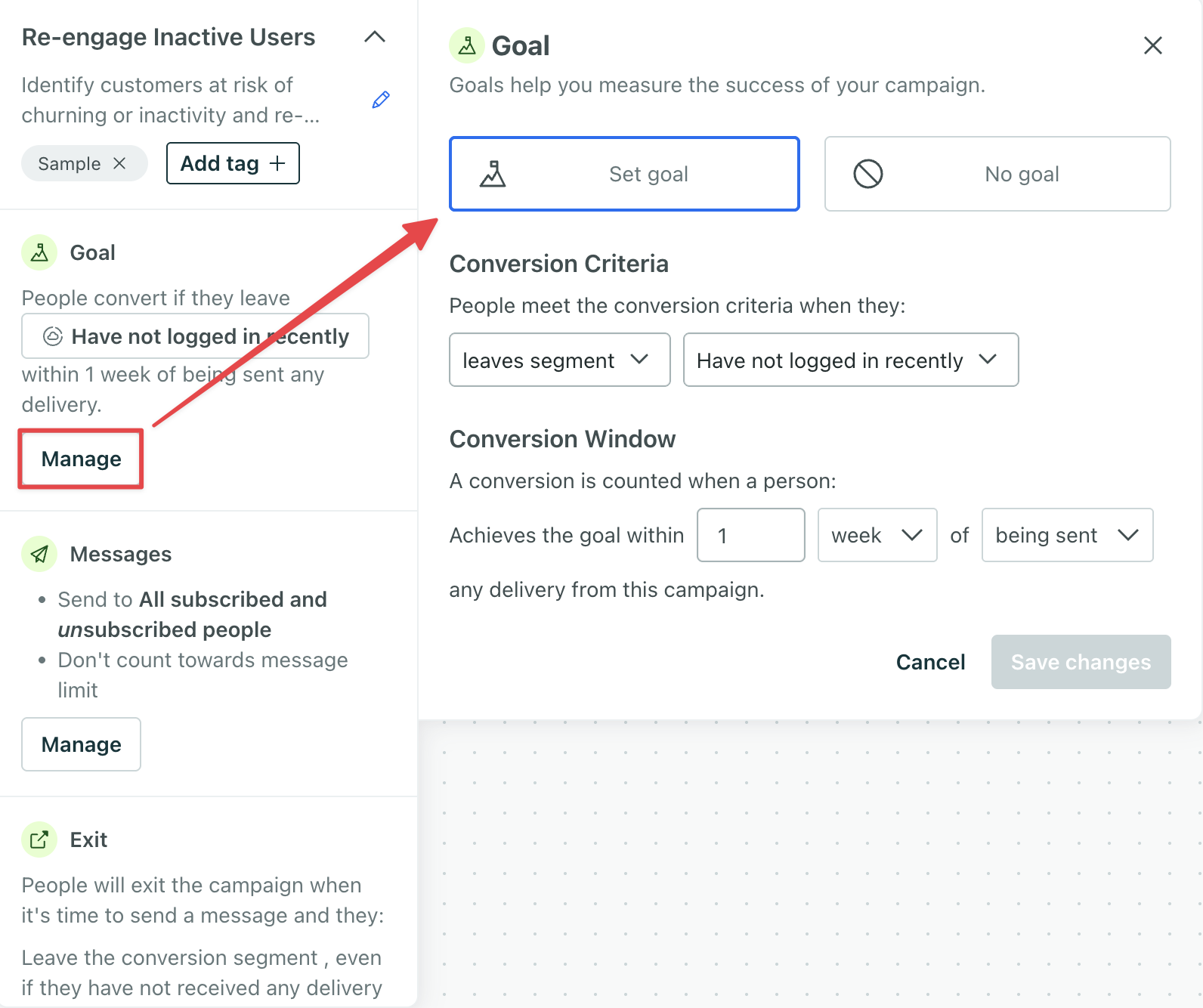
The conversion criteria can be one of (and only one of) the following things:
- An event
Something that a person in your workspace did. Events can trigger automations, add people to segments, etc, and you can use properties from events to personalize messages.
you want people to perform - A segment
A segment is a group of people in your workspace. Use segments to trigger automations, track membership over time, or fine-tune your audience. There are two types of segments: data-driven and manual. Data-driven segments automatically update when people start or stop matching criteria. Manual segments are static.
you want people to join - A segment you want people to leave
When you set conversion criteria, you also set a conversion window (up to 90 days) that your customers can match the conversion criteria after they are sent, open, or click a tracked link in a message. If a person matches your conversion criteria within the time frame, we’ll record a conversion and attribute it to your automation. If a person does not match the conversion criteria, or they match it outside the time frame you set, we won’t record a conversion.
Conversion metrics
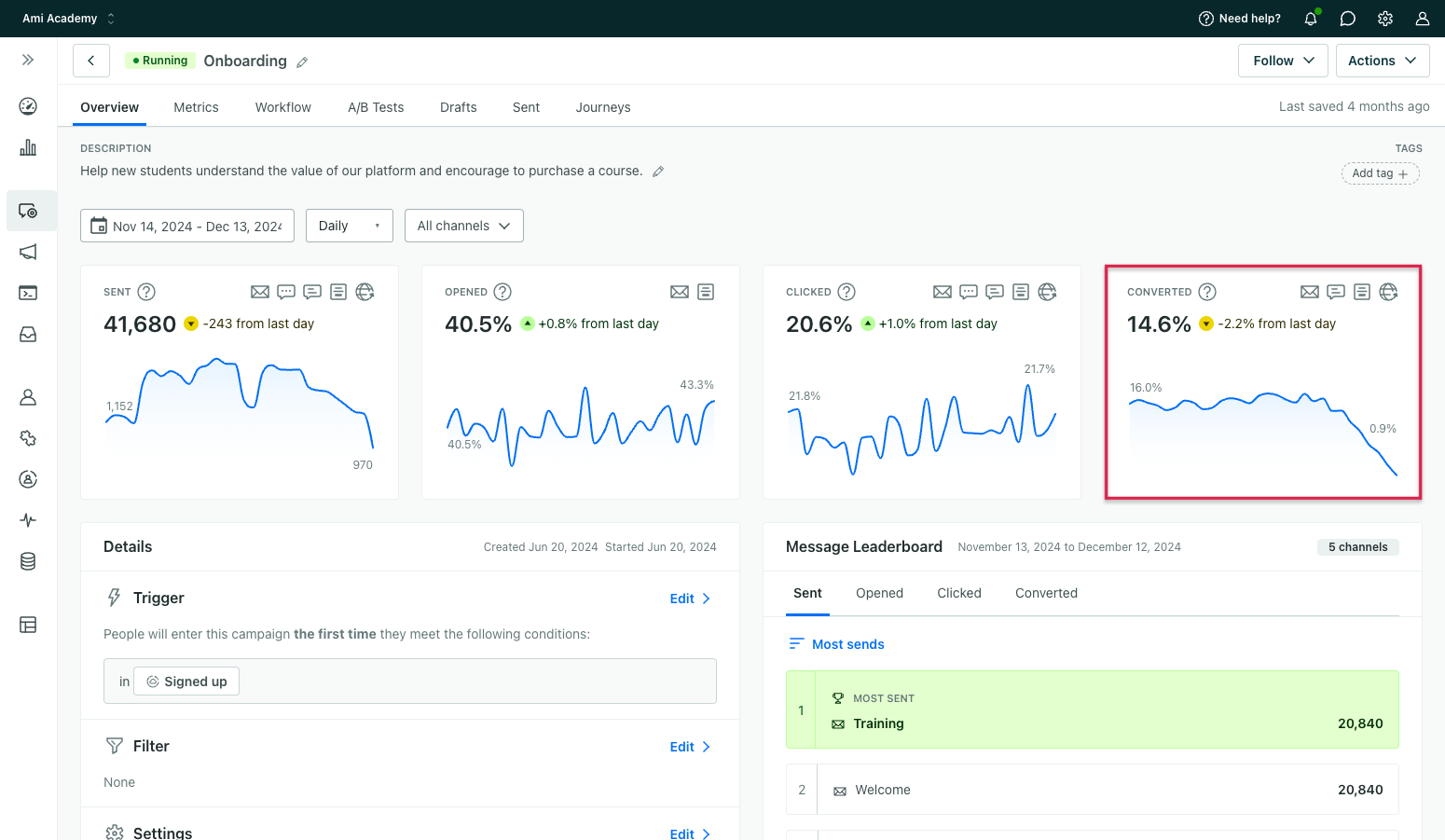
You can check the converted metric to determine the percentage and number of journeys A profile's path through an automation workflow. If the automation is triggered by a webhook, then a journey captures the webhook's path, not a profile's. The instance of a message sent to a person. When you set up a message, you determine an audience for your message. Each individual "send"—the version of a message sent to a single member of your audience—is a delivery.
Types of messages or actions that can record conversions
We track conversions for the following message/delivery types:
| Conversions attributed | Conversions not attributed |
|---|---|
| Slack Message | |
| SMS | Create or update person action |
| Customer.io Push Notifications | |
| Customer.io In-app Messages | |
| Webhooks1 |
Slack and Create or update person actions are often internal or used for analytics purposes; they don’t always send messages to end-users. For that reason, we don’t attach conversions to them. You can enable webhook conversions on individual webhook actions.
Set up conversion criteria
You can set a goal when you create an automation or add it to automations you’ve already created. However, if you set conversion criteria for a live automation, it will only apply to people who enter the automation after you set the goal. You cannot apply a goal retroactively to people who’ve already entered or completed the automation.
Click the upper-left menu while editing an automation. Then click Manage under Goal:
- Click Set goal.
- Select the type of conversion criteria—performs event, enters segment, or leaves segment.
- (Optional) If your conversion criteria is an event, click Add event data filter to ensure that your event contains (or doesn’t contain) specific properties or values before counting a conversion.
- Under Conversion, set the maximum time (up to 90 days) after a delivery that you’ll count a conversion.
- Select whether to count a conversion after a person:
- Is sent any delivery
The instance of a message sent to a person. When you set up a message, you determine an audience for your message. Each individual "send"—the version of a message sent to a single member of your audience—is a delivery.
(i.e. not attempted or failed) from this automation -
Opens any delivery from this campaign
Message opens may not be reliable for certain message types, like SMS or email, with some clients. You might want to use the receiving or clicking a tracked link in options to ensure more accurate reporting with these message types. -
Clicks a tracked link in any delivery from this campaign
If a link isn’t tracked, Customer.io can’t know whether or not a person clicks it, and therefore cannot record a conversion. See our page on link tracking for more information.
- Is sent any delivery
- Save your changes.
- Next, decide whether you want people to exit your automation when they match the conversion criteria.
Event-based goals
Events let you track the things that your audience does. You can use an event as an automation goal. For example, if your automation is focused on abandoned carts, your goal event might be a purchase event.
You can only use a single event as the goal for any given automation.
Event-based filters
You can also set up a filter to limit a conversion based on an event’s properties. This lets you make sure that your conversion event contains (or does not contain) specific properties before you count it as a conversion.
Using our purchase example above, imagine that you want to record a conversion when your audience uses a specific coupon code or makes a purchase over a certain dollar amount. You could set a filter for that!
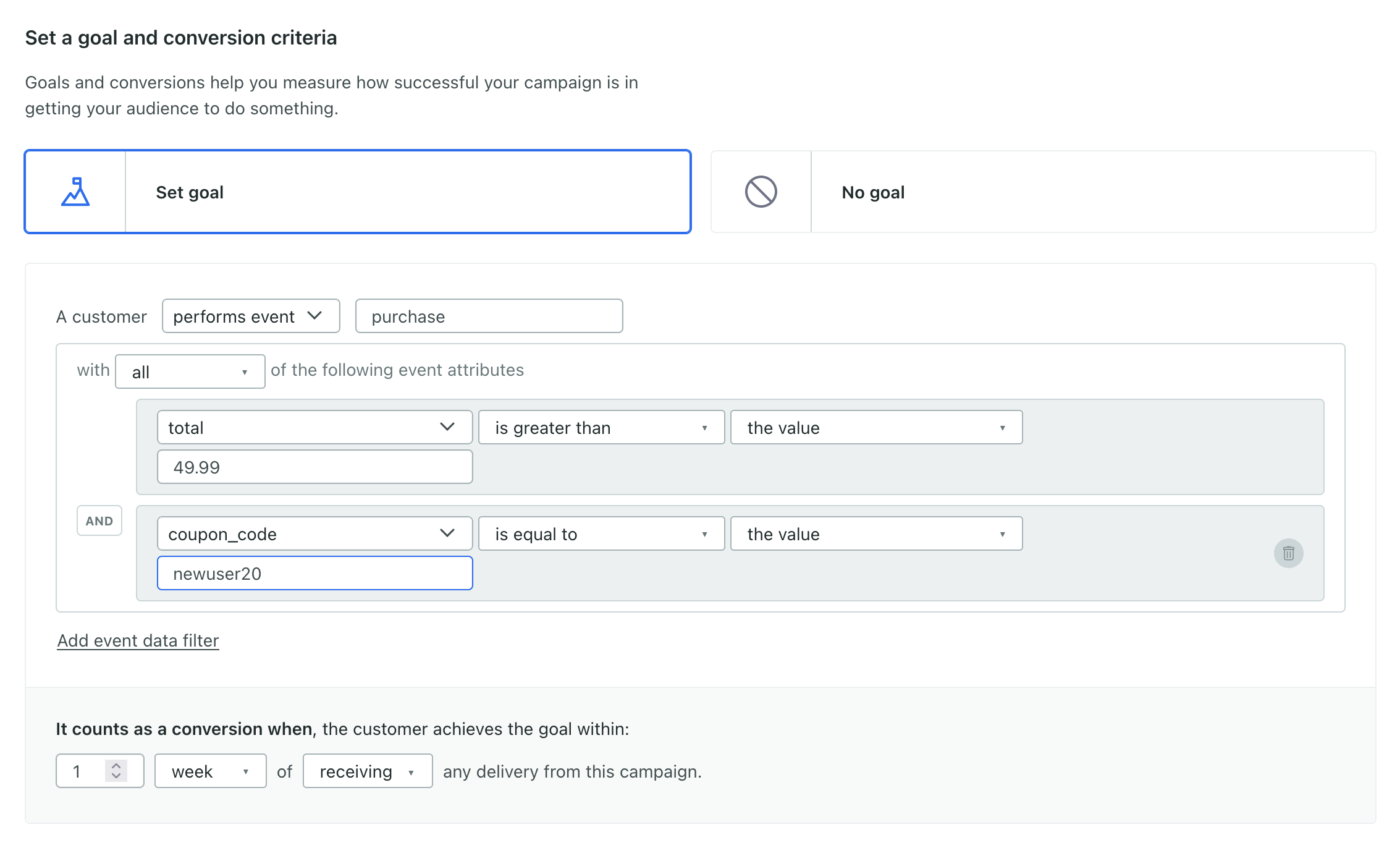
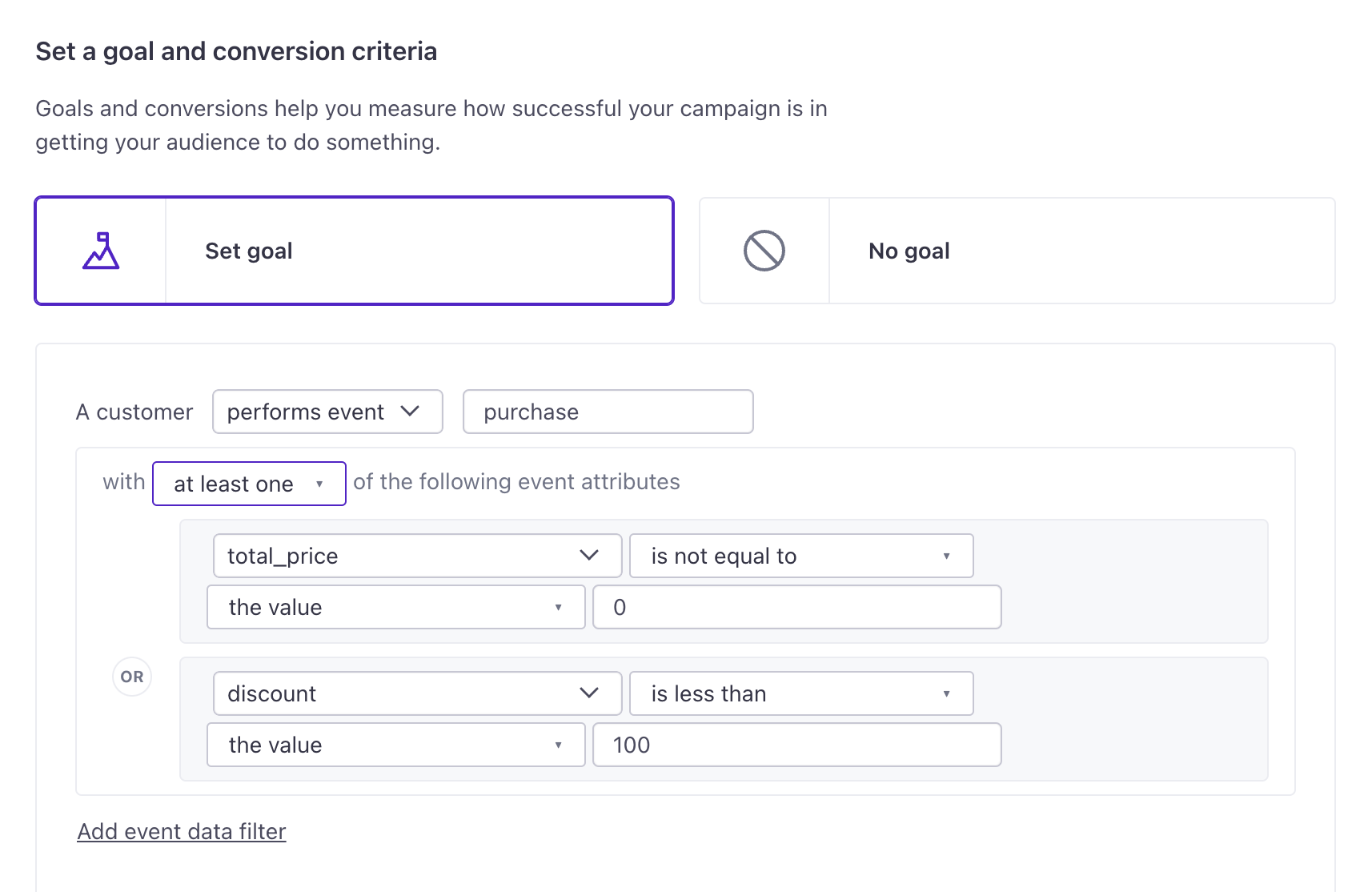
Click Add event data filter under the goal to begin. You can join multiple filter conditions (for a single event) depending on whether you select all or at least one in the dropdown:
- All: all conditions need to be true to match the conversion criteria. Click Add event data filter to create another statement in an AND conditional, if you need.
- At least one: only one condition must be true to match the conversion criteria. Click Add event data filter to create another statement in an OR conditional, if you need.
Why filter by event data
You can compare properties from the conversion event to a person’s attributes A key-value pair that you associate with a person or an object—like a person's name, the date they were created in your workspace, or a company's billing date etc. Use attributes to target people and personalize messages.
For example, imagine you run online courses, and you want to start an automation when a person begins one of your classes. Your objective is to help a person finish the course they started, so you want to record a conversion when the person finishes it. If your events use a course_id to differentiate between similar events for different classes, you can determine when someone has finished the course they started and mark a conversion!
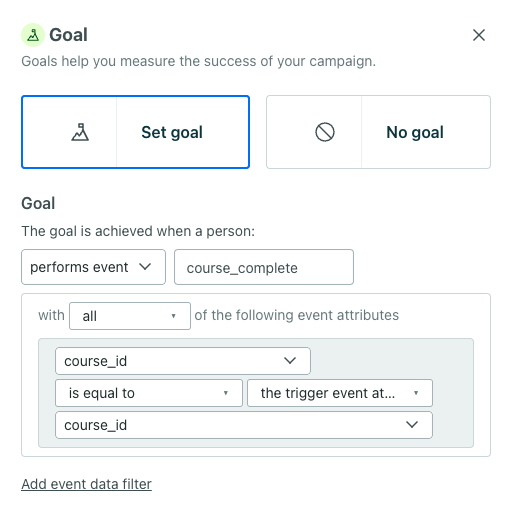
In this example is an event-triggered automation with a frequency of “Every re-match.” This means a person can enter this automation for each course they start. It’s helpful then to set the course_id of the event associated with the goal to the course_id of the event that triggered the automation because it ensures the conversion is consistent with each journey.
Segment-based goals
You can set a goal based on whether someone “enters a segment” or “leaves a segment.” If you choose “enters segment,” we check whether a person is IN the segment. If you choose “leaves segment,” we check whether a person is NOT IN the segment.
Consider that a person can be IN or NOT IN a segment before they enter your automation:
- If a person already matches your conversion-criteria segment when they enter your automation, and progress through the automation, then messages that you send to that person won’t record a conversion.
- If the automation has the exit criteria, “They match the conversion criteria,” people will enter the automation then exit before any action because they already meet the conversion criteria.
- We calculate if someone is NOT IN a segment when they’ve never belonged to the segment as well as when they leave a segment; this means “exit segment” corresponds to people who have never belonged to the segment and who left the segment they belonged to.
Conversion timing
A person can match the conversion criteria after being sent, opening, or clicking a tracked link in a delivery. Conversions based on a person performing an event are counted when we receive the event, not when the event occurred.
If you allow conversions after being sent messages, conversions will occur in the order that you send messages. For example, if a person receives two messages, and matches your conversion criteria within your time frame of both messages, we’ll attribute the conversion to the second message—the most recently received message.
If you set conversions to occur after opening or clicking a tracked link in messages, people will achieve your goal against the most recent message that they opened or clicked.
If a person meets conversion criteria, like performing an event, immediately after an open or click, it’s possible a conversion isn’t logged:
- For clicks, this can happen because it takes up to 10 seconds for us to screen out machine clicks.
- For opens or clicks, this can happen if we process the open or click AFTER the conversion criteria is met.
For example, let’s say your conversion criteria is “performs event: subscription_activated” and the conversion window is based on clicking a tracked link:
- At 8:07:42 AM, a customer clicks a tracked link in a message.
- At 8:07:49 AM, the customer performs the conversion criteria event
subscription_activated. - At 8:07:53 AM, we finish processing out machine clicks, and the click clears the queue. Customer.io won’t log a conversion because the click was processed after the conversion event was performed.
Exit condition: match the conversion criteria
If you want people to exit your automation when they match your conversion criteria, include the criteria in your exit conditions.
By default, a person continues through an automation until they stop matching the automation filter criteria—even if they perform your automation’s goal action. (For a legacy segment-triggered automation, people will exit when they stop matching the trigger or filter conditions by default.)
However, you might not want a person to continue an automation if they match your conversion criteria. For example, if your goal is for someone to complete a purchase, you probably don’t want to continue reminding people about the items in their cart after they make a purchase!
To view or modify your exit criteria, open your automation and click . Then click Exit conditions.
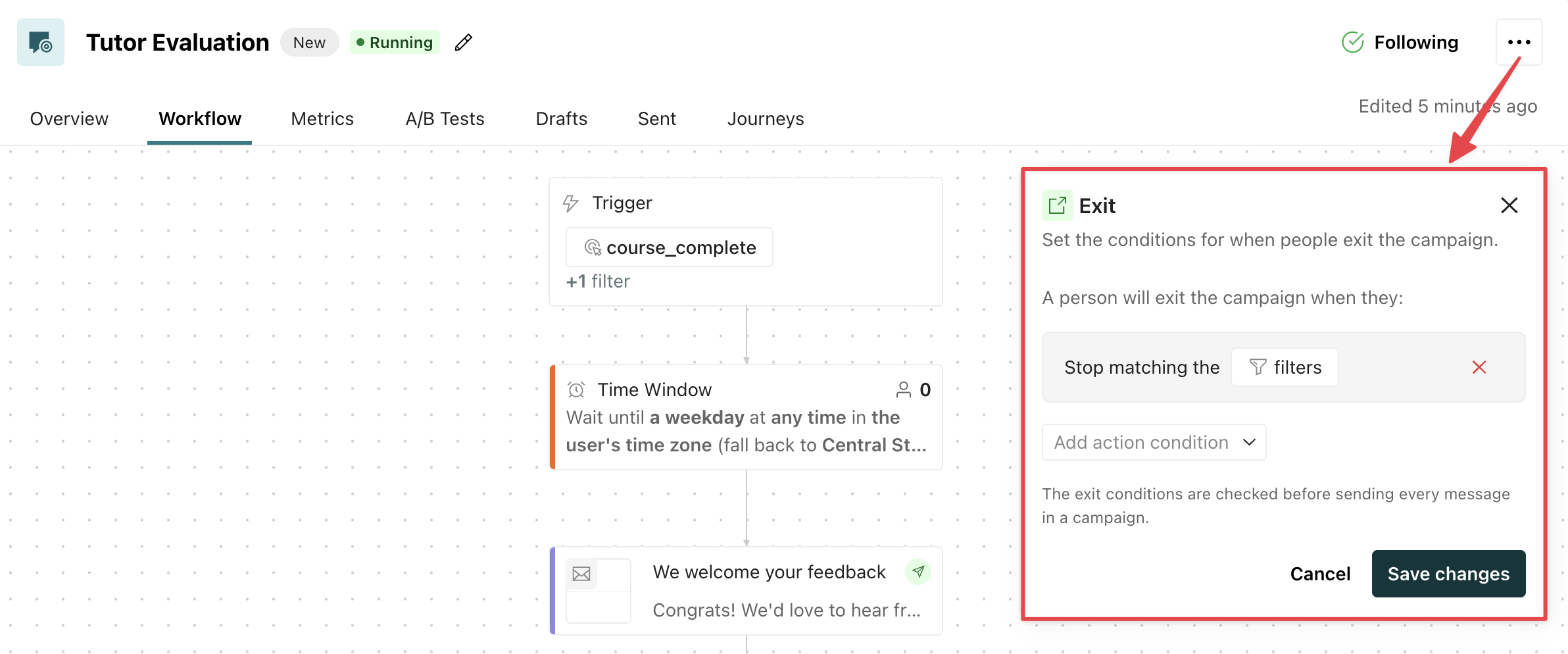
Recreate your conversion criteria in the exit conditions panel: add the event or segment criteria.
Learn more about exit conditions and how we evaluate them during an active journey.