

Automation exit conditions
Exit conditions determine if or when a person should exit your automation. The options available depend on the type of automation trigger you use—attribute or segment, event, etc.
How it works
By default, a person continues through an automation until they stop matching the automation’s trigger or filter conditions.
In this example, the automation sends students a form to evaluate their tutors. The automation is triggered by an event course_complete and filters out people who were absent from more than five classes.
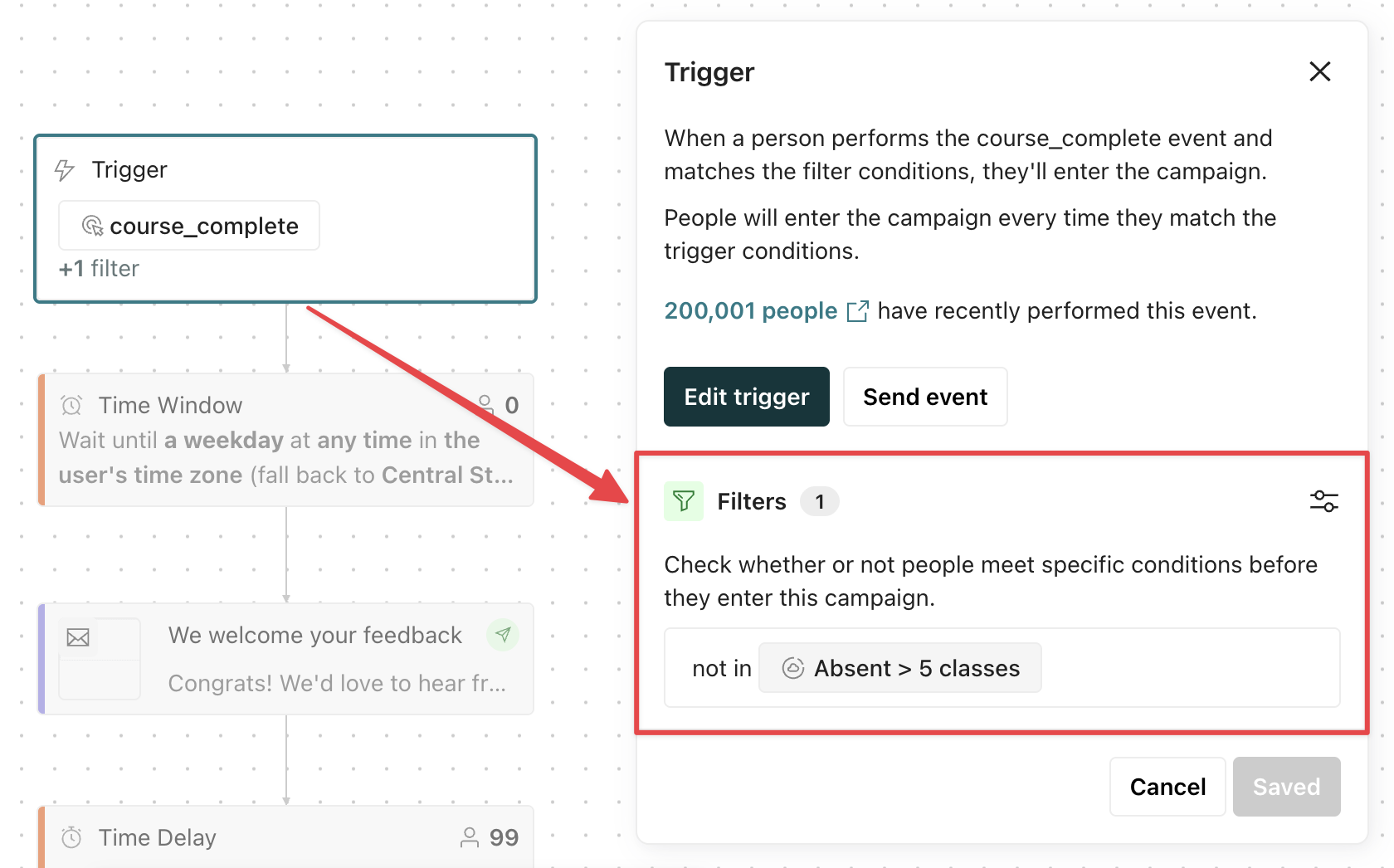
By default, a person exits when they stop matching the filters.
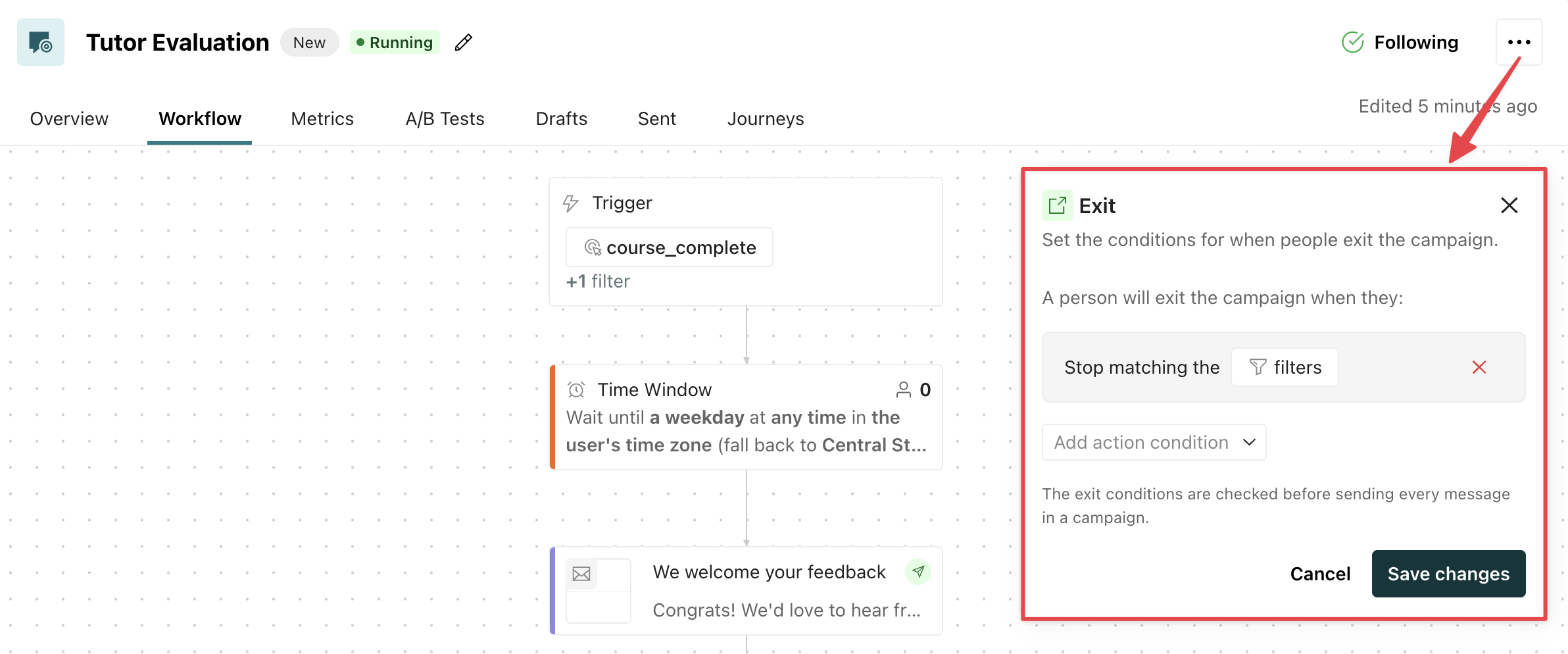
So in this automation, a student would exit if an admin increases the student’s absentee count such that they are now IN the absentee filter segment.
Learn more about the filter conditions available for each automation trigger type.
Manage exit criteria
To view or modify your exit criteria, go to your automation’s workflow, click , and select Exit conditions.
Set your own exit criteria
To set conditions that end journeys early, click Edit conditions. If you removed every exit condition, the button reads Add conditions instead.
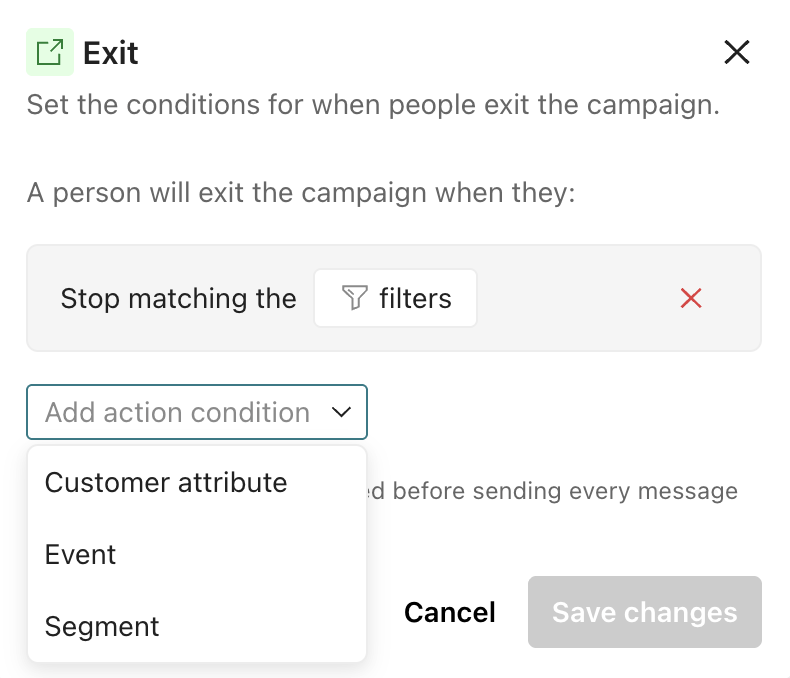
Then choose one or more conditions. Exit criteria are OR statements; people exit when they meet any condition in your exit criteria.
- Profile attributes: make people exit when their profiles meet certain criteria
- Events: make people exit when they have or have not performed certain events
- Segments: make people exit when they’re a member or not a member of certain segments
- Geofence set
A named group of geofences that you act on together—for example, trigger a campaign when a person enters any geofence in the set. When a person crosses a geofence, our mobile SDKs send a
: make people exit when they enter, stay in, or exit a certain geofence setGeofence Transitionevent for each geofence set the geofence belongs to. - Object (Trigger): make people exit when they meet conditions related to objects or relationships. Only available when using an object trigger.
Remove exit criteria
By default, a person continues through an automation until they stop matching the automation’s trigger or filter conditions.
To remove this and other criteria, click beside the condition.
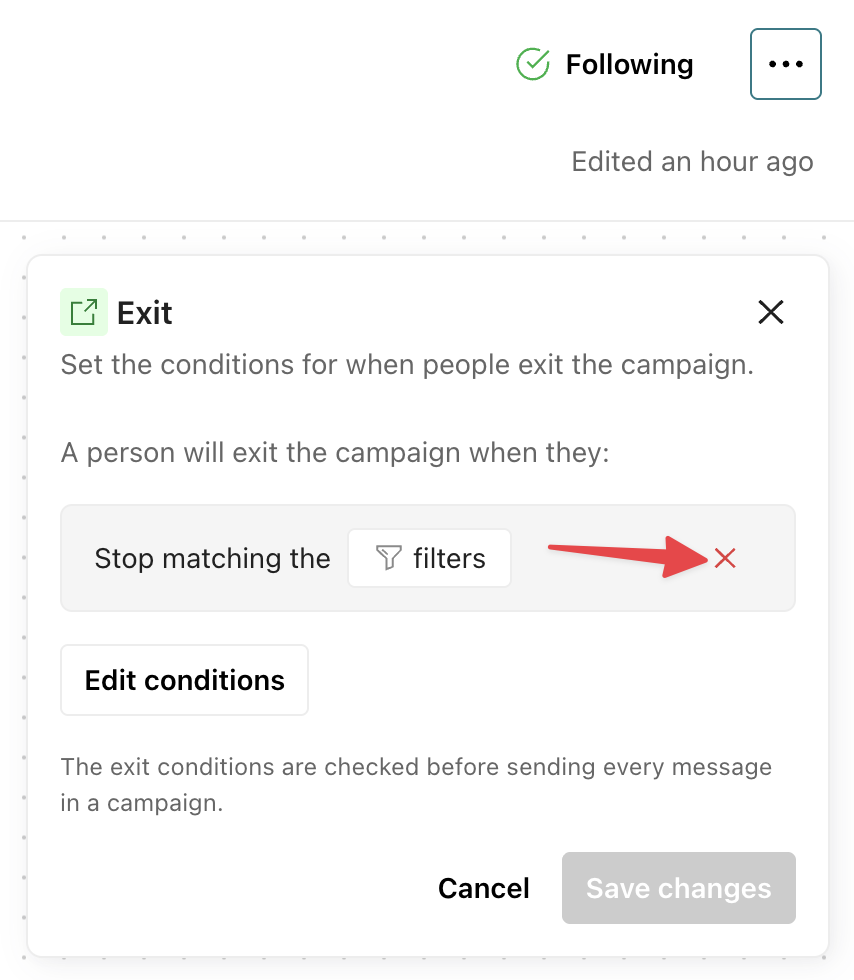
If people should always finish the automation, remove all exit conditions.