

Recommended send time
When you send an email from an automation or a one-time send, Customer.io can recommend an appropriate send time based on your users' time zones.
How it works
When you set up a one-time send or an email in an automation, you can click Recommend send time to schedule the email to send at the best time for your audience.
To generate recommended send times, we use AI along with the content of your message and your audience’s time zone. The recommendation also sets a fallback send time, which we’ll use whenever we don’t know someone’s time zone.
Capture your audience’s time zone
To take advantage of send time recommendations, you need to capture your audience’s time zone information. You can do this using our automatic geolocation data collection feature or by setting a A key-value pair that you associate with a person or an object—like a person's name, the date they were created in your workspace, or a company's billing date etc. Use attributes to target people and personalize messages.timezone attribute
Anybody who doesn’t have a cio_timezone or timezone attribute set will get the message at the fallback time. If you’re not sure if people have a cio_timezone or timezone attribute, you can browse People in your workspace.
Using recommended send time in a one-time send
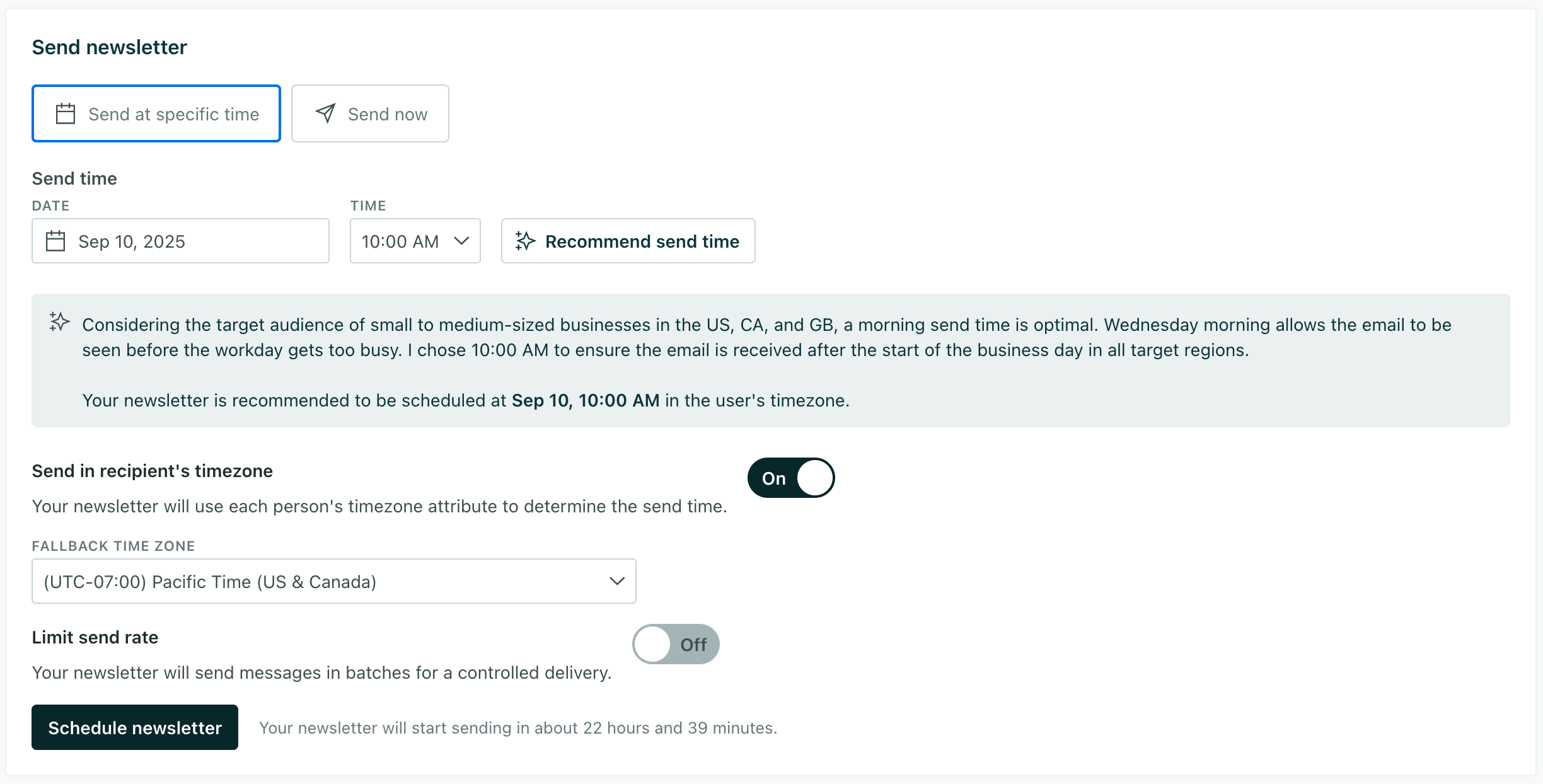
In the Review step of a one-time send, click Recommend send time to schedule it to send at the best time for your audience. If you don’t see this setting, you may need to enable Customer.io AI features in your AI settings.
When we recommend a send time, you can click Why this send time? to get an explanation of why we recommended that time. You can also provide additional context to help us tune the recommendation to better suit your message and audience.
Using recommended send time in an automation
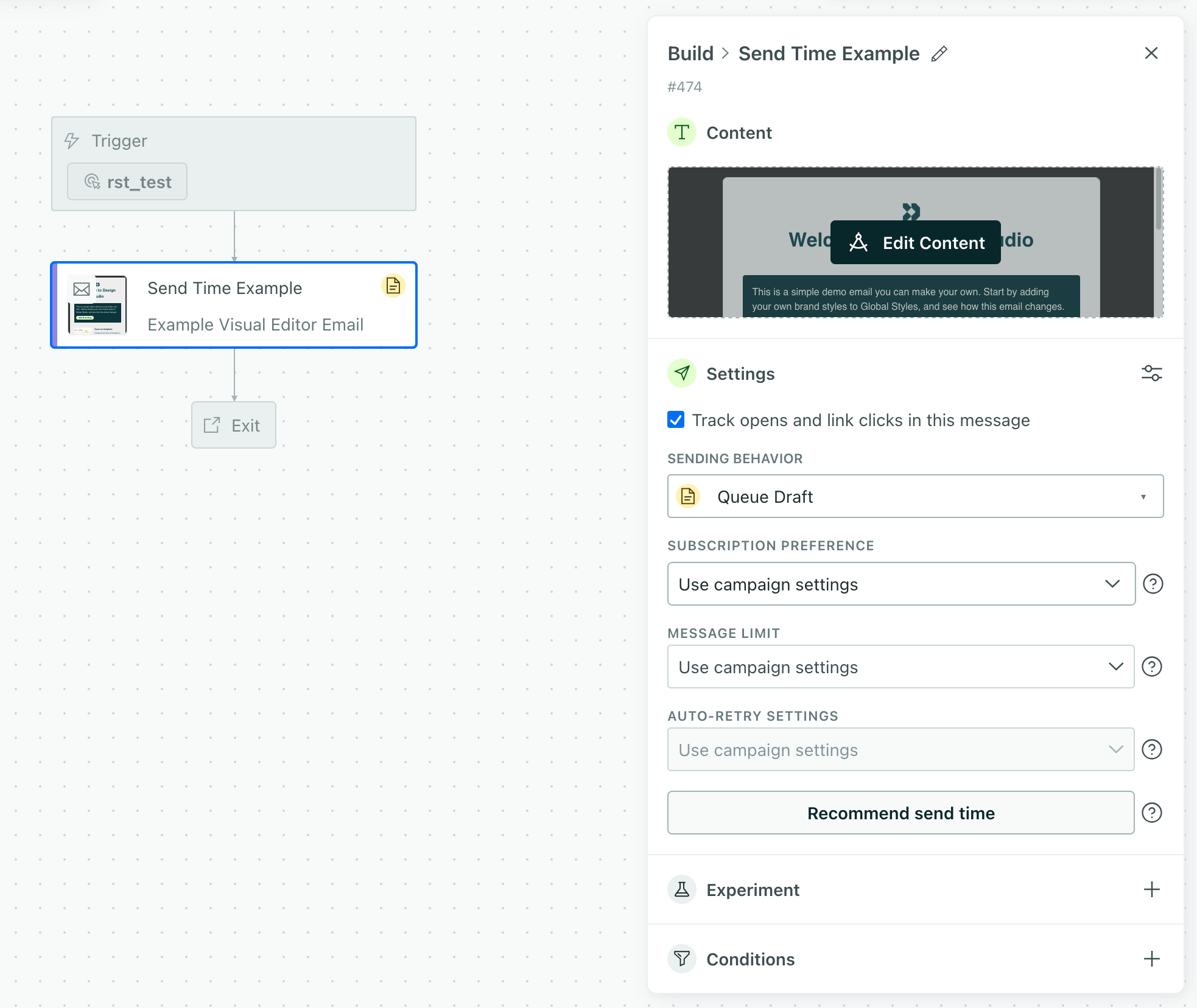
When you set up an email in an automation, open your message Settings and you’ll see a Recommend send time button. If you don’t see this button, you need to enable Customer.io AI features in your AI settings.
- Click Recommend send time to schedule the email to send at the best time for your audience.
- Select the fallback time zone and then click the recommended option.
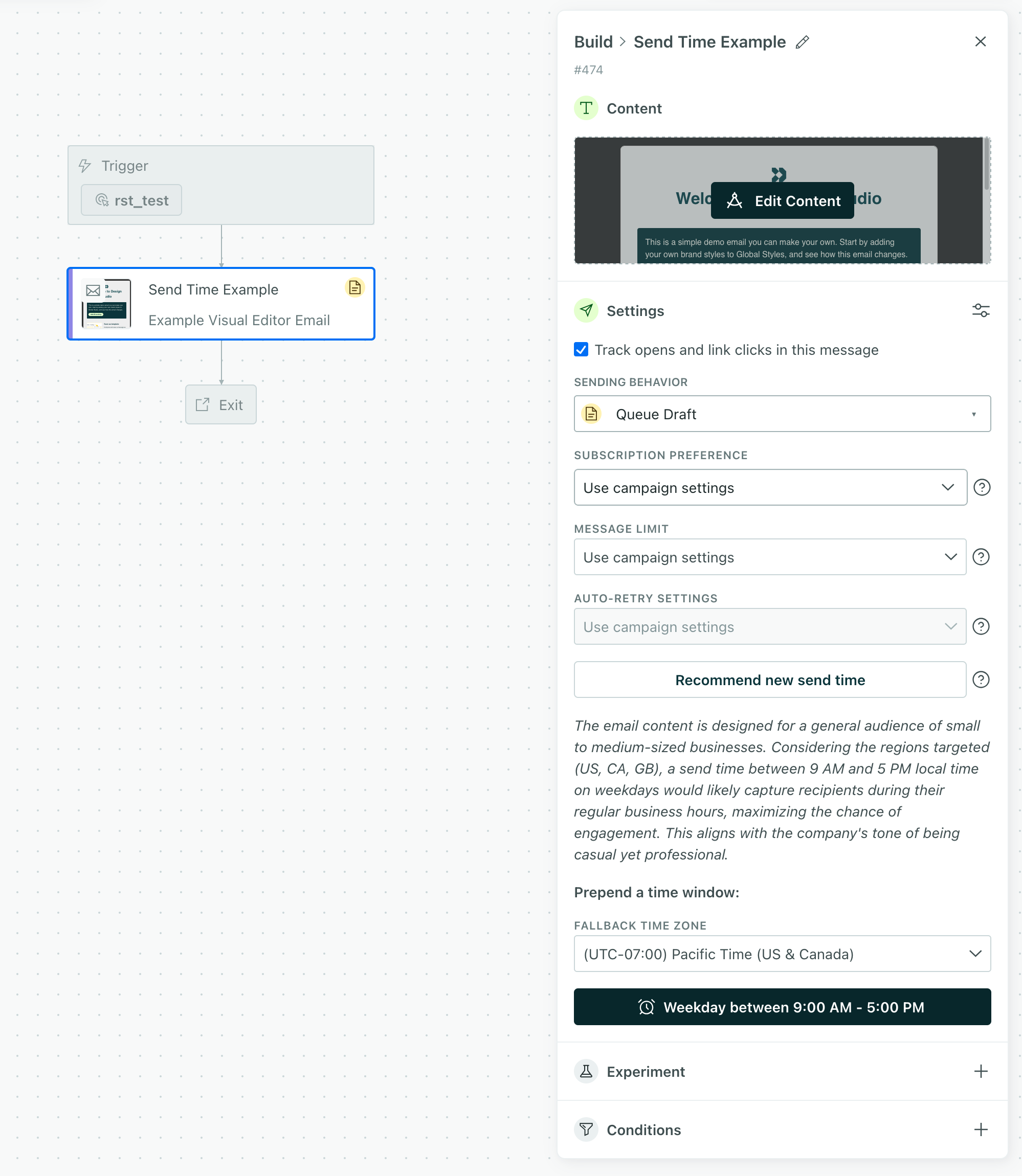
- (Optional) Click Why this send time? to get an explanation of why we recommended that time. You can also provide additional context to help us tune the recommendation to better suit your message and audience.
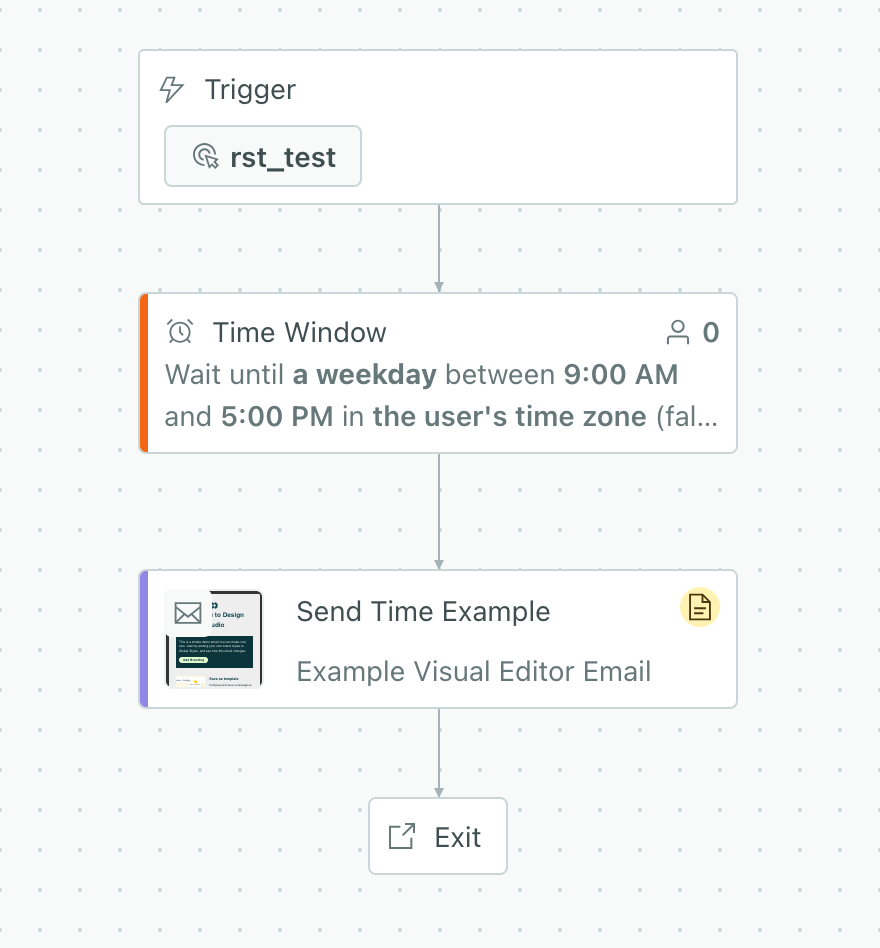
This creates a new Time Window step directly above the message in the workflow. This is how we manage time zone-based sending in an automation workflow. The Time Window step holds people in the automation until their recommended send time. When they fall into the recommended time window, they’ll get your message and continue through the automation.
If the person is already in the time window when they reach that step, we’ll send the message immediately and they’ll continue through the automation. They don’t have to wait for the next time window.
Removing or updating the recommended send time
You can edit the time window step directly. If you want to recommend a new time, you’ll need to delete the time window step above your message. Select your message, click Settings and then you can recommend a new send time.
When you recommend a new time, we’ll create a new Time Window step above your message.