

Manual segments
Manual segments let you group people according to business logic outside of Customer.io. As the name suggests, you'll add people to, and remove people from, these segments manually.
If you want a fixed audience based on conditions in Customer.io, create a snapshot segment instead. A snapshot holds everyone who matched its conditions at the last refresh.
Create a manual segment
You have the opportunity to create manual segments when you import people by CSV or from a database. Otherwise, you can create a manual segment first, and then add people to it later.
- Go to Segments.
- Click Create segment.
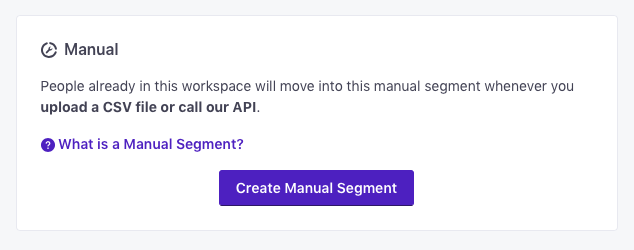
- Enter a Name and Description for the segment. These help you find the segment—both in the list of segments, and when selecting the segment in an automation, broadcast, etc.
- Choose Manual.
From here, you can add people to your segment.
Add people to a manual segment
People must be identified in Customer.io before you can add them to a manual segment.
You can add people to manual segments via:
- CSV
- a workflow action in an automation
- our Track API
- Data-in integrations
- the segment tab on a person’s profile
- a shortcut
Via CSV
You can upload a CSV to add people to a manual segment from the Segments page. The CSV must contain identifiers (id, email, or phone values, depending on the identifiers your workspace uses) for people you’ve already identified. If a person’s identifier in the CSV doesn’t match an existing person, we won’t create a new person and we won’t add them to the segment.
You can identify people by uploading a CSV. You may want to do this to make sure people exist before you try to add them to a manual segment.
- Go to Segments.
- Click an existing manual segment or add a new manual segment.
- Click Add by CSV.
- Determine the identifiers
The attributes you use to add, modify, and target people. Each unique identifier value represents an individual person in your workspace.
you want to use to match people from your CSV to your workspace: By id, By email, or By phone (if your workspace uses those identifiers). - Choose the file you want to upload or import a Google sheet. If you import a google sheet, you must grant Customer.io access to sheets in your Google account.
- Tell us which column holds the identifier you selected in earlier steps.
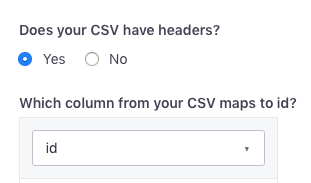
- If your file contains no errors, click Add people. We validate data when you select your identifiers. If there are errors, you can download an error file (if any) or download the import file.
Using a workflow action
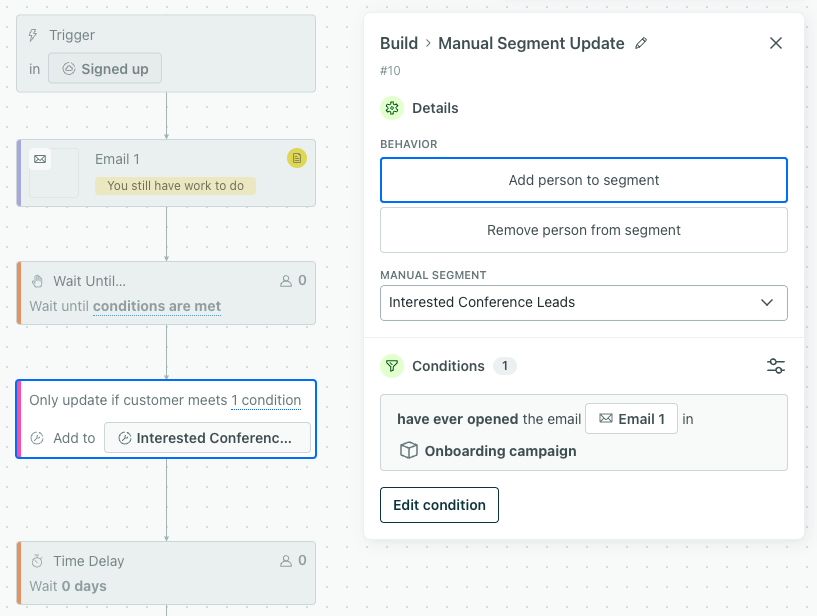
You can add people to a manual segment as a part of an automation workflow.
- Drag a Manual Segment Update action into your workflow.
- Click the action item and edit the settings on the panel.
- Update Name - you can update the name of the action visible in your workflow.
- What should happen when a person reaches this step? - choose whether to add or remove people
- Manual Segment - select the manual segment you want to change.
- Conditions - specify any conditions people should meet to be added or removed from the segment.
- Click Save.
From a person’s profile
You can add a single person to a manual segment from their profile The record that represents a person or object in Customer.io. A person is the human; their profile is everything you know about them in your workspace, like their attributes, activity, and message history. People and objects both have profiles, and we bill based on the total number of profiles in your account.
- Go to People.
- Filter for the person you want to add to a manual segment then click on them.
- Click the Segments tab.
- Click the Doesn’t belong to tab.
- To the right of any manual segment they don’t belong to, you’ll see + Add to segment. Click this to immediately add them to a specific segment.
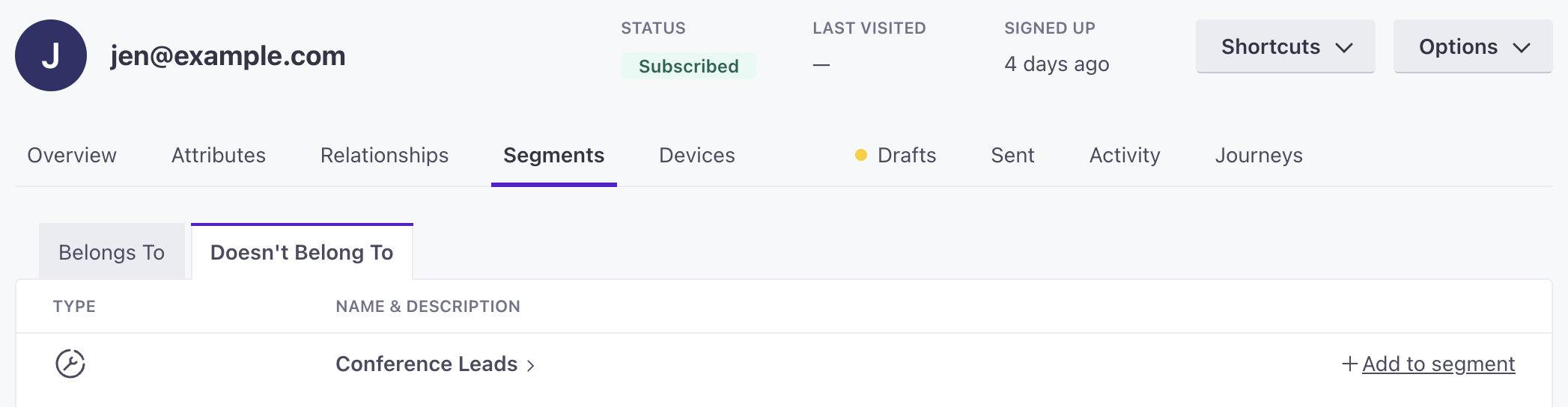
Accidentally add someone to a manual segment? You can also remove them just as easily.
Using a shortcut
You can add a person to a manual segment using a shortcut. Go to Webhook shortcuts for more information.
Remove people from a manual segment
You can remove people from manual segments through:
- “Clear Segment” on the segment’s page
- a workflow action in an automation
- our Track API
- a shortcut
Clear segment
- Click your manual segment from the Segments page.
- Click Options in the top right then Clear Segment from the dropdown.
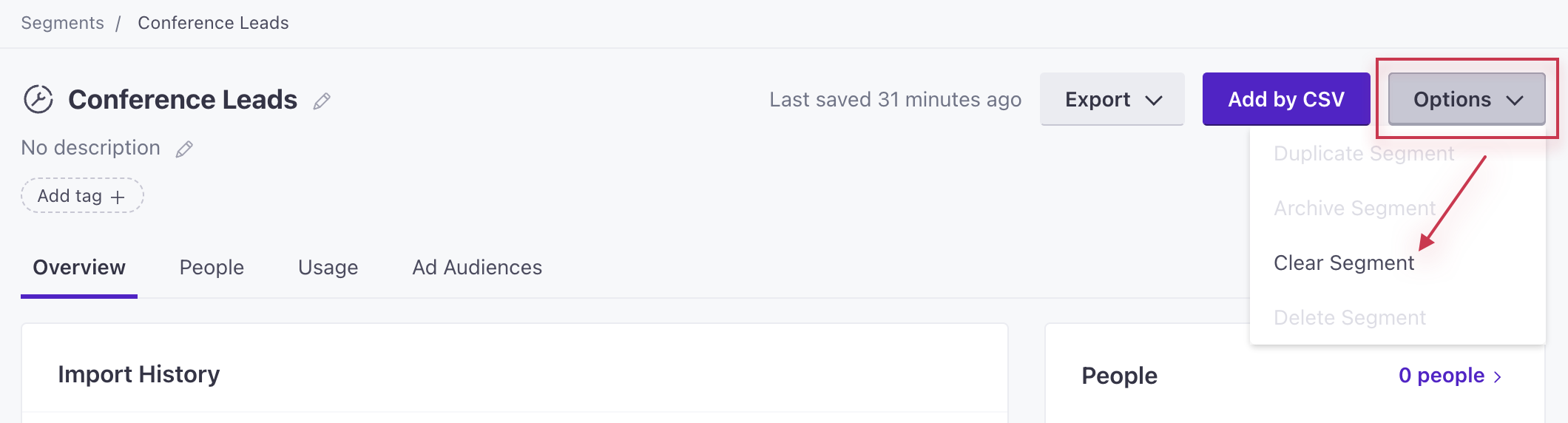
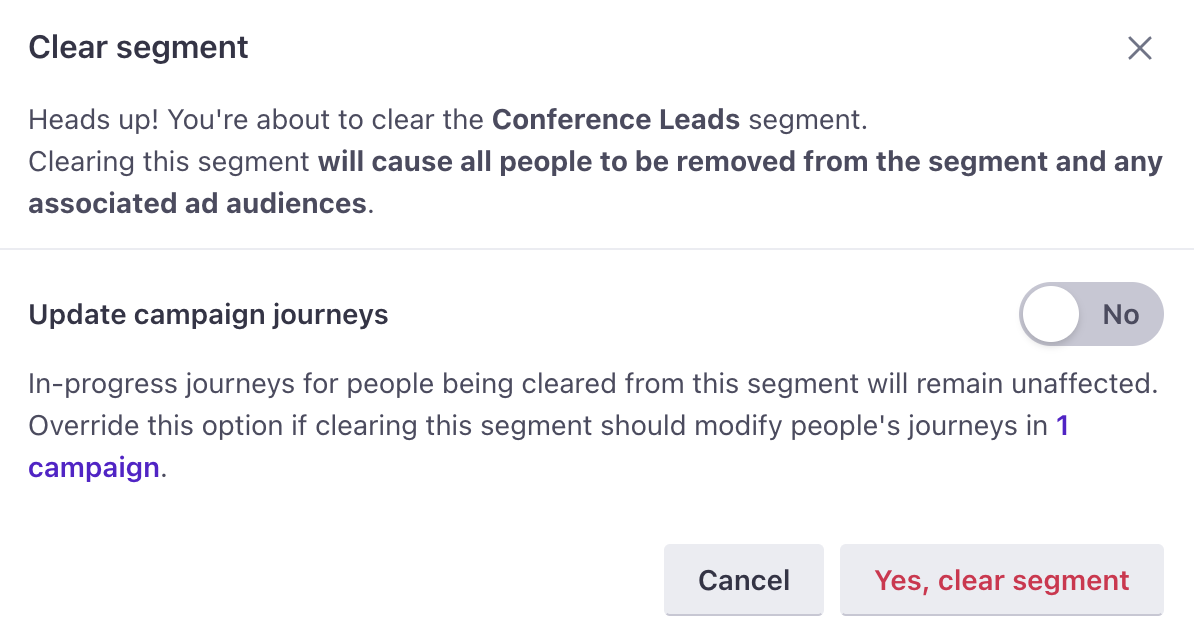
- A confirmation modal will appear. If this manual segment is used in automations or broadcasts, decide how we should process active journeys:
- By default, Update automation journeys is set to No. People with active journeys will show as not belonging to the manual segment, but they will neither leave delays with the condition of “not in: this manual segment” nor trigger automations with this condition. They will, however, leave this automation if the exit condition is “They stop matching the trigger or filter conditions.”
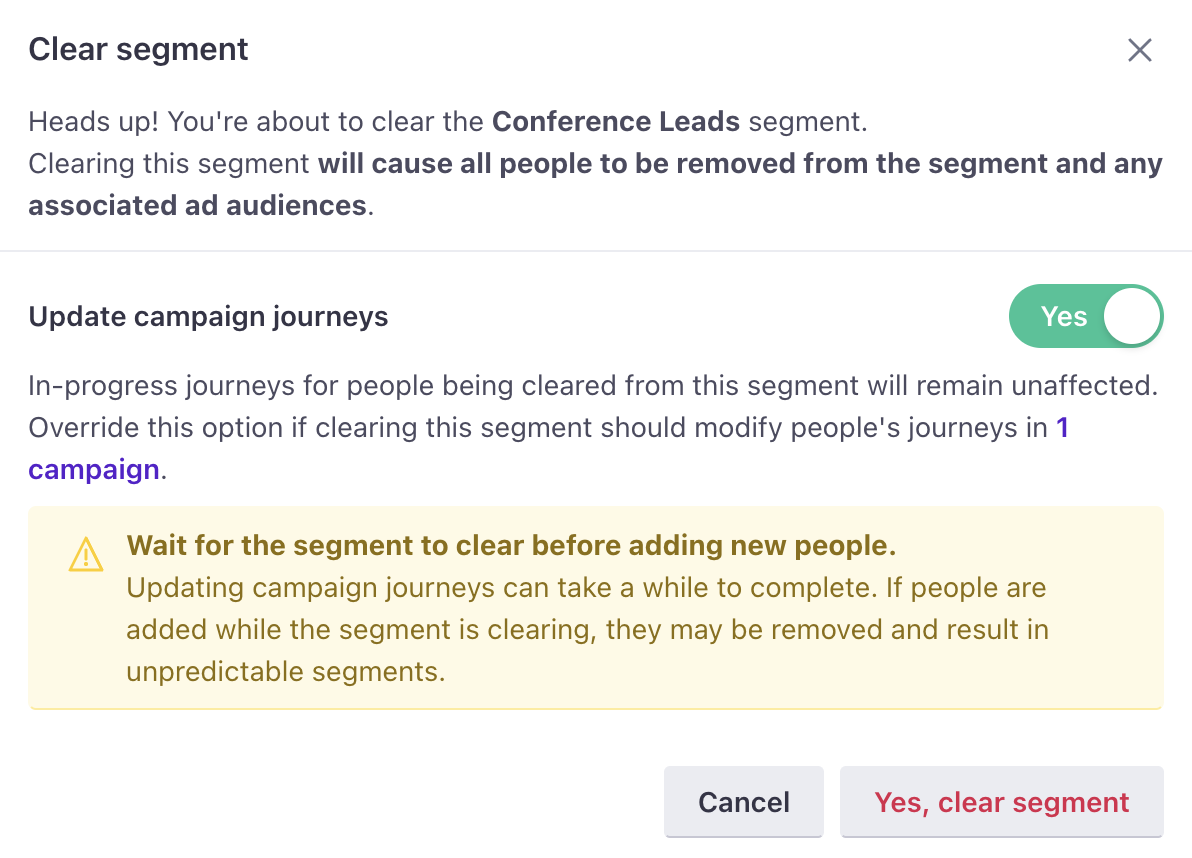
- Toggle Update automation journeys to Yes if people with active journeys should leave delays with the condition of “not in: this manual segment” or trigger automations with this condition. They will continue to follow the exit conditions of the current automation.
- By default, Update automation journeys is set to No. People with active journeys will show as not belonging to the manual segment, but they will neither leave delays with the condition of “not in: this manual segment” nor trigger automations with this condition. They will, however, leave this automation if the exit condition is “They stop matching the trigger or filter conditions.”
- Click Yes, clear segment to confirm your choice.
Using a workflow action
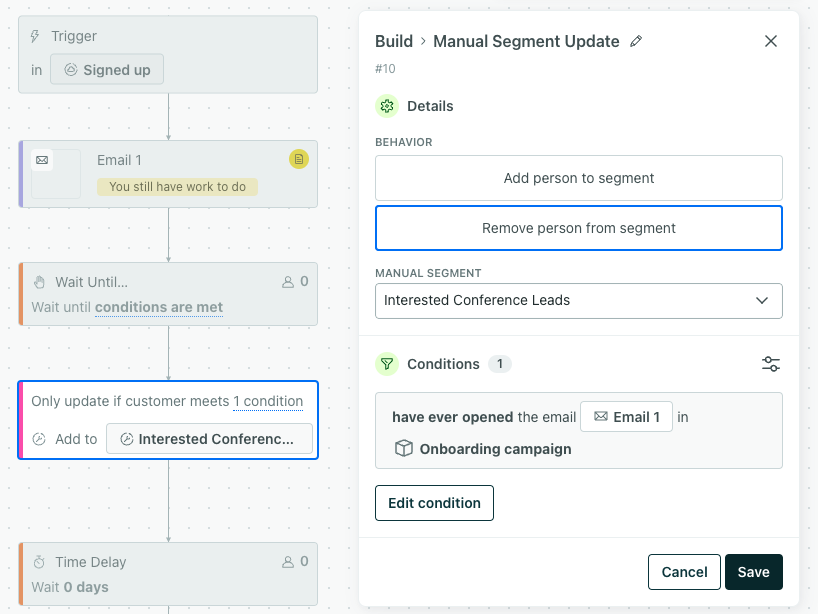
You can remove people from a manual segment as a part of an automation workflow.
- Drag a Manual Segment Update action into your workflow.
- Click it and edit the settings on the panel.
- Update Name - you can update the name of the action visible in your workflow.
- What should happen when a person reaches this step? - choose whether to add or remove people
- Manual Segment - select the manual segment you want to change.
- Conditions - specify any conditions people should meet to be added or removed from the segment.
- Click Save.
From a person’s profile
You can remove a single person from a manual segment from their profile.
- Go to People.
- Filter for the person you want to remove from a manual segment then click on them.
- Click the Segments tab.
- Click the Belongs to tab.
- To the right of any manual segment they belong to, you’ll see Remove from segment. Click this to immediately remove them from a specific segment.
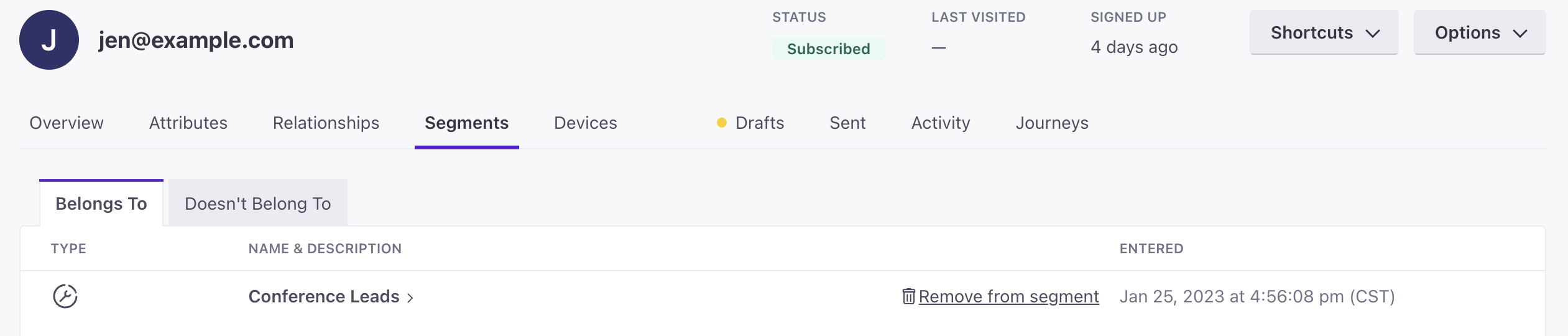
Accidentally remove someone from a manual segment? You can also add them just as easily. Note, they will not re-enter automations triggered by being in this manual segment if the automations had a frequency of “one time.”
Using a shortcut
You can remove a person from a manual segment using a shortcut. Go to Webhook shortcuts for more information.
Edit a segment
You can edit the name and description of a manual segment from the segment’s details page. You cannot affect membership in the segment except by a CSV import from this page.
- Go to Segments.
- Click the segment you want to update.
- Click to edit the name and/or description for the segment.
Delete a segment
- Go to Segments.
- Click the segment that you want to delete.
- Click and choose Delete Segment.
You can also select one or more segments on the Segments page then click Delete.
If one of your workflows depends on the segment, we won’t let you delete the segment so your automations and other actions don’t break. Find where your segment’s referenced under Usage and make sure it’s removed from all locations:
- An automation, unsent one-time send, or API-triggered broadcast: your segment could be part of the trigger, recipient conditions, or other workflow conditions
- A form
- A SQL import
- Another active segment (Active means it’s not archived.)