

Live notifications overview
How it works
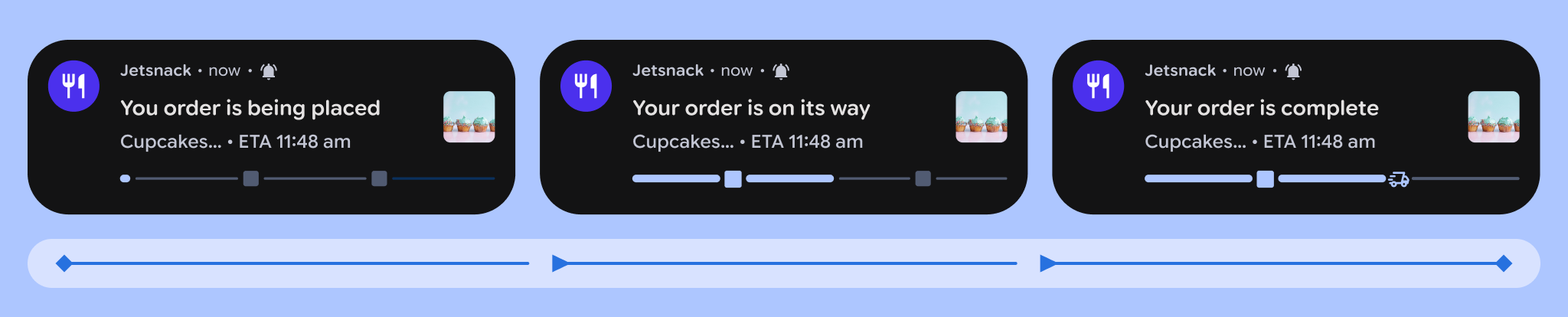
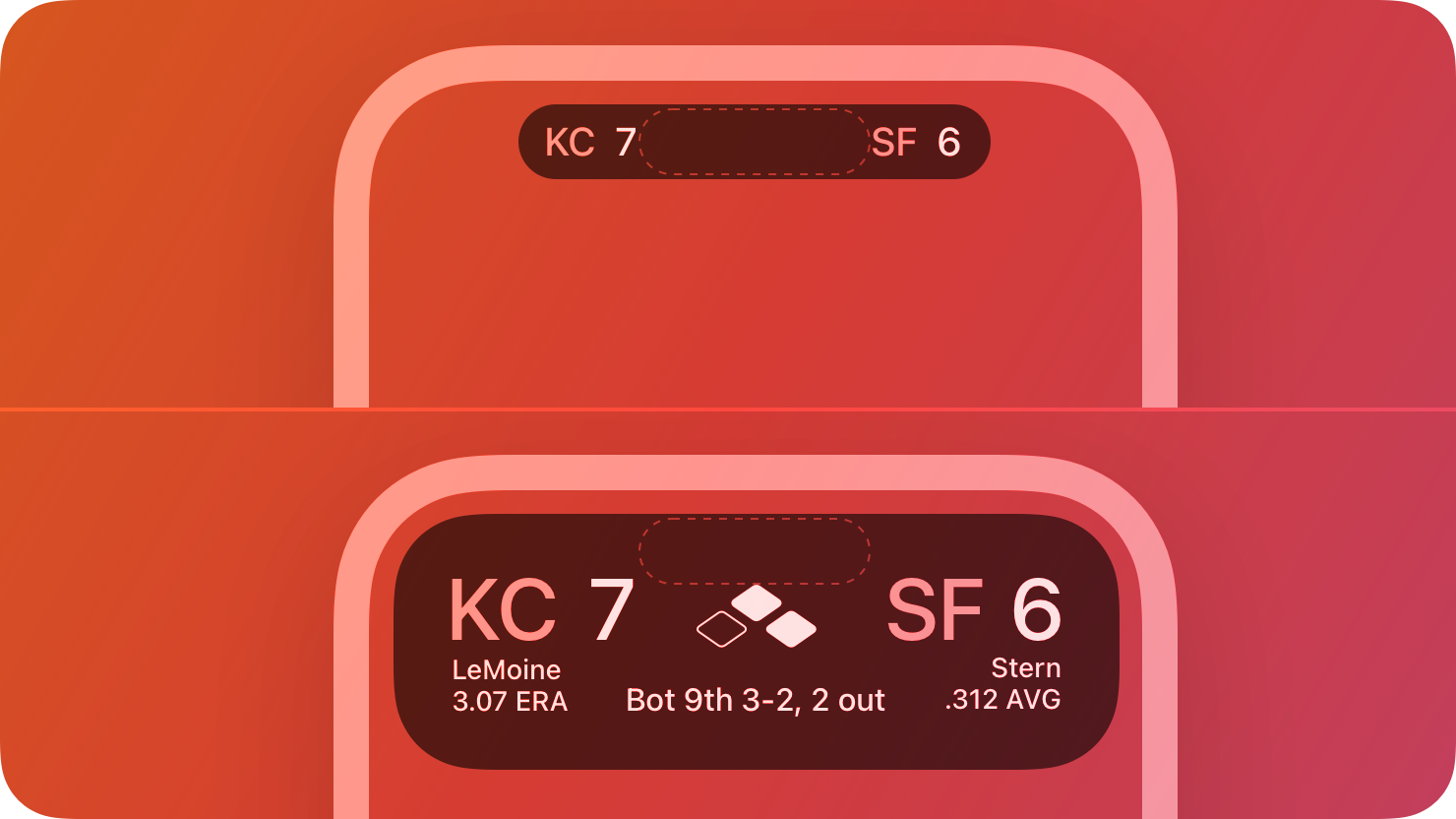
“Live notifications” is a cross-platform term for short-lived, real-time notifications like a delivery tracker that moves from “Order received” to “Out for delivery,” live updates for a sporting match, or a flight tracker that counts down to arrival. On iOS, live notifications are built on Apple’s Live Activities feature; on Android, they’re built on Google’s Live Updates feature.
Unlike other notification types, these aren’t the kinds of messages you build in the Customer.io UI. Your app or your server starts a notification—sort of like an event you’d send to trigger an automation. From then on, your server can push content updates straight to the device, which renders the notification. This lets your audience see information without opening your app. The live notification ends when you’re done pushing updates or the person dismisses the notification.
Three pieces work together:
- Your server calls our API to start, update, and end live notifications.
- Your app, containing the Customer.io SDK, watches for new notifications and reports lifecycle events back to Customer.io.
- Customer.io stores the device tokens the SDK registers and delivers updates to each device when you start, update, or end a notification.
Each live notification produces a timeline containing start, update, and end events, which you can see on a person in Customer.io. See Monitor live notifications.
When to use live notifications
Live notifications are a quality-of-life channel. Each one exists because your customer started or follows something—an order, a sporting event/team, or an event—and wants to know how it’s going without opening your app. Done well, live notifications make your app useful even on days when your customer doesn’t open it. That usefulness keeps your app installed and earns you a regular place on the lock screen.
Live notifications work well for things your customer cares about that change over minutes or hours:
| Use case | What the customer sees | Why it pays off |
|---|---|---|
| Deliveries and orders | ”Preparing your order” → “Out for delivery” → “Delivered” | Peace of mind while customers wait means less hesitation the next time they order—and fewer “where’s my order?” tickets. |
| Live scores | The score as the game unfolds, for teams the user follows | A recurring reason to glance at your brand, and tap into your app, every game day. |
| Trips and arrivals | A ride on the way, a flight counting down to arrival | Calm your audience at the moments they check their phones most anxiously. |
| Waitlists and queues | ”You’re fourth in line” → “Your table is ready” | Customers stay in line because they trust they’ll know when it’s their turn. |
| Countdowns | Time remaining before a sale, drop, or kickoff the customer chose to track | Anticipation for a moment they’ve already told you they care about. |
The common thread: your customer can say exactly why they’re seeing the notification. “I ordered something.” “I follow this team.” “I joined the waitlist.” If you’d have to explain why someone’s getting it, it probably belongs in a different channel like push or email instead.
Plan your notification types before you talk to developers
Your developers have to build and implement live notifications. Before they can start, you should map out the types of notifications you want to build and how you want them to work:
- What starts it—the customer places an order, the game begins.
- The states it moves through—usually three to five, each with the exact words the customer sees.
- What ends it—the delivery arrives, the game ends. (Notifications also expire automatically after 6 hours.)
- Where a tap lands—the deep link into your app.
- How users opt into it—the customer places an order,the user follows a team.
As you map these out, separate the facts that never change (the order number, the teams playing) from the status that updates (out for delivery, the score). Messages have static and dynamic pieces, and it’ll help your developers for them to know what parts of a live notification will change and which won’t.
How live notifications fit your messaging mix
Think of live notifications the way you think of transactional messages: each one is triggered by something your customer did, so it’s expected—closer to a receipt than to a promotion. They supplement your other channels rather than compete with them for attention, and they sit outside the frequency math you apply to promotional messages:
- Message limits don’t apply. Message limits cap messages sent from your workflows. Live notifications are driven by your app and the API—they never count toward a limit or get held back by one.
- Frequent isn’t fatiguing here. A delivery tracker might update a dozen times in an afternoon without feeling like twelve messages, because each update doesn’t trigger a new notification—it updates the existing one. In effect, every live notification, and every live update, is something your customer subscribed to.
- On iOS, they reach customers who turned push off. Live Activities don’t require push notification permissions, so they arrive even for customers who denied push. (Android requires standard notification permission.)
- Push announces; live notifications accompany. Use push and email to tell customers something they didn’t know. Use a live notification to keep them current on something they’re already interested in.
One guardrail keeps all of this true: a live notification is only welcome while it’s about the thing your customer is tracking. Don’t put a promotion in a delivery tracker, or leave the tracker running after the order arrives, otherwise it becomes ordinary marketing in your customer’s most personal space—and stops earning its keep. Keep each notification limited to its subject, and end it when the subject ends.
Supported platforms and app versions
Live notifications are available on the native iOS and Android SDKs, and on our React Native, Flutter, and Expo SDKs. Each requires a minimum SDK version and a minimum OS version.
| Platform | Minimum SDK version | Minimum OS version |
|---|---|---|
| iOS | 4.7.0 | iOS 16.2; push-to-start requires iOS 17.2 |
| Android | 4.20.0 | All SDK-supported versions; Android 16 adds the promoted “Live Updates” treatment |
| React Native | 6.6.1 | Same as iOS and Android |
| Flutter | 4.2.0 | Same as iOS and Android |
| Expo | 3.7.0 | Same as iOS and Android |
Every SDK includes two built-in templates—a multi-step tracker and a countdown timer. Beyond the templates, the native SDKs let you define your own notification data model, while the React Native, Flutter, and Expo SDKs offer one custom type that you render yourself.
Set up live notifications
The integration path to support live notifications varies depending on the platforms you use to build your mobile app. See the appropriate guide for your platform:
- iOS: Set up Live Activities and the API and payload reference
- Android: Set up Live Updates and the API and payload reference
- React Native: Set up live notifications and the payload reference
- Flutter: Set up live notifications and the payload reference
- Expo: Set up live notifications and the payload reference