

Monitor live notifications
Track every live notification sent to a person—including the full timeline of starts, updates, and ends—on their person.
Review a person’s live notifications
Go to People, click a person, and go to the Live notifications tab to see their last 30 days of live notifications.
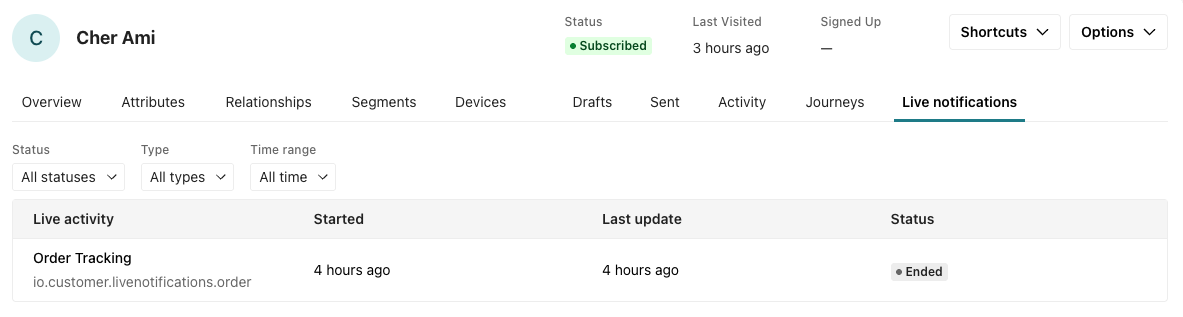
Each row shows the notification, when it started, its last update, and its current status—active, ended, expired, or failed. You can filter the list by status, type, and time range.
Click a notification to see its details:
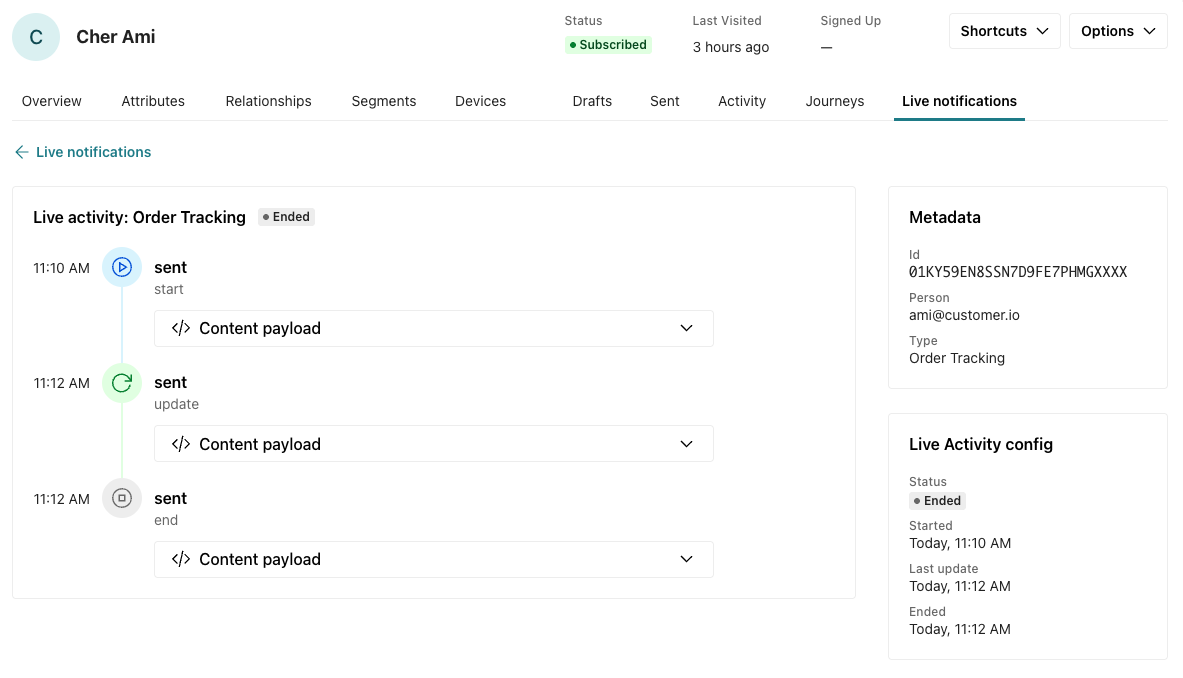
- The delivery timeline—every start, update, and end delivery for the notification, with the content payload each one carried. This is the full story of what your customer saw on their device.
- Metadata—the notification’s ID, person, and notification type.
- Live activity config—status with the start and end times.
- Attributes—this is where you can find the unique activity ID, like an order number. This ID doesn’t change over the life of the notification.
- Content state—the fields you set or update with each content payload. This shows the most recent data.
Check status through the API
Your server can look up a notification’s state, failure reason, and last delivery at any time with the status endpoint, referencing the notification by its instance ID.
Retrieve delivery records and metrics
To retrieve live-notification delivery records and their metrics, use the Messages API: GET /v1/messages?type=live_notification returns deliveries, and GET /v1/messages/{message_id} returns a single delivery.
The status endpoint serves a different purpose: it returns the current state and latest delivery for a single instance. Customer.io doesn’t currently expose a public aggregate endpoint, reporting-webhook event, or live-notification-specific CSV export.