Customer.io aims to help you send the right messages at the right time to your users. Two critical parts of this are sending messages in a given person's time zone and localizing time in emails. Here, we'll explain how to do both.
How it works
You can schedule messages for your users in their local timezones, so you engage customers at the right times, wherever they are. This feature relies on a timezone attribute you set yourself or the cio_timezone attribute, which is set by our automatic geolocation data collection.
If the timezone attribute exists, we’ll use it to send the message in the customer’s time zone. If it doesn’t exist, we’ll use the cio_timezone attribute as a fallback. If neither of these attributes exist, we’ll use a fallback timezone. This ensures that people who don’t have timezone data still get messages.
Find and fix people with an invalid time zone
Time zone match relies on a person’s timezone attribute having an IANA time zone value (like America/New_York). Otherwise, the person uses the system-generated cio_timezone attribute if you enabled geolocation data collection, followed by your fallback time zone.
Customer.io maintains a computed timezone_valid attribute on every person so you can find and fix invalid timezone values.
It’s true when timezone contains a valid IANA time zone.
It’s false when timezone is missing or isn’t a valid IANA time zone.
Customer.io sets and updates timezone_valid automatically whenever the timezone attribute changes—you can’t change it yourself.
Use the timezone_valid attribute to find people with invalid timezones and correct the formatting in your source integration—the system that sets the values in the first place.
If your integration doesn’t resync timezone data, you can create an automation instead that reformats timezone values:
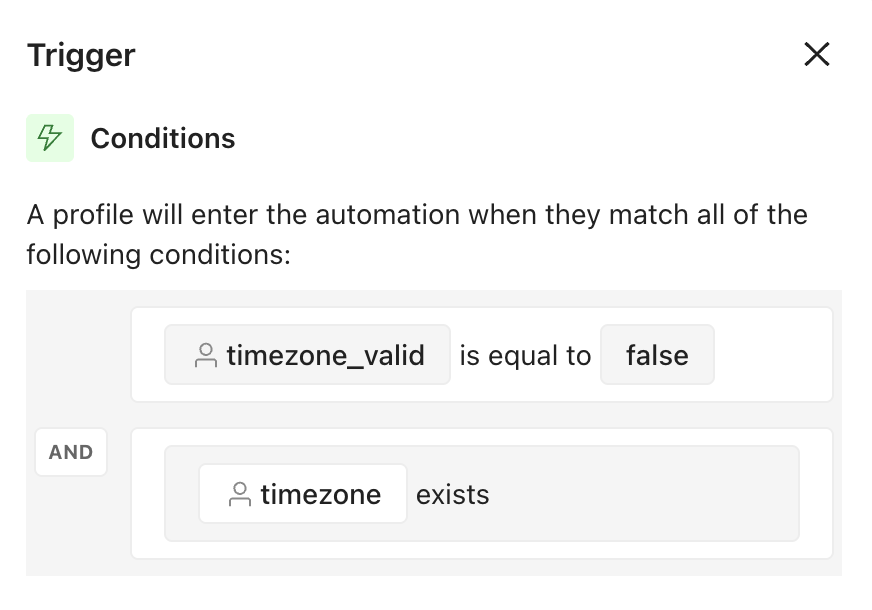
Create an automation with an attribute or segment trigger. Set two attribute conditions: “timezone_valid equals false AND timezone exists” so people with invalid time zone values trigger a journey.
“timezone exists” ensures only people with improperly formatted time zone values trigger the automation, not those with an empty timezone attribute (which wouldn’t need reformatting).
Once the timezone value is corrected, Customer.io updates timezone_valid to true automatically.
Use our recommended send time feature
You can use our recommended send time feature to automatically schedule messages at the best times for your audience.
Automations: schedule a message with a time window
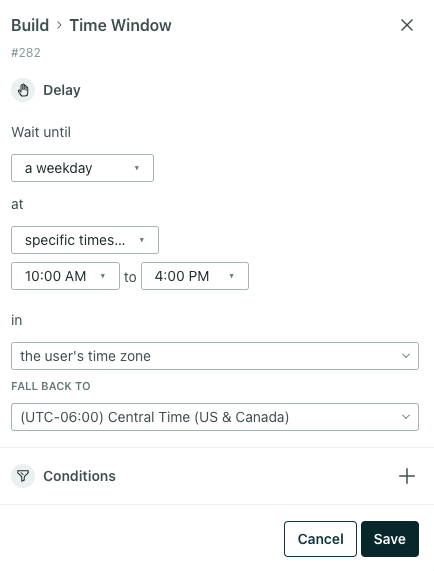
Time zone match is available when using a “Time Window” delay in your workflows:
With this setting, you can tell Customer.io to wait until a given time in a customer’s time zone before taking the next action.
You must also set a fallback here, telling Customer.io which time zone to use if a customer doesn’t have the timezone attribute.
Send one-time sends in recipients’ timezones
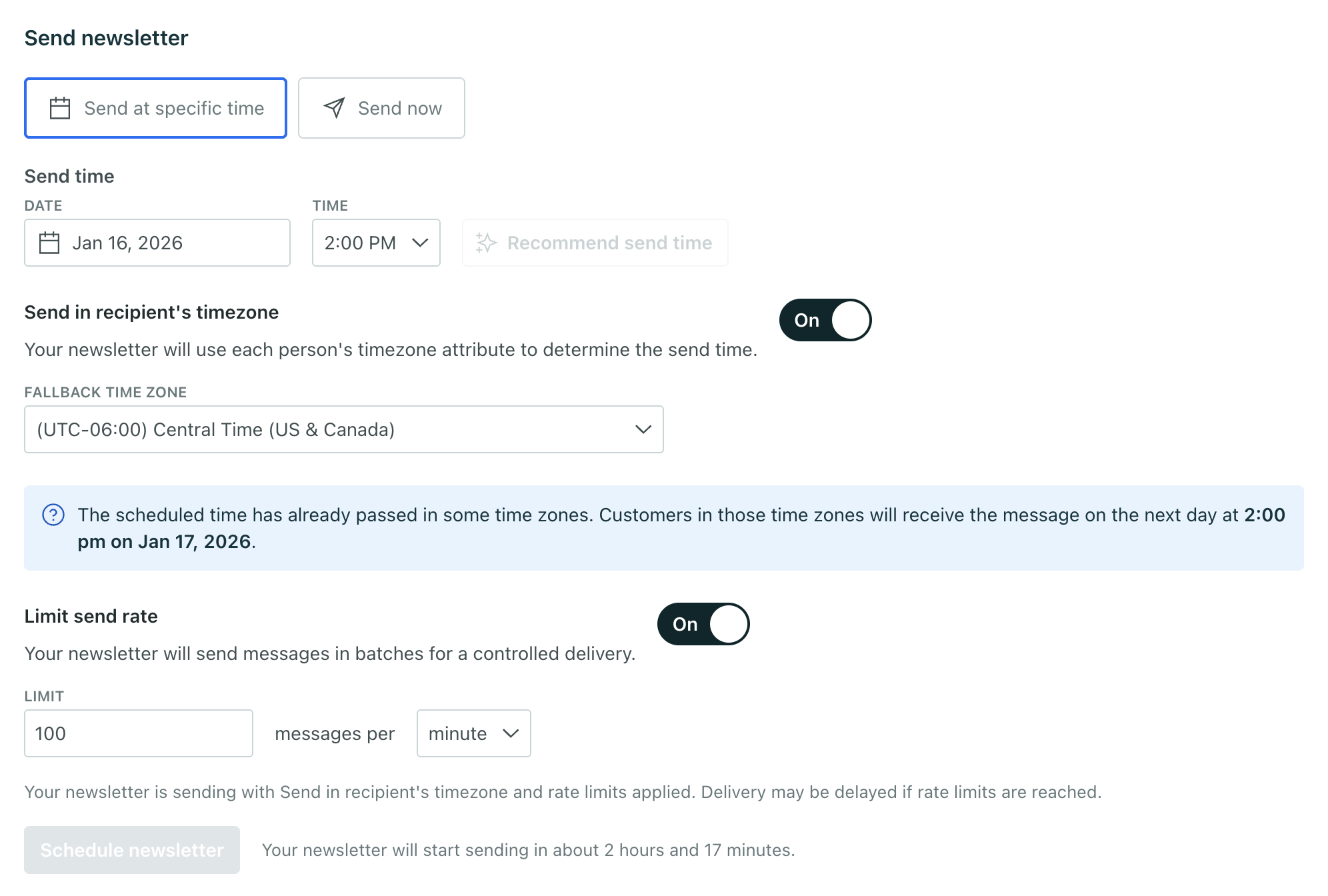
You can schedule delivery of a one-time send in the Review step. Here you have the option to Send in recipient’s timezone.
You must also set a Fallback Time Zone, telling Customer.io which time zone to use if a customer doesn’t have the timezone or cio_timezone attributes. If a customer has an invalid value (not empty/missing) for the timezone attribute, they will receive the message during the last date/time we send to across all timezones.
You can also combine sending in a recipient’s timezone with a rate limit to maintain deliverability and reach your audience at the right time.
Keep in mind, you cannot send in a recipient’s timezone if your one-time send contains variants for A/B tests. If this is important for your company, please email win@customer.io with your use case!
Use time zone data in messages
You can also localize time in your messages using liquid syntax. Imagine that you want to send an appointment reminder, and you have an appointment_time attribute formatted as a UNIX timestamp.