

Types of classic email editors
This article introduces you to the classic email editors of Customer.io: drag-and-drop, rich text, and code. Customer.io is in the process of deprecating these editors in favor of our all-in-one editor, Design Studio.
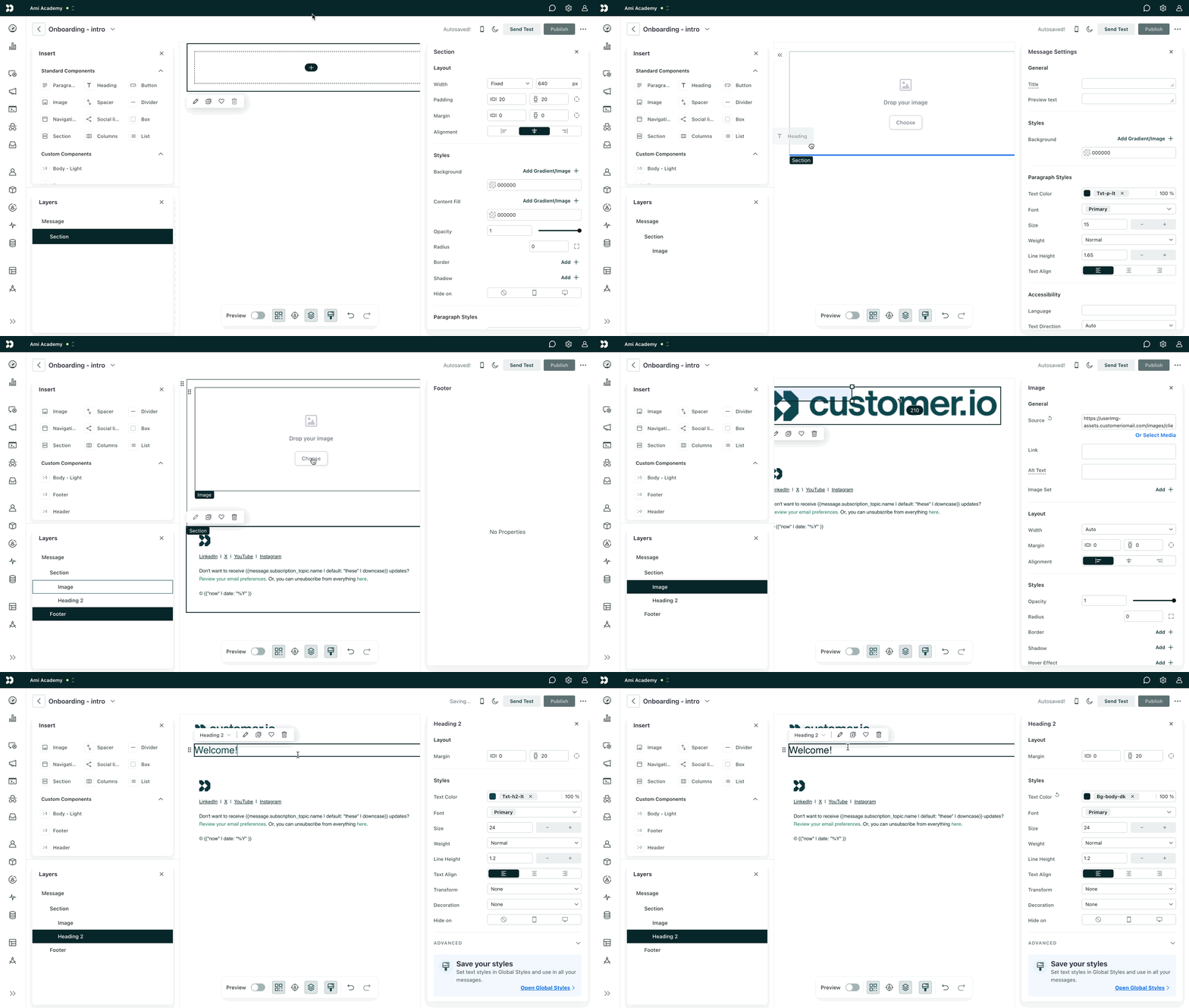
In Design Studio, you can build with visual blocks and edit your HTML directly—you no longer have to choose one over the other. You also have a more robust review panel to help you catch more errors and improve the quality of your message.
Get started with Design Studio
In Design Studio, you can build emails from a unified brand and leverage AI throughout your workflow:
- Build emails with our visual, block-based editor. You can also modify the HTML/CSS as you see fit by switching to the code editor!
- Build emails using reusable blocks. We offer out-of-the-box blocks called standard components
A pre-built block that helps you build beautiful, engaging messages as quickly as possible in Design Studio.
. You can also create your own reusable blocks called custom componentsA custom block of code with content and properties you can reuse across messages made in Design Studio.
. - Assign global styles that span your emails and in-app messages.
- Leverage AI tools to create and maintain a coherent brand across your messages.
- Check your Review panel for errors and suggestions to improve deliverability and content quality.
- Collaborate with teammates by sending test messages, requesting feedback, and more.
Our classic editors
Drag-and-drop
Our drag-and-drop editor allows you to quickly build responsive emails without coding.
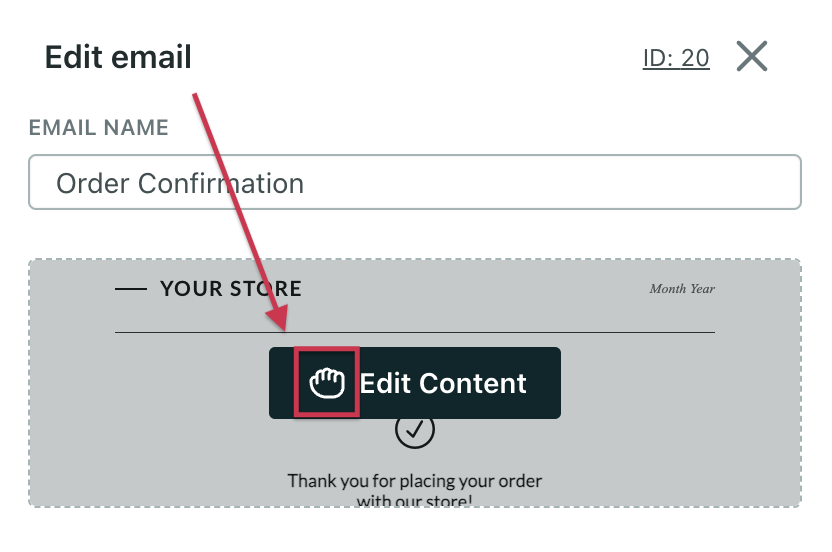
You can quickly add blocks of content, columns, and easily drop in items like images, buttons, social links, and set global styles. When clicking your email to edit it, you can see that it was built using the drag-and-drop editor:
To learn more about the drag-and-drop editor, check out these resources:
- Getting started with drag-and-drop: the basics of how to use columns, images, customize your headers and navigation, and so on.
- Drag-and-drop editor FAQ: some of the most common questions we’ve received about this editor and upcoming features.
- Troubleshooting your drag-and-drop emails
Rich text
This editor is great if you need a little more control over the code compared to the drag-and-drop editor, but don’t need a highly stylized message. You can use layouts to structure your emails and create a re-usable header and footer.
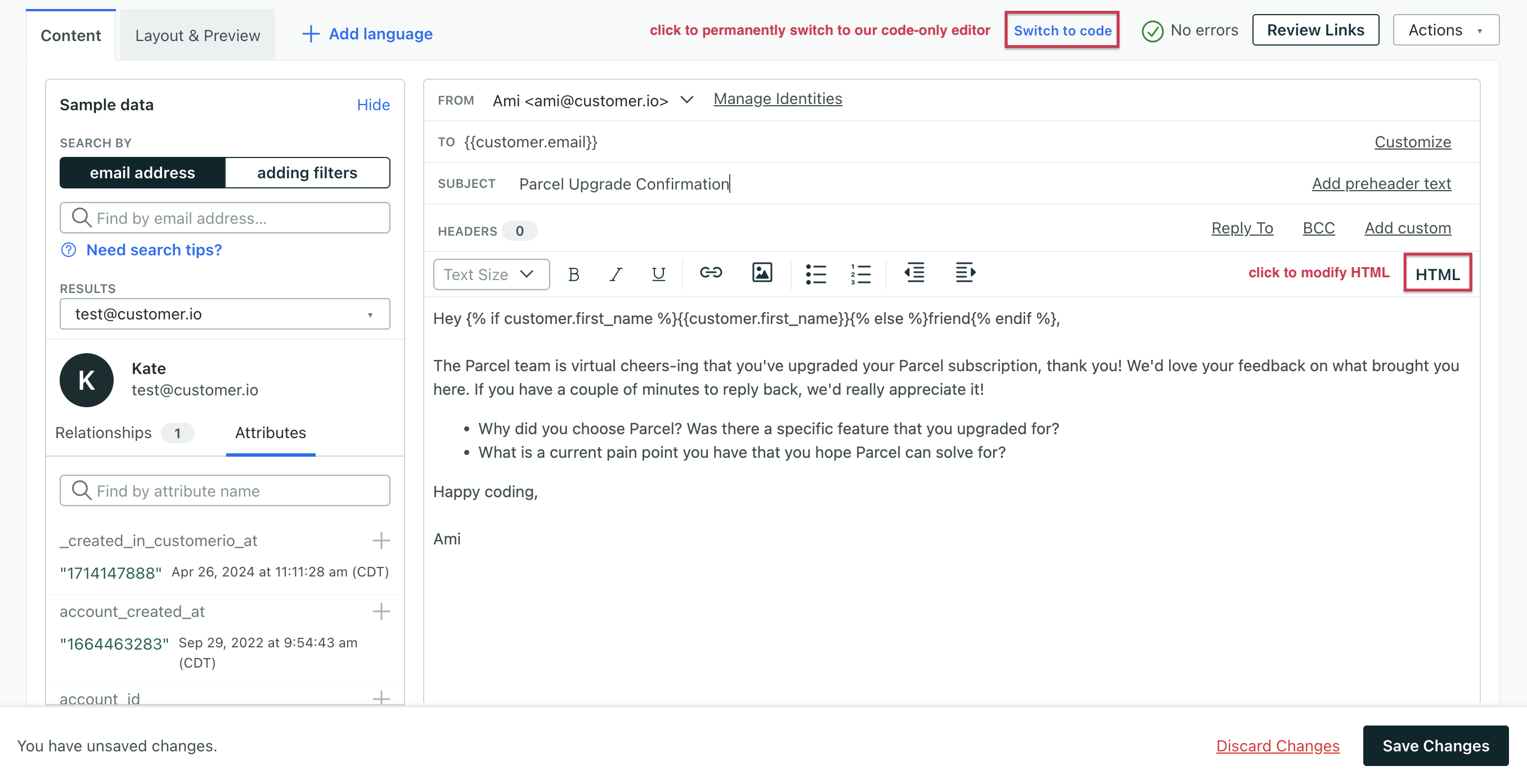
You land on the WYSIWYG editor, but you can switch to editing code in a couple ways:
- Click HTML to edit code and quickly switch back to the rich text preview.
- Click Switch to our code-only editor if you want to change editors altogether. After you confirm this action and save the email, you cannot revert the message back to the rich text editor.
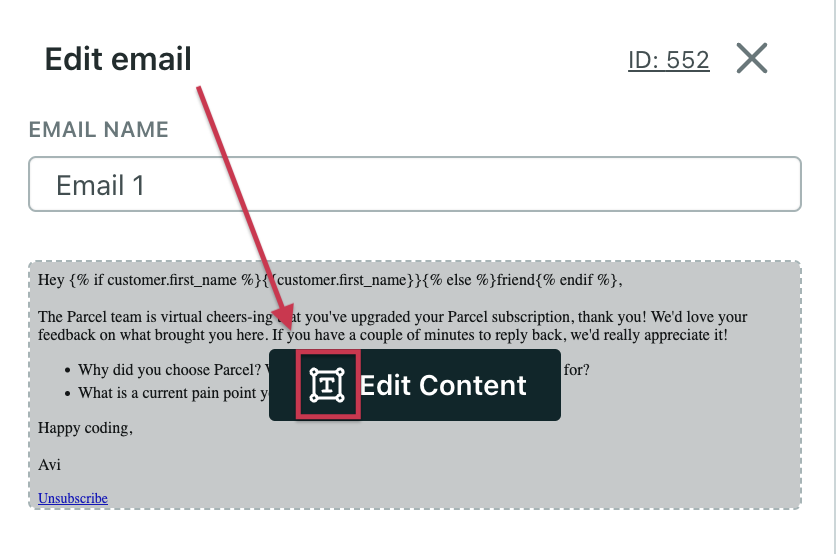
You can identify emails using the rich text editor in the workflow by this icon:
To learn more about the rich text editor, check out these resources:
Code
The code editor is a great option if you want complete, granular control over your email. Like the rich text editor, you can use layouts to create a global, reusable header and footer.
Our code editor comes complete with syntax autocomplete, responsive previews, and an Inspect Element mode that helps you find code when you click elements in your preview.
You can switch between tabs for writing HTML exclusively and AMP.
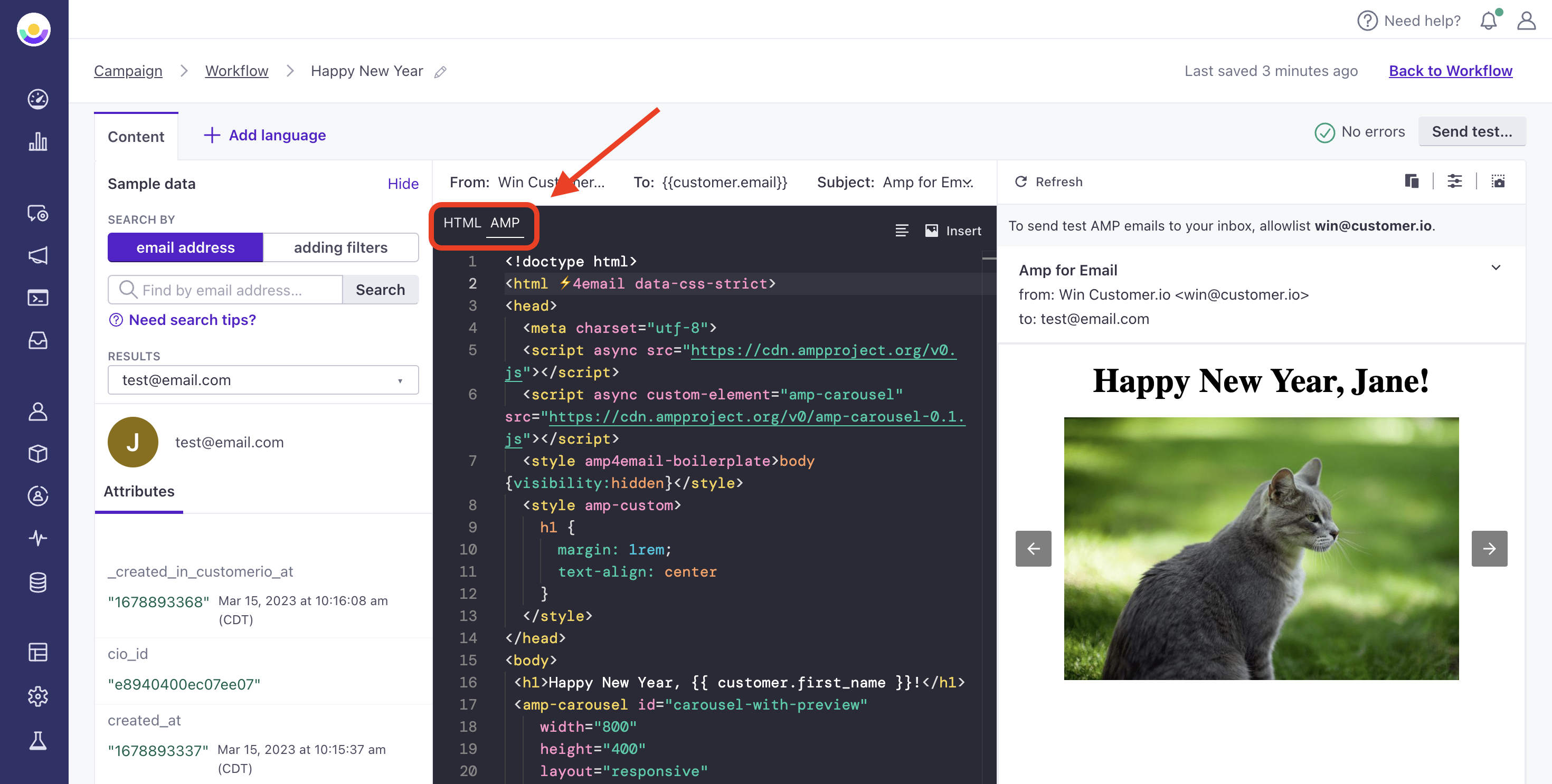
You can identify emails created using the code editor in the workflow with the icon.
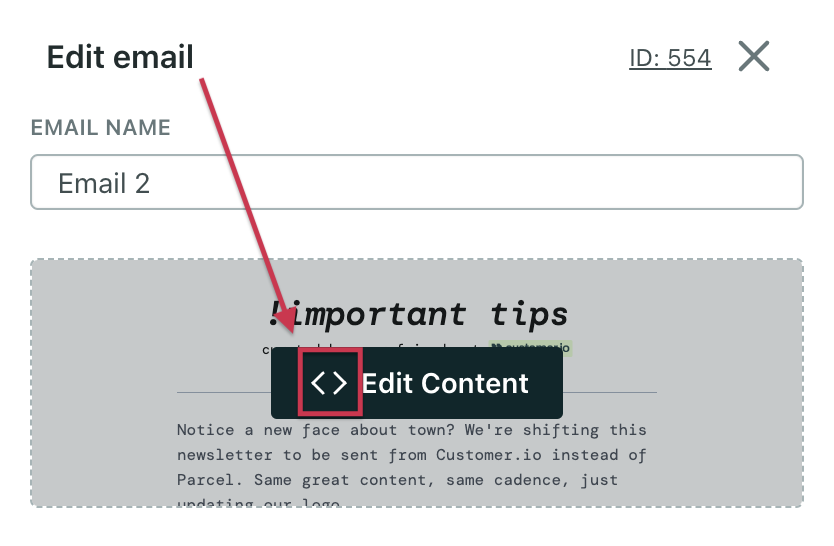
To learn more about the code editor, check out these resources:
- Our email code editor, powered by Parcel
- How our Layouts work with this editor
- Customizing your Layouts
- Disabling CSS pre-processing
Create an email from Design Studio
For Design Studio, our newest editor, you can create email or copy one from:
Create an email from our classic editors
From an automation or API-triggered broadcast:
- Drag an Email block into your workflow and click Use classic editors.
- Decide how you want to create your email: from scratch or from an existing email.
- If you want to create from scratch, choose your editor.
- If you want to create from an existing email, template or layout, then choose the tab that reflects the editor it was made in.
- In the drag-and-drop tab, choose an existing email from the top or a template at the bottom.
- In the rich text or code tabs, choose an existing email from the top or a layout at the bottom.
- Edit the message as you see fit.